Updated . Built against the tool’s current screens and checked step by step. How we check this lesson
A beginner Wave accounting walkthrough on real screens: create an invoice, approve it, mark it sent, record the payment so income is counted once, and check Aged Receivables. Free Starter plan.
At a glance
| Question | Answer |
|---|---|
| What you build | A beginner Wave accounting walkthrough on real screens: create an invoice, approve it, mark it sent, record the payment so income is counted once, and check Aged Receivables. Free Starter plan. |
| Tools | Wave |
| Time | About 10 minutes, 12 steps in 4 parts |
| Level | Beginner, no coding needed |
| Cost | Free |
| Ways to learn it | Practice it step by step |
The 4 parts, in short
- Create the invoice: Invoices, Set up the template, Add a customer, Name the customer, and 1 more step.
- Approve and send: Approve the draft, Mark as sent.
- Record the payment: Record a payment, Payment details, Paid in full.
- Check who owes you: Aged Receivables, Nothing owed.
Start here first: Wave: Chart of Accounts, Transactions and Reports (module 1 of Accounting)
What you'll build
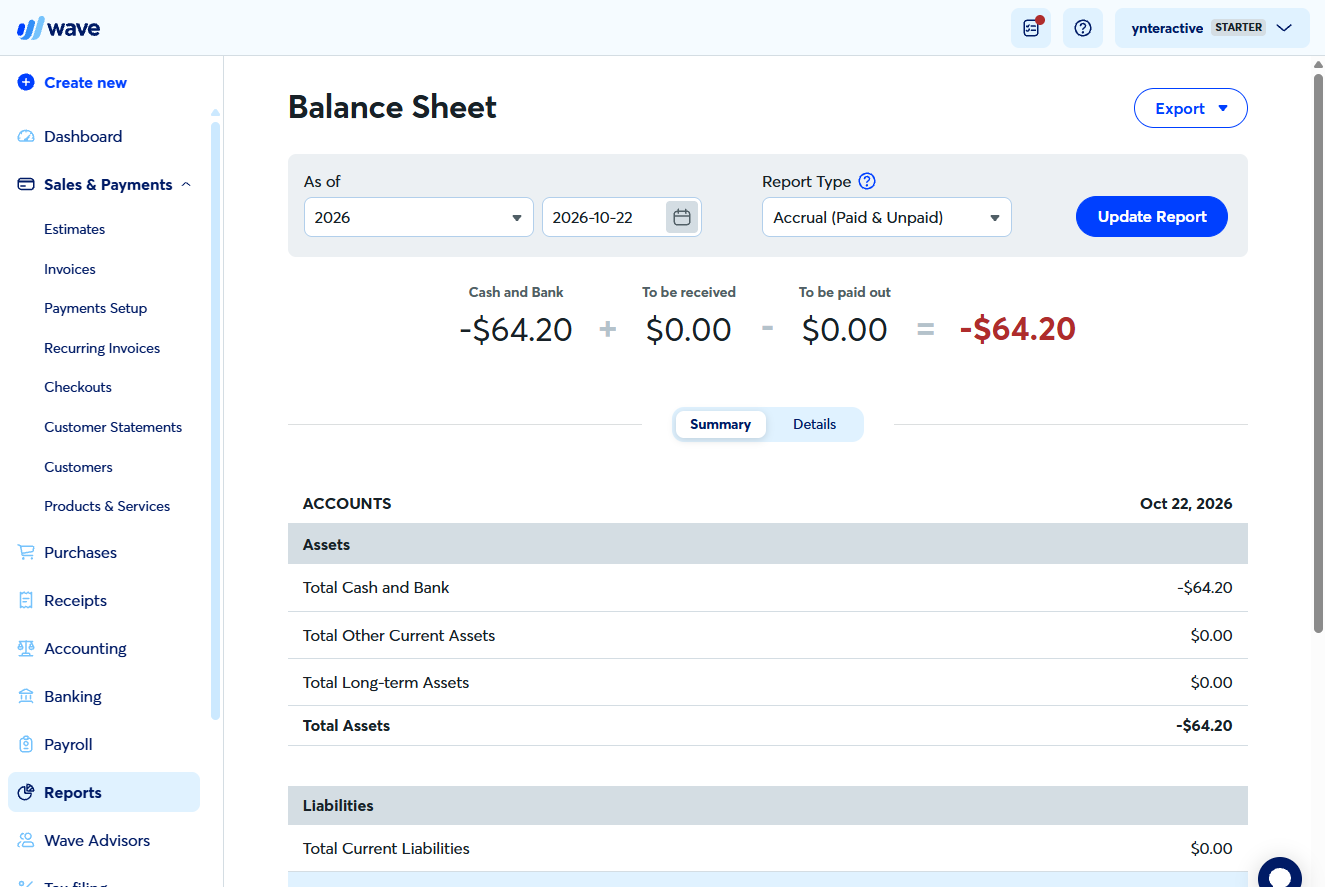
Maya (made up) once recorded a client’s payment as a brand-new sale and overstated her revenue. In this lesson you create a $420 invoice in Wave, approve it, mark it as sent without emailing anyone, record the payment against it and check that nobody owes you anything. Every screen is a real Wave screen.
You created a $420 invoice, approved the draft, marked it sent, recorded the check against it so the receivable became cash, and saw $0.00 unpaid in Aged Receivables. Now try it in your own Wave account: the lesson page has the checklist.
- Tools: Wave
- Time: about 10 minutes, 12 steps in 4 chapters
- Level: beginner, no coding needed
- Price: free
Practice first, then build it for real
Practice copy built from real Wave screens (free Starter plan, captured 22 October 2026). Nothing here touches your Wave account. The customer, vendor and amounts are practice data. To build it for real you need your own Wave account, and some services charge once you use them for real work, so check each tool's current pricing.
Try it yourself, free
Reading the steps is a start. Doing them is how it sticks. The interactive module walks you through every click in a practice copy of Wave, checks each step, and never touches your real accounts.
Start “Wave: Create an Invoice and Record the Payment”Step by step: Wave: Create an Invoice and Record the Payment
All 12 steps of the interactive module, in order. In the module you watch each one, then do it yourself in a practice copy that checks your work.
1. Create the invoice
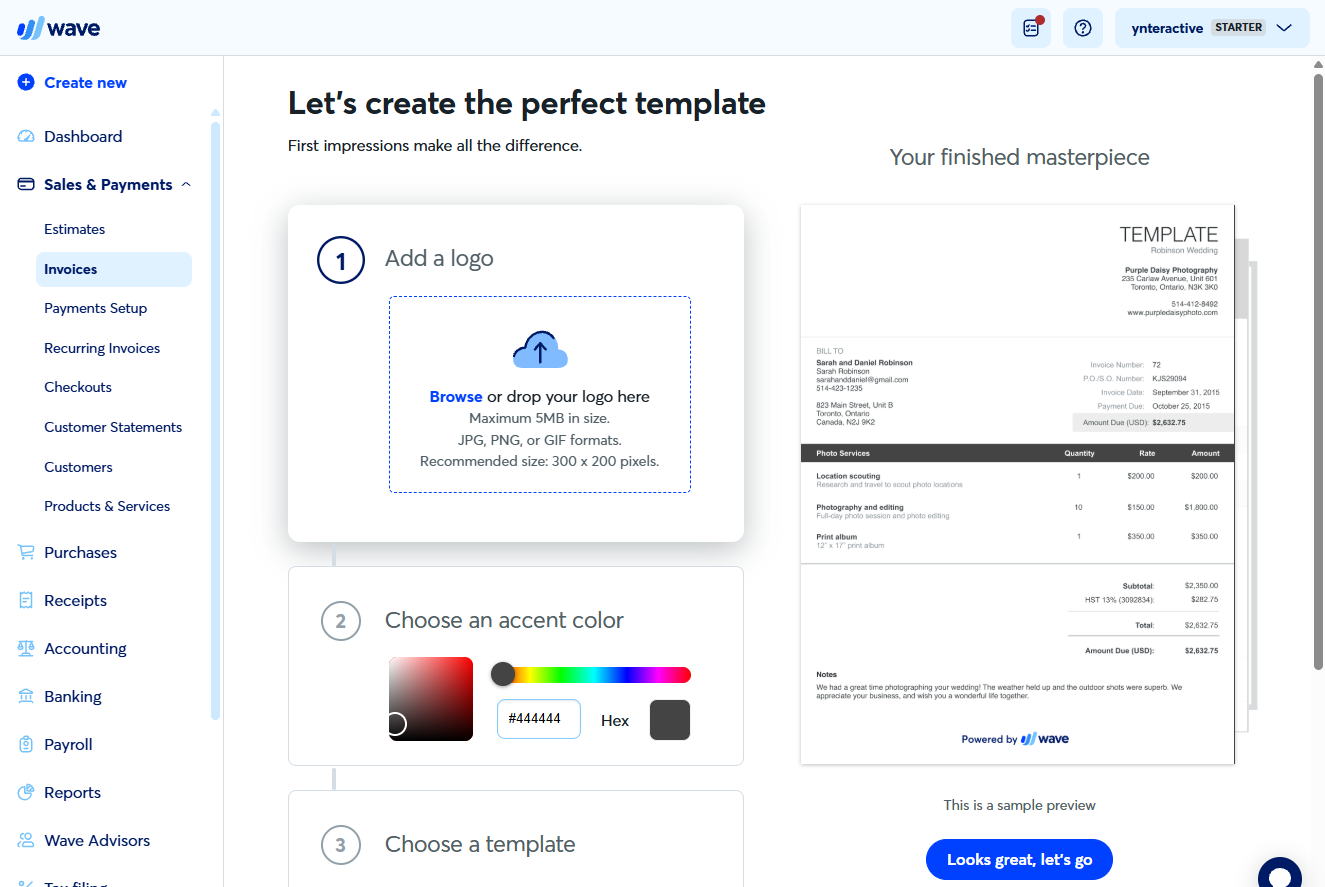
- Invoices. Under Sales & Payments, click Invoices.
Under Sales and Payments, click Invoices.
- Set up the template. The first time, Wave asks for a logo, an accent colour and a style. You can keep the defaults: click Looks great, let’s go.
The first time, Wave sets up your template. Keep the defaults.
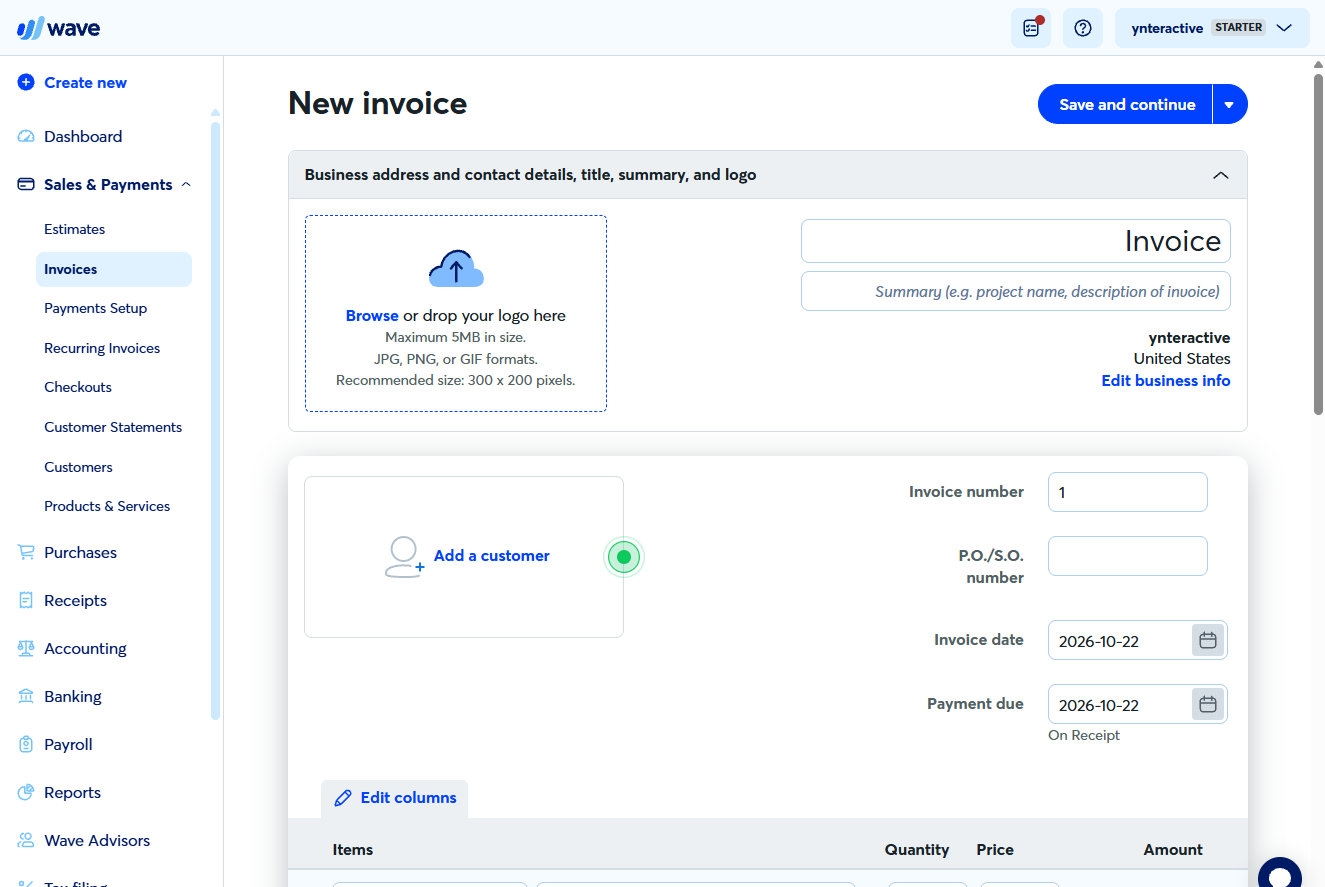
- Add a customer. A New invoice opens. Click Add a customer.
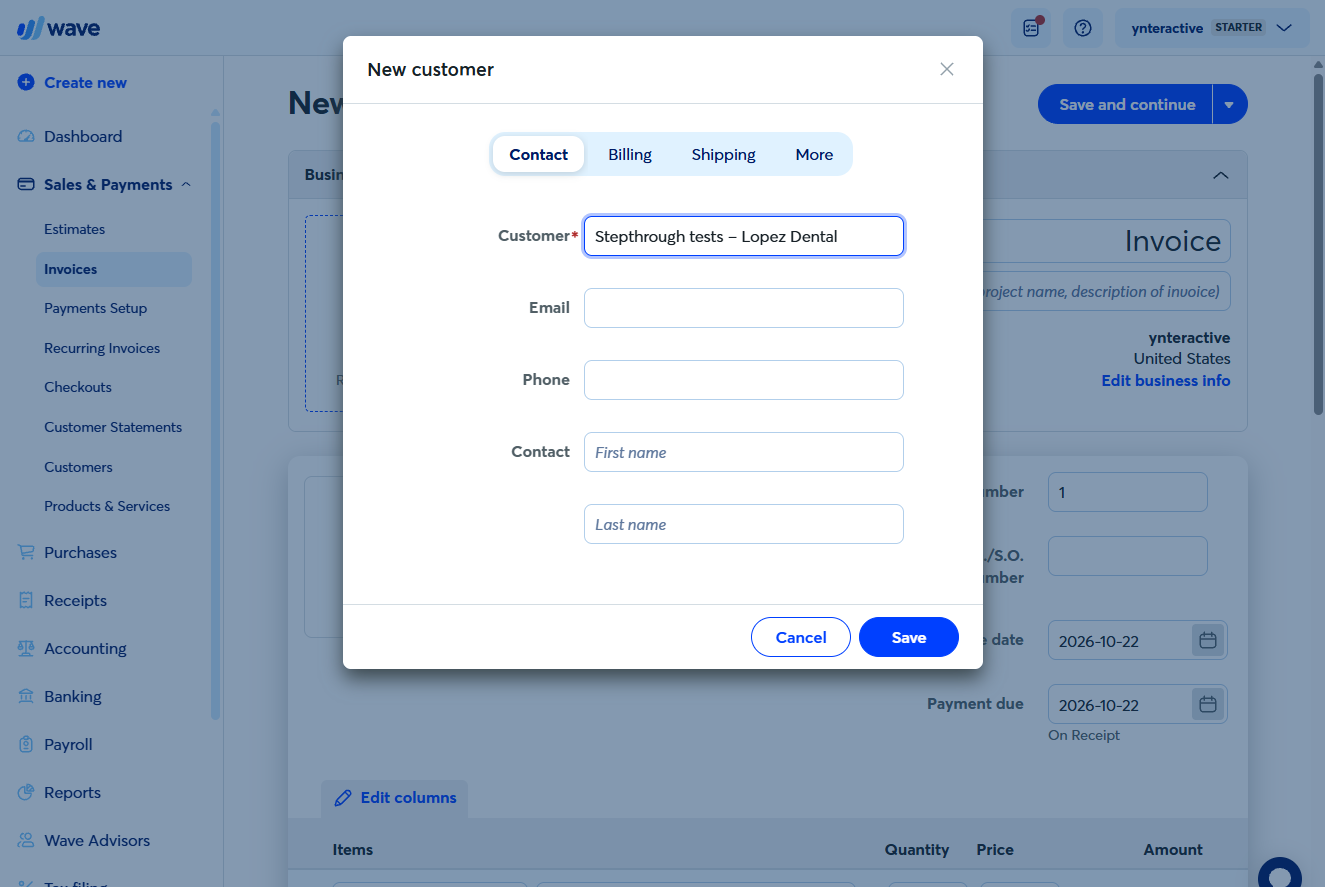
- Name the customer. Only the Customer name is required. Type it and click Save.
Only the name is required.
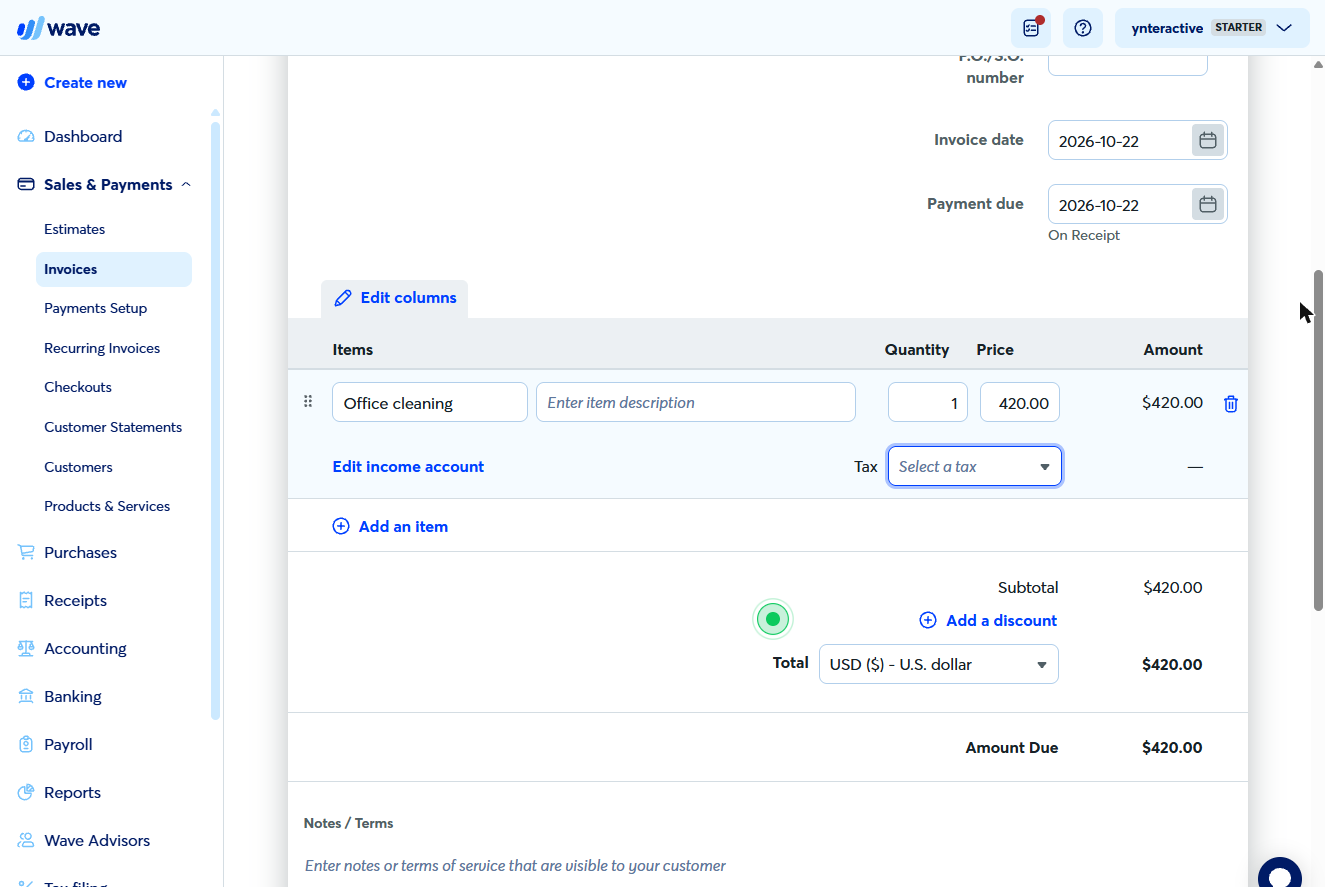
- Add the line. Add a line: Office cleaning, quantity 1, price 420. Amount Due shows $420.00. Then scroll up and click Save and continue.
Add a line. Office cleaning, four twenty. Then Save and continue.
2. Approve and send
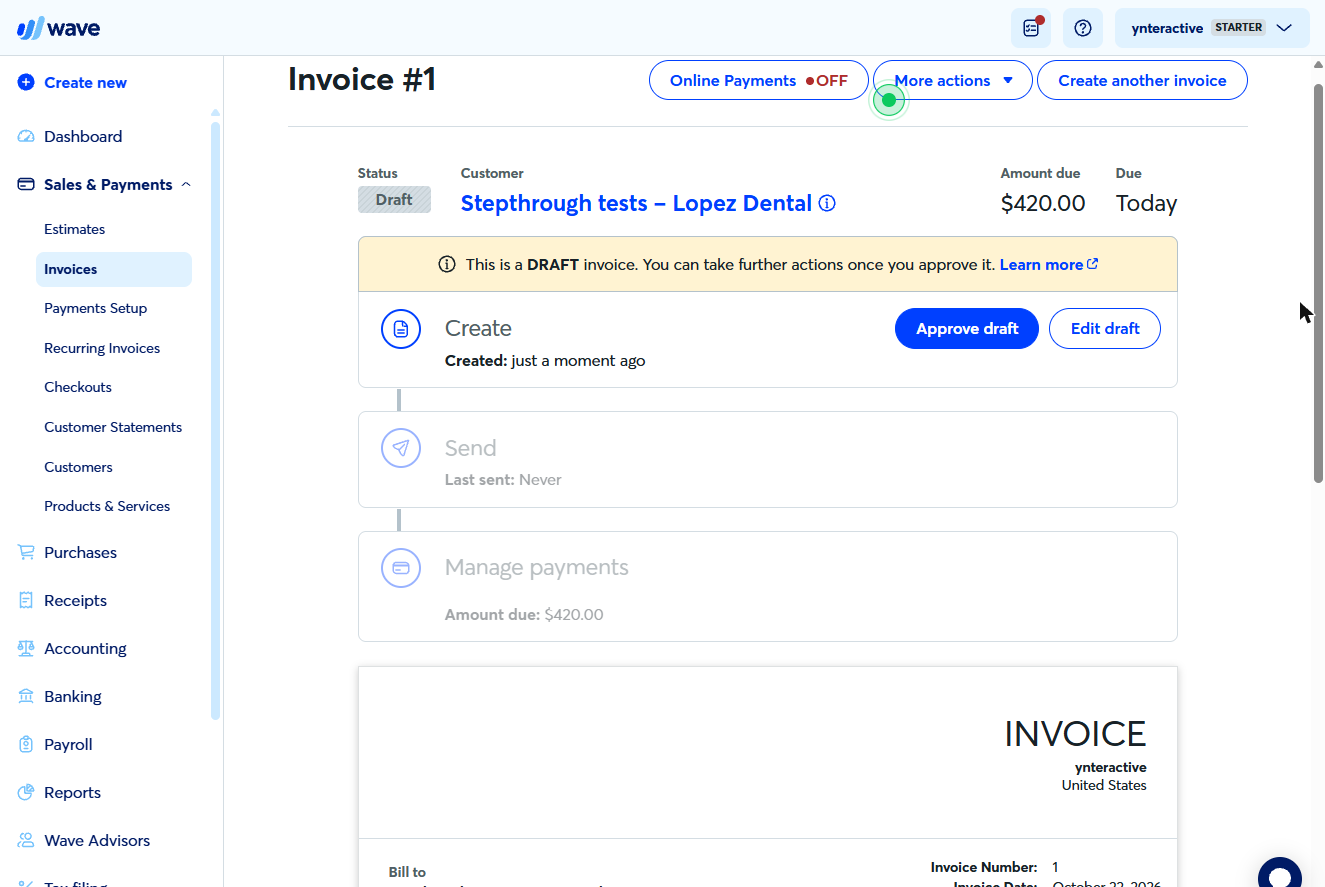
- Approve the draft. It is saved as a Draft: nothing sent, nothing owed yet. Click Approve draft.
It is only a draft.
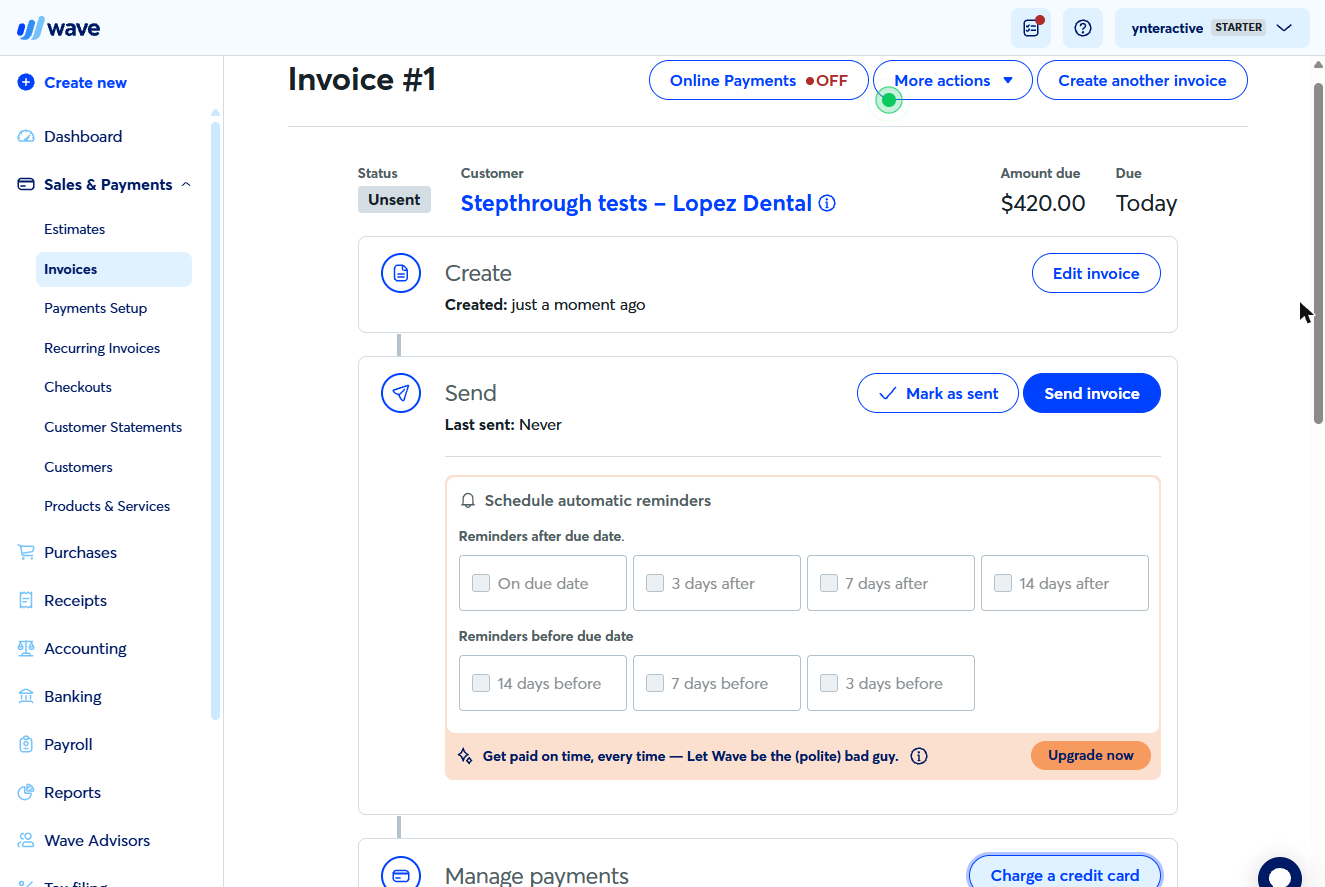
- Mark as sent. Status: Unsent. Send invoice would email it; Mark as sent just records that it went out. Click Mark as sent.
Mark as sent records it without emailing anyone.
3. Record the payment
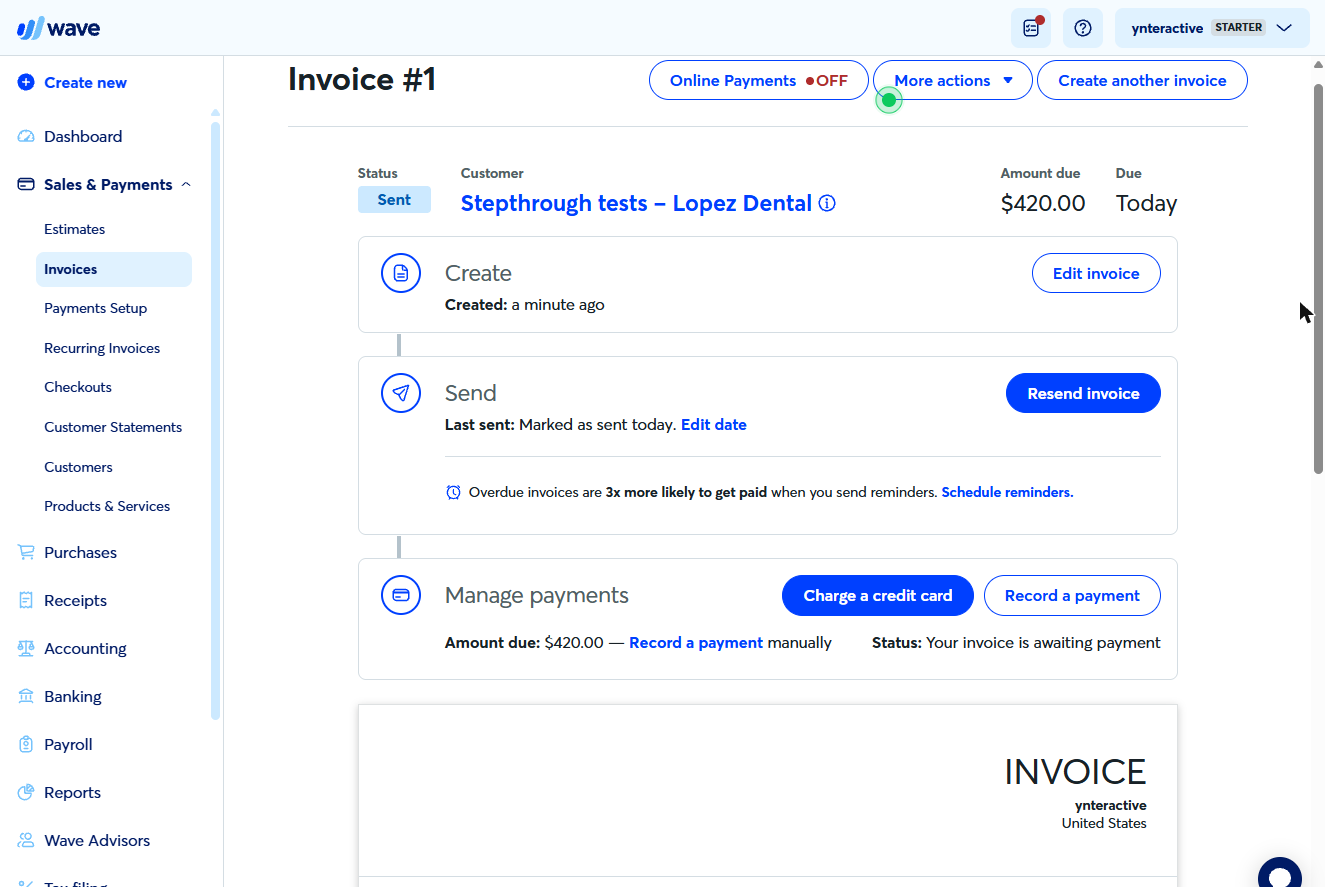
- Record a payment. Status: Sent, $420.00 due. When the customer pays, click Record a payment.
When the customer pays, click Record a payment.
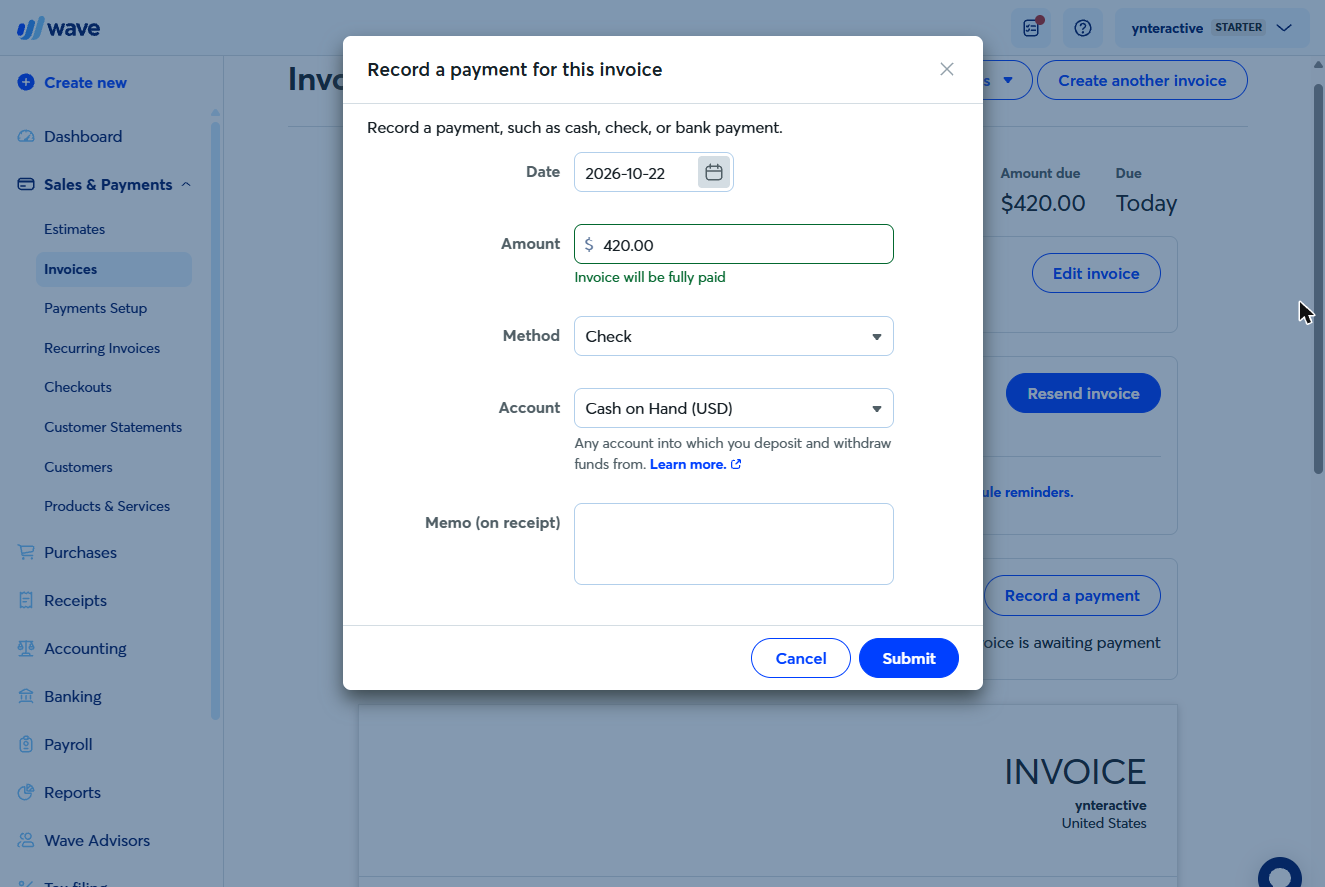
- Payment details. $420.00, "Invoice will be fully paid". Method Check, Account Cash on Hand. Click Submit.
Method, Check. Account, Cash on Hand. Submit.
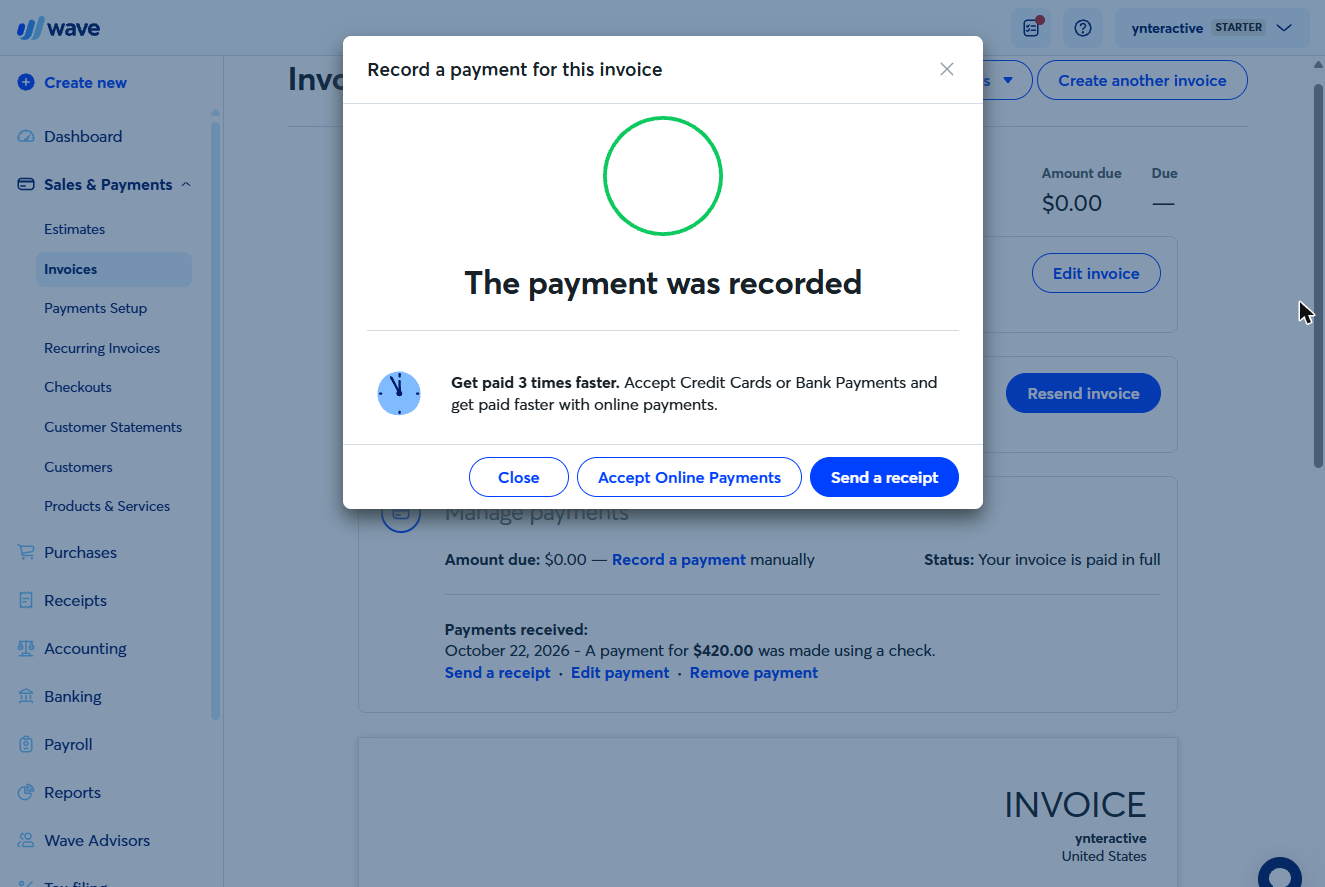
- Paid in full. Amount due $0.00, "paid in full". No new income was added: the receivable became cash. Click Close, then open Reports.
Paid in full. No new income was added. Close, then open Reports.
4. Check who owes you
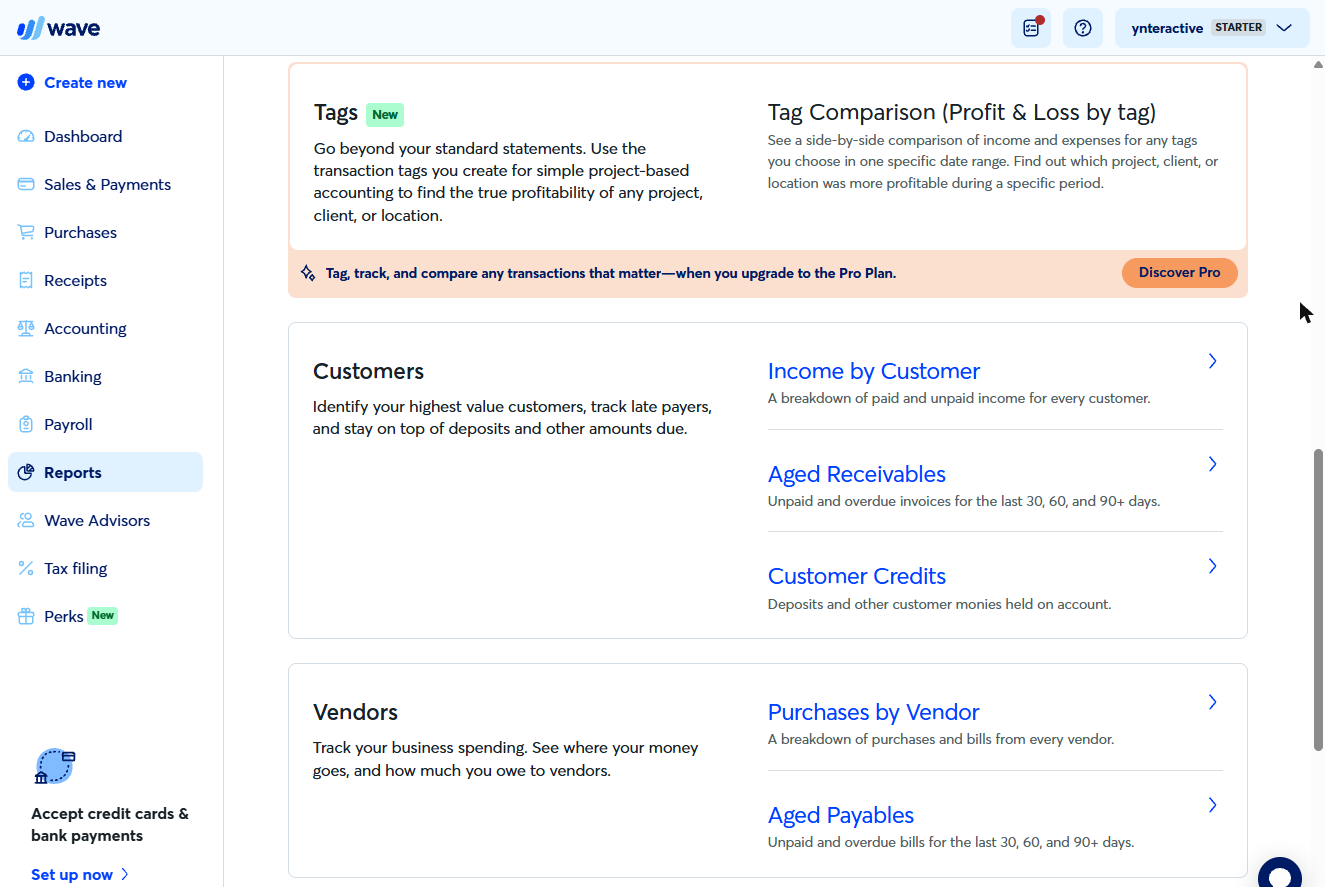
- Aged Receivables. Under Customers, click Aged Receivables.
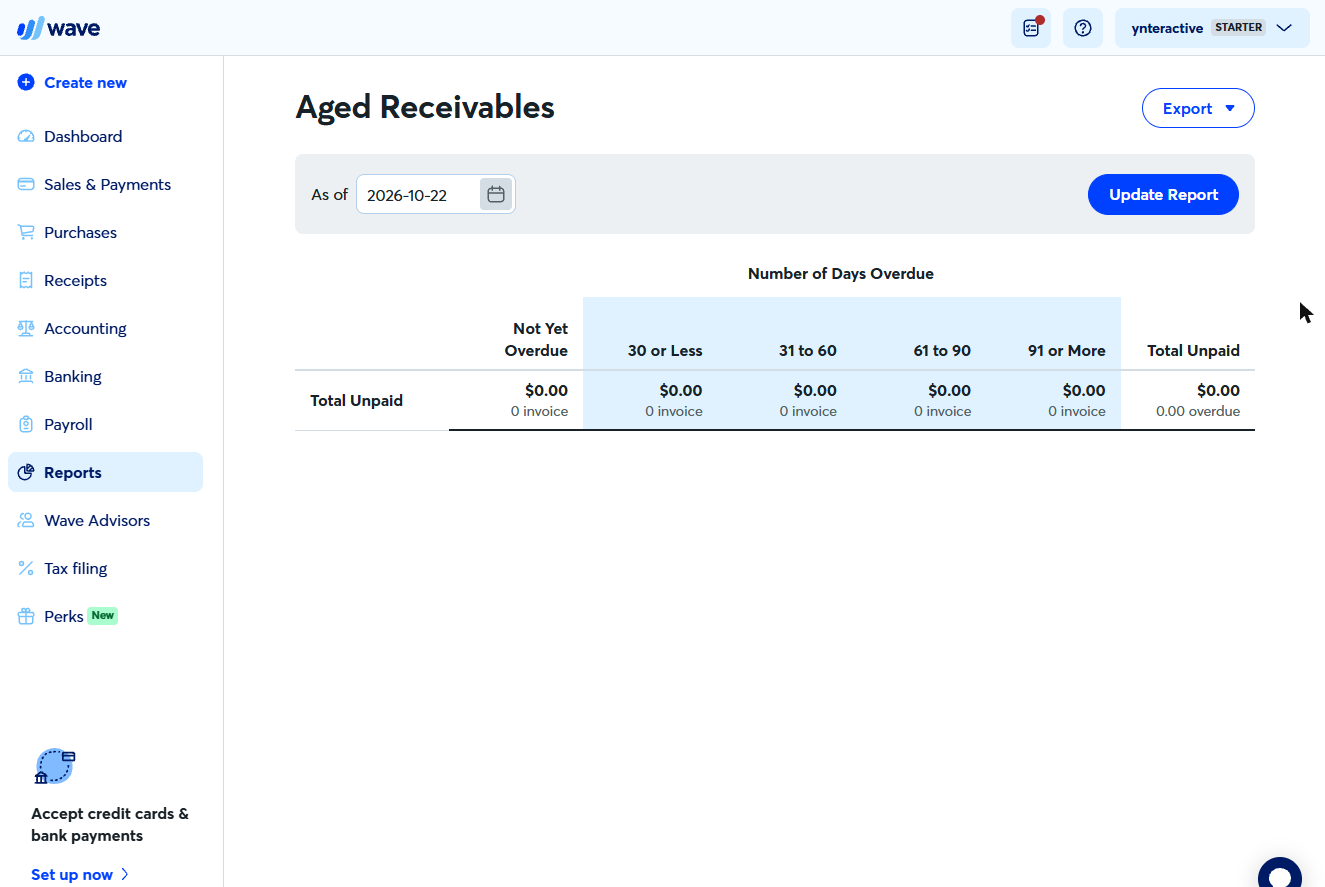
- Nothing owed. Columns run from Not Yet Overdue to 91 or More days. Total unpaid is $0.00 because the invoice is paid. Click the total.
Total unpaid, zero. The invoice is paid.
Screenshots
Free cheat sheet
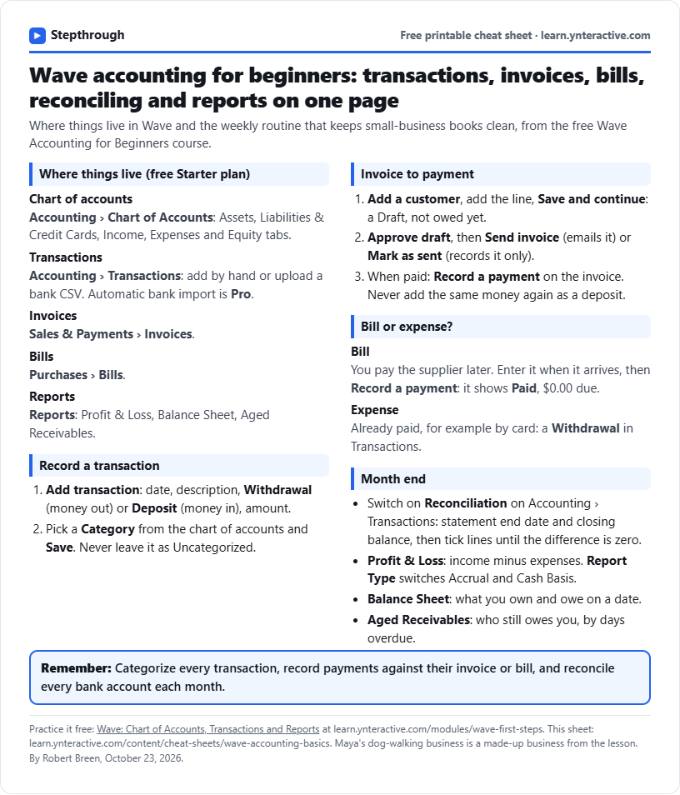
Print it or save the PDF: the key steps and checks from this lesson on one page, free.
All free printable cheat sheets
Terms in this lesson
Plain-English definitions, each with an example from a free lesson.