Updated . Built against the tool’s current screens and checked step by step. How we check this lesson
Clinics, practices and small offices answer the same few questions all week: do I need a referral, will insurance cover it, what should I bring. A short video can answer each one once, but nobody at the front desk has time to post every week. SocialBee is a third-party social media scheduler that posts by category: a category with Re-queue after posting turned on puts each post back in the queue after it goes out, so a small set of answers keeps running. In this free lesson you use a practice copy built from real SocialBee screens with a TikTok profile connected. You make a Patient FAQs category, write the first TikTok answer with AI hashtags, keep it a draft set to Only Me, leave a review note for the clinic manager, and give the category one weekly slot. Nothing is published.
At a glance
| Question | Answer |
|---|---|
| What you build | The front desk answers the same five questions all week. Make a SocialBee category that re-posts its TikToks on a weekly slot, write the first FAQ post with AI hashtags, and keep it a draft with a review note until the clinic manager approves it. |
| Tools | SocialBee |
| Time | About 12 minutes, 36 steps in 5 parts |
| Level | Beginner, no coding needed |
| Cost | Free |
| Ways to learn it | Practice it step by step |
The 5 parts, in short
- Make a category that repeats: Create a category, Name it, Describe it, Open Default Settings, and 4 more steps.
- Write the first FAQ post: Create a post, Write the answer, Generate hashtags, Keep three hashtags, and 2 more steps.
- TikTok settings, kept as a draft: Pick the TikTok profile, Proceed, Open the privacy menu, Choose Only Me, and 3 more steps.
- Leave a note for the manager: Open Content Approval, Open the notes, Write a note, Add the note.
- Give the category a weekly slot: Open the Scheduler, Skip the generated schedule, Add a Tuesday slot, Find the category, and 7 more steps.
Start here first: Plan a Week of Social Posts in One Sitting using SocialBee (module 1 of AI Automation for Marketing)
Part of: AI for Medical & Dental Office Admin (step 17 of 17)
Part of: AI for Marketing Teams (step 17 of 45)
Part of: AI Apps Worth Knowing (step 7 of 132)
The business case: the same answers, said all week
Picture Maya, who runs the front desk at Cedar Lane Physical Therapy, a made-up clinic with six therapists. The phone rings all week with five questions: do I need a doctor's referral, will my insurance cover it, what should I wear, how many visits will I need, and can I reschedule. With example numbers you should replace with your own, 40 of those calls a week at 4 minutes each is more than two and a half hours of the same answers.
The clinic has a TikTok account, but it sits quiet. A short video that answers one question, posted every week and re-posted every few weeks, puts the answer where new patients already look, and gives the front desk a link to send instead of repeating it.
Who this is for, and what you need
Front-desk leads, practice managers and marketing coordinators at clinics and other small offices that get the same questions again and again. You need a SocialBee account with a TikTok profile connected and a short video for each answer. Connecting TikTok asks for permissions in TikTok, so read them before you accept.
How evergreen categories work in SocialBee
A SocialBee category is a bucket of posts, and a time slot in the Scheduler belongs to a category, not to one post. With Re-queue after posting on, SocialBee's own tip says the posts are re-shared in an evergreen cycle until you delete them or they expire. Add new posts to the bottom of the category, and each new answer waits its turn behind the ones already in the queue.
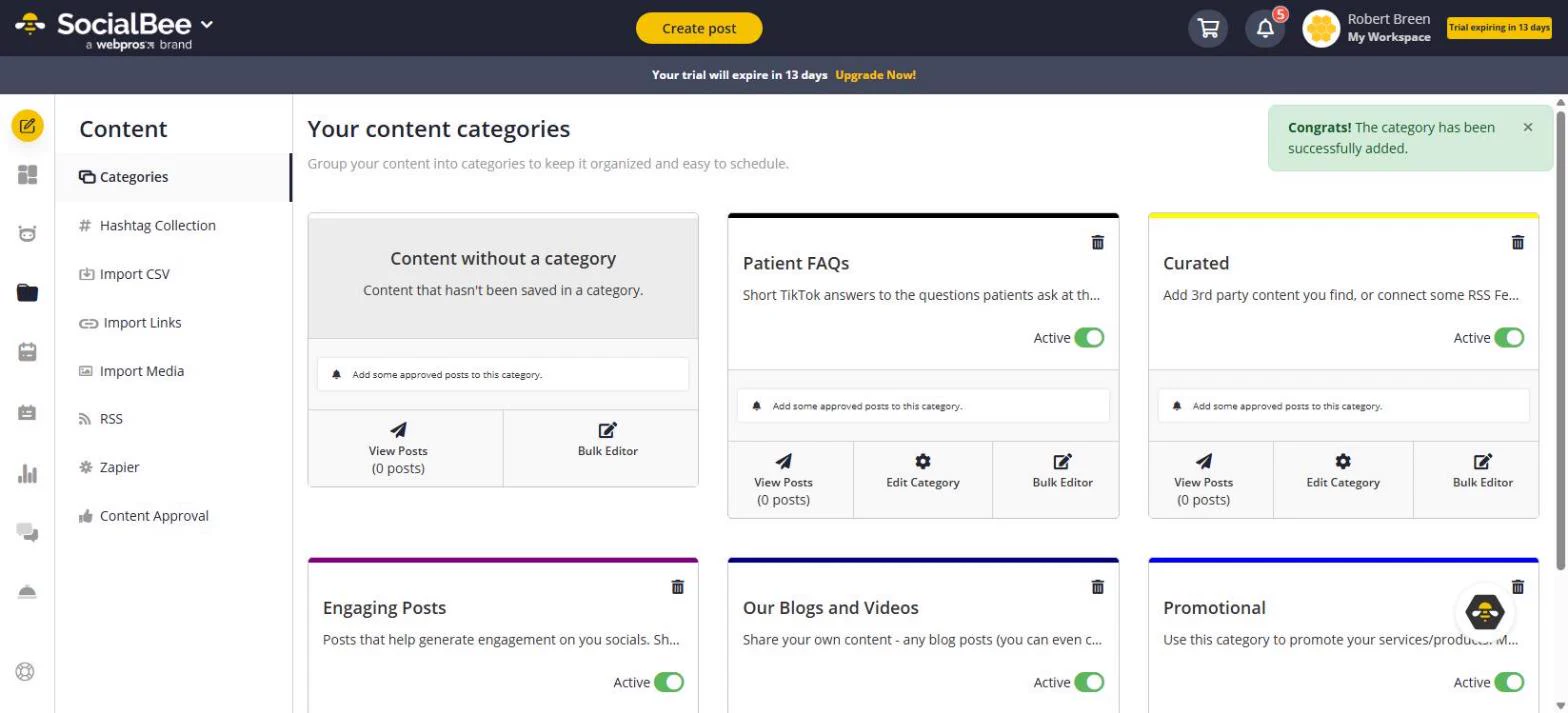
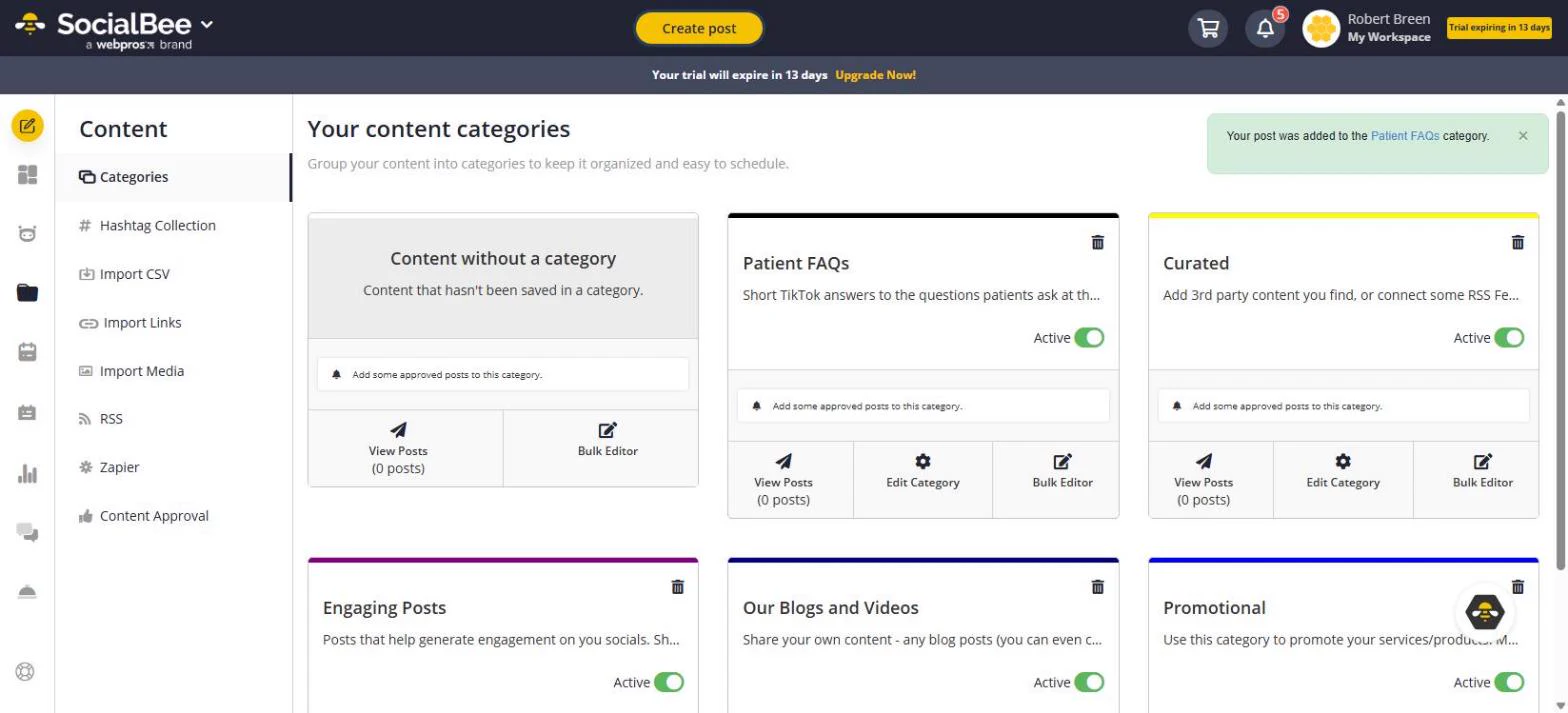
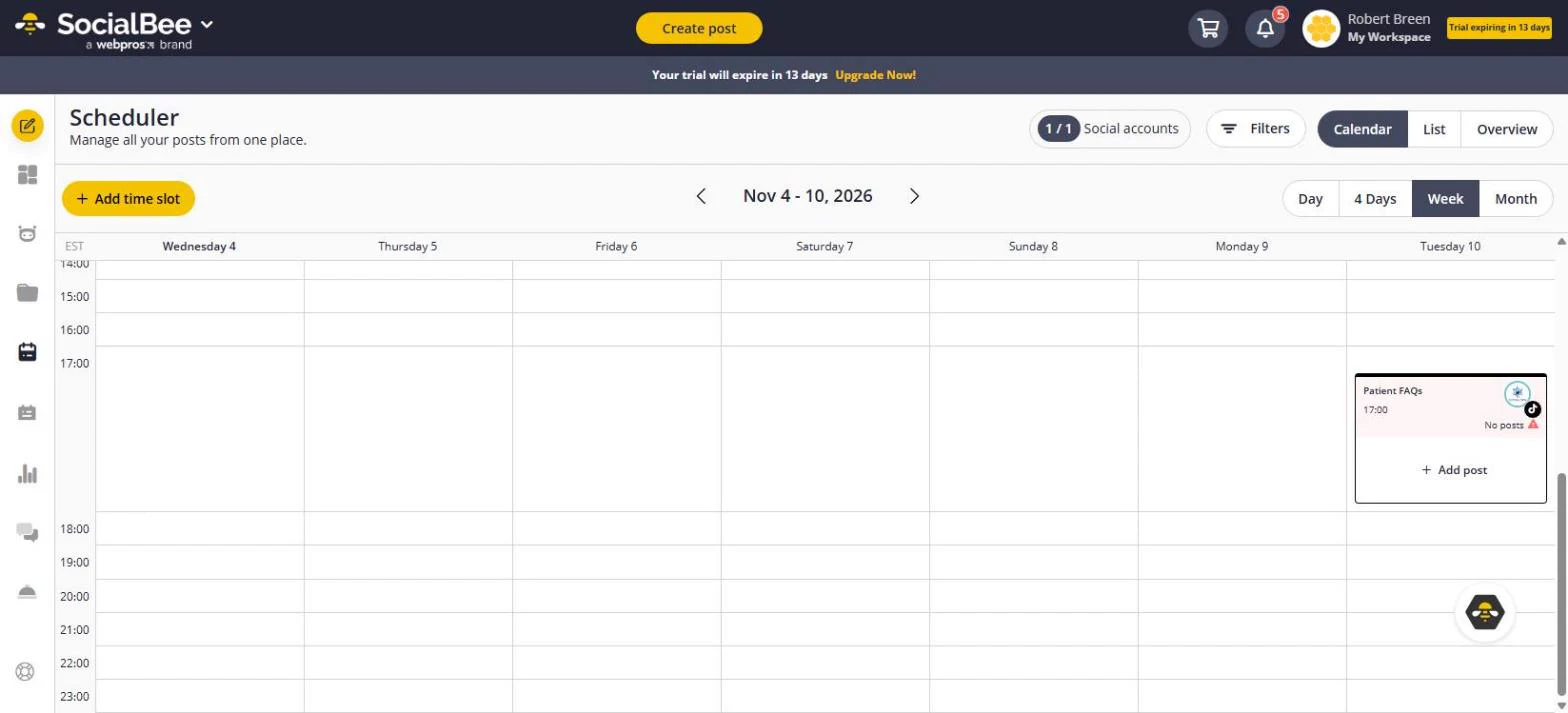
Only approved posts count. The category card says Add some approved posts to this category, and after we saved our draft it still showed 0 posts. On the calendar, the Tuesday slot read No posts.
TikTok posts in SocialBee
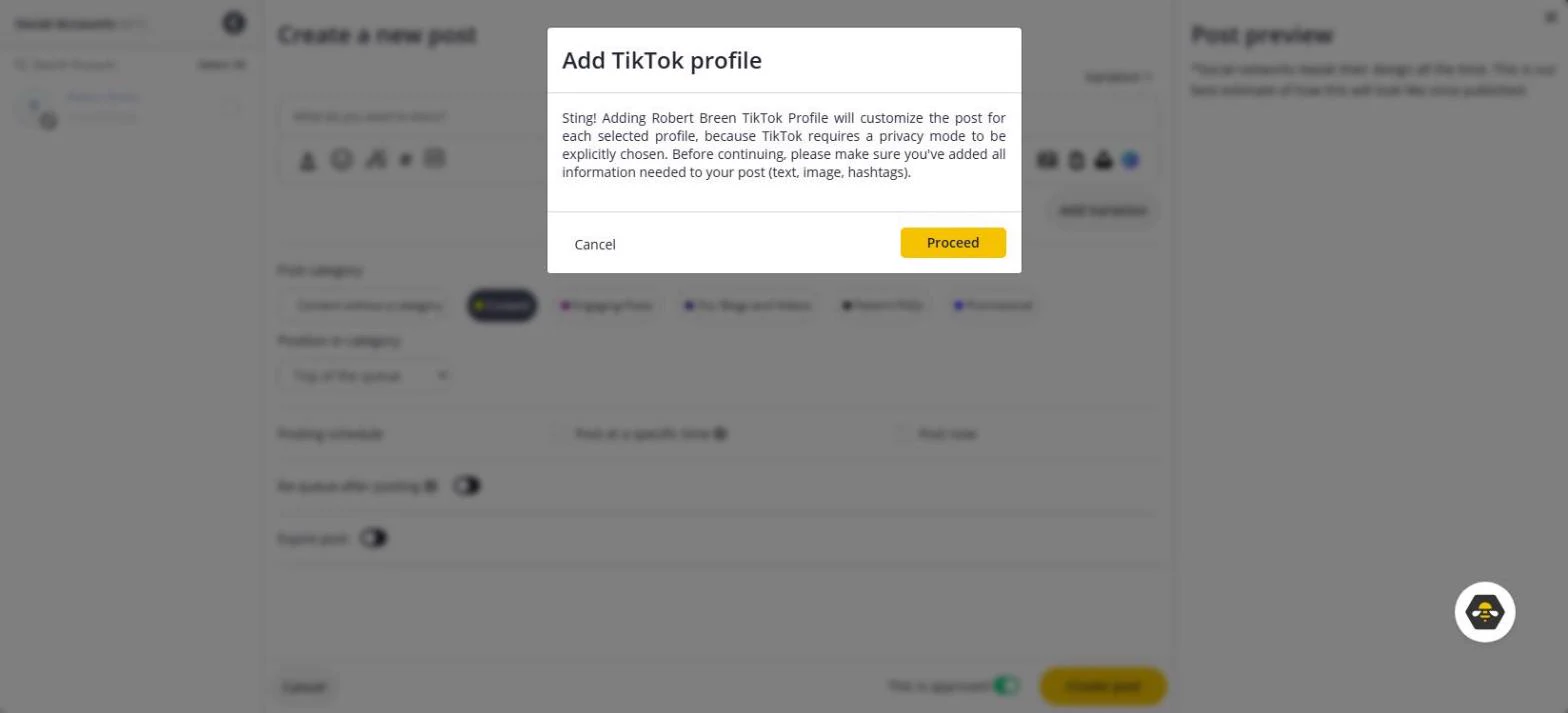
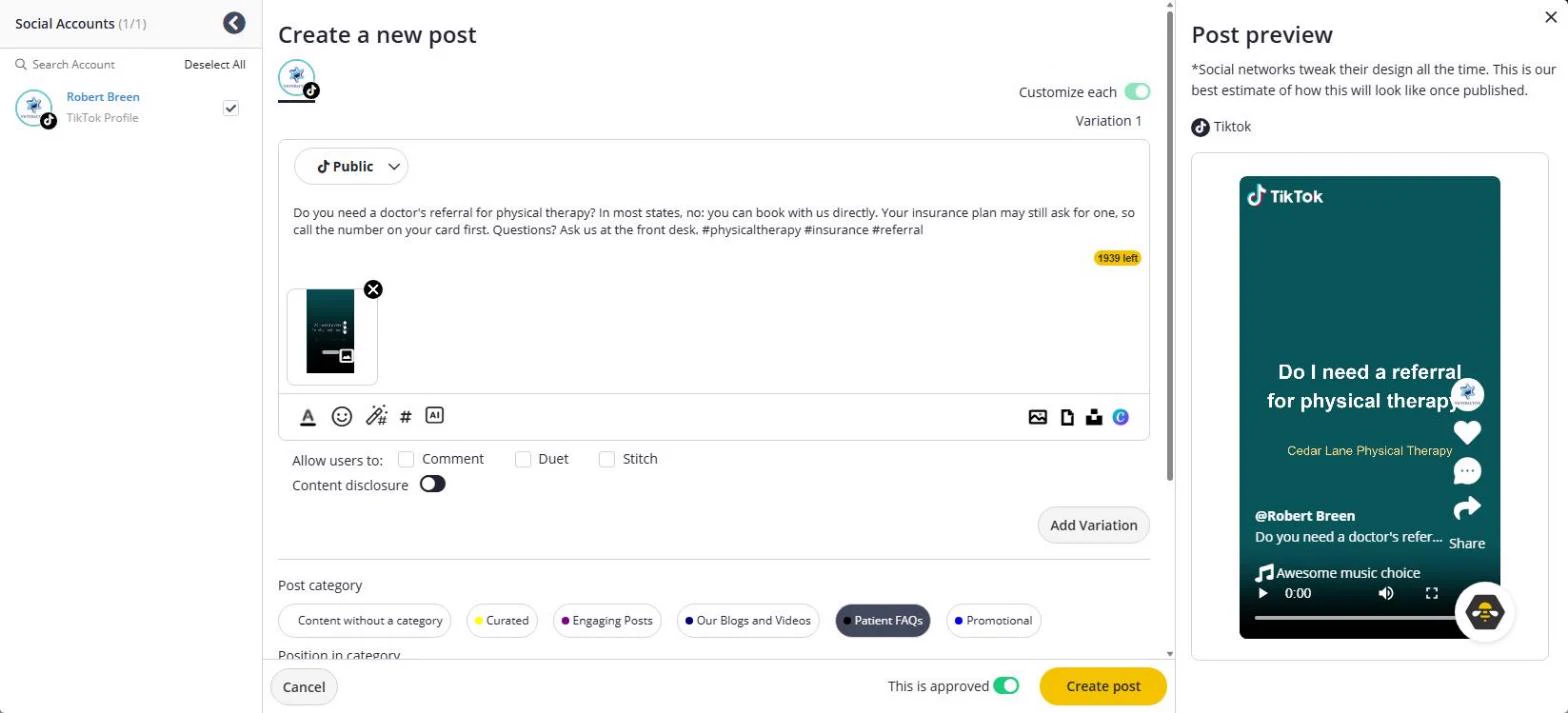
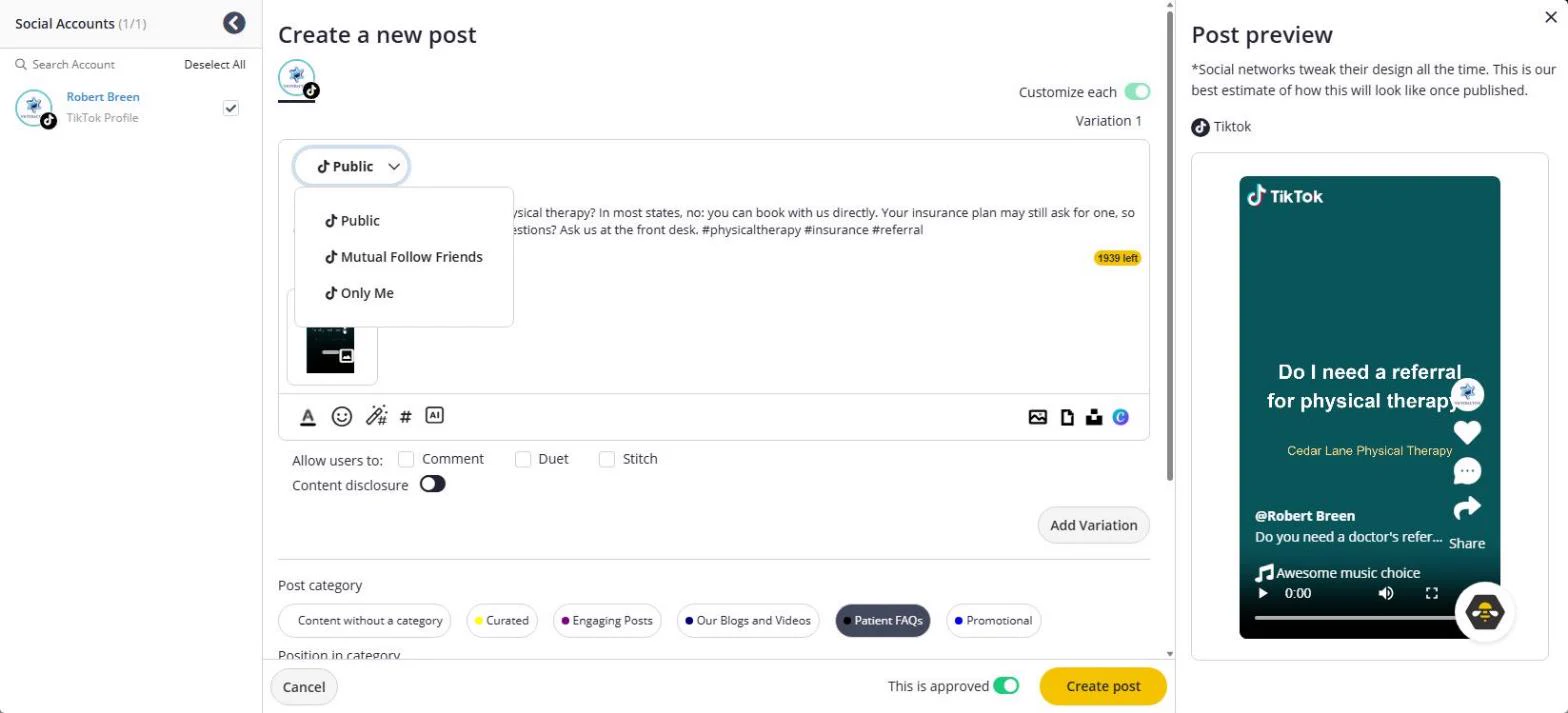
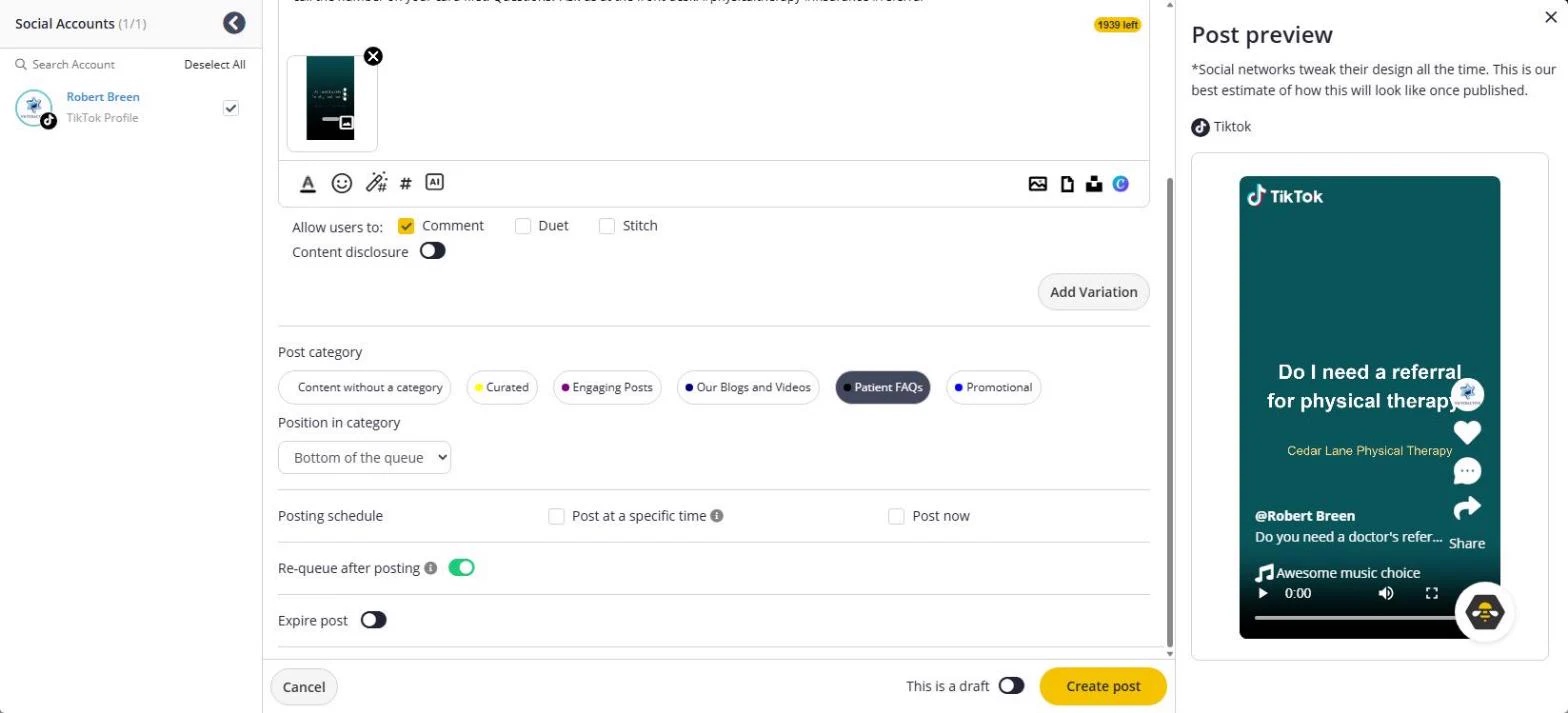
When you tick a TikTok profile, SocialBee shows Add TikTok profile: TikTok requires a privacy mode to be chosen for each post, so it customizes the post for that profile. Add the text, video and hashtags first. The TikTok options are a privacy menu (Public, Mutual Follow Friends, Only Me), Allow users to Comment, Duet and Stitch, and a Content disclosure switch, with a TikTok preview on the right.
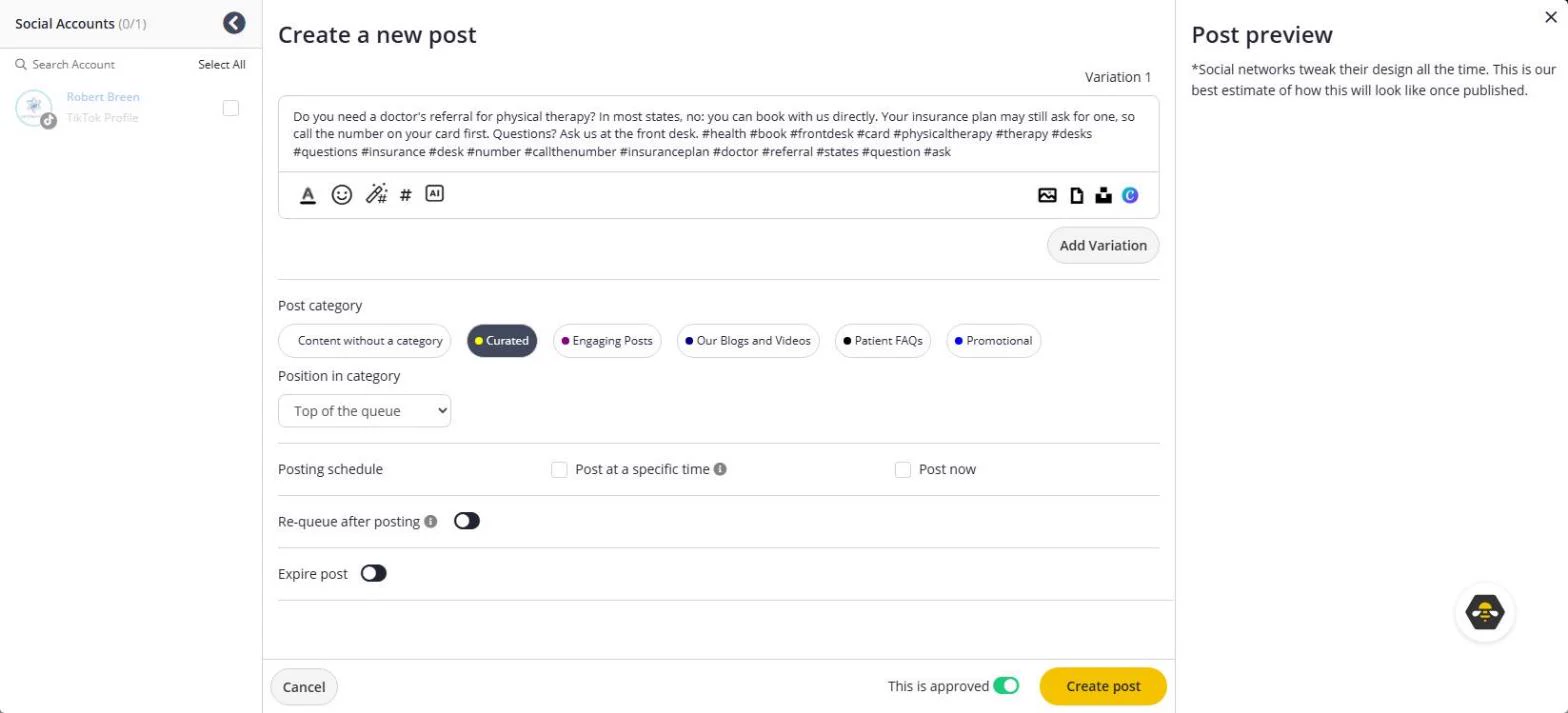
The hashtag generator (the magic wand icon) creates up to 30 hashtags from the text. Ours added 19, many of them noise such as #desk and #number. Keep the few a patient would search for.
Keep health claims checked
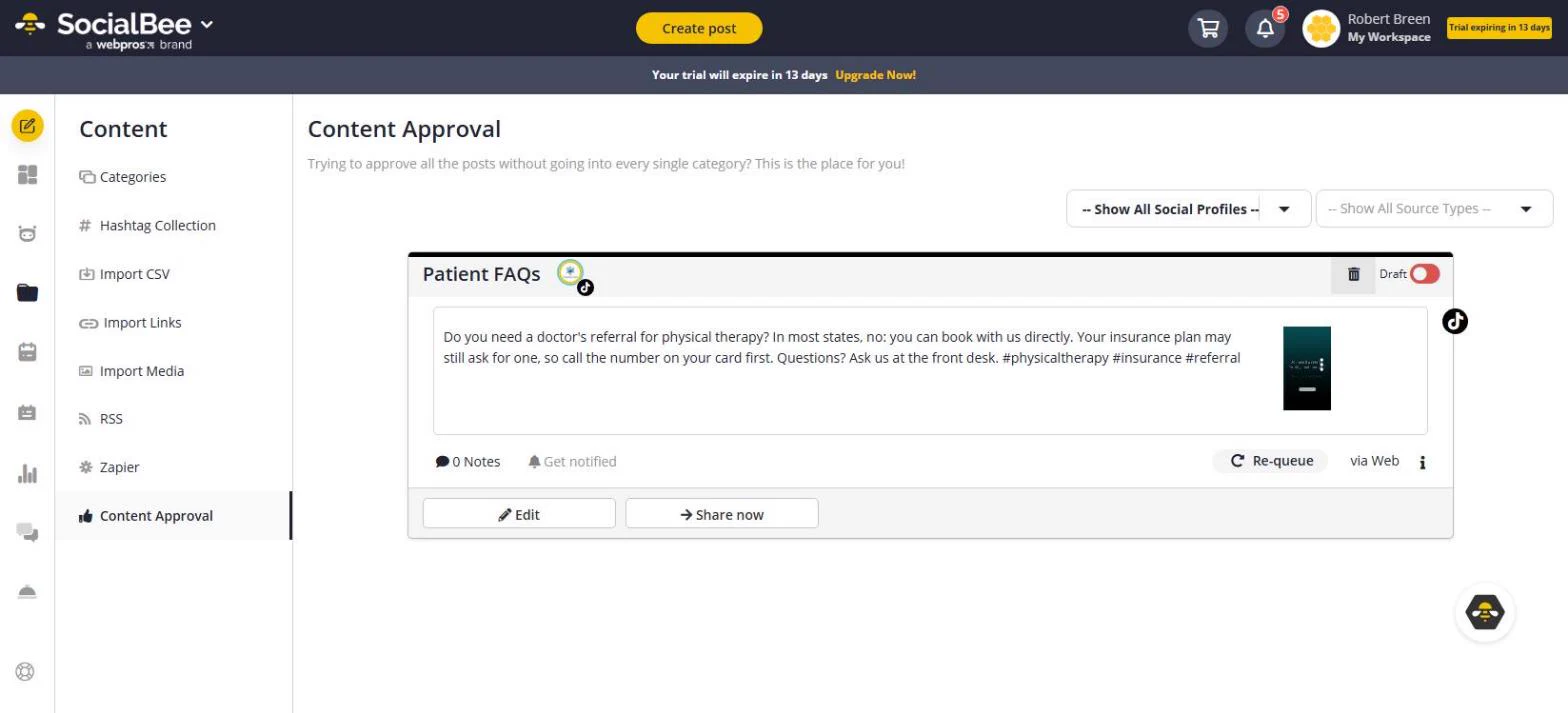
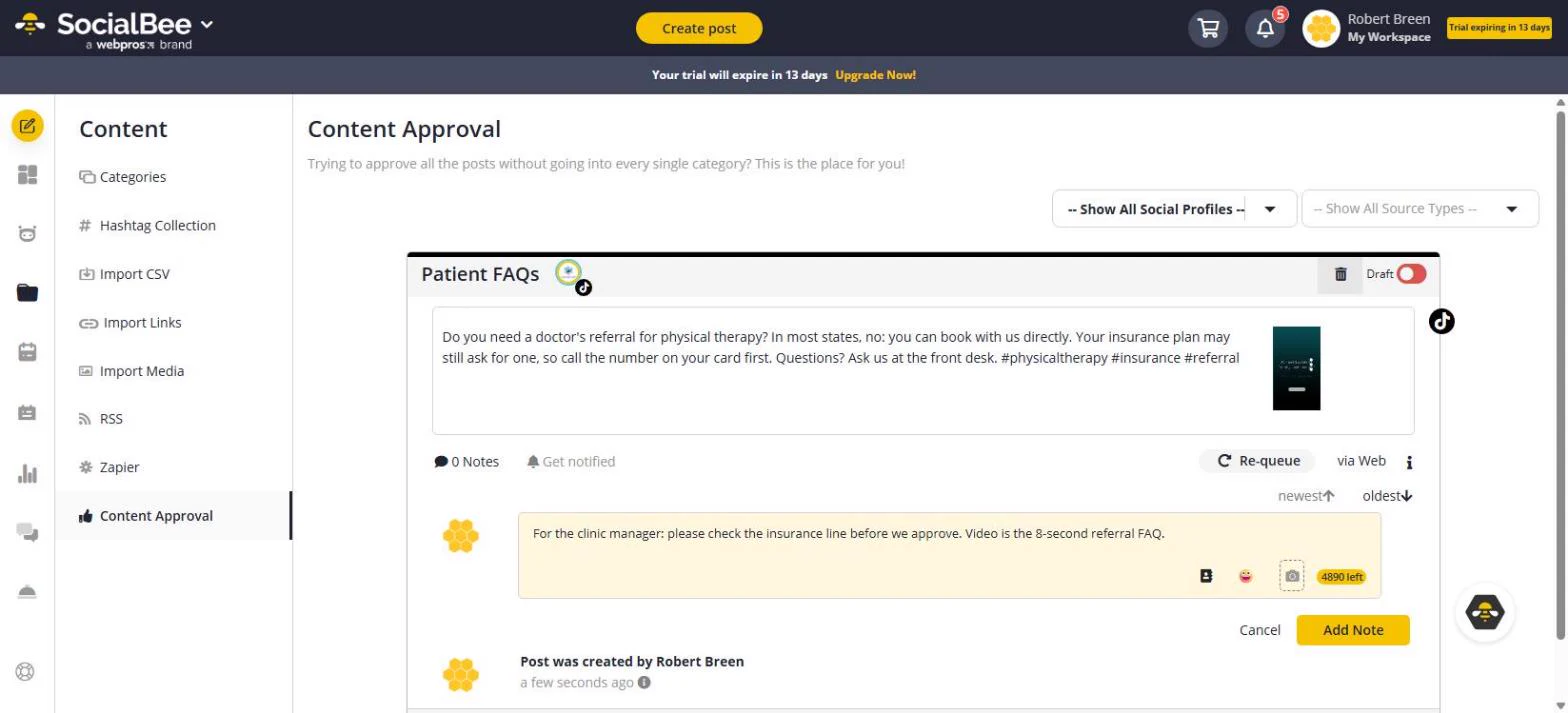
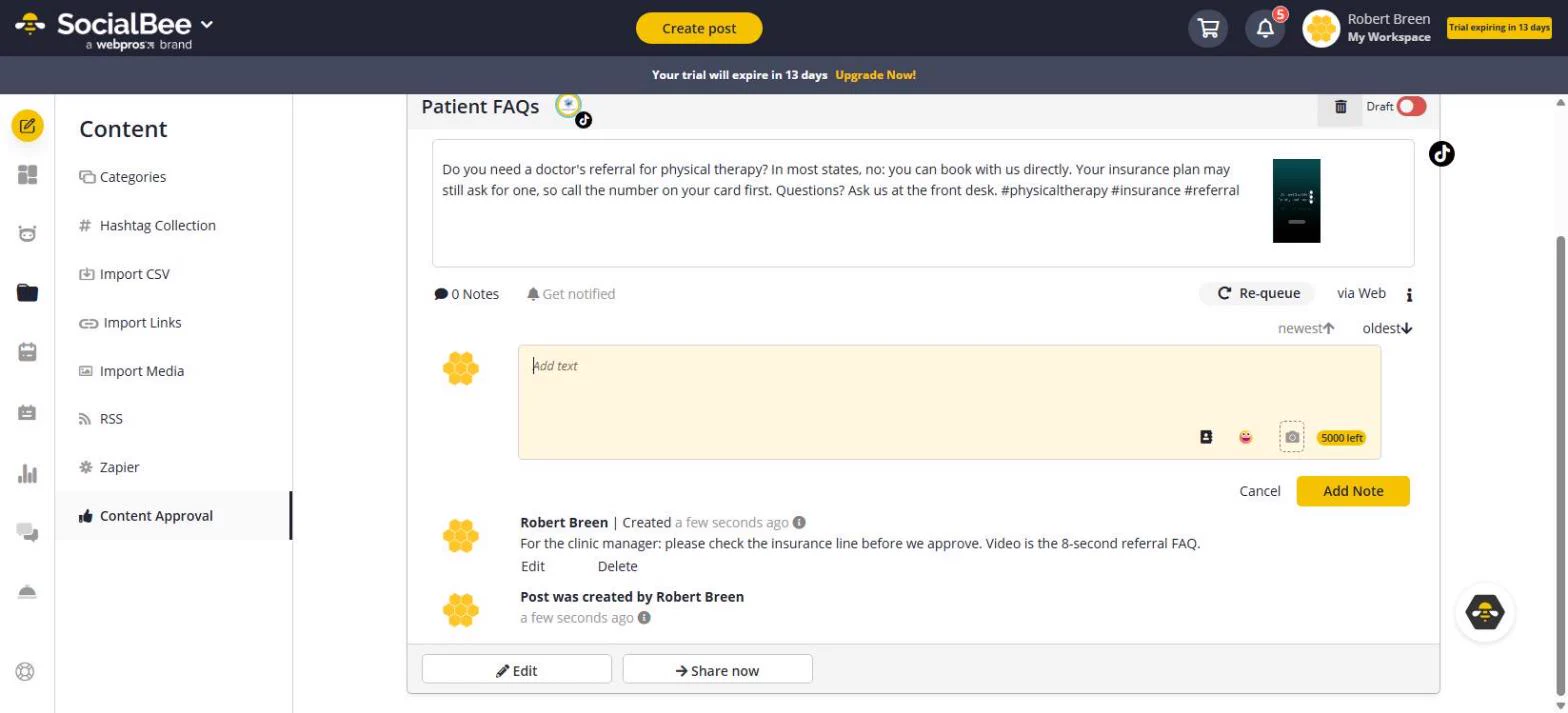
Turn off This is approved for anything with a health, insurance or price claim, and leave a note in Content Approval for the person who signs it off. Do not click Share now in Content Approval: it posts straight away. Keep patients out of the videos unless you have their written consent, and never put patient details in a caption or a note.
What this saves you
- The same answer written once instead of said again and again on the phone. In the example, that was more than two and a half hours a week.
- A TikTok account that posts on its own: one weekly slot takes the next approved answer, and re-queued answers come round again.
- No surprises: a draft set to Only Me stays out of the queue until a manager approves it.
- What it does not do: it does not film the videos, check medical or insurance facts, or post anything until someone approves it.
What we checked in a real account
Every step in the lesson was done in a real SocialBee trial workspace with a TikTok profile connected, on 4 November 2026: the category with Re-queue after posting, the caption and hashtag generator, the video upload, the TikTok privacy and Comment options, This is a draft, the note in Content Approval, and the Tuesday time slot with the calendar showing No posts. The post was never approved or published, and the test post and slot were deleted afterwards. We did not test approving the post or a post going out.
Next business case
Record the other four answers and add them to Patient FAQs. Then try the first SocialBee lesson, which uses the AI Copilot to plan a whole week of posts in one sitting.
Links
- SocialBee (affiliate link): the social media scheduler this lesson teaches. It has its own account, plans and a free trial; our test workspace was on the trial.
Disclosure: links marked "affiliate link" are partner links. If you sign up through one, Stepthrough may earn a commission at no extra cost to you. The lesson is free either way and does not depend on it.
Try it yourself, free
Reading the steps is a start. Doing them is how it sticks. The interactive module walks you through every click in a practice copy of SocialBee, checks each step, and never touches your real accounts.
Start “SocialBee: Turn Patient FAQs into an Evergreen TikTok Queue”Step by step: SocialBee: Turn Patient FAQs into an Evergreen TikTok Queue
All 36 steps of the interactive module, in order. In the module you watch each one, then do it yourself in a practice copy that checks your work.
1. Make a category that repeats
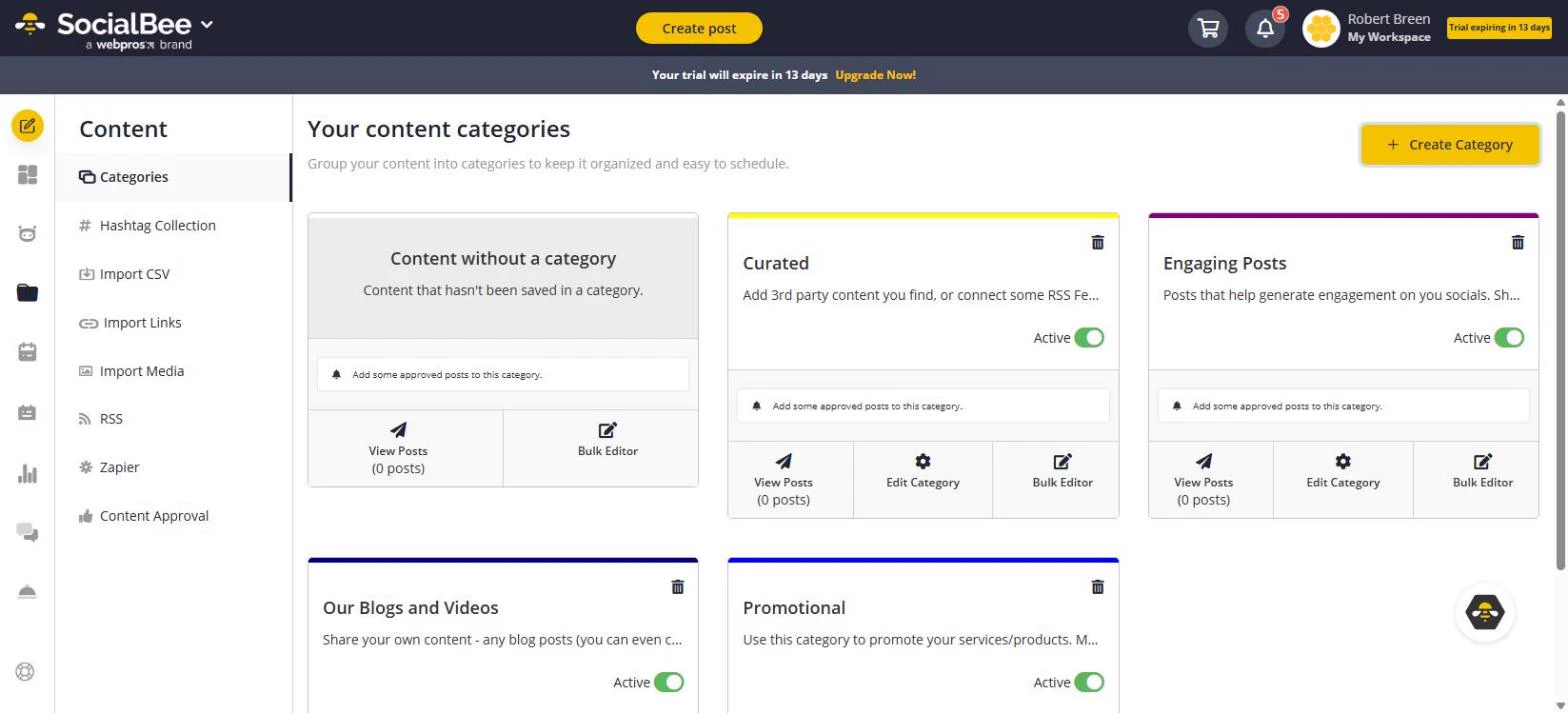
- Create a category. You run the front desk at Cedar Lane Physical Therapy, a made-up clinic. This is SocialBee, with the clinic's TikTok profile already connected, open on Content › Categories. A category is a bucket of posts that SocialBee posts on a schedule. Click Create Category.
This is SocialBee, with the clinic TikTok already connected. A category is a bucket of posts that SocialBee posts on a schedule.
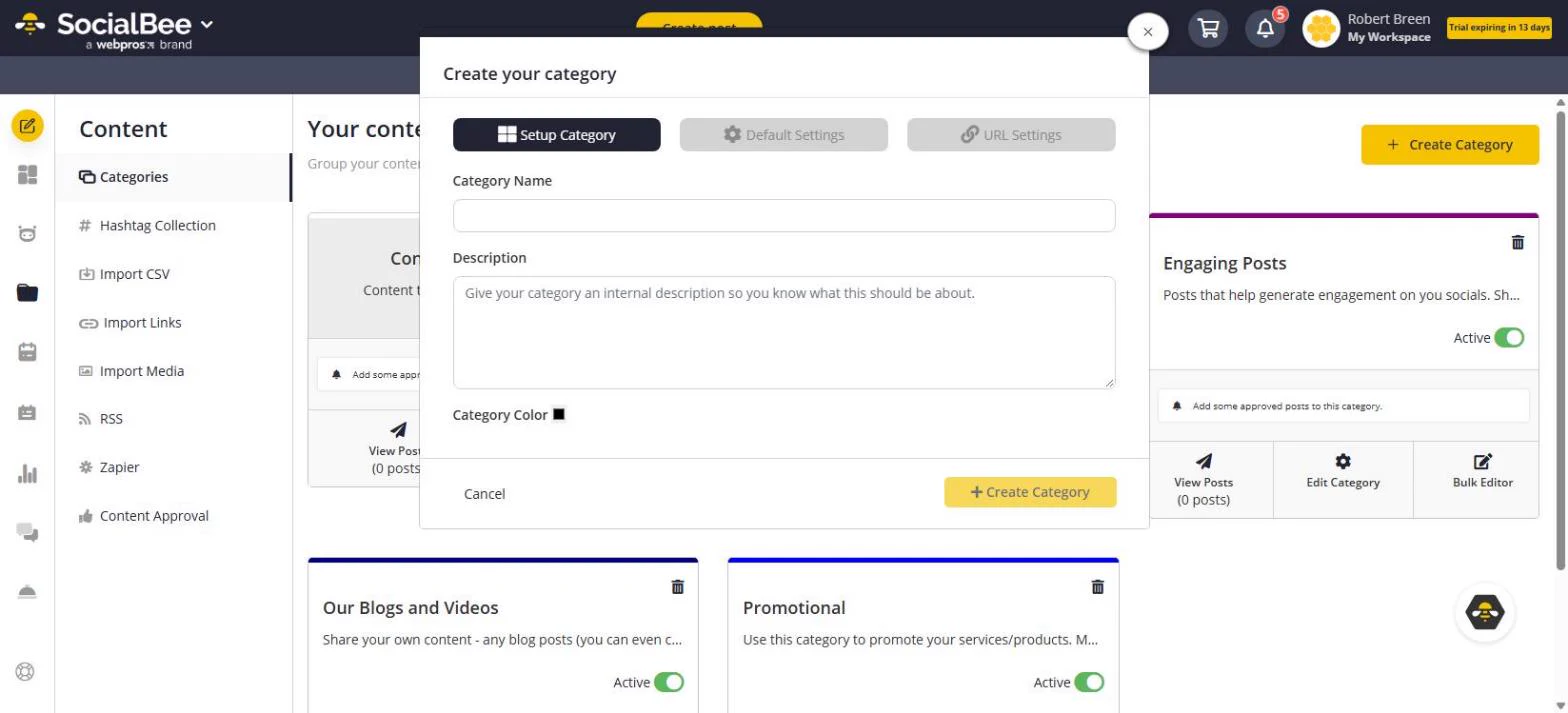
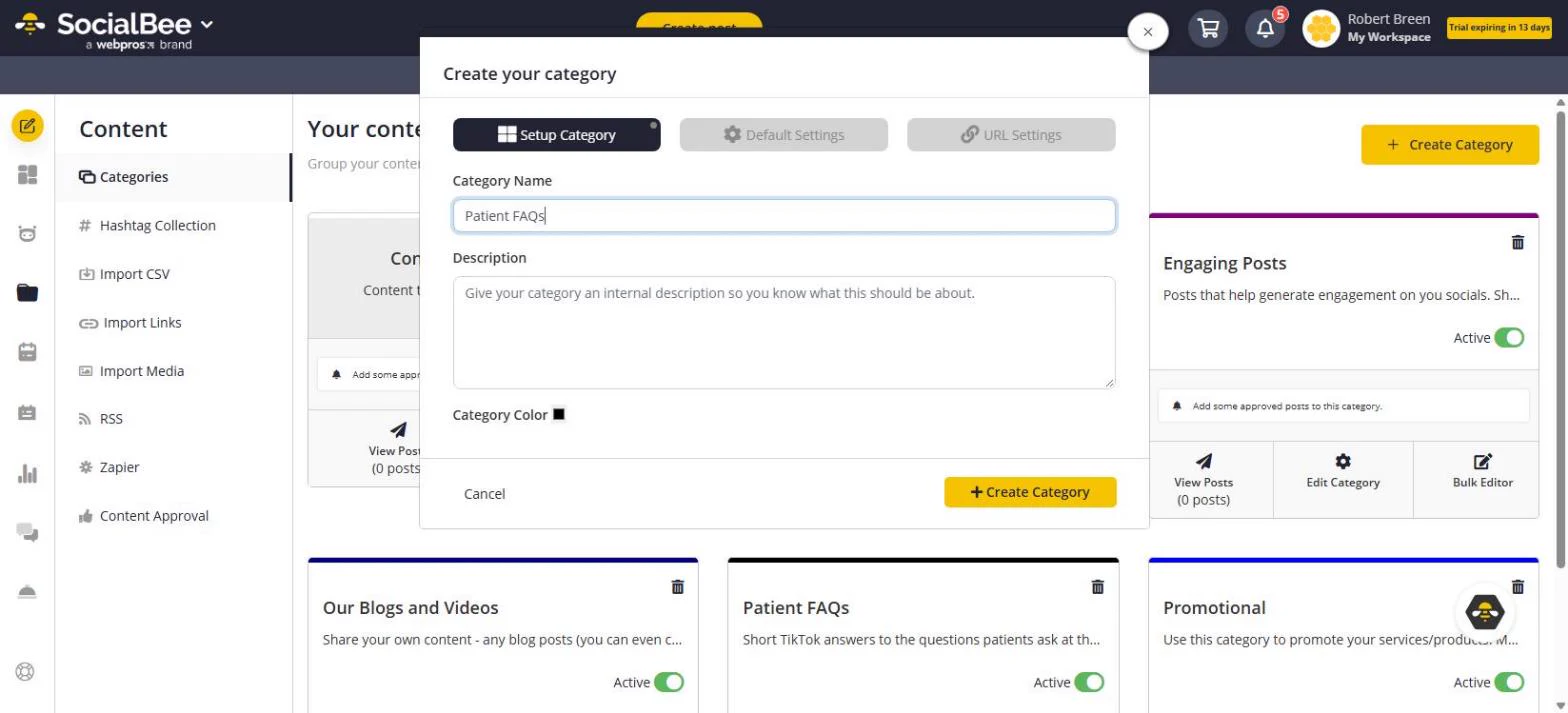
- Name it. In Category Name, type Patient FAQs.
Name it Patient FAQs.
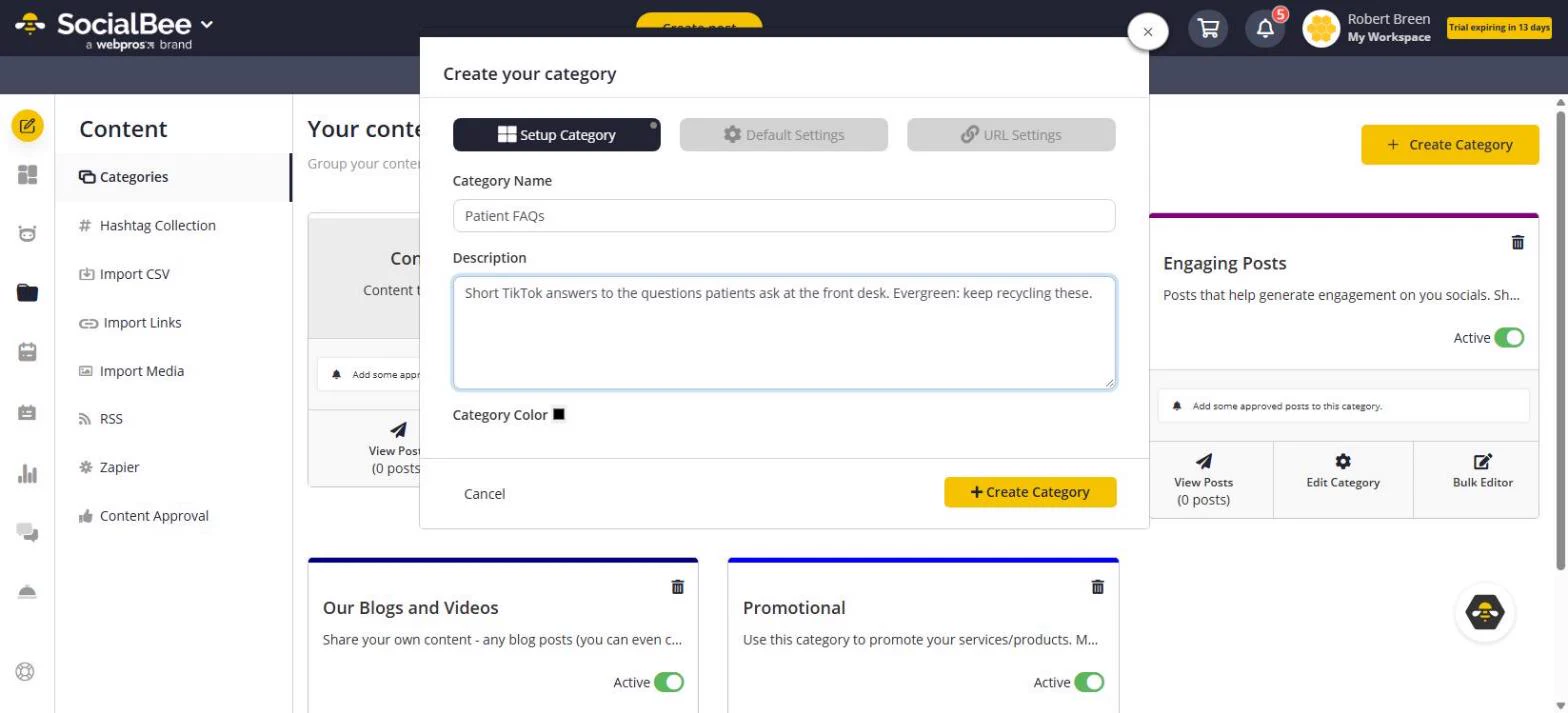
- Describe it. The Description is only for your team. Say what goes in this bucket, so the next person keeps it on topic. Paste the description.
The description is only for your team. Say what goes in this bucket.
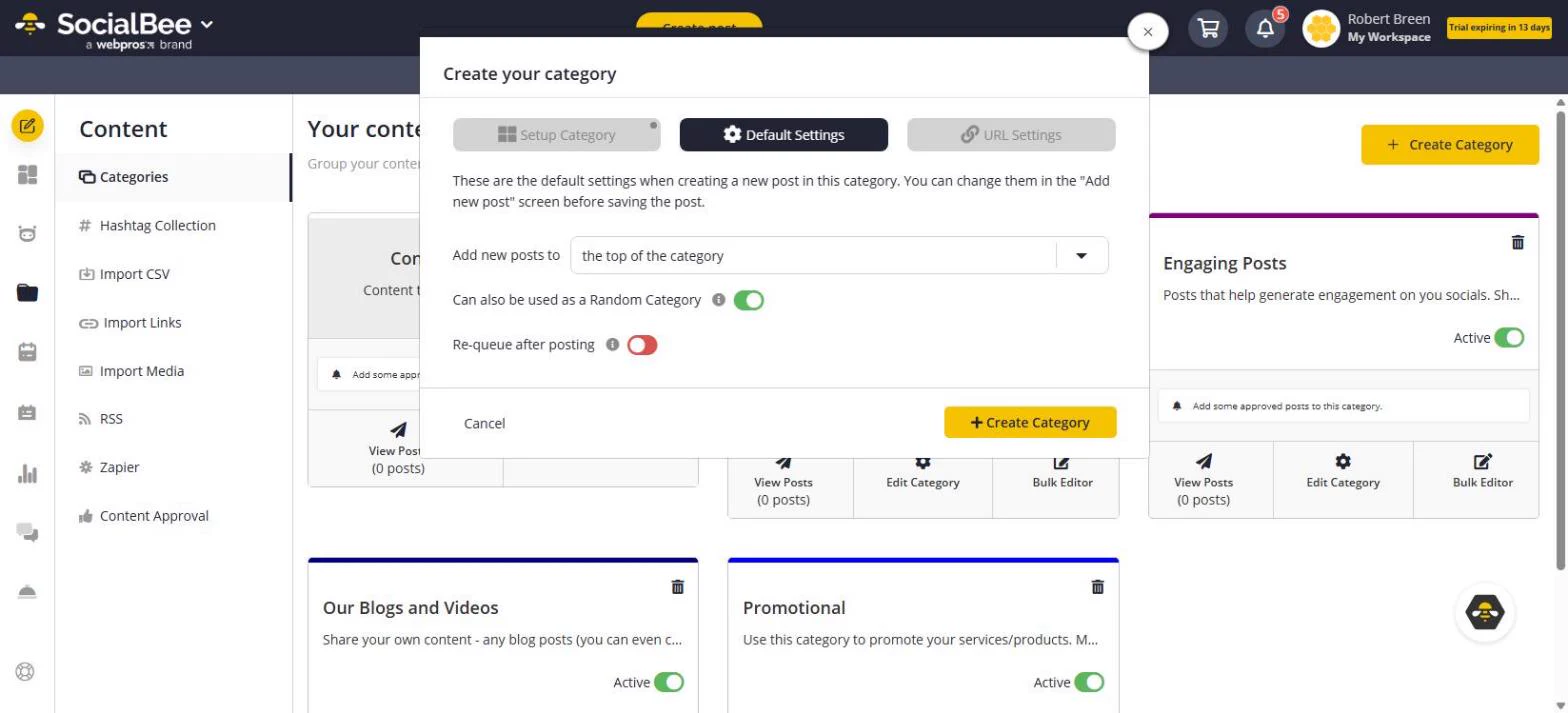
- Open Default Settings. Click the Default Settings tab. These settings are copied into every new post you add to this category.
These are copied into every new post in this category.
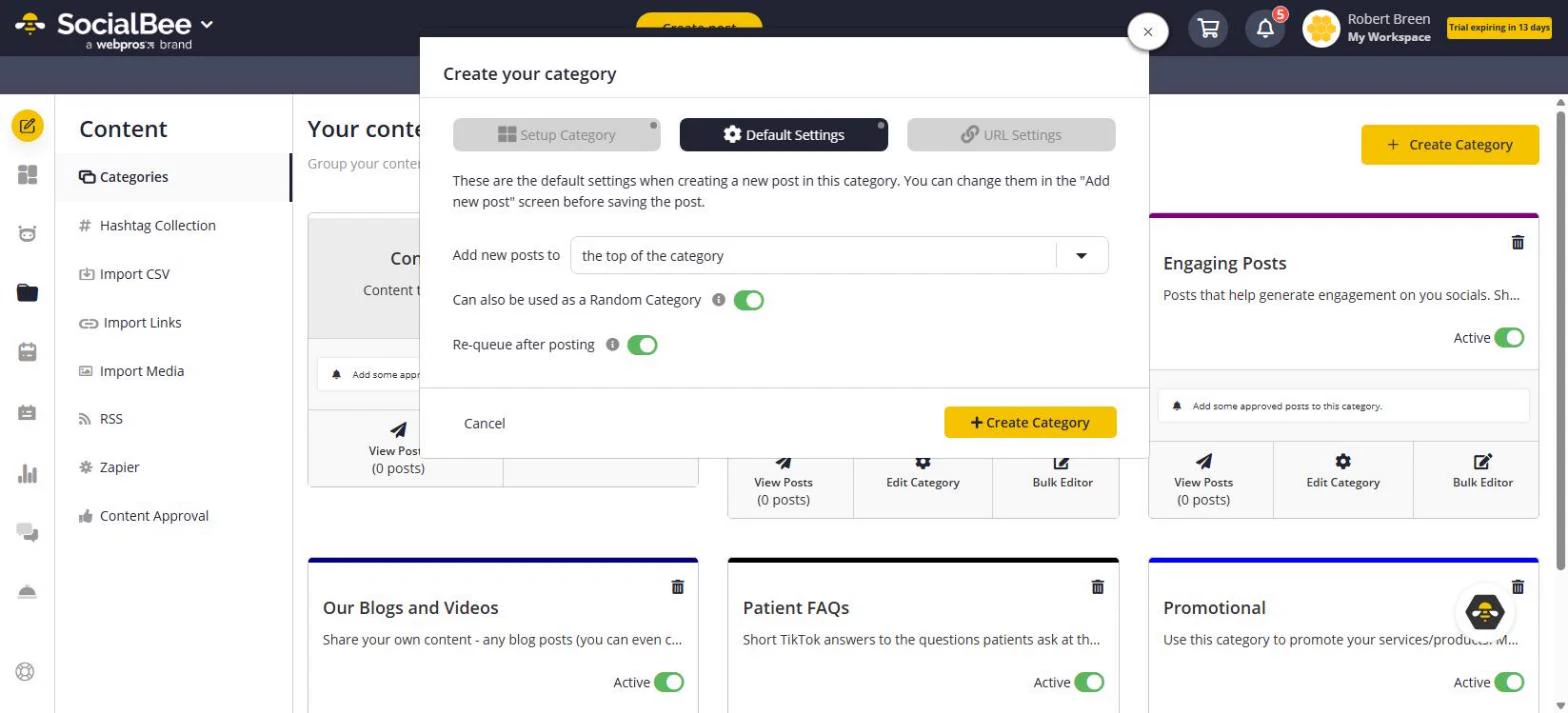
- Turn on Re-queue after posting. Re-queue after posting is the evergreen switch. SocialBee's tip says the posts are re-shared in an evergreen cycle until you delete them or they expire. A referral question is asked every week, so its answer can run every few weeks too. Click the switch so it turns green.
Re-queue after posting is the evergreen switch. After a post goes out, it goes back in the queue and comes round again. Turn it on.
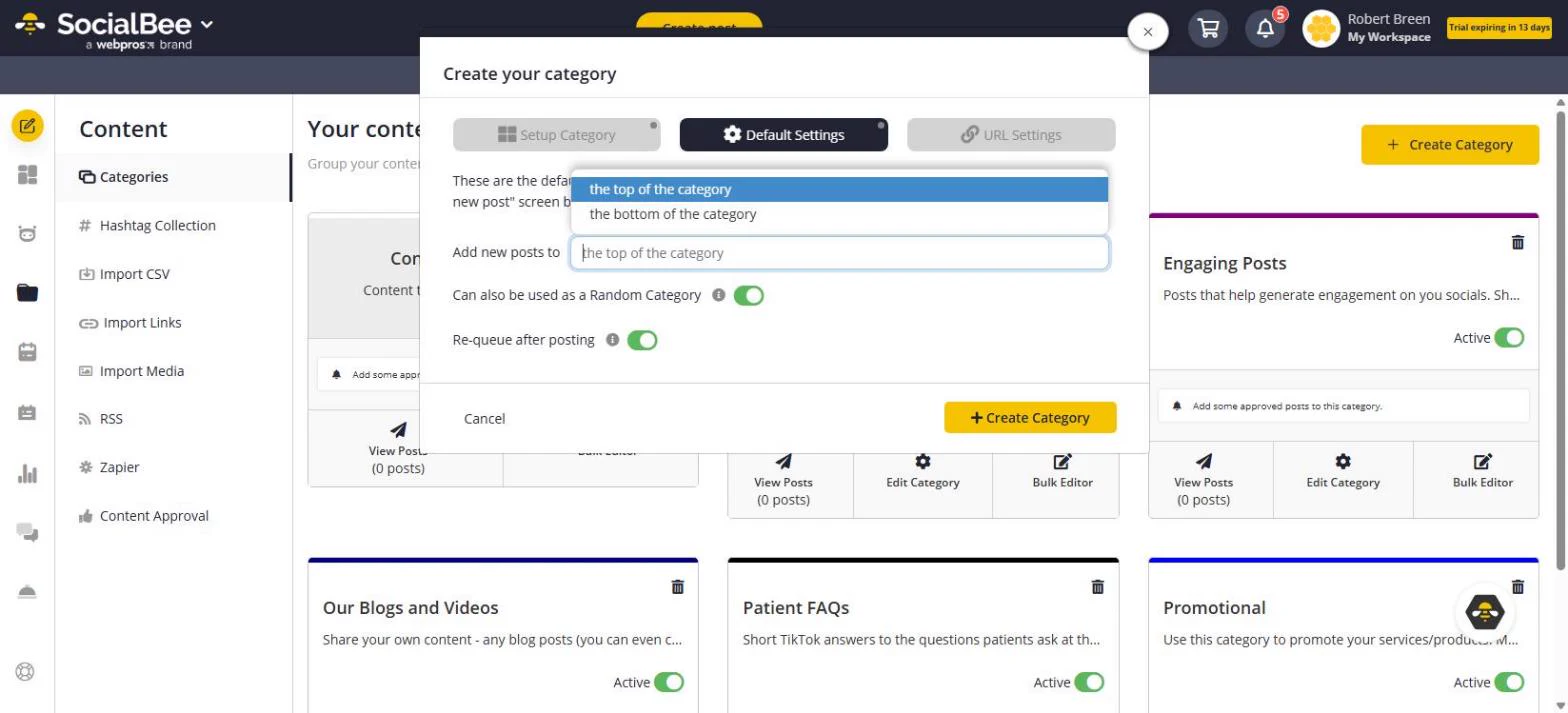
- Open Add new posts to. Add new posts to decides where a new post lands in the queue. Click the box that says the top of the category.
Add new posts to decides where a new post lands in the queue.
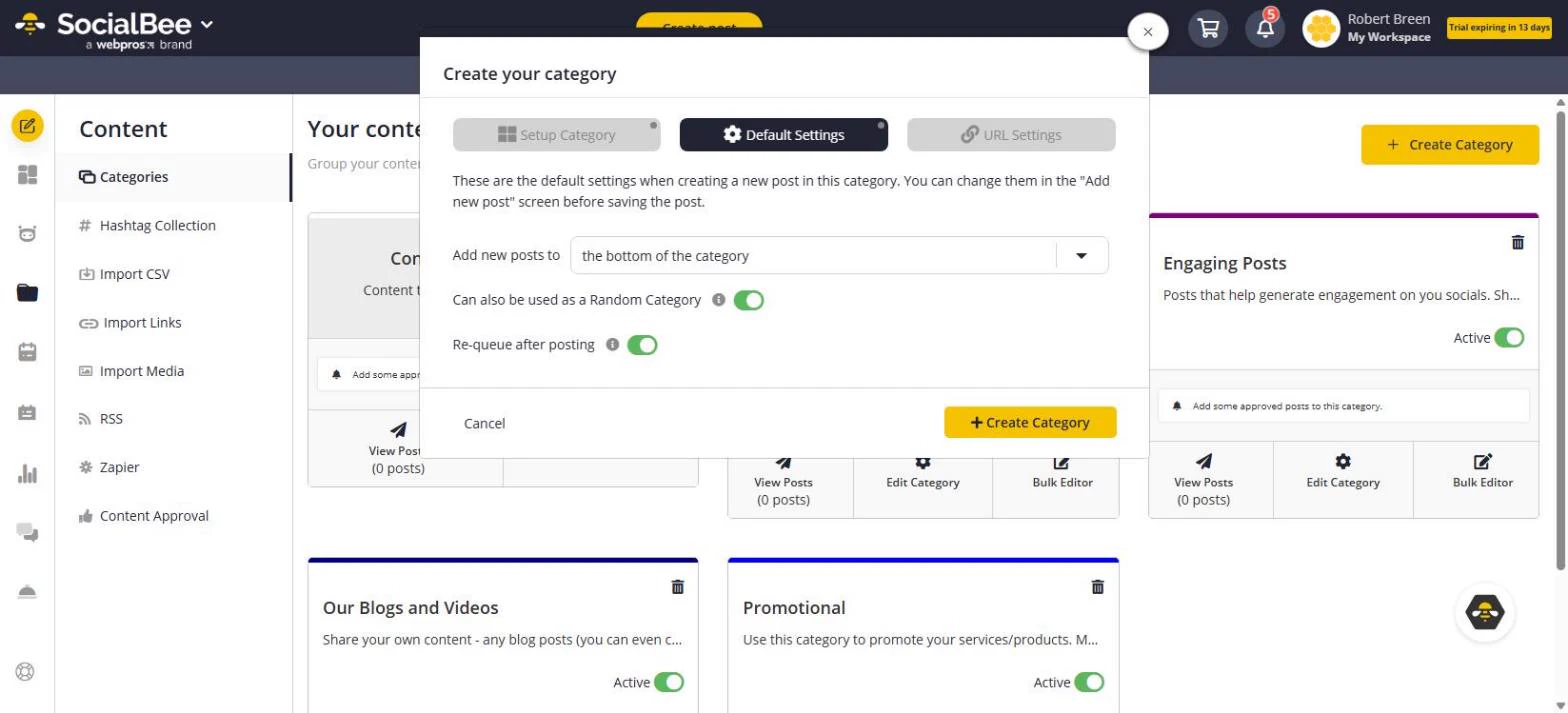
- Pick the bottom. Pick the bottom of the category. Each new answer then waits its turn, so the first answers keep their place in the rotation.
Pick the bottom of the category. New answers wait their turn.
- Create the category. Bottom of the category, Re-queue on. Leave Can also be used as a Random Category as it is. Click Create Category.
Bottom of the category, re-queue on.
2. Write the first FAQ post
- Create a post. SocialBee says *Congrats! The category has been successfully added.* Patient FAQs is now first in the list. Note the line under it: *Add some approved posts to this category*. Only approved posts count. Click Create post at the top.
Patient FAQs is in the list. Note the line under it: add some approved posts. Only approved posts count.
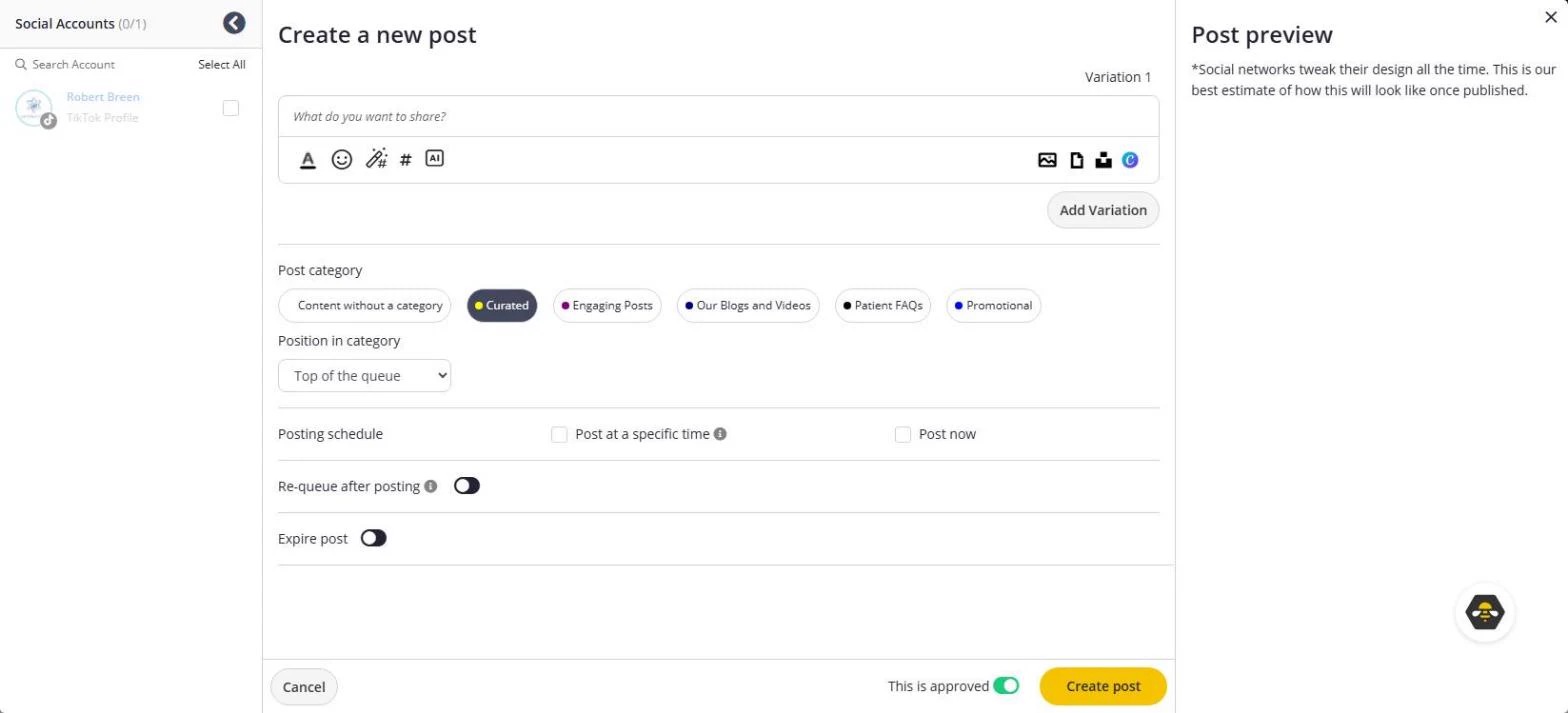
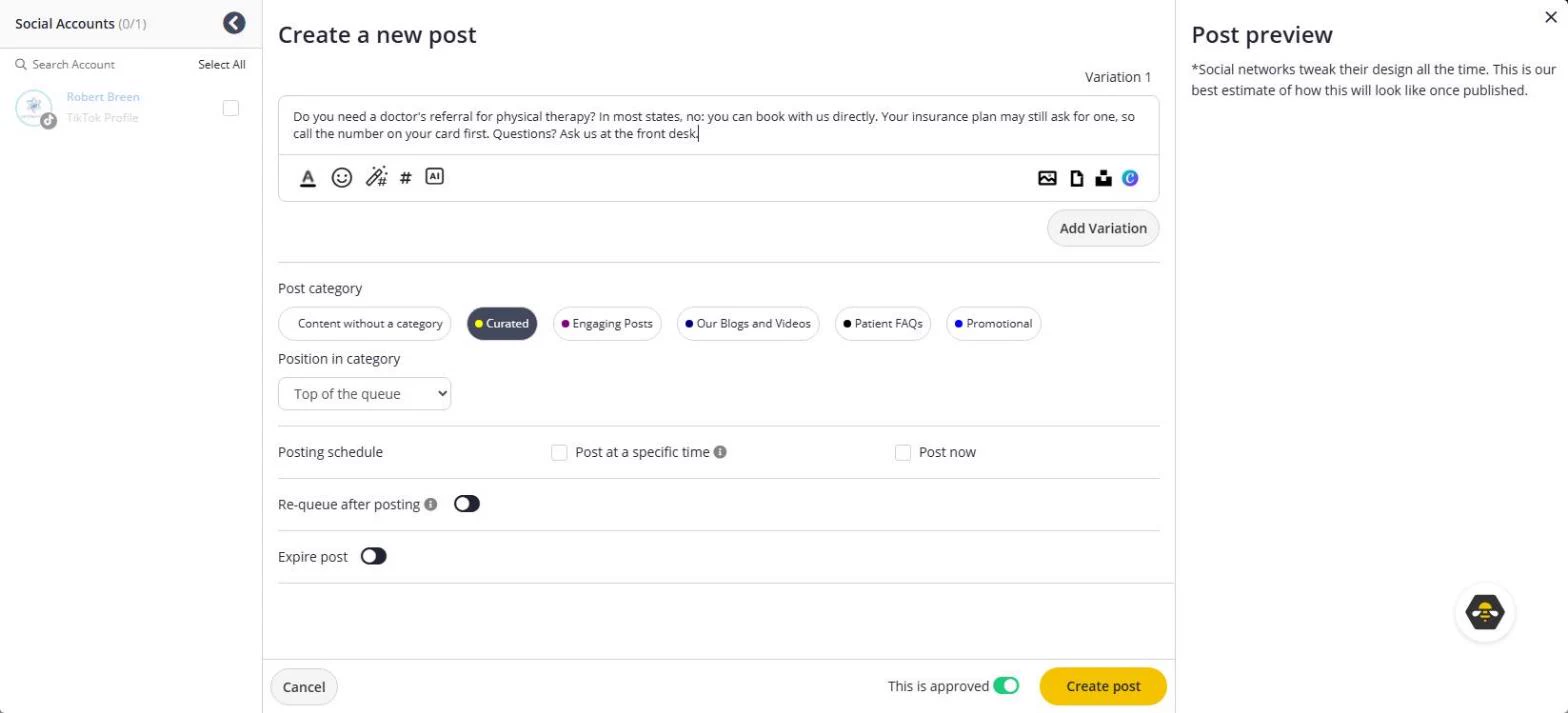
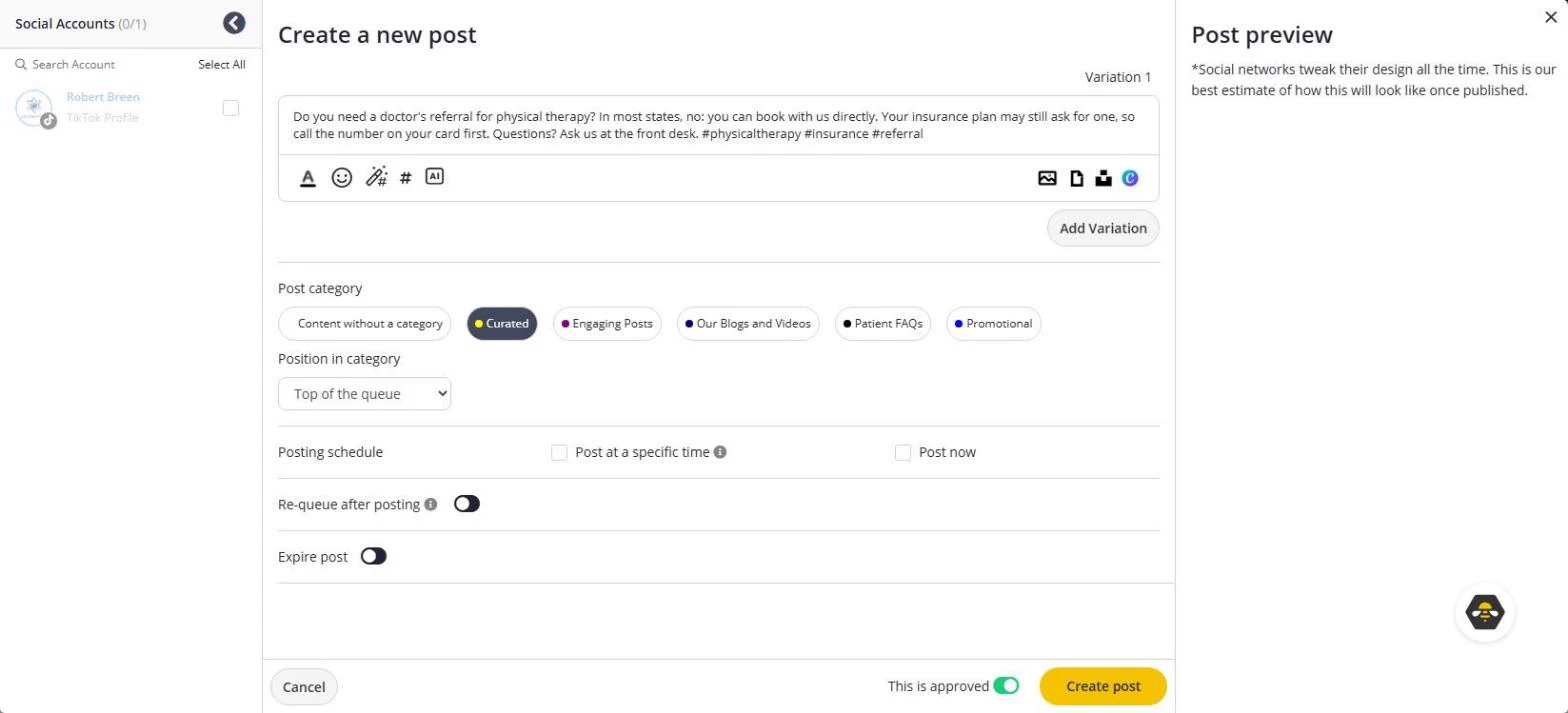
- Write the answer. Write the caption first. SocialBee asks for it before you add the TikTok profile. One question, one plain answer, and where to ask more. Paste the caption.
Write the caption first. One question, one plain answer, and where to ask more.
Do you need a doctor's referral for physical therapy? In most states, no: you can book with us directly. Your insurance plan may still ask for one, so call the number on your card first. Questions? Ask us at the front desk.
- Generate hashtags. The magic wand icon *generates up to 30 hashtags based on post text and/or images*. Click it.
The magic wand makes hashtags from your text.
- Keep three hashtags. It added 19 hashtags, and many are noise: #desk, #number, #card, #states. Keep the three a patient would search for, #physicaltherapy #insurance #referral, and delete the rest. Paste the trimmed caption.
It added nineteen hashtags, and many are noise, like desk and number. Keep the three a patient would search for, and delete the rest.
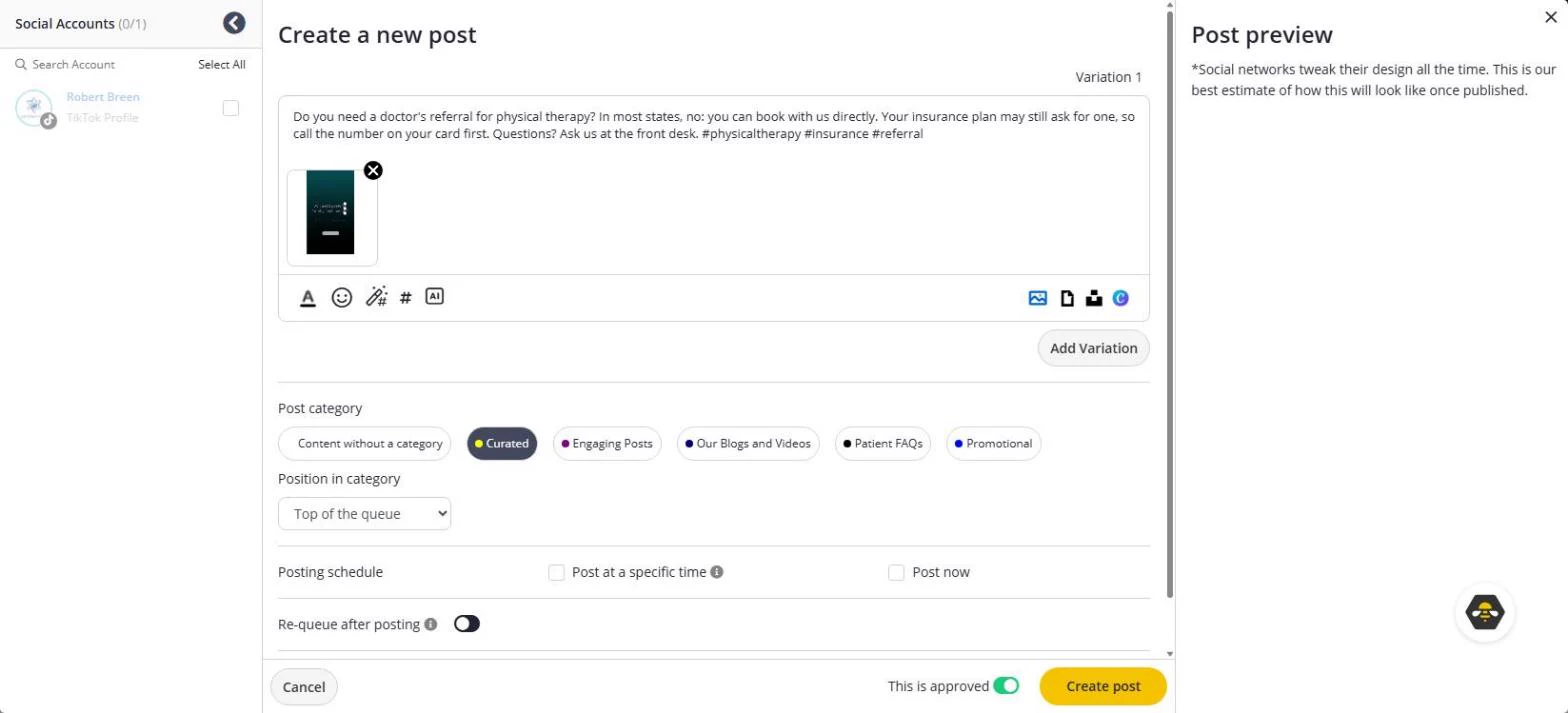
Do you need a doctor's referral for physical therapy? In most states, no: you can book with us directly. Your insurance plan may still ask for one, so call the number on your card first. Questions? Ask us at the front desk. #physicaltherapy #insurance #referral
- Upload the video. TikTok needs a video. Click Upload files (the picture icon) and pick your short clip. Ours is an 8-second card that asks the question; a therapist saying the answer to camera works better. Never film patients without their written consent.
TikTok needs a video. Never film patients without their written consent.
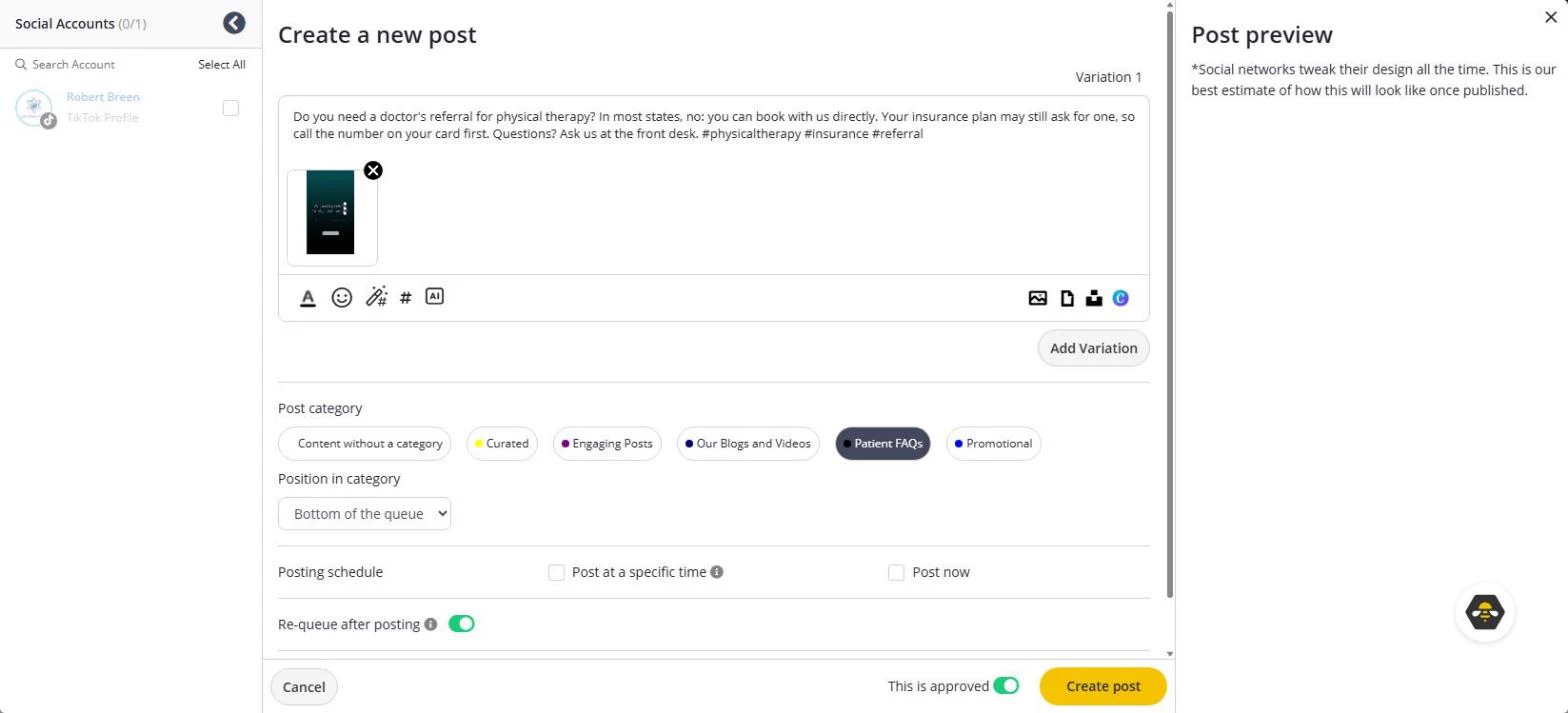
- Put it in Patient FAQs. The video is attached. Under Post category, click Patient FAQs.
3. TikTok settings, kept as a draft
- Pick the TikTok profile. The category's defaults came with it: Bottom of the queue and Re-queue after posting on. Now pick where it goes. In Social Accounts on the left, tick the TikTok profile.
The category defaults came with it. Bottom of the queue, and re-queue on. Now tick the TikTok profile on the left.
- Proceed. SocialBee explains that TikTok requires a privacy mode to be chosen for each post, so it customizes the post for this profile. Your text, video and hashtags are already in. Click Proceed.
TikTok needs a privacy mode for each post. Your text and video are already in.
- Open the privacy menu. The Post preview on the right shows the TikTok version. The post now has TikTok options: a privacy menu set to Public, and Allow users to: Comment, Duet, Stitch. Click Public.
The preview shows the TikTok version, with TikTok options.
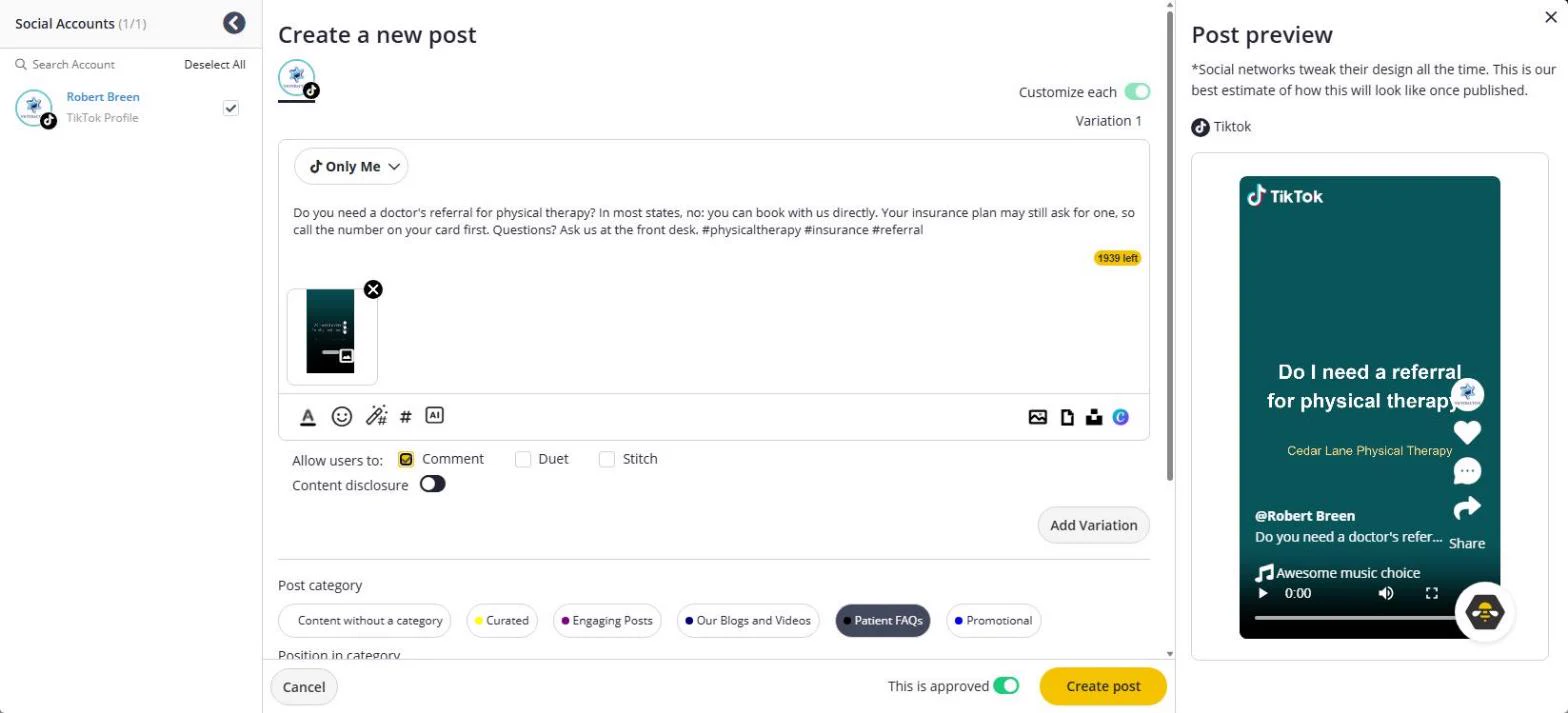
- Choose Only Me. Pick Only Me, a safety net for a first post: even if it went out by mistake, only the account owner would see it. Then tick Comment under Allow users to, so patients can ask a follow-up question once it is public.
Pick Only Me, a safety net for a first post. Then tick Comment, so patients can ask a follow up once it is public.
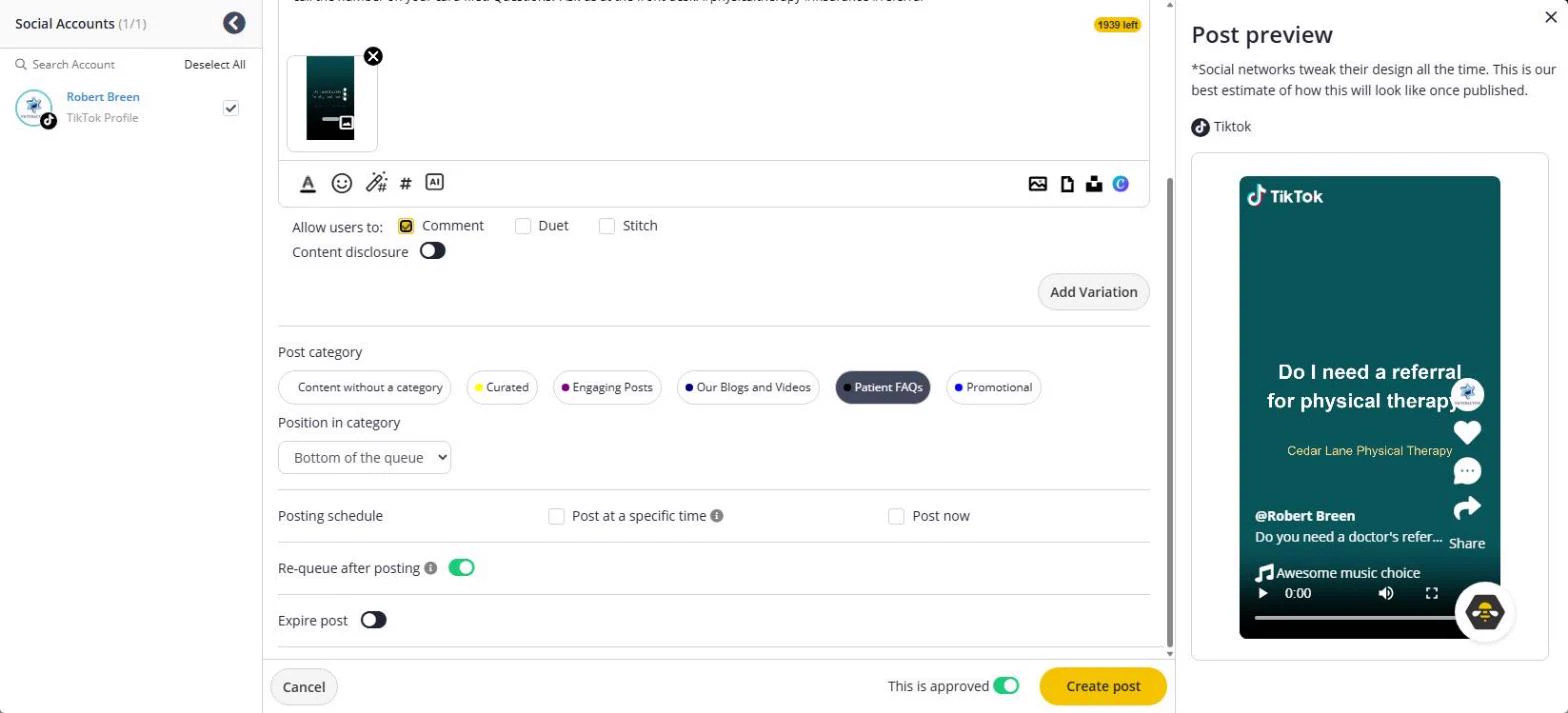
- Scroll down. Only Me and Comment are set. Scroll down to the bottom of the editor.
Only Me and Comment are set.
- Turn off This is approved. Leave Posting schedule empty: the category's weekly slot will post it. At the bottom, This is approved is on. Turn it off. Health and insurance wording should be checked before it goes out.
Leave Posting schedule empty. The weekly slot will post it. At the bottom, This is approved is on. Turn it off, so it is checked before it goes out.
- Save the draft. The switch now says This is a draft. Click Create post. It saves the draft; nothing is sent to TikTok.
It now says, This is a draft. It saves the draft, and nothing is sent.
4. Leave a note for the manager
- Open Content Approval. SocialBee says *Your post was added to the Patient FAQs category*, but the card still shows 0 posts, because drafts are not in the queue. In the Content menu, click Content Approval.
The post was added, but the category still shows zero posts, because drafts are not in the queue.
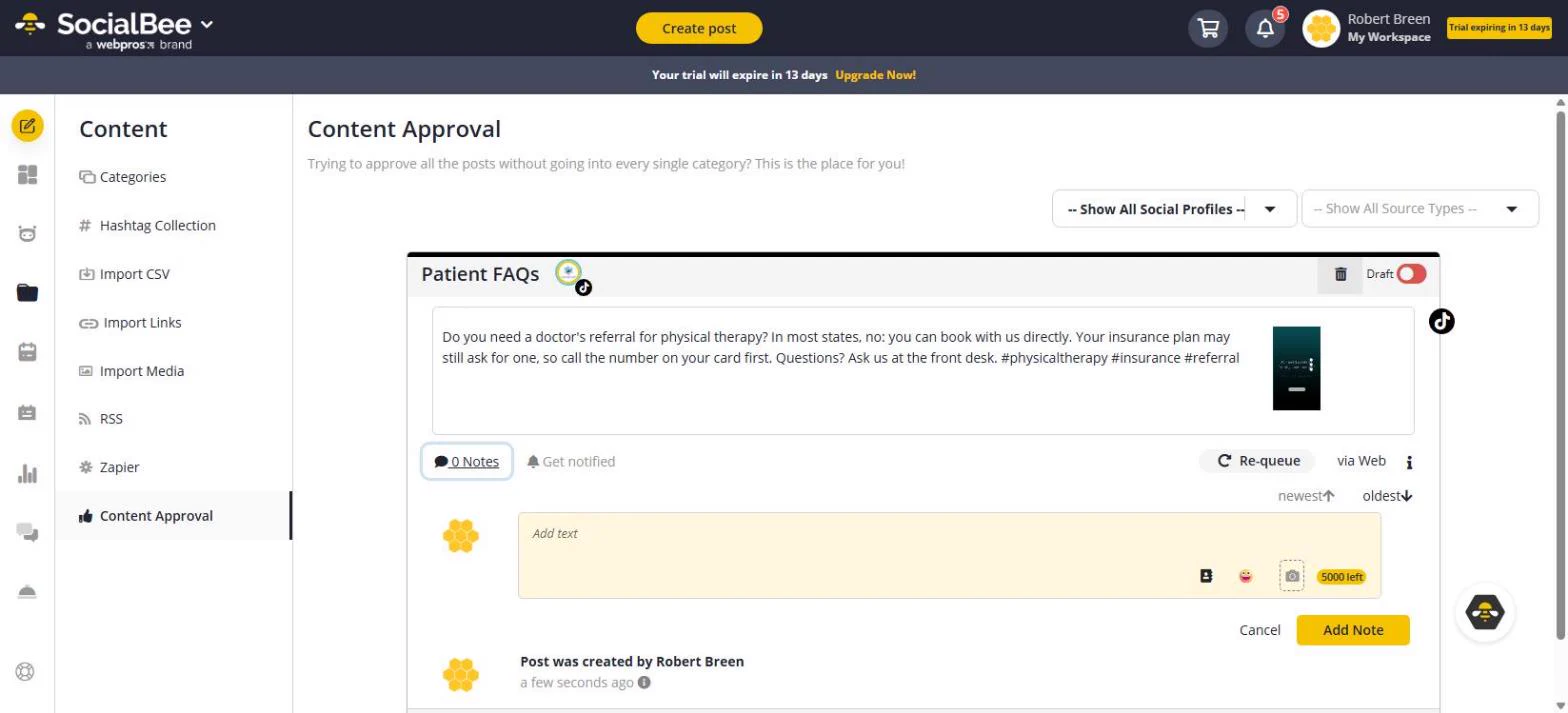
- Open the notes. Every unapproved post waits here, with a red Draft switch. This is where the clinic manager reviews. Do not click Share now: it posts straight away. Click 0 Notes.
Every draft waits here for review. Do not click Share now, it posts straight away.
- Write a note. Tell the reviewer what to check. Paste the note.
Tell the reviewer what to check.
- Add the note. Click Add Note.
5. Give the category a weekly slot
- Open the Scheduler. The note sits under the post with your name, above *Post was created by*. One thing is left: tell SocialBee when this category posts. Click the calendar icon in the left bar.
The note is on the post. Now tell SocialBee when this category posts.
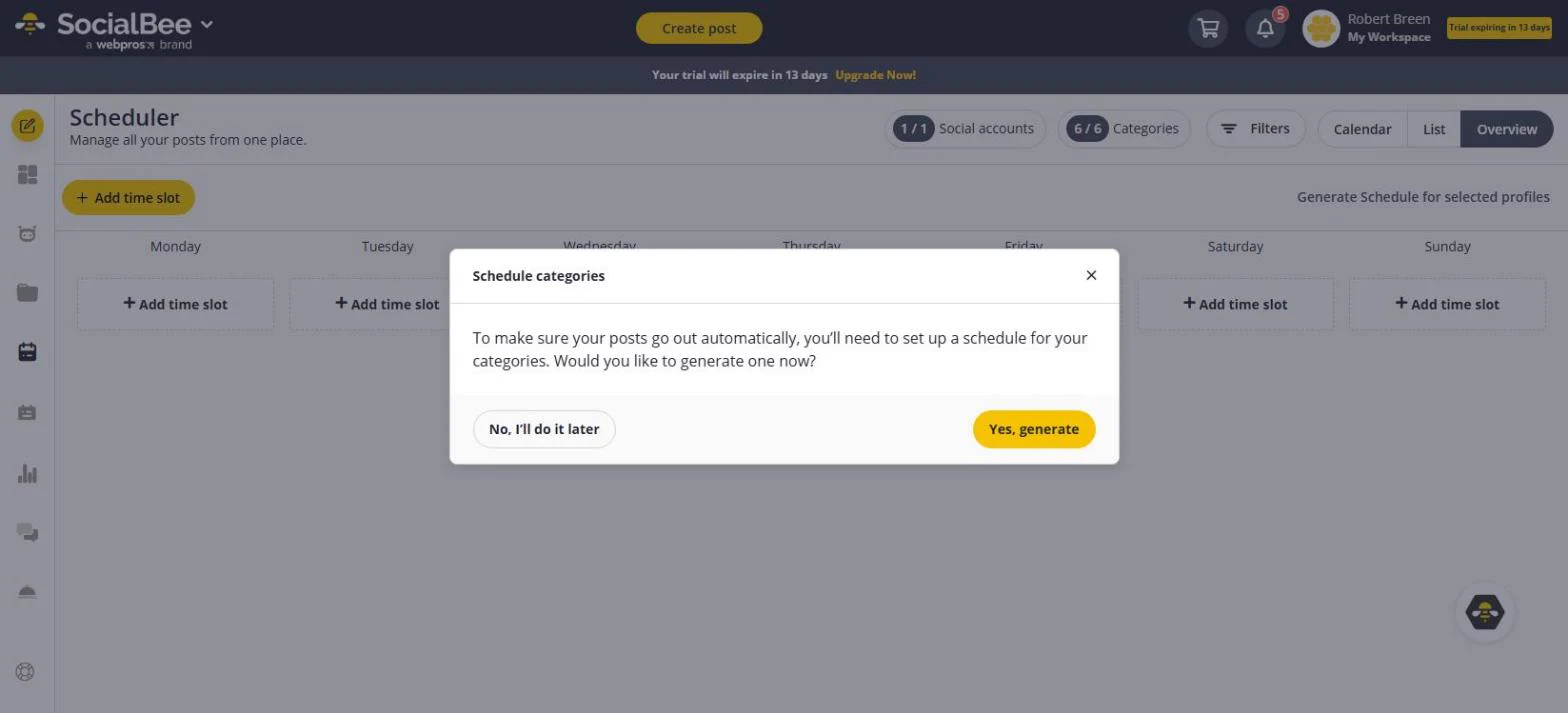
- Skip the generated schedule. The first time, SocialBee offers to generate a schedule for all your categories. You only want one slot for one category, so click No, I'll do it later.
SocialBee offers to generate a schedule for every category. You only want one slot.
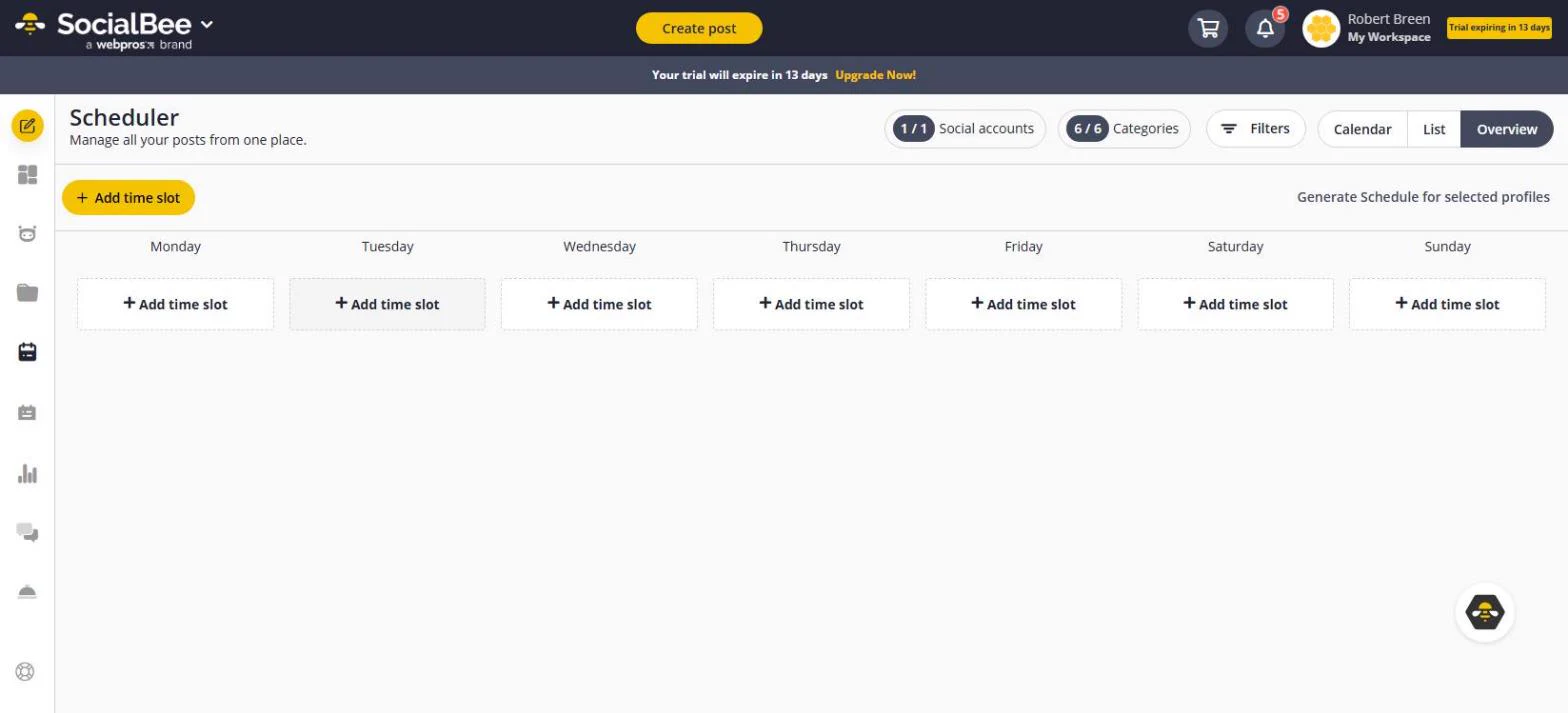
- Add a Tuesday slot. The Overview is your weekly pattern, Monday to Sunday. Under Tuesday, click Add time slot.
The overview is your weekly pattern. Under Tuesday, click Add time slot.
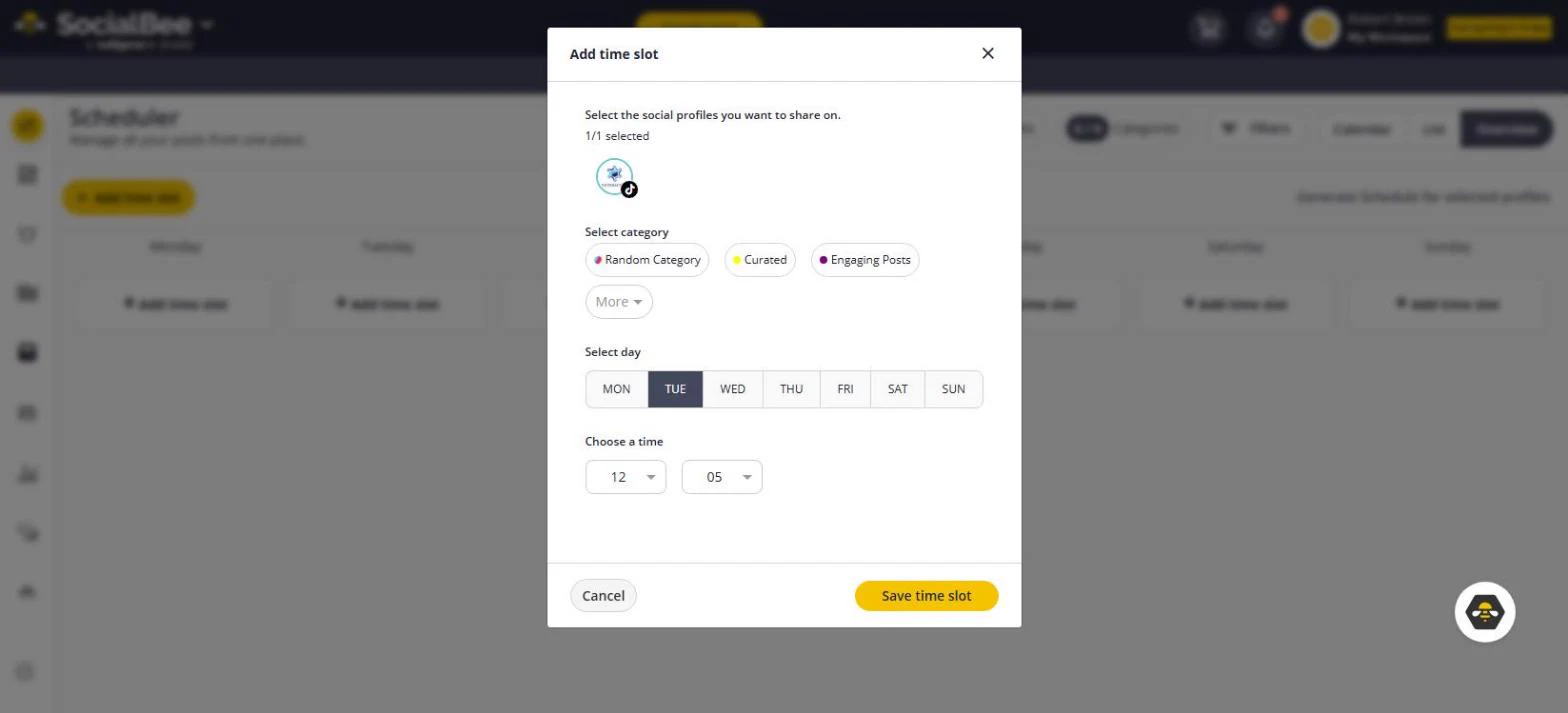
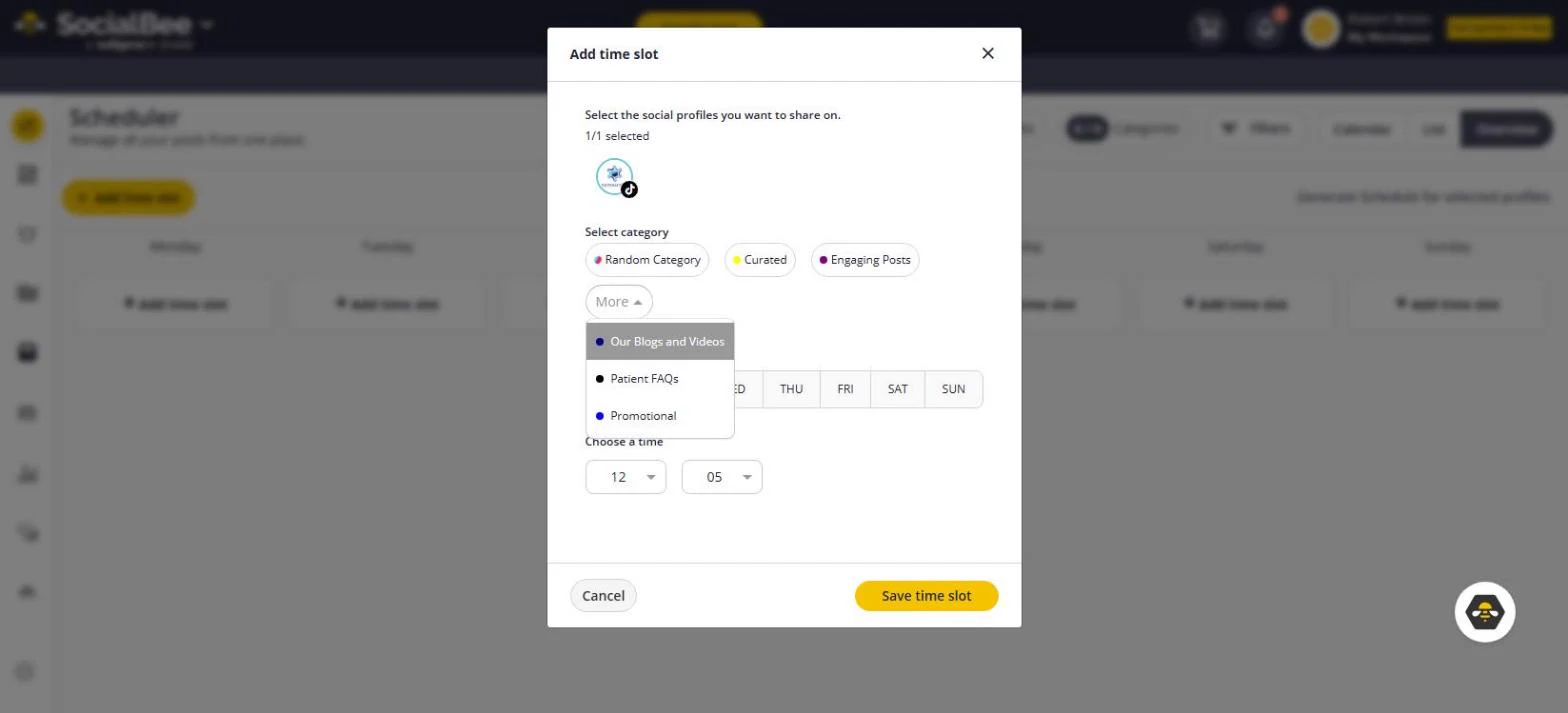
- Find the category. The TikTok profile is already selected, and TUE is picked. Patient FAQs is not in the first row. Click More.
The TikTok profile and Tuesday are picked.
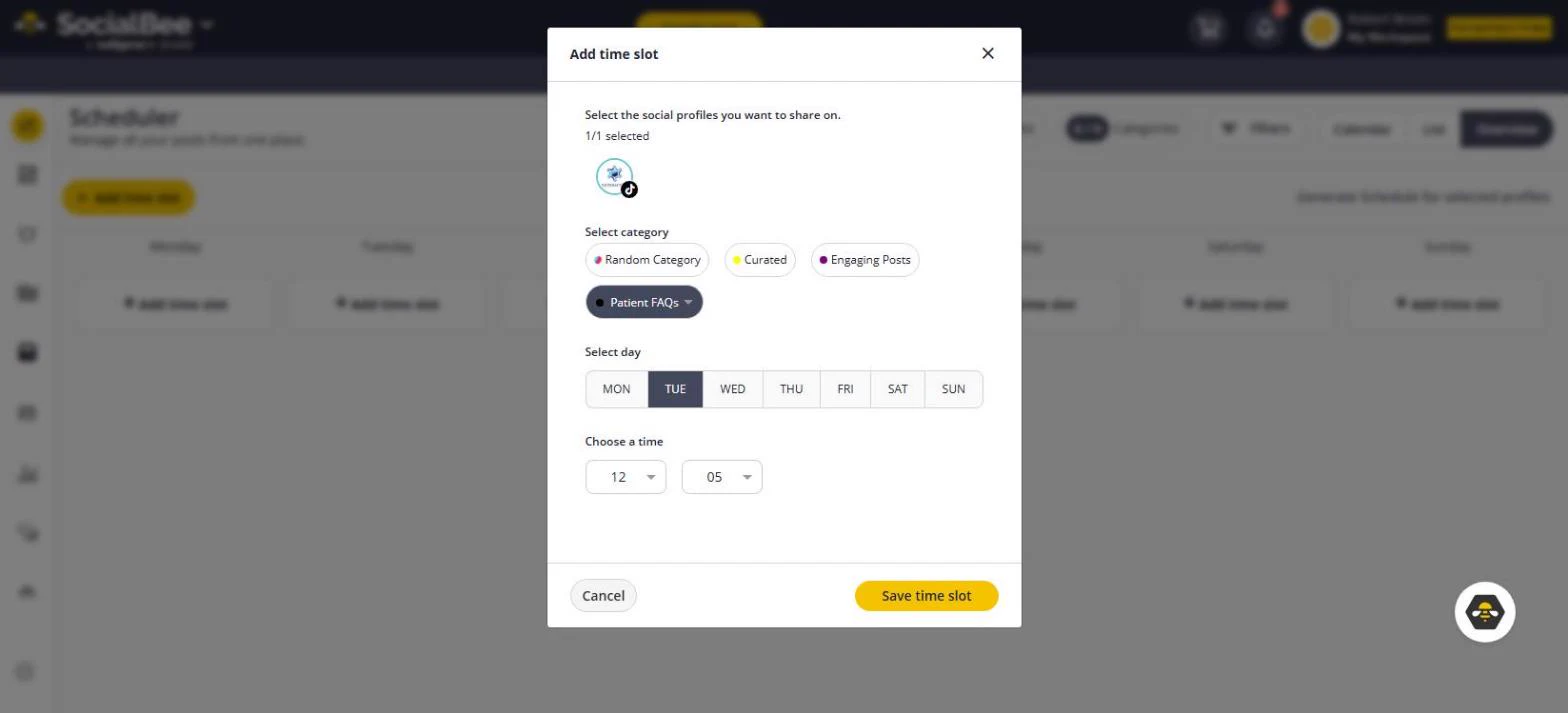
- Pick Patient FAQs. Click Patient FAQs.
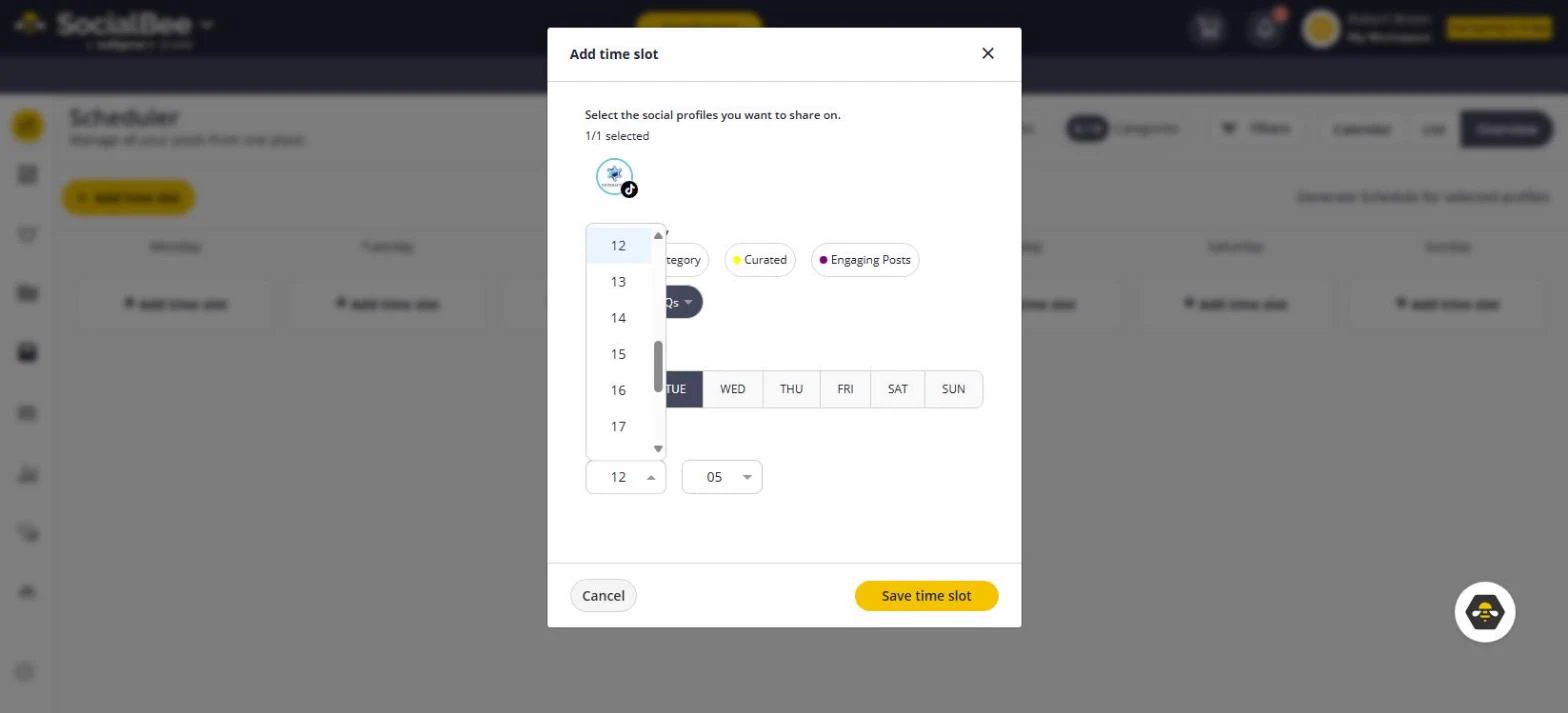
- Set the hour. Pick a time your patients scroll: after work. Click the hour box (it shows 12).
Pick a time your patients scroll, after work.
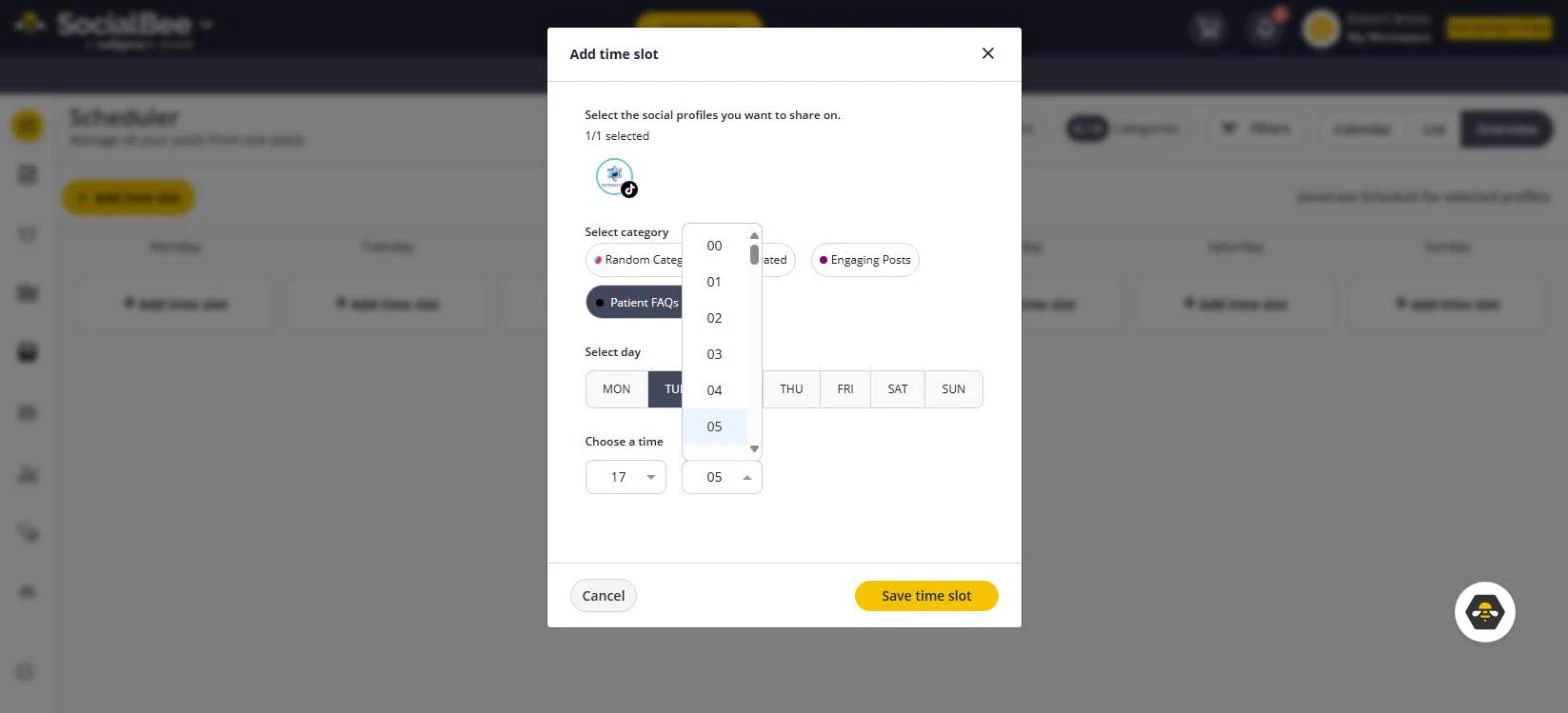
- Pick 17. Times are on a 24-hour clock. Click 17, which is 5 pm.
Times are on a twenty four hour clock.
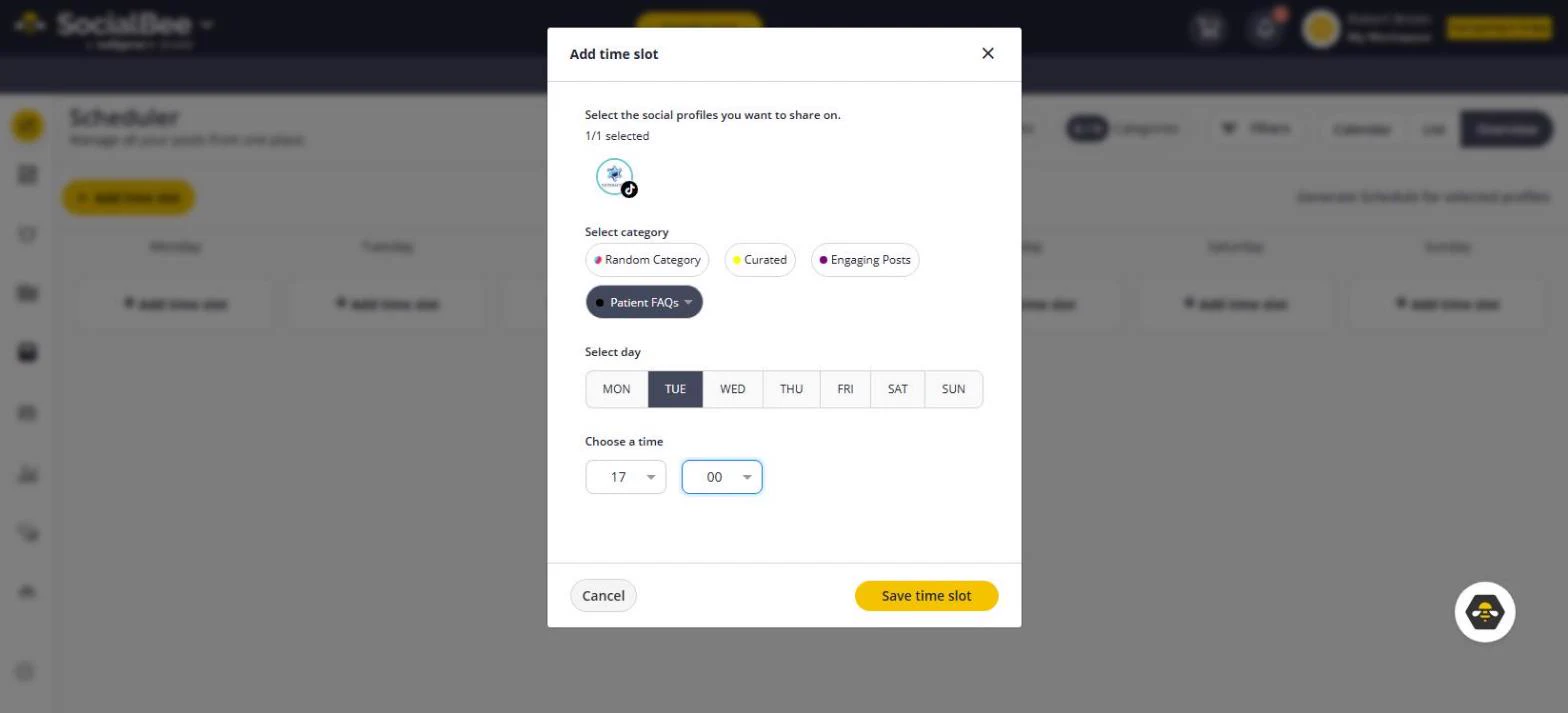
- Pick 00. Open the minutes box and click 00.
- Save the time slot. TikTok, Patient FAQs, TUE, 17:00. Click Save time slot.
Patient FAQs, Tuesday, five P M.
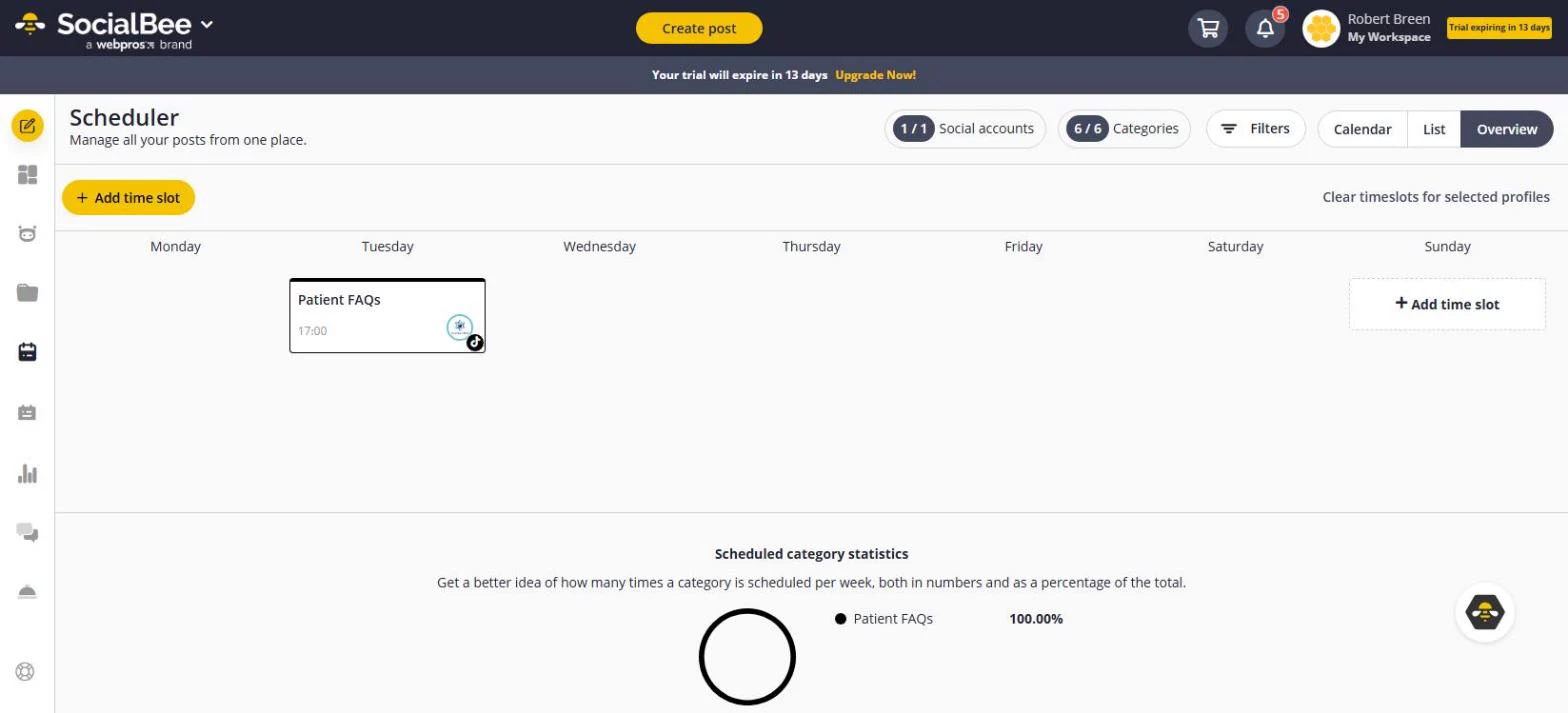
- Switch to Calendar. Tuesday now has a Patient FAQs slot at 17:00, and the category statistics show it is 100% of your schedule. Click Calendar to see the real dates.
Tuesday now has a Patient FAQs slot at five P M.
- Read the slot. Next Tuesday at 17:00 shows Patient FAQs with No posts and a warning sign. That is the safety net working: your draft is not in the queue until the manager approves it. When they do, open the post with Edit, change Only Me to Public and turn This is approved back on. Then add the other four answers to the same category, and the clinic's TikTok answers one patient question every week. Click the slot.
Next Tuesday shows Patient FAQs with no posts. That is the safety net. Your draft is not in the queue until the manager approves it. Then change Only Me to Public, approve it, and add the other answers.
Screenshots
Frequently asked questions
- Can SocialBee post to TikTok?
- Yes. SocialBee connects a TikTok profile and asks for a privacy mode on every TikTok post (Public, Mutual Follow Friends or Only Me), with options to allow Comment, Duet and Stitch.
- How do I make SocialBee re-post the same TikTok?
- Put the post in a category with Re-queue after posting turned on and give that category a time slot in the Scheduler. After an approved post goes out, SocialBee puts it back in the queue.
- How do I keep a SocialBee post from going out?
- Turn off This is approved in the post editor so the footer reads This is a draft. Drafts wait in Content Approval and do not fill time slots; the calendar shows the slot as No posts.
- Is SocialBee free?
- SocialBee has a free trial and paid plans. Our test workspace was on the trial. Check socialbee.com for current plans.
- Is this lesson free, and was it tested in the real SocialBee app?
- The lesson is free and the practice copy needs no account. Every step was done in a real SocialBee trial workspace with TikTok connected, and the post was left as an unapproved draft that was never published.
Terms in this lesson
Plain-English definitions, each with an example from a free lesson.