Quick answer
To get one Sunday email from Notion with n8n, import Run Solo Studio's W5-weekly-digest.json (··· menu, Import, From file), put your Finance, Projects, Pipeline and Content database IDs and your email in the CONFIG node, connect a Notion credential and SMTP, set the Cron trigger (0 17 * * 0 is Sunday at 5 PM) and your time zone, then run the Manual Trigger and publish. Keep Always Output Data and Execute Once on in each Notion node's Settings tab, so a quiet week still sends the email and nothing repeats.
Last updated · Last checked
Updated . Built against the tool’s current screens and checked step by step. How we check this lesson
If you work alone, planning the week means opening your invoices, projects, deals and content one by one. Run Solo Studio's Solo Operator Stack is a Notion workspace plus six import-ready n8n workflows, and its W5 workflow, the weekly digest, reads four of those databases and emails you one Sunday prep digest: overdue money, active projects, cold deals and content due. In this free business-case lesson you put a price on the Sunday hunt for a made-up solo consultant, then import W5 into n8n, fill in its CONFIG node, see the two node settings that keep a four-query workflow from stopping or repeating itself, connect Notion and email, move the schedule to Sunday at 5 PM in your own time zone, run a test and read the digest. Then you place it in the Stack's 20-minute Sunday Review. The node names, settings and digest code are the real ones, and the test run used made-up data on a real n8n workspace. This is my own lesson, not an official Run Solo Studio course.
Stepthrough partner. Run Solo Studio links to our lessons from its resources page. We were not paid for these pages; its partner code may earn us a commission.
At a glance
| Question | Answer |
|---|---|
| What you build | A business case for solo consultants who plan the week by clicking through Notion: import Run Solo Studio's W5 Sunday digest into n8n, point it at four databases, learn why Always Output Data and Execute Once matter, test it and use the email in a 20-minute Sunday Review. |
| Tools | Run Solo Studio |
| Time | About 12 minutes, 32 steps in 9 parts |
| Level | Intermediate |
| Cost | Free |
| Ways to learn it | Practice it step by step |
The 9 parts, in short
- The Sunday hunt: Look at the Sunday tabs, Put a price on the hunt, Meet W5, the Sunday digest.
- Import W5 into n8n: Open the workflow menu, Point to Import, Import from file.
- Fill in CONFIG: Open CONFIG, Set your inbox, Paste four database IDs, then close.
- The Notion queries: Open the first Notion query, Open the Settings tab, Always Output Data, Execute Once, and 3 more steps.
- Digest and email: Open the digest code, How a deal counts as cold, Open the email node, Connect your email.
- Schedule and time zone: Open the schedule, Sunday at 5 PM, Close the trigger, Open the workflow menu, and 2 more steps.
- Test run: Run a test, See the digest, Read the Sunday email.
- Use it in the Sunday Review: Use it in the 20-minute review.
- What it saves, and how to get it: What this saves you, Do it for real.
Start here first: How to Import a Workflow in n8n: Run Solo Studio Unpaid-Invoice Reminders (module 1 of AI Automation for Consulting & Agencies)
Part of: AI for Consulting & Agencies (step 24 of 40). Next up: How to Import a Workflow in n8n: Run Solo Studio Unpaid-Invoice Reminders
Part of: Business Automations with n8n (step 17 of 23)
Part of: n8n Jump Start (step 20 of 27)
The business case: a Sunday hunt through four databases
Picture Dana Ortiz, a made-up solo marketing consultant. Every Sunday she opens Finance, Projects, Pipeline and Content in Notion to see who owes her, what is active, which deals went quiet and what she promised to publish. Last month that hunt still missed a $1,500-a-month retainer proposal nobody had touched for 13 days.
Here is the arithmetic, using example numbers you should replace with your own. About 45 minutes every Sunday is about 3 hours a month. At $100 an hour that is about $300 a month of her time, before counting the deal that slipped.
What W5 does, and what it does not do
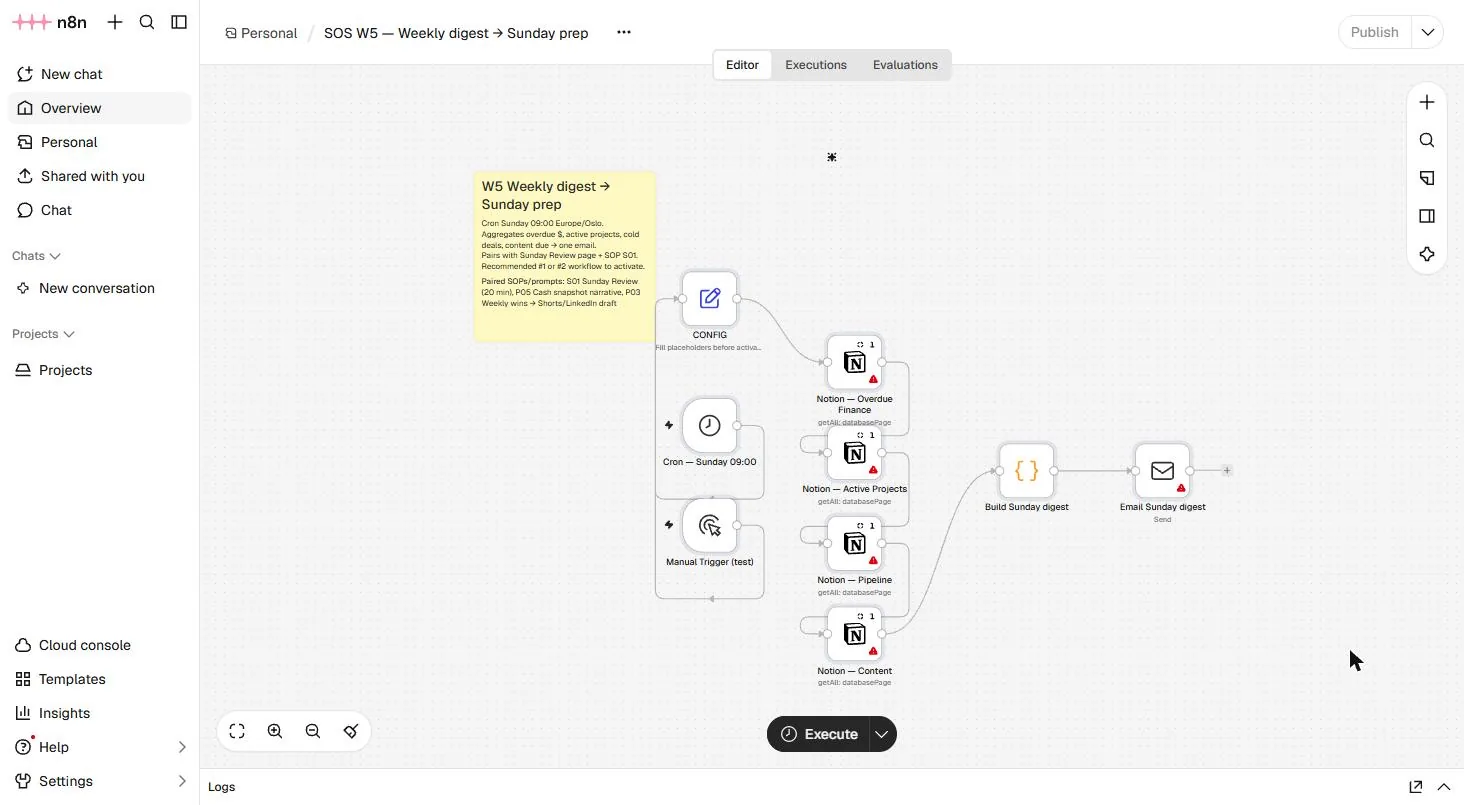
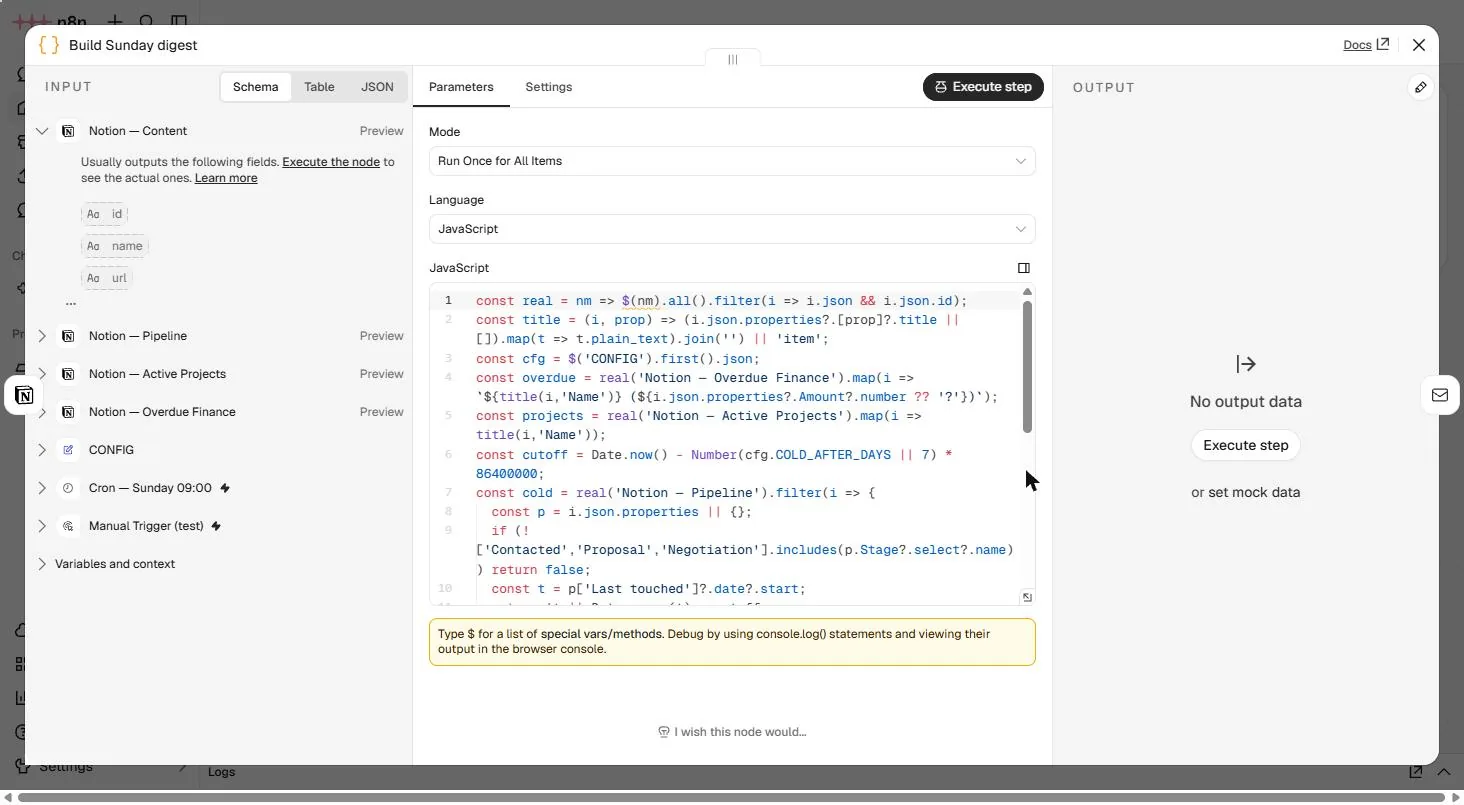
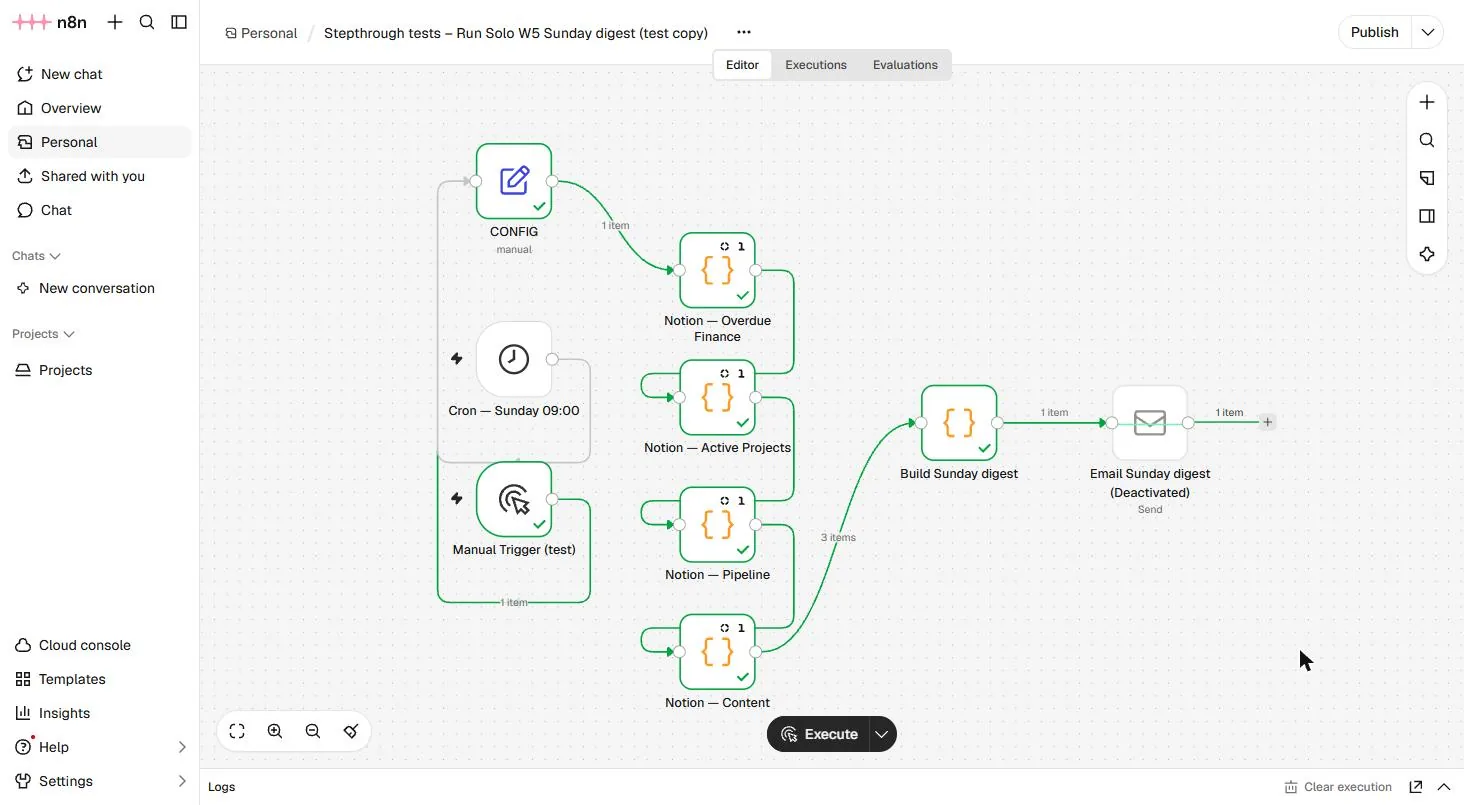
W5, Weekly digest → Sunday prep, runs on a schedule (the file ships with Sunday at 09:00) or by hand. It reads CONFIG, then four Notion queries in a row: Finance rows whose Status is Overdue, Projects whose Status is Active, every Pipeline deal and every Content row. A Code node, Build Sunday digest, turns them into one email with four sections: Overdue invoices, Active projects, Cold pipeline and Content Draft/Scheduled.
It only reads and reports. It never emails clients and never changes Notion. The email points you to the Stack's S01 Sunday Review (20 minutes: Clients, Cash, Content, Focus), P05 (a cash snapshot prompt) and P03 (weekly wins into a post).
Who this is for, and what you need
Freelancers, solo consultants and anyone who plans their own week in Notion. To follow the lesson you need nothing: it is a practice copy with made-up data.
To do it for real you need Solo Operator Stack from runsolostudio.com ($79 one time), its Notion workspace, n8n (self-hosted is free, n8n Cloud is a paid plan), a Notion internal integration connected to all four databases, and an email account n8n can send from through SMTP.
Step 1: import W5 and fill in CONFIG
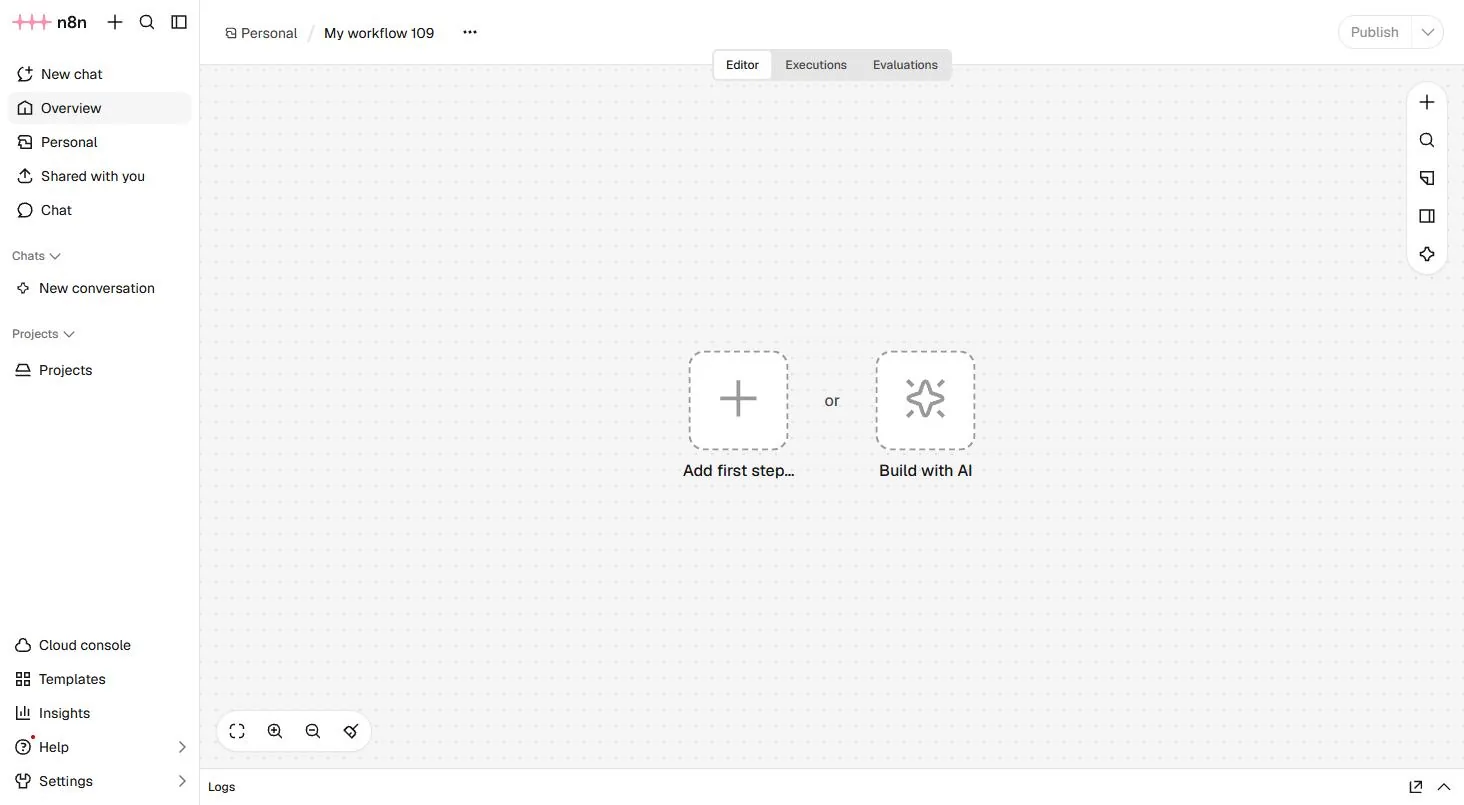
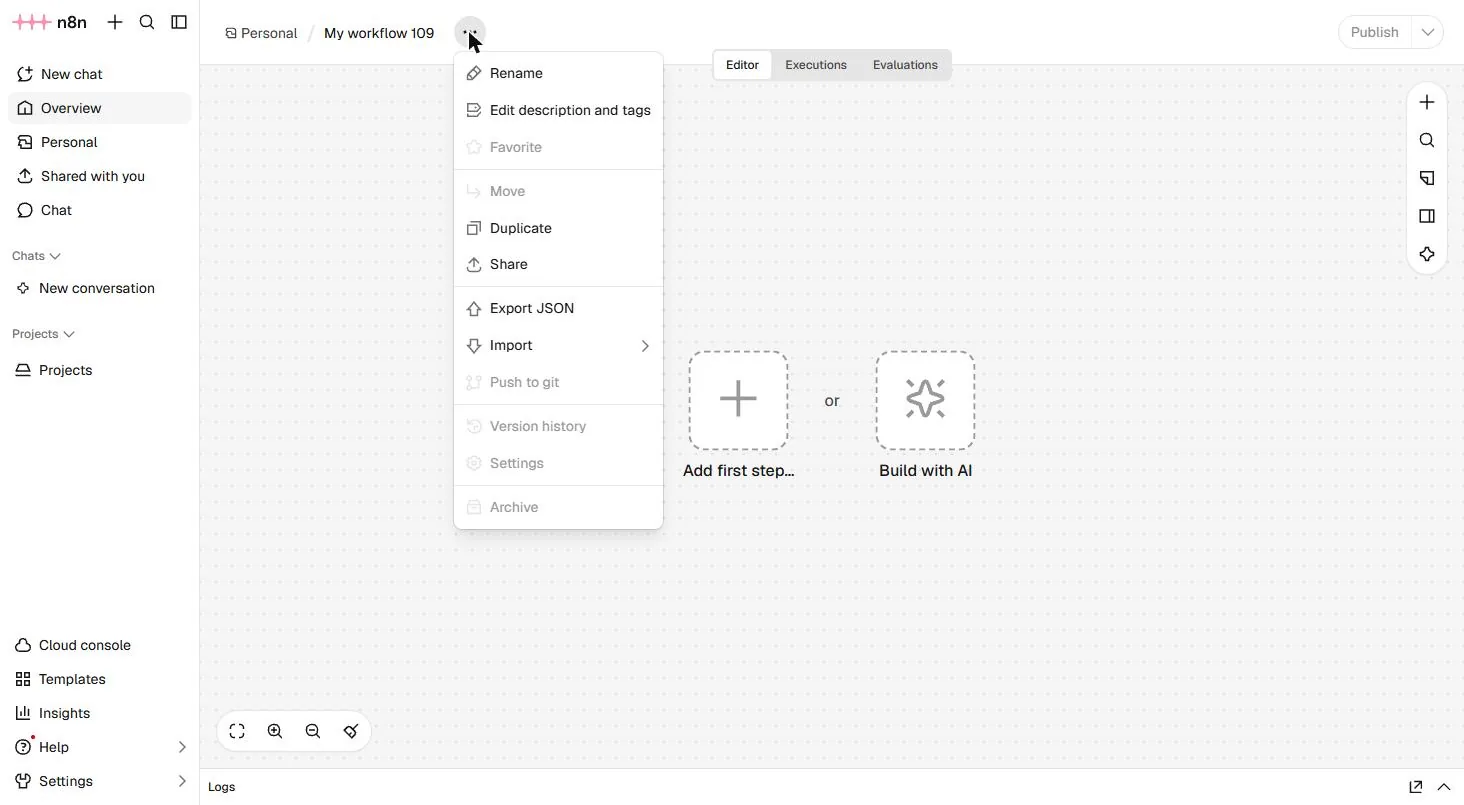
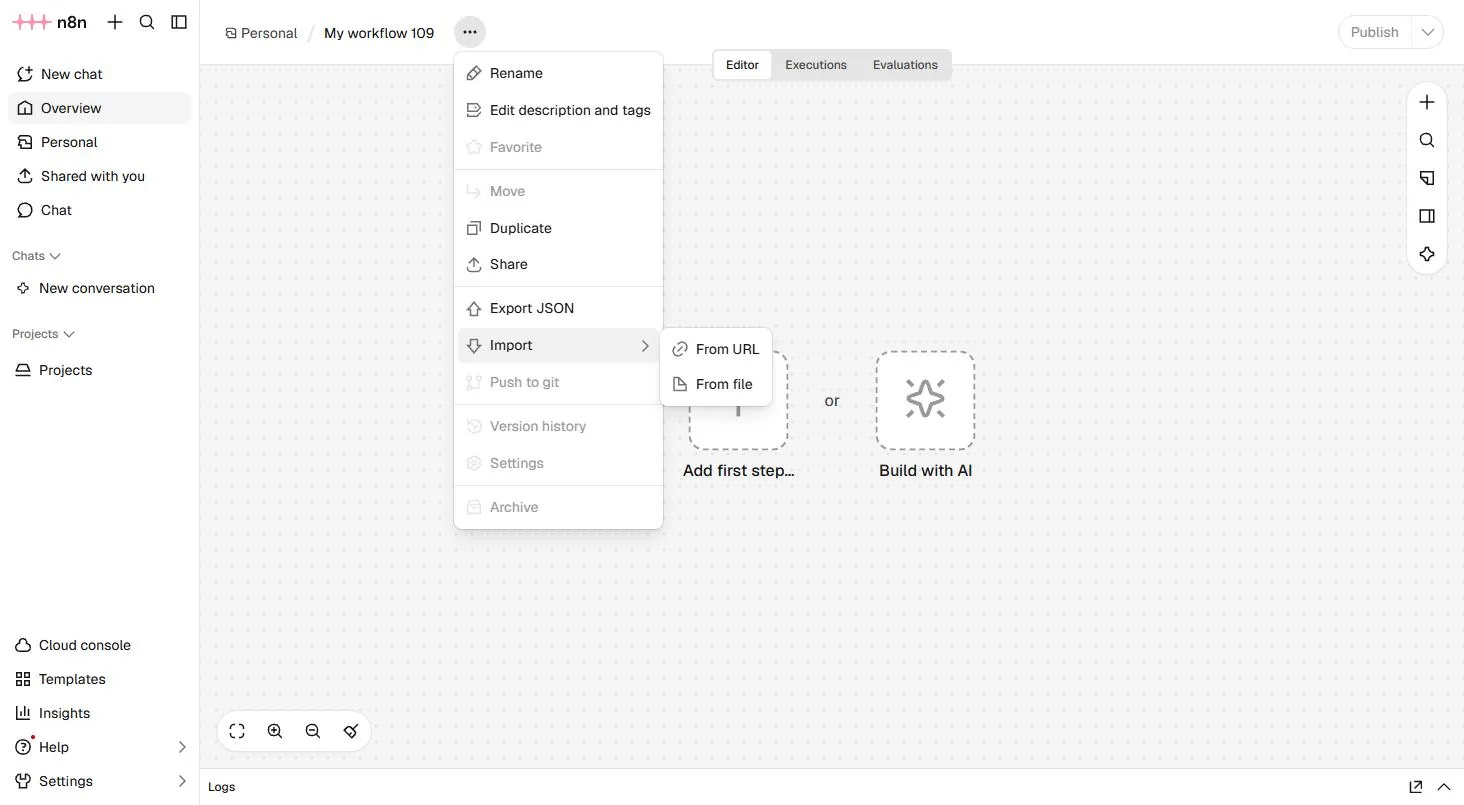
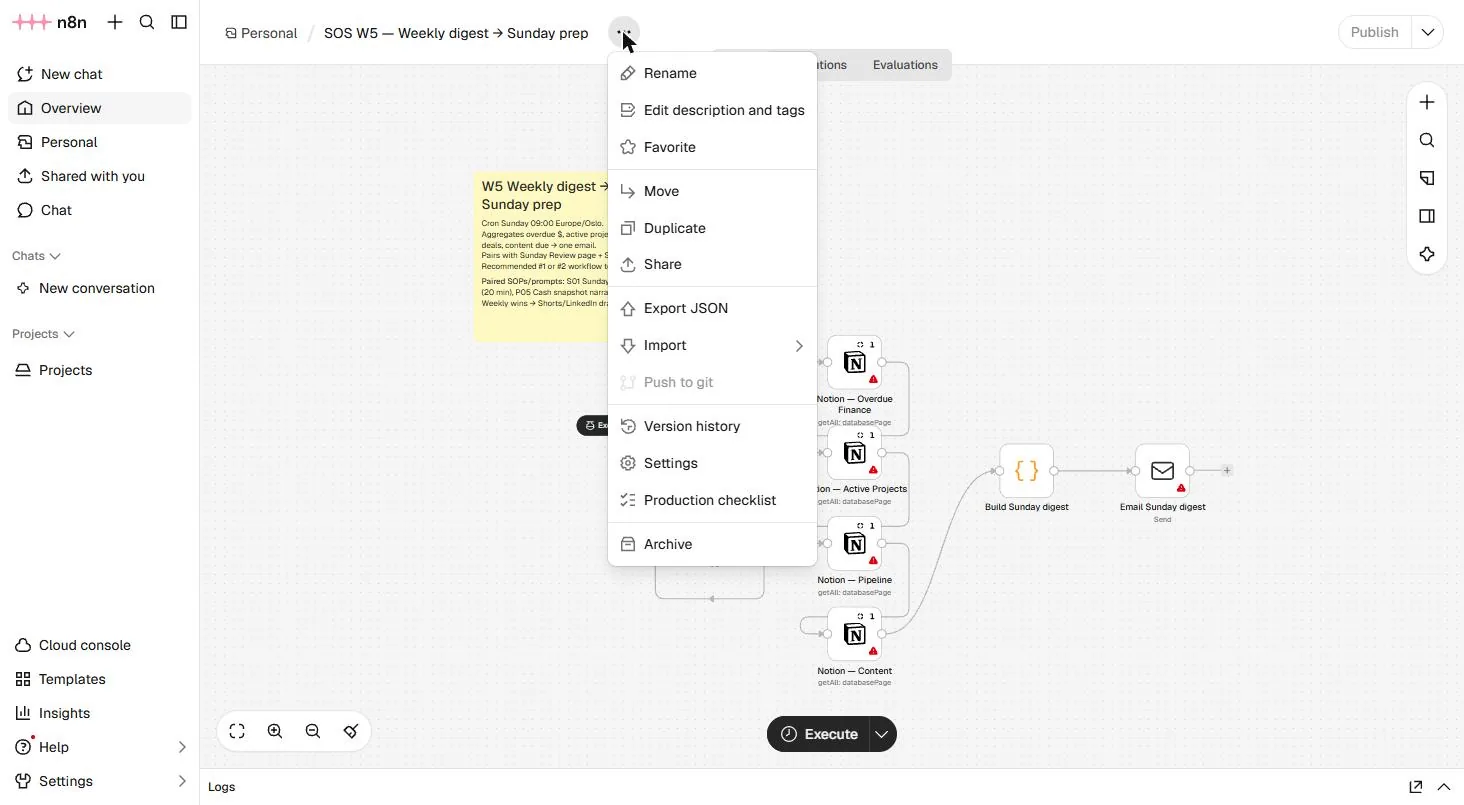
In n8n, click Create workflow, open the ··· menu next to the workflow name, point to Import and choose From file. Pick W5-weekly-digest.json from the n8n-workflows folder of the download. The Notion and email nodes show warnings until you attach credentials: the file ships with no secrets.
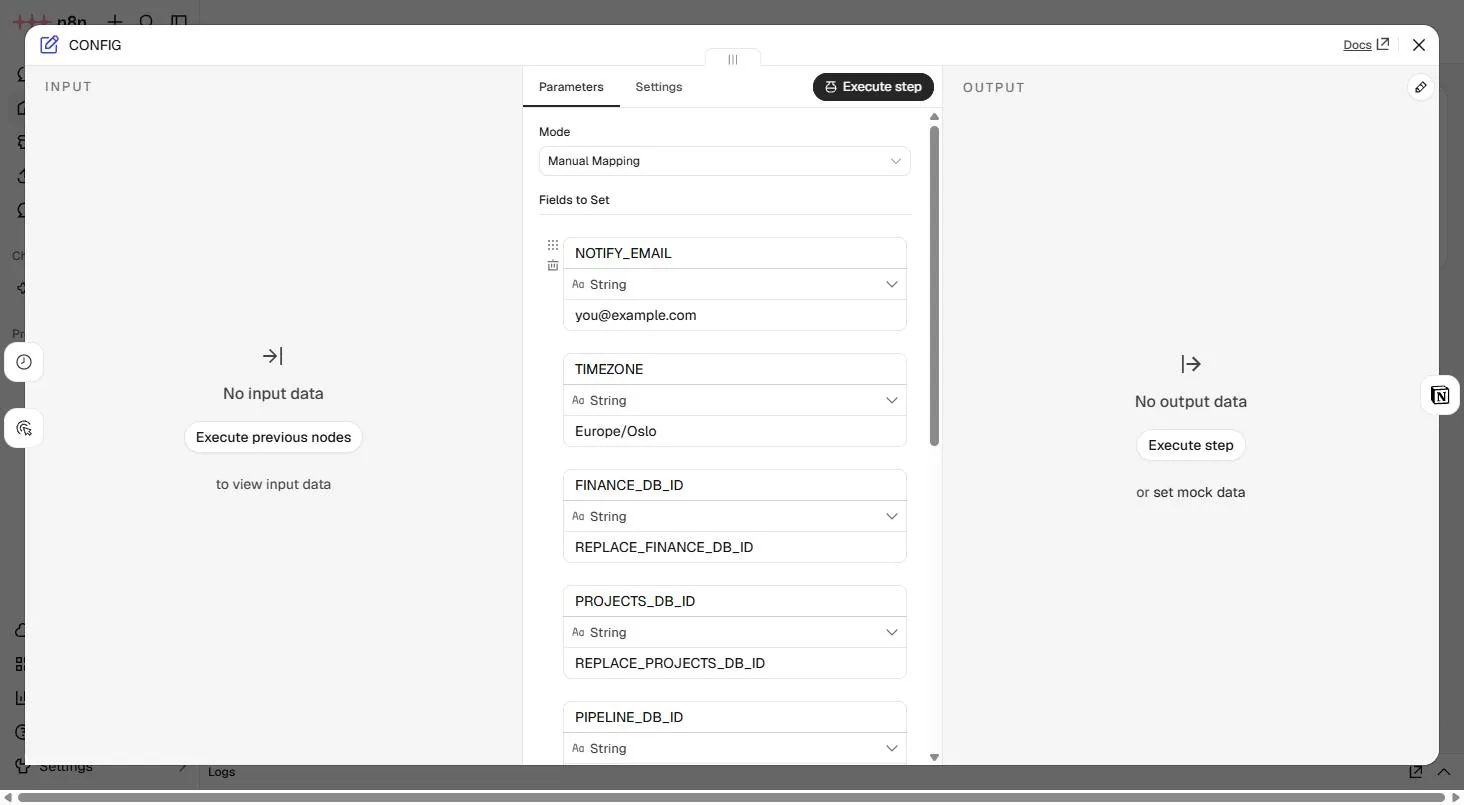
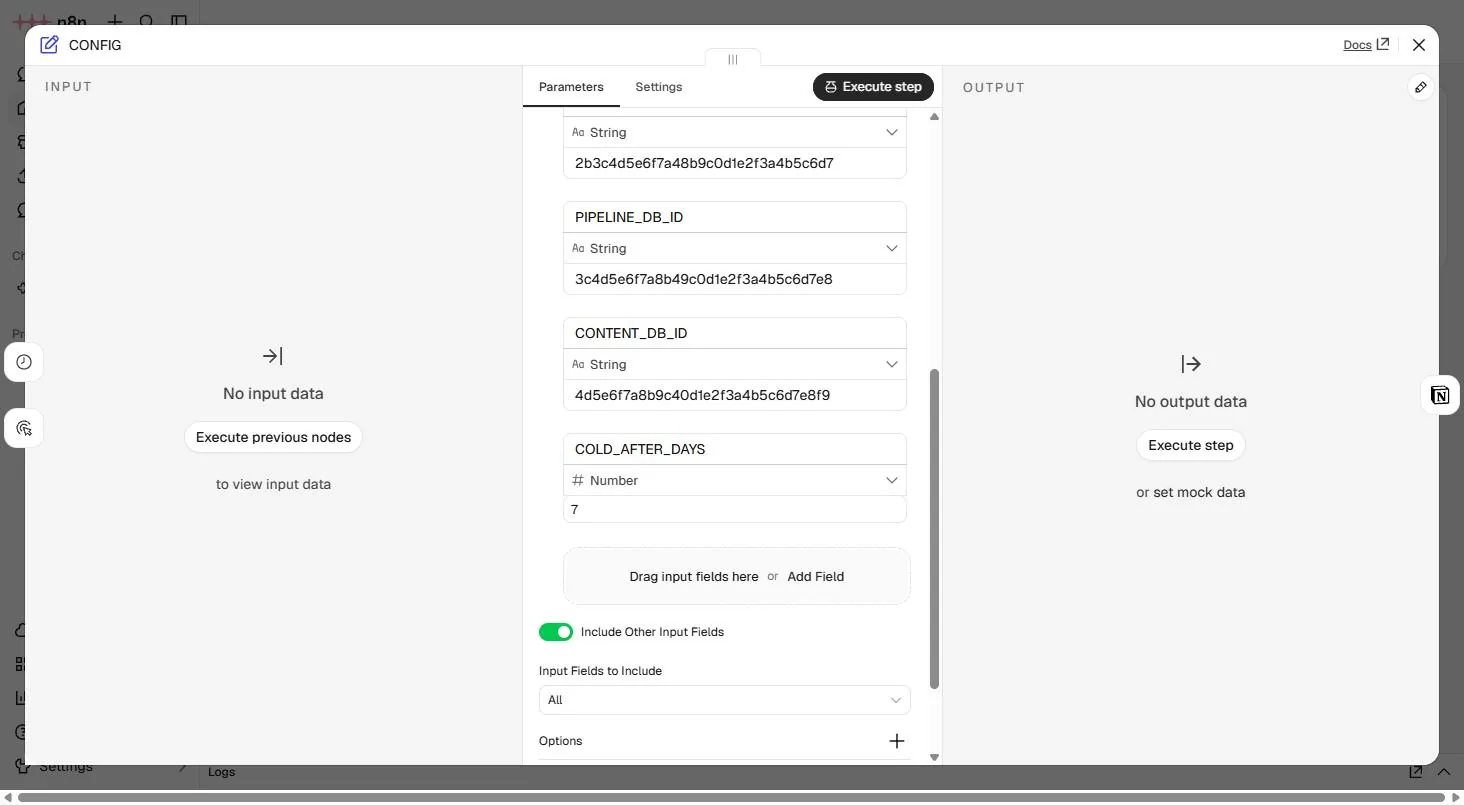
Open CONFIG. Set NOTIFY_EMAIL to your own inbox, and paste the 32-character ID of each database (from its Notion address, after the last slash and before ?v=) into FINANCE_DB_ID, PROJECTS_DB_ID, PIPELINE_DB_ID and CONTENT_DB_ID. COLD_AFTER_DAYS is 7: a deal untouched for more than a week counts as cold.
Step 2: why each Notion node has Always Output Data and Execute Once on
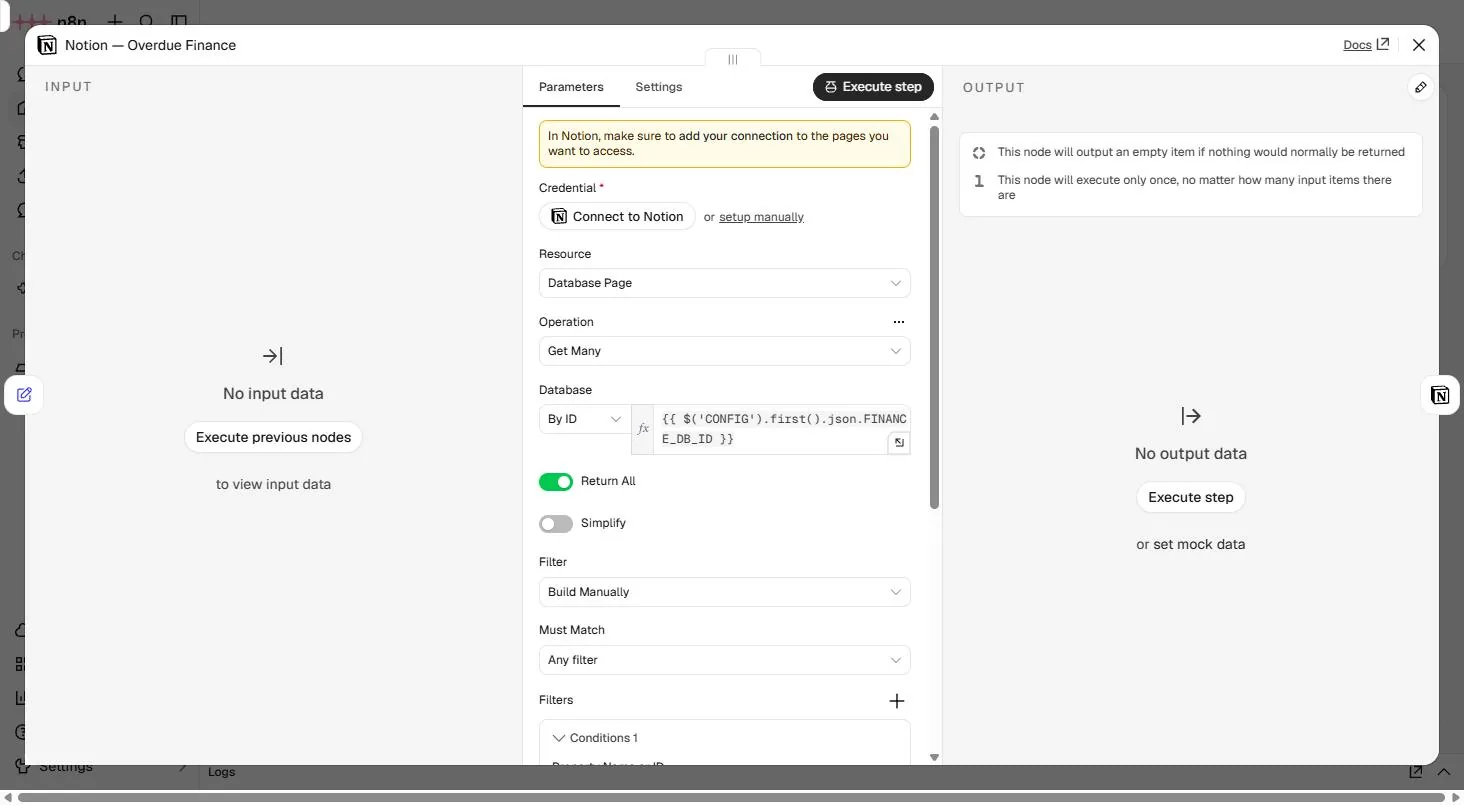
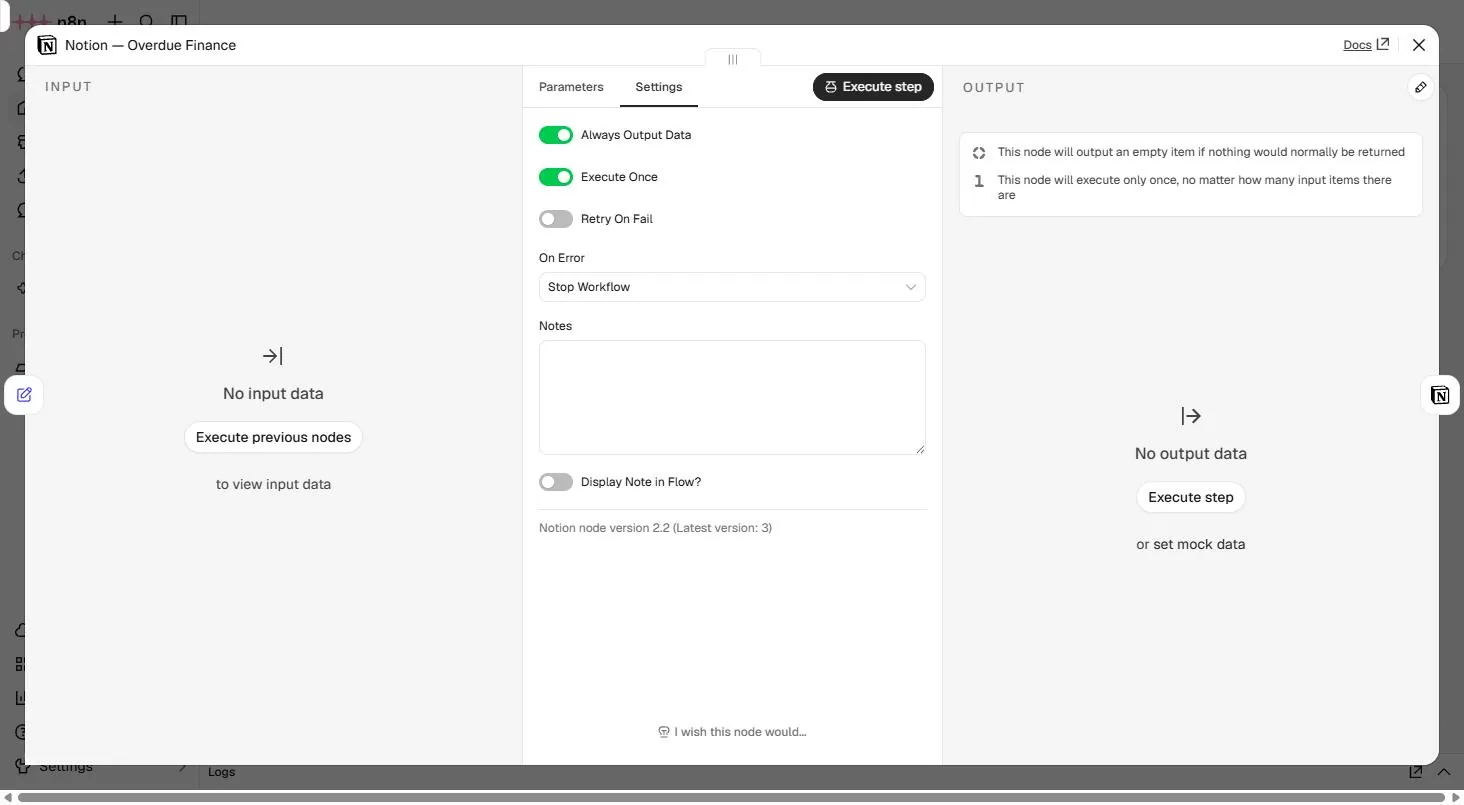
Open Notion — Overdue Finance and click its Settings tab. Two switches are on. Always Output Data: when a query finds nothing, n8n normally stops the run at that node. In our test copy, a week with no overdue invoices stopped right after the first query and built no digest; with the switch on, the digest went out with Overdue invoices (0): (none).
Execute Once: n8n runs a node once for every item it receives, and W5 chains its four queries. Without it, the projects query would run once per overdue invoice and repeat itself in the digest. All four Notion nodes ship with both on. If you rebuild or copy a query, keep them on.
Step 3: connect Notion and email
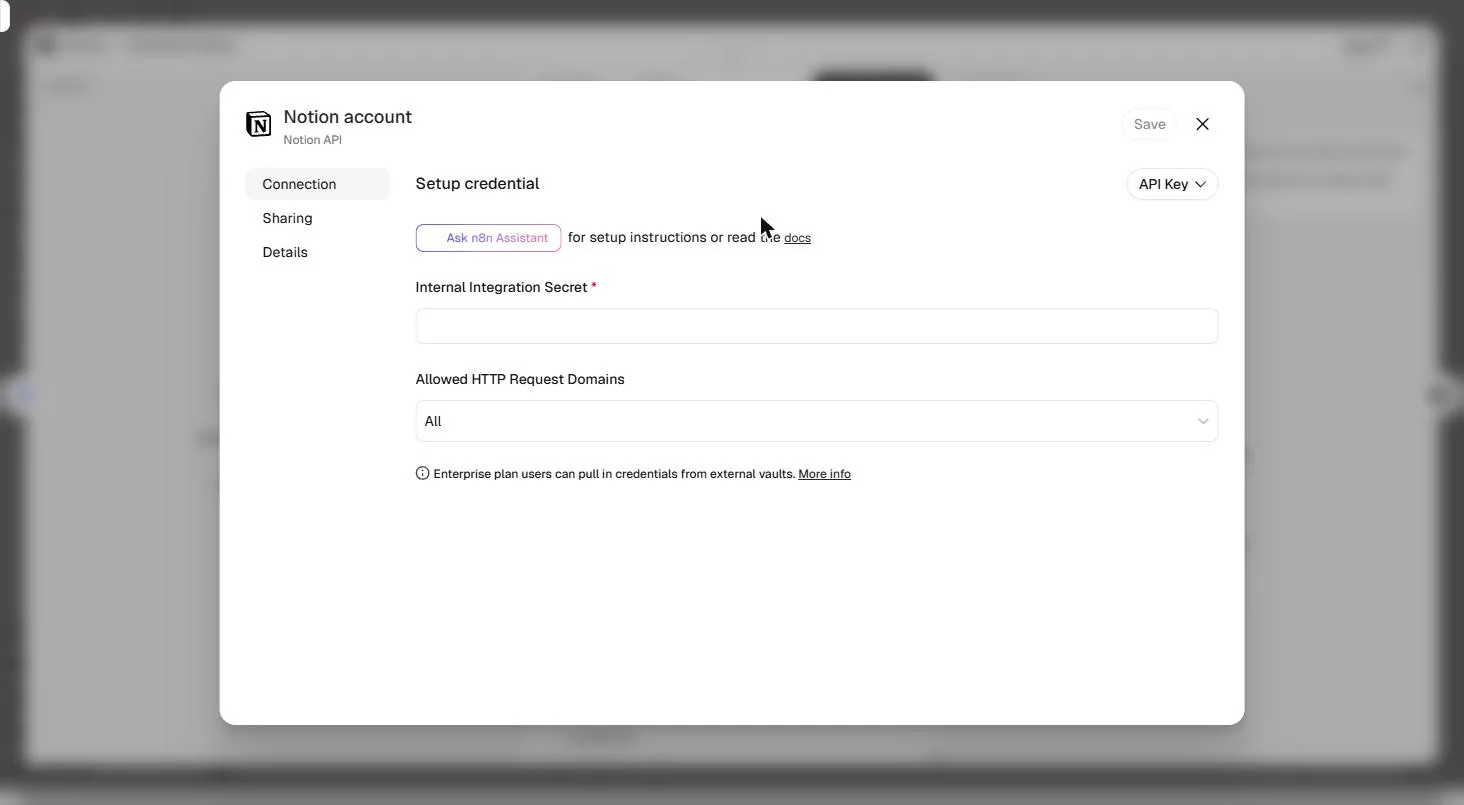
Under Credential, click setup manually, keep API Key and paste your integration's Internal Integration Secret, then pick that credential on the other three Notion nodes. In Notion, connect the integration to all four databases (···, Connections), or that section of the digest comes back empty.
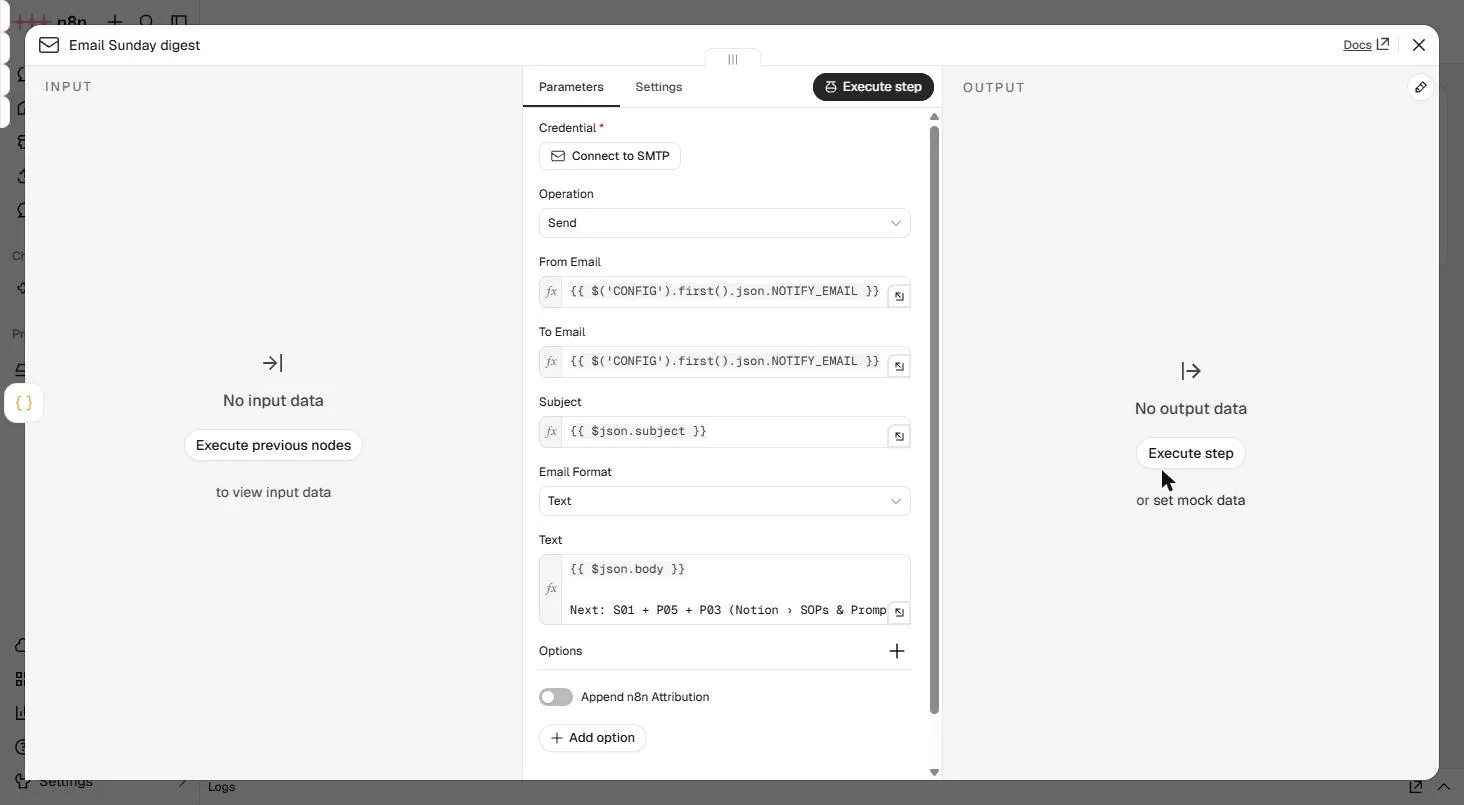
Open Email Sunday digest and click Connect to SMTP. From and To both read NOTIFY_EMAIL from CONFIG.
Step 4: set the schedule and time zone
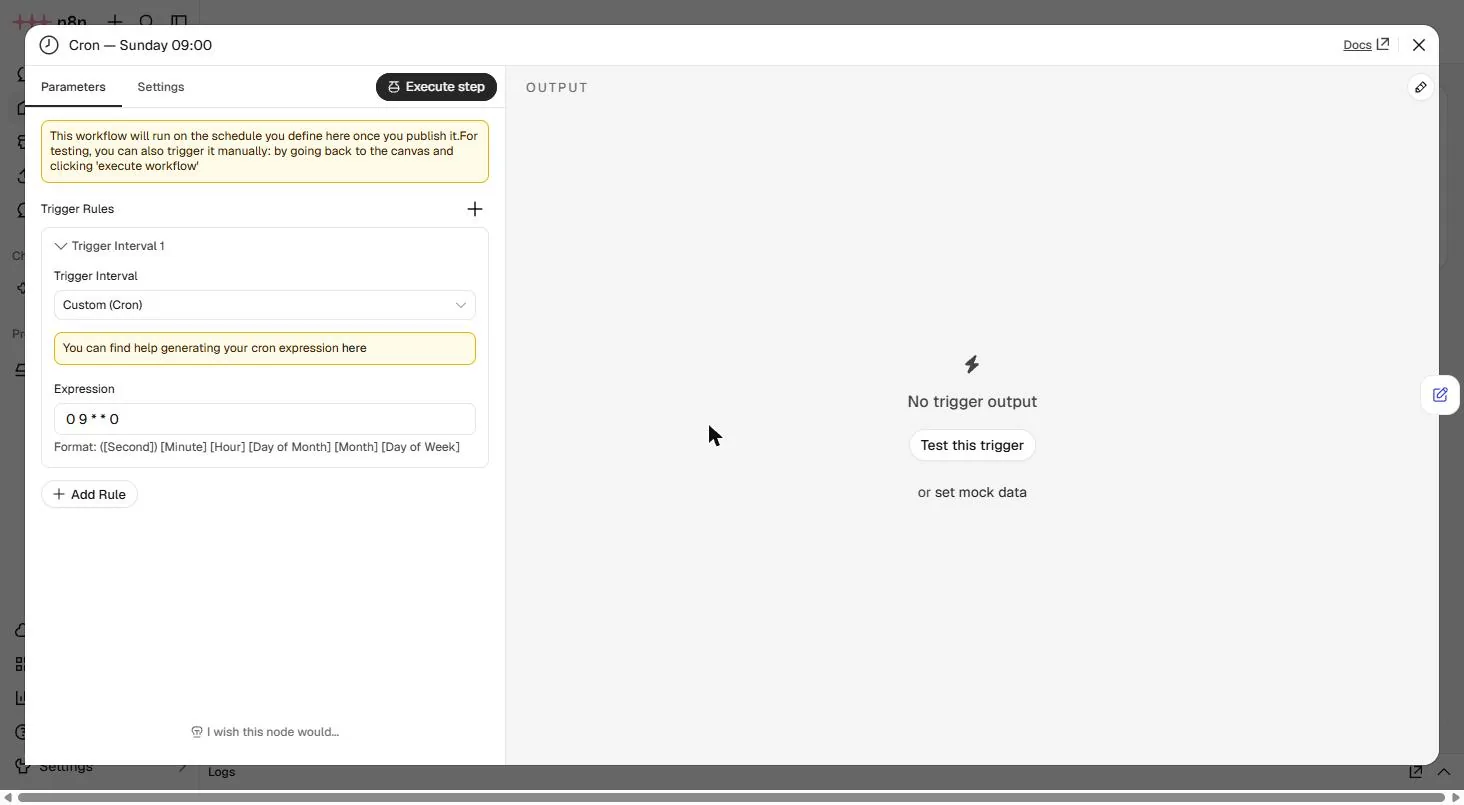
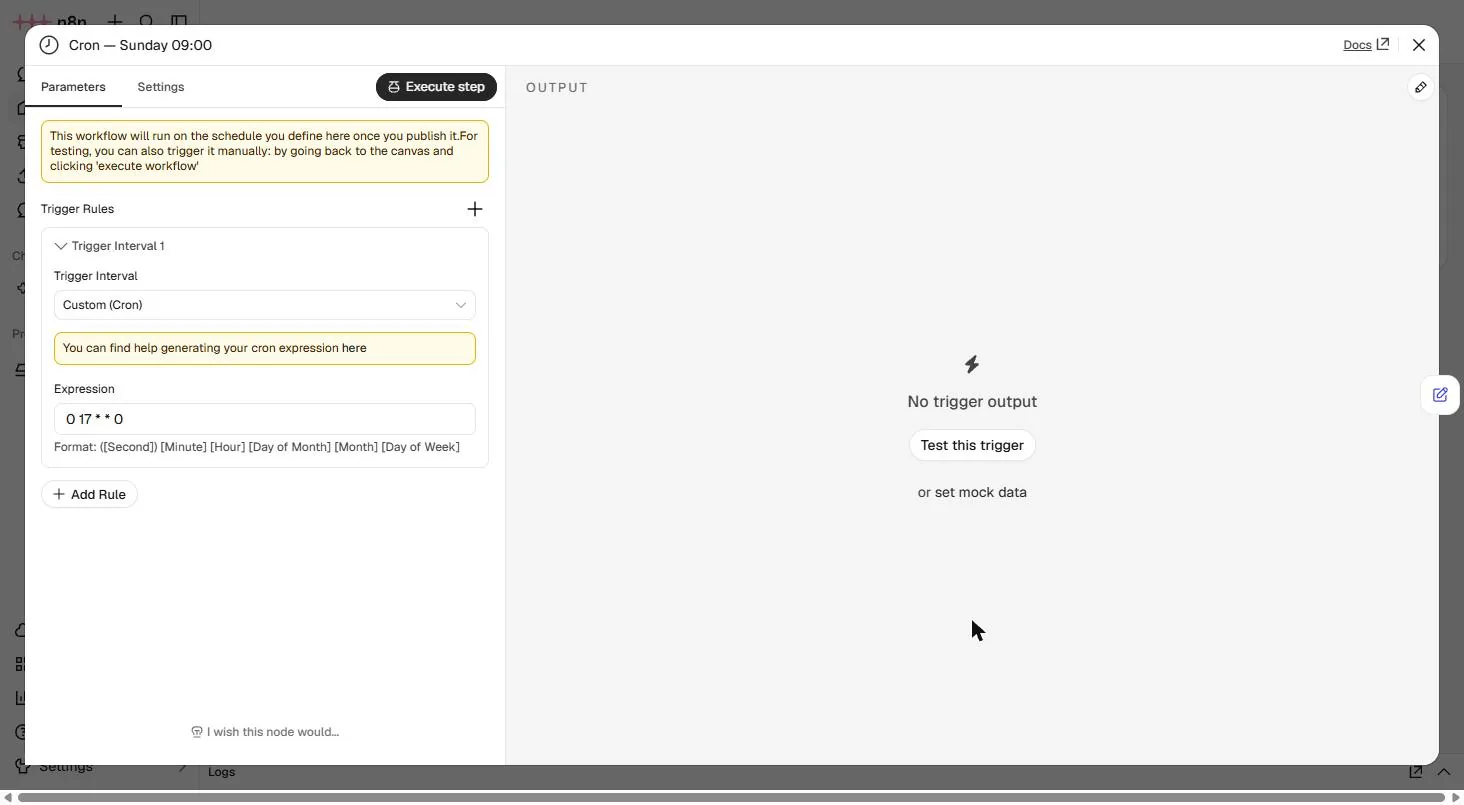
Open Cron — Sunday 09:00. The expression 0 9 * * 0 means minute 0, hour 9, Sunday. For Sunday at 5 PM, just before a late-afternoon review, use 0 17 * * 0. The node keeps its old name, which is fine.
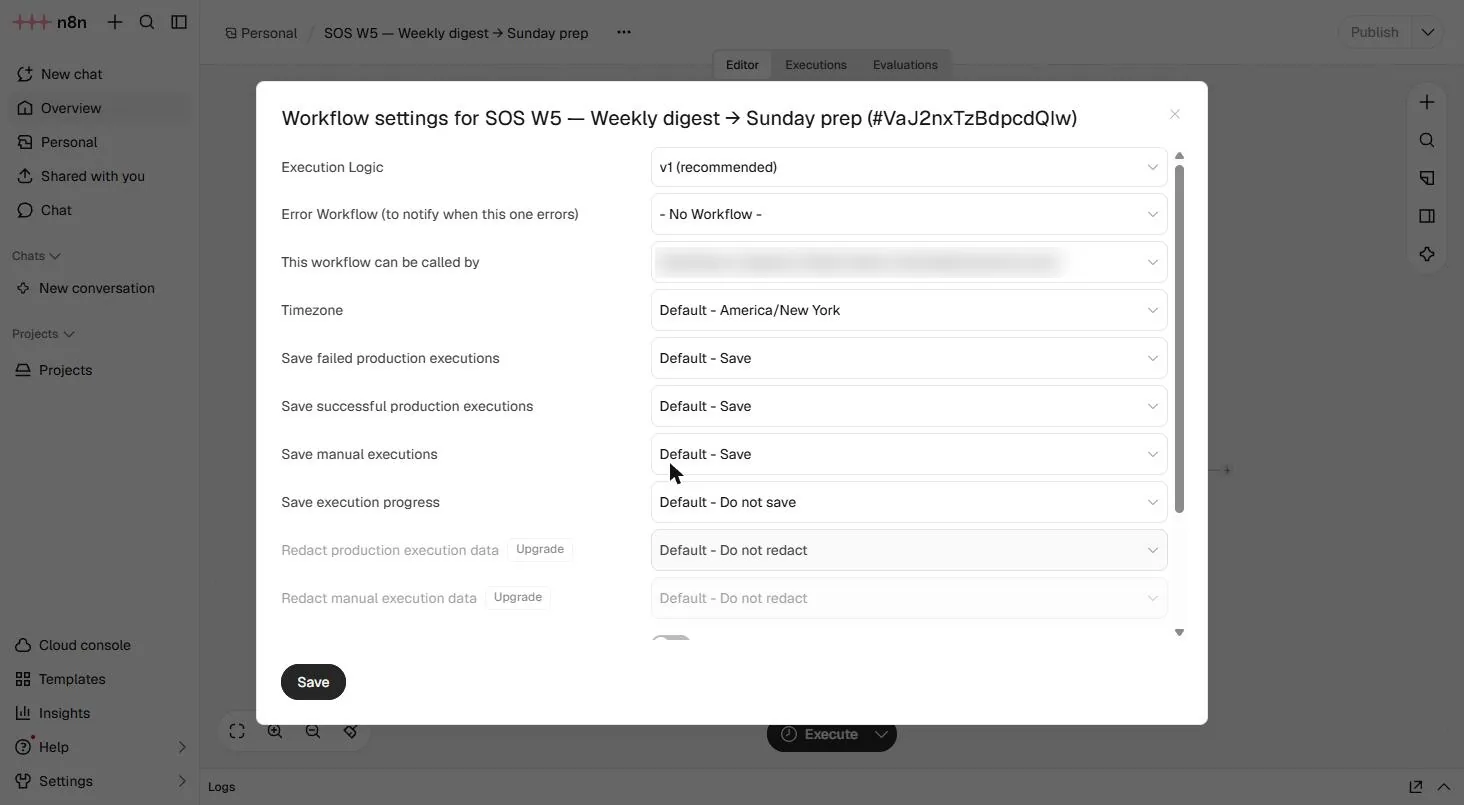
The file was written for Europe/Oslo. Open the ··· menu, choose Settings and check Timezone. When we imported through the menu it showed our account default, America/New York. Pick your own zone and save.
Step 5: test it, then use it on Sunday
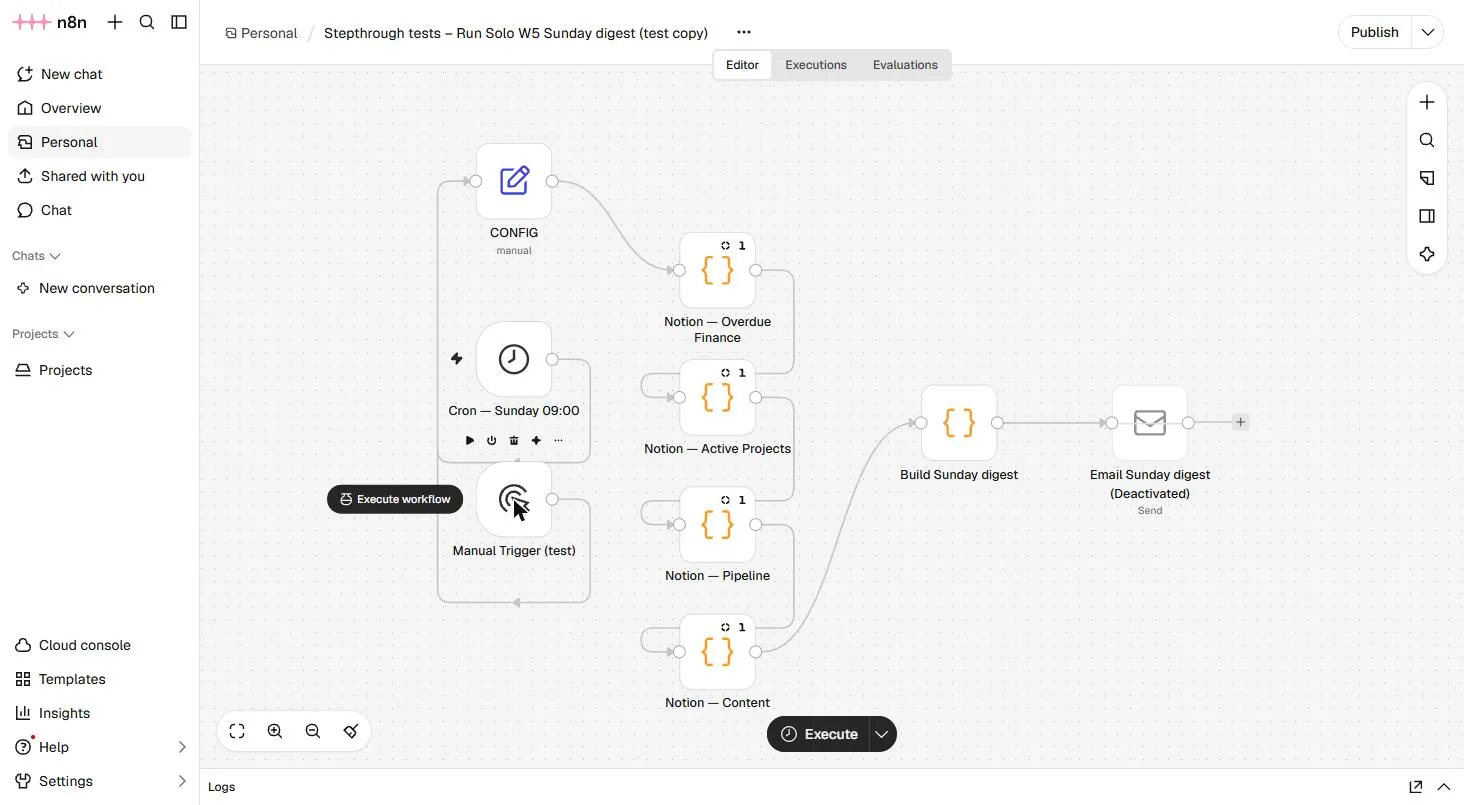
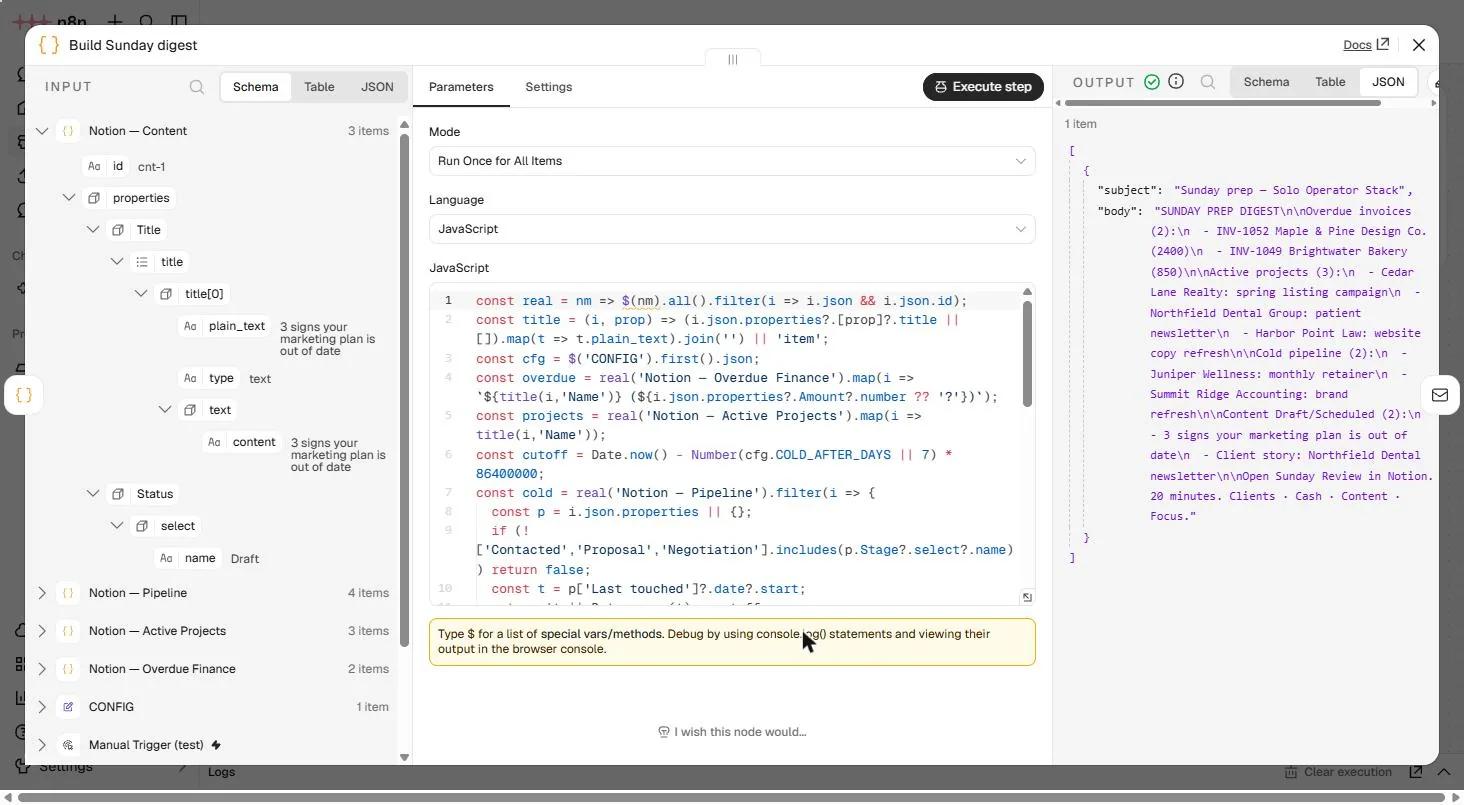
Click Execute workflow next to Manual Trigger (test). In our test copy Build Sunday digest produced one item with the subject Sunday prep — Solo Operator Stack and four sections: 2 overdue invoices, 3 active projects, 2 cold deals (a Proposal untouched for 13 days and a Contacted deal for 17; a Negotiation touched 3 days before was not cold, and a Won deal was left out) and 2 posts in Draft or Scheduled.
On Sunday, read the email first, then open the Sunday Review in Notion. The overdue invoices and the cold deals both belong in the Cash block (minutes 5 to 12): send one reminder, then give each cold deal a next step or move it to Lost. When the test works, publish the workflow.
Mistakes to avoid
- Switching off Always Output Data on a Notion node, so a quiet week sends no email at all.
- Switching off Execute Once, or copying a query without it, so the digest repeats rows.
- Connecting the Notion integration to only one database, so the other sections say (none).
- Renaming Notion properties such as Status, Stage, Last touched, Deal name or Title. The workflow reads them by name.
- Leaving the time zone on someone else's default, so the Sunday email arrives at the wrong hour.
Links
- Solo Operator Stack (Run Solo Studio): the kit this lesson teaches: a Notion workspace, six n8n workflows and an SOP and prompt library. $79 one time, as listed on its site in October 2026. Run Solo Studio gave us a free copy as partners.
- Run Solo Studio: also makes Client Ops Kit ($29, works on Notion Free), with SOPs and AI prompts for the Notion side only, if you do not use n8n.
- n8n: the automation tool the workflows run on, self-hosted (free) or n8n Cloud (paid).
- Notion integrations: where you create the internal integration whose secret n8n uses to read your four databases.
- W2: the weekday overdue-invoice reminder: our first Run Solo Studio lesson, for a daily list of late invoices.
Try it yourself, free
Reading the steps is a start. Doing them is how it sticks. The interactive module walks you through every click in a practice copy of Run Solo Studio, checks each step, and never touches your real accounts.
Start “Weekly Digest Email from Notion with n8n: Run Solo Studio's Sunday Prep (W5)”Step by step: Weekly Digest Email from Notion with n8n: Run Solo Studio's Sunday Prep (W5)
All 32 steps of the interactive module, in order. In the module you watch each one, then do it yourself in a practice copy that checks your work.
1. The Sunday hunt
- Look at the Sunday tabs. Dana Ortiz runs Ortiz Strategy Co., a one-person marketing consultancy (made up). Every Sunday she plans her week by opening four Notion databases one by one: Finance, Projects, Pipeline and Content. Last month that hunt missed one $1,500-a-month retainer proposal untouched for 13 days. Click the four databases.
Meet Dana. She runs a one-person consultancy. Every Sunday, she plans her week. She opens four Notion databases, one by one. Money, projects, deals and content. Last month, a retainer proposal went quiet for almost two weeks.
- Put a price on the hunt. Clicking through four databases takes about 45 minutes every Sunday, about 3 hours a month. At $100 an hour that is about $300 a month of her time, and it still misses the deal that went quiet. These are example numbers, so swap in your own. Click the total.
That's about forty-five minutes every Sunday. About three hours a month. At a hundred dollars an hour, that's about three hundred dollars a month. And it still missed a deal. These are example numbers.
- Meet W5, the Sunday digest. Solo Operator Stack from Run Solo Studio is a Notion workspace plus six import-ready n8n workflows. W5, Weekly digest, reads all four databases and emails you one Sunday prep digest: overdue money, active projects, cold deals and content due. It only reads: it never emails clients or changes Notion. The Stack is $79 on runsolostudio.com. Click the W5 card.
Run Solo Studio's Solo Operator Stack comes with an n8n workflow called W5. It reads all four databases, and emails you one Sunday digest. Late money, active projects, cold deals, and content that's due. It only reads. It never emails your clients.
2. Import W5 into n8n
- Open the workflow menu. These are real n8n screens. In n8n, click Create workflow and you get a blank canvas like this one. Next to the workflow name, click the ··· menu.
From here on, these are real n8n screens. Create a new workflow, and you get a blank canvas. Next to the name, click the three dots.
- Point to Import. Point to Import.
- Import from file. Click From file, then pick W5-weekly-digest.json from the n8n-workflows folder of the Stack download.
Then pick the W5 file, from the n8n workflows folder in your download.
3. Fill in CONFIG
- Open CONFIG. W5 lands on the canvas as SOS W5 — Weekly digest → Sunday prep: two triggers (Cron — Sunday 09:00 and Manual Trigger (test)), then CONFIG, four Notion queries in a row (Overdue Finance, Active Projects, Pipeline, Content), Build Sunday digest and Email Sunday digest. The red triangles mean those nodes still need your accounts. Double-click CONFIG.
W5 is on the canvas. Two triggers. Then CONFIG, four Notion searches, a digest, and an email. The red warnings mean they still need your accounts.
- Set your inbox. CONFIG holds IDs and settings only, never passwords. NOTIFY_EMAIL is your own inbox: the digest comes to you, not your clients. Click the you@example.com value and type your address.
CONFIG holds your IDs and settings. Never passwords. NOTIFY EMAIL is your own inbox.
- Paste four database IDs, then close. W5 needs one ID per database. Open each one in Notion as a full page and copy the 32 characters in the address, after the last slash and before ?v=. Paste them into FINANCE_DB_ID, PROJECTS_DB_ID, PIPELINE_DB_ID and CONTENT_DB_ID (here made up). COLD_AFTER_DAYS is 7: a deal untouched for more than 7 days counts as cold. TIMEZONE here is only a note. Close with the ×.
Next, four database IDs. Cold after days is seven. A deal nobody touched for a week counts as cold. Then close the node.
4. The Notion queries
- Open the first Notion query. Double-click Notion — Overdue Finance. It gets every Finance row whose Status equals Overdue. The other three get Active projects, every Pipeline deal and every Content row.
It finds every invoice marked Overdue. The other three find projects, deals and content.
- Open the Settings tab. Notice the two lines under OUTPUT. They come from two node settings that make four queries in a row work. Click the Settings tab.
See the two notes on the right? They come from two settings.
- Always Output Data. Always Output Data is on. If a query finds nothing, say no overdue invoices this week, n8n normally stops the run there, and you would get no Sunday email at all. With this on, the node passes along one empty item, the run carries on, and the digest says (none). We tested it both ways in our test copy. Click Always Output Data.
Always Output Data is on. Here's why. If nothing is overdue this week, n8n would normally stop right here. No Sunday email at all. With this on, the run keeps going.
- Execute Once. Execute Once is on too. n8n runs a node once for every item it receives. The projects query comes after the invoices query, so without this it would run once per overdue invoice and repeat every project in the digest. With it, each query runs once. All four Notion nodes ship with both switched on: if you rebuild or copy a query, keep them on. Click Execute Once.
Execute Once is on too. n8n runs a node once for every item it gets. Without this, the projects search would run once per late invoice. And your digest would repeat itself. All four searches ship with both settings on. Keep them on.
- Back to Parameters. Click Parameters to connect Notion.
Go back to Parameters.
- Set up the credential. The file ships with no secrets. Under Credential, n8n offers Connect to Notion or setup manually. The Stack uses a Notion internal integration secret, so click setup manually.
The file comes with no passwords in it. The Stack uses a secret key.
- Paste the integration secret. In Notion, create an internal integration (notion.so/my-integrations), paste its secret into Internal Integration Secret and click Save. Then open the other three Notion nodes and pick the same credential. In Notion, connect the integration to all four databases (···, Connections), or that section of the digest comes back empty. Click the Internal Integration Secret box.
Make an internal integration in Notion, and paste its secret here. Save. Pick the same account in the other three Notion nodes. And in Notion, connect all four databases to it.
5. Digest and email
- Open the digest code. Double-click Build Sunday digest. You do not need to change this code, but it is worth knowing what it does.
You don't need to change it. But it helps to know what it does.
- How a deal counts as cold. It writes four sections. A cold deal is one at stage Contacted, Proposal or Negotiation whose Last touched date is older than COLD_AFTER_DAYS (or empty). Won and Lost deals are left out. Content counts if its Status is Draft or Scheduled. It reads the properties Name, Amount, Deal name, Stage, Last touched, Title and Status, so do not rename them in Notion. Click the cold pipeline lines.
It builds four lists. A deal is cold if it's still open, and nobody touched it for more than seven days. Content counts if it's a draft or scheduled. Don't rename those columns in Notion.
- Open the email node. Back on the canvas, double-click Email Sunday digest.
- Connect your email. From Email and To Email both read NOTIFY_EMAIL from CONFIG, and the Text adds a pointer to S01, P05 and P03 in the Stack. Click Connect to SMTP and fill in your provider's user, password (often an app password), host and port, then Save. We left this empty, so nothing could be sent.
It sends from your address, to your address. Then save.
6. Schedule and time zone
- Open the schedule. Double-click Cron — Sunday 09:00. Schedules live in the trigger node, not in CONFIG.
Now the schedule.
- Sunday at 5 PM. The file runs Sundays at 9: 0 9 * * 0 (minute, hour, day of month, month, day of week, where 0 is Sunday). Dana does her review late Sunday afternoon, so she wants the email just before. Click the Expression box and change it to 0 17 * * 0.
It runs Sundays at nine in the morning. Dana does her review late in the afternoon.
- Close the trigger. It now reads 0 17 * * 0. The node keeps its name, Cron — Sunday 09:00, and that is fine. Close it with the ×.
Done. The name still says nine. That's fine. Close it.
- Open the workflow menu. Five o'clock, but in which time zone? The file was written for Europe/Oslo. Click the ··· menu next to the workflow name.
Five o'clock. But where? The file was written for Oslo.
- Open Settings. Click Settings.
- Check the time zone. When we imported the file through the menu, Timezone showed our account default, America/New York. Check it matches where you work: click the box, pick your zone and click Save.
Check the time zone. Ours showed New York, our account default. Pick yours, and save.
7. Test run
- Run a test. Test by hand before you publish. Hover over Manual Trigger (test) and click Execute workflow. This is our test copy: test steps with the same names stand in for the four Notion queries with made-up rows, and the email node is switched off.
Always test before you publish. Hover over the manual trigger, and click Execute workflow. This is our test copy, with made-up rows.
- See the digest. Every node that ran turned green. 3 items went into Build Sunday digest and 1 item came out: one digest, not one per row. Double-click Build Sunday digest.
Everything turned green. One digest came out.
- Read the Sunday email. The OUTPUT has the subject, "Sunday prep — Solo Operator Stack", and a body with four sections: Overdue invoices (2), Active projects (3), Cold pipeline (2) (Juniper Wellness and Summit Ridge; Oakline, touched 3 days earlier, is not cold) and Content Draft/Scheduled (2). With SMTP connected, that is the email W5 sends. Click the output.
The output has a subject, and four lists. Two late invoices. Three projects. Two cold deals. And two posts that are due. That's your Sunday email.
8. Use it in the Sunday Review
- Use it in the 20-minute review. The email ends with "Open Sunday Review in Notion. 20 minutes." That is S01 in the Stack: Clients, Cash, Content, Focus. The two overdue invoices and the two cold deals both land in the Cash block (minutes 5 to 12): send one reminder with P11, then give each cold deal a next step or move it to Lost. Click Cash.
The email points to a twenty minute Sunday Review. Clients, cash, content, and focus. The late invoices and the cold deals both go in the cash block.
9. What it saves, and how to get it
- What this saves you. Sunday at 5 Dana gets one email instead of clicking through four databases, and a quiet deal shows up before it is lost. W5 only reads: she still decides and does every follow-up herself. Click What this saves you.
Every Sunday at five, Dana gets one email. No more clicking through four databases. And a quiet deal shows up before it's lost.
- Do it for real. W5 comes with Solo Operator Stack, $79 at runsolostudio.com. You need n8n (self-hosted is free, n8n Cloud is paid) and an email account for n8n. When the manual test works, publish the workflow so the Sunday schedule runs. Click Do it for real.
W5 comes with the Solo Operator Stack, from Run Solo Studio. You'll also need n8n, and an email account. When your test works, publish the workflow.
Screenshots
Frequently asked questions
- What does Always Output Data do in n8n?
- It makes a node pass along one empty item when it would otherwise return nothing, so the workflow keeps running. In W5 it means a week with no overdue invoices still reaches the digest, which then says (none). Without it, n8n stops at the empty node.
- What does Execute Once do in n8n?
- It makes a node run one time, using the first item it receives, instead of once for every incoming item. W5 chains four Notion queries, so Execute Once keeps each query from running once per row of the query before it.
- How do I send a weekly digest email from Notion with n8n?
- Query each Notion database with a Notion node (Database Page, Get Many), combine the results in a Code node into one subject and body, and send it with an Email or Gmail node on a weekly Schedule trigger. W5 from Run Solo Studio's Solo Operator Stack is a ready-made version of this.
- Is this an official Run Solo Studio course?
- No. This is my own lesson, made with Run Solo Studio's agreement. Run Solo Studio gave us a free copy of Solo Operator Stack as partners so we could build and test it.
- Did you run it for real?
- Yes, on a real n8n Cloud workspace on November 24, 2026, with made-up data only. The real W5 file was imported through the n8n menu. For the test run, steps with the same names stood in for the four Notion queries and the email node was switched off, so nothing was sent. The digest text in the lesson is the real output of that run.
Terms in this lesson
Plain-English definitions, each with an example from a free lesson.