Updated . Built against the tool’s current screens and checked step by step. How we check this lesson
Paste a store address, get two free demo calls from Seth, Ringly's AI phone agent, and judge them like a customer. Then check what he was trained on, pick his voice, keep the greeting short and plan the hand-off, all before you connect a store.
At a glance
| Question | Answer |
|---|---|
| What you build | Paste a store address, get two free demo calls from Seth, Ringly's AI phone agent, and judge them like a customer. Then check what he was trained on, pick his voice, keep the greeting short and plan the hand-off, all before you connect a store. |
| Tools | Ringly |
| Time | About 7 minutes, 20 steps in 3 parts |
| Level | Beginner, no coding needed |
| Cost | Free |
| Ways to learn it | Practice it step by step |
The 3 parts, in short
- Hear the demo calls: Paste a store address, Generate the demo calls, See what Seth is built for, Play the greeting, and 1 more step.
- Check the facts and the voice: Claim the agent (only for your own store), Check what Seth was trained on, Confirm the facts, Preview a voice, and 4 more steps.
- Choose the hand-off, then stop: Save the greeting, Decide what happens when Seth is stuck, Add business hours, Open your days, and 3 more steps.
Start here first: Your First Voice Agent in ElevenLabs: An After-Hours Receptionist (module 1 of AI Voice Agents)
In the course: Part 11 · AI Voice Agents (Module 180 of the full course)
Part of: AI for Accounting & Bookkeeping Firms (step 22 of 42). Next up: n8n: Turn Meeting Notes into Action Items in a Google Sheet
Part of: AI for Insurance Agencies (step 14 of 18). Next up: Answer a Renewal Price Shock Without Overpromising Coverage using ChatGPT for Insurance Agencies
Part of: AI for Medical & Dental Office Admin (step 8 of 25). Next up: How to Use Make.com: Your First Scenario, Google Forms to Google Sheets
What you'll build
Maya is made up. She leads support at Linen & Loft, a small Shopify bedding store, and her team loses hours a day to "where is my order?" calls. Before she buys anything, she wants to hear an AI phone agent handle one. Ringly makes two free demo calls from a store's web address, with no login or card. We have no store of our own, so we ran the demo on a well-known bedding brand's public site; Brooklinen is not involved. Then you walk the setup cards up to the point where you would connect your own Shopify store, and stop there.
You heard Seth greet a caller and answer "where is my order?" for a real store's website, checked what he was trained on, picked his voice, kept the greeting short and set transfers for business hours with email after hours. What it saves: the minutes a person spends on every order-status call, and the after-hours calls that went to voicemail. Next, on your own store: connect Shopify, then train Seth further in the dashboard. Our first Ringly lesson covers that part: knowledge, rules, escalation and a typed test.
- Tools: Ringly
- Time: about 7 minutes, 20 steps in 3 chapters
- Level: beginner, no coding needed
- Price: free
Practice first, then build it for real
Practice copy built from real Ringly screens (app.ringly.io), captured 19 November 2026. Nothing here calls anyone or connects a store. The demo calls were generated for brooklinen.com, a public store site, because we have no Shopify store; Brooklinen is not involved. The website-link and demo-call screens were captured after the account had moved on to setup. Ringly keeps them on the page, hidden, and we showed them only to take the screenshots. To build it for real you need your own Ringly account, and some services charge once you use them for real work, so check each tool's current pricing.
Try it yourself, free
Reading the steps is a start. Doing them is how it sticks. The interactive module walks you through every click in a practice copy of Ringly, checks each step, and never touches your real accounts.
Start “Ringly: Hear an AI Phone Agent Answer Your Shopify Store's Calls Before You Commit”Step by step: Ringly: Hear an AI Phone Agent Answer Your Shopify Store's Calls Before You Commit
All 20 steps of the interactive module, in order. In the module you watch each one, then do it yourself in a practice copy that checks your work.
1. Hear the demo calls
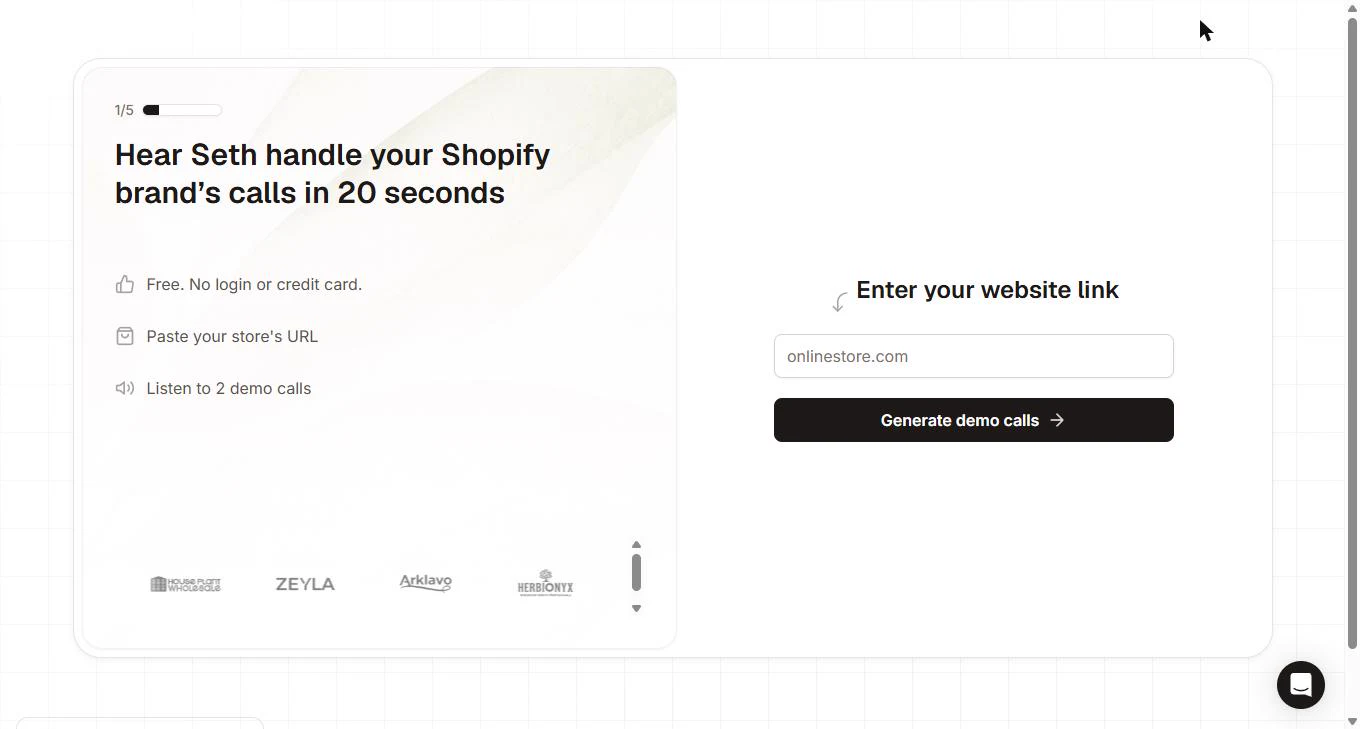
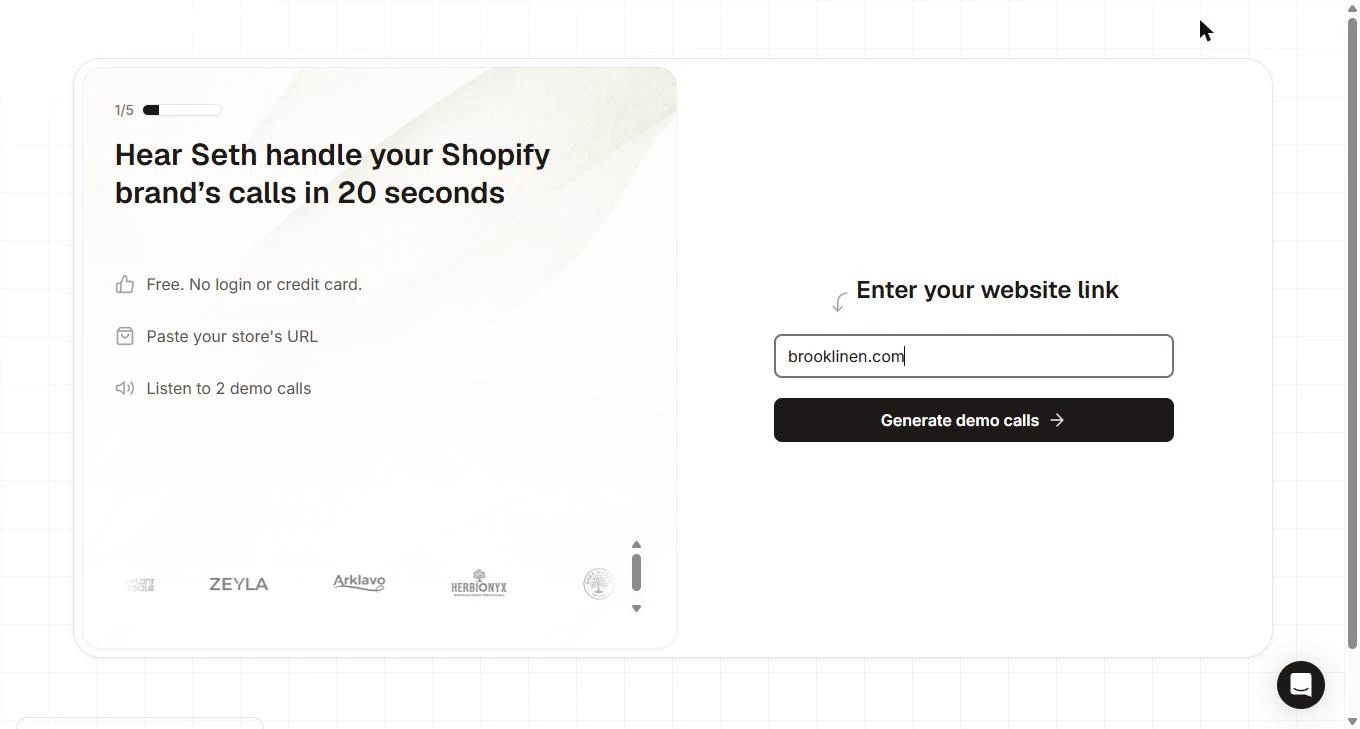
- Paste a store address. You are Maya, a made-up support lead at Linen & Loft, a small Shopify bedding store. Your team loses hours a day to "where is my order?" calls, and you want to hear an AI phone agent before you buy anything. Ringly's first screen promises demo calls in about 20 seconds: free, no login or credit card. On your own you would paste your store's address. We have no store, so we try a well-known bedding brand's public site. Type it in Enter your website link.
You want to hear an AI phone agent before you buy anything. Ringly makes free demo calls from any store address.
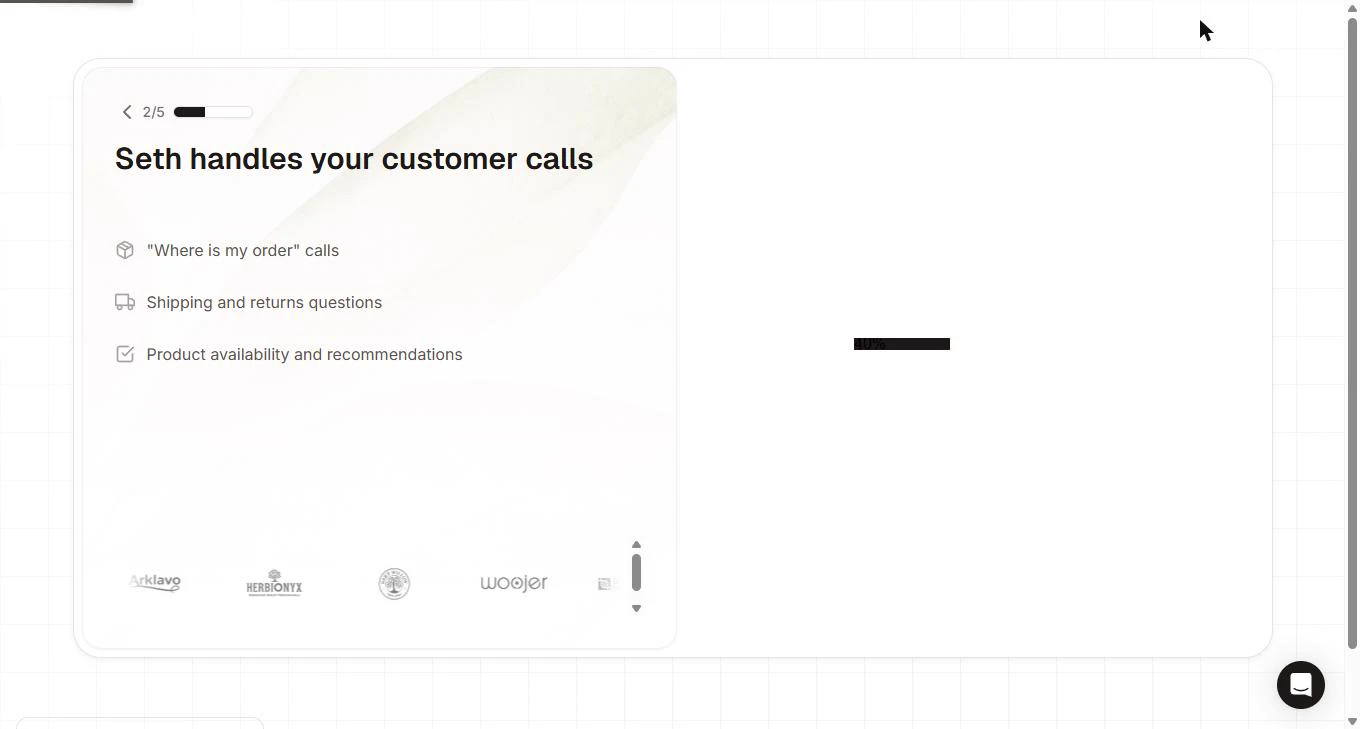
- Generate the demo calls. Click Generate demo calls. Ringly reads the store's website to train the agent, called Seth.
Ringly reads the website to train the agent, called Seth.
- See what Seth is built for. While it works, the left side lists the calls Seth handles: "Where is my order" calls, shipping and returns questions, and product availability and recommendations. The first is the one costing your team the most time. Click it.
While it works, read the calls Seth handles: where is my order, shipping and returns, and product questions.
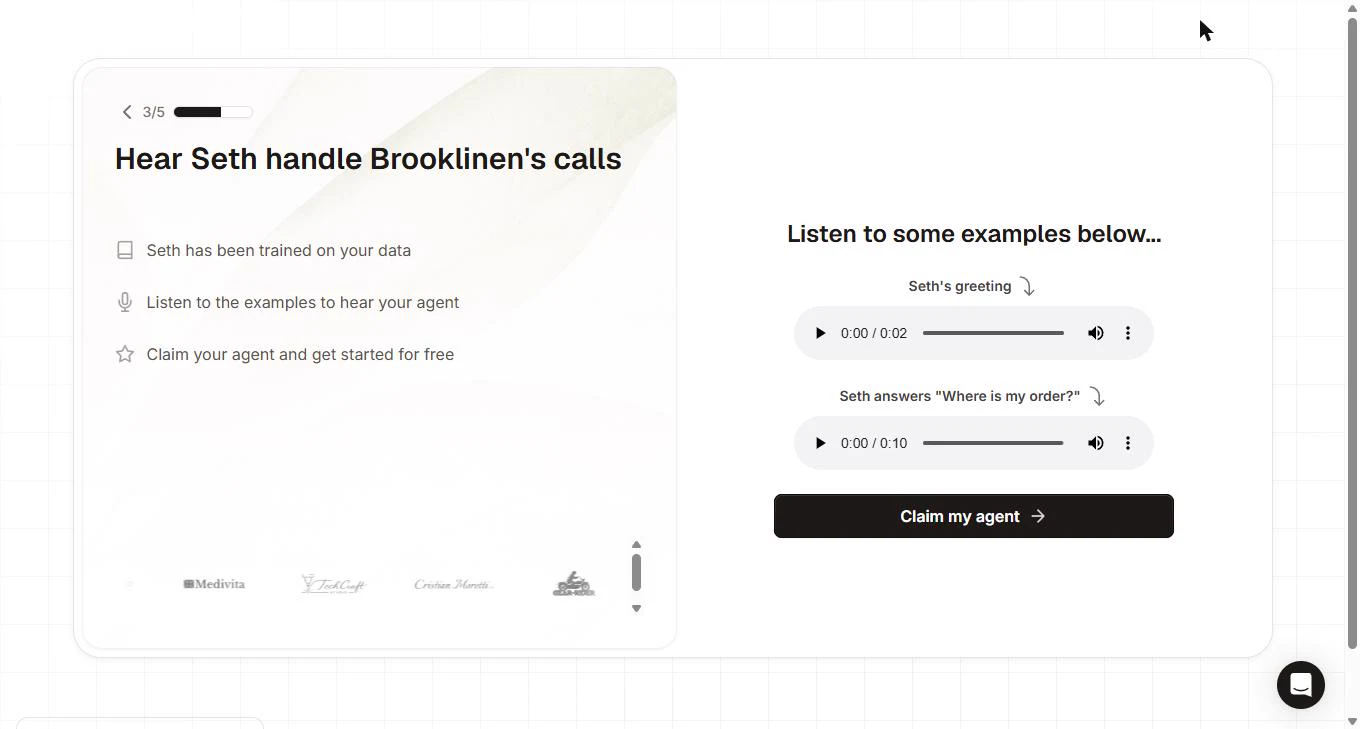
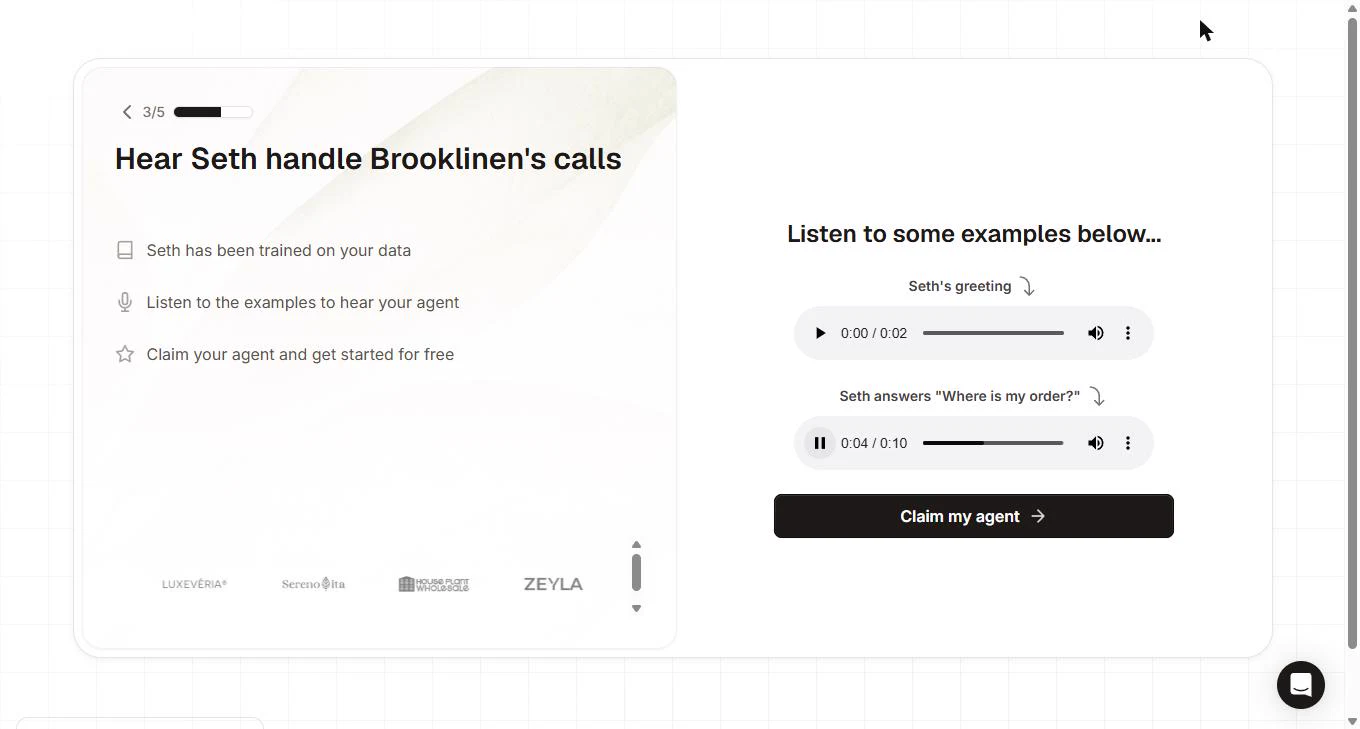
- Play the greeting. About ten seconds later: Hear Seth handle Brooklinen's calls, with two short recordings made from the store's own site. Play Seth's greeting first (2 seconds). Listen for one thing: would a caller know right away who answered?
Ten seconds later, two recordings. Play the greeting first. Would a caller know who answered?
- Play "Where is my order?". Now play Seth answers "Where is my order?" (10 seconds). Listen as a customer would: does he sound natural, does he ask for what he needs to find the order, and does anything he says sound made up? Write down anything you would change.
Now play the where is my order answer. Listen like a customer. Note anything that sounds wrong.
2. Check the facts and the voice
- Claim the agent (only for your own store). If the calls sound good enough to try, the next step is Claim my agent, which starts setup for free. Do this only with your own store's address: the agent is set up for that business. Click it.
If the calls sound right, claim the agent. Do this only for your own store.
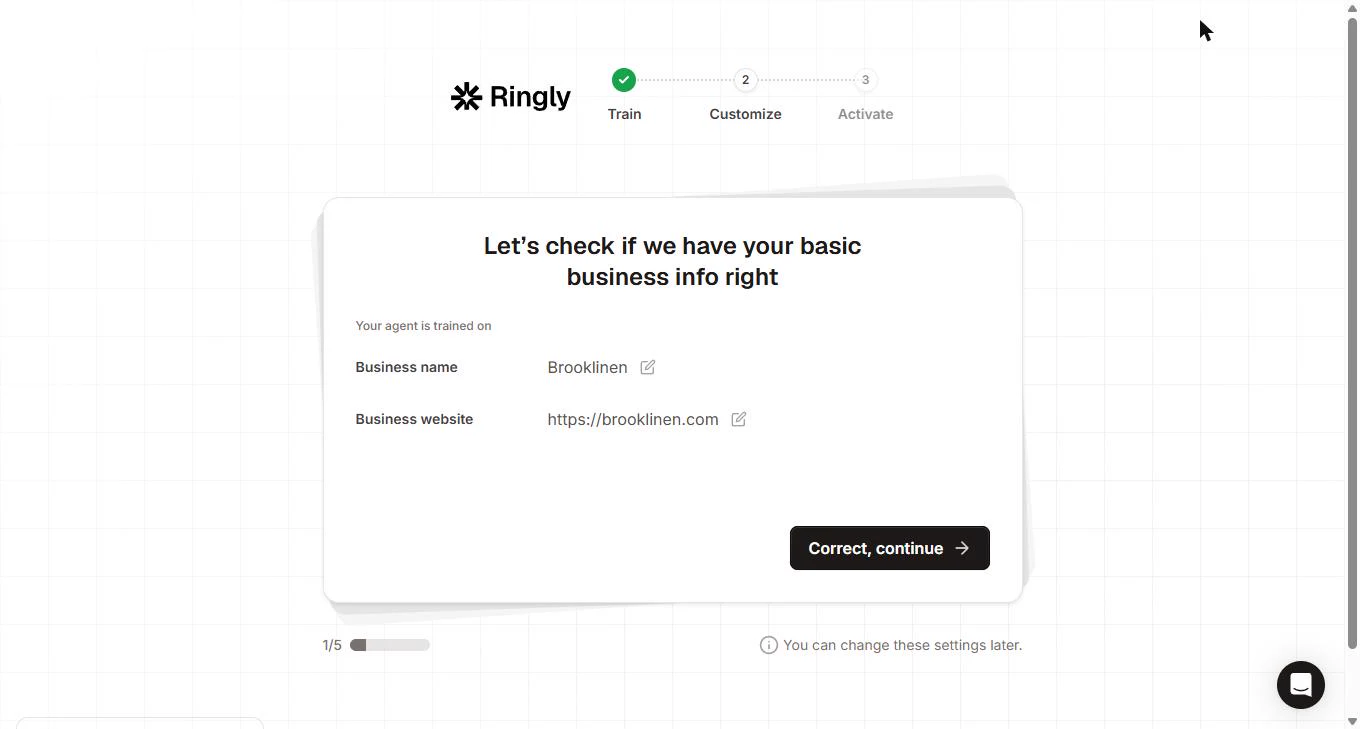
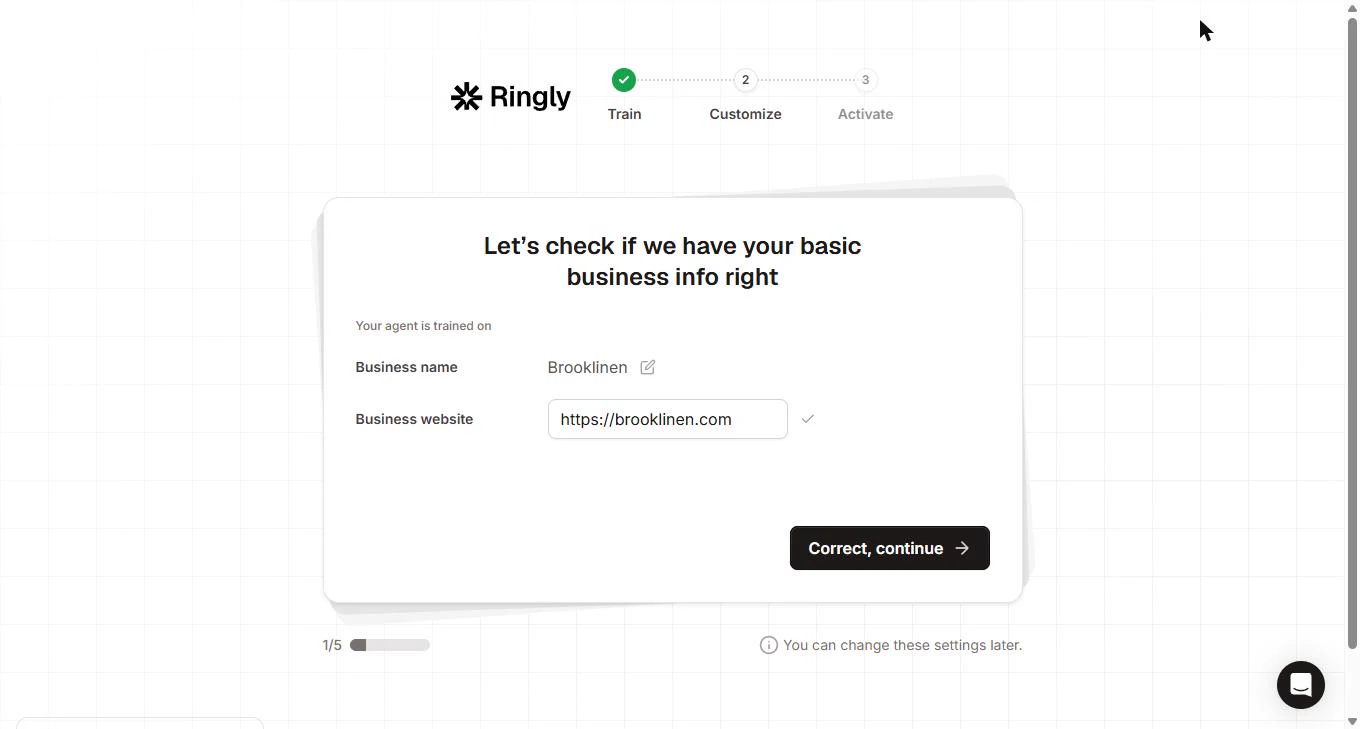
- Check what Seth was trained on. Let's check if we have your basic business info right. Seth is trained on the business name and website shown. If you run a separate help center or a different domain, fix it here. Click the pencil next to Business website.
Check the business name and website Seth was trained on.
- Confirm the facts. The address is editable. Ours is right, so click Correct, continue. The note under the card says you can change these settings later.
The address is right.
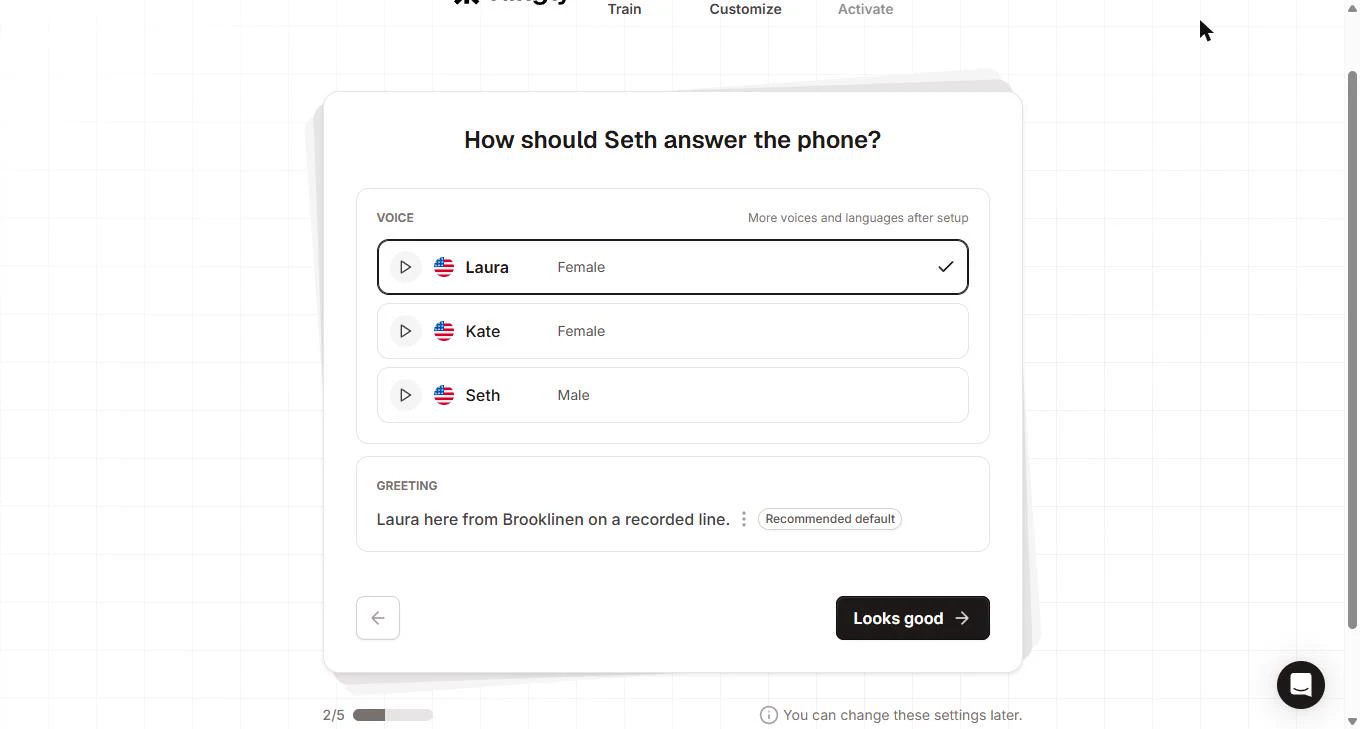
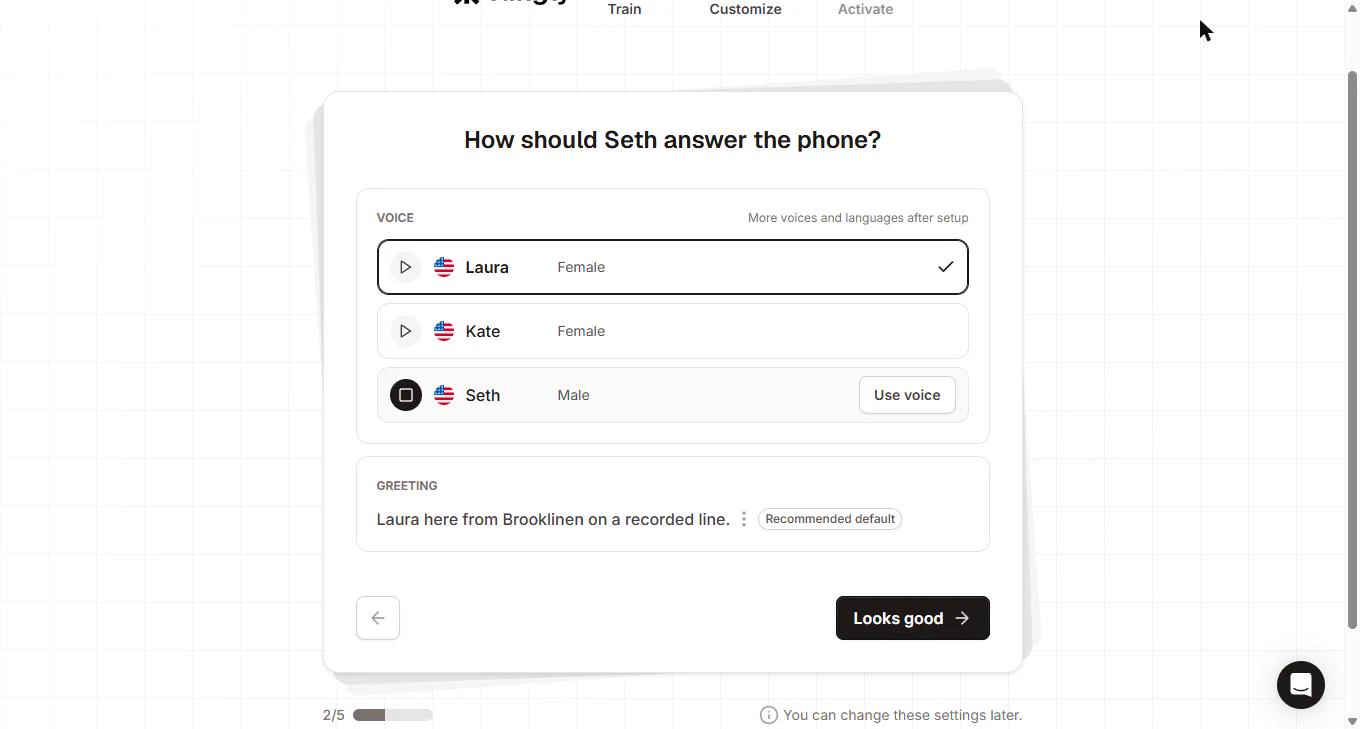
- Preview a voice. How should Seth answer the phone? Three voices: Laura, Kate and Seth, with more voices and languages after setup. Clicking a row does not pick it: press play to hear it first. Play Seth.
Three voices. Clicking a row does not pick it. Play Seth.
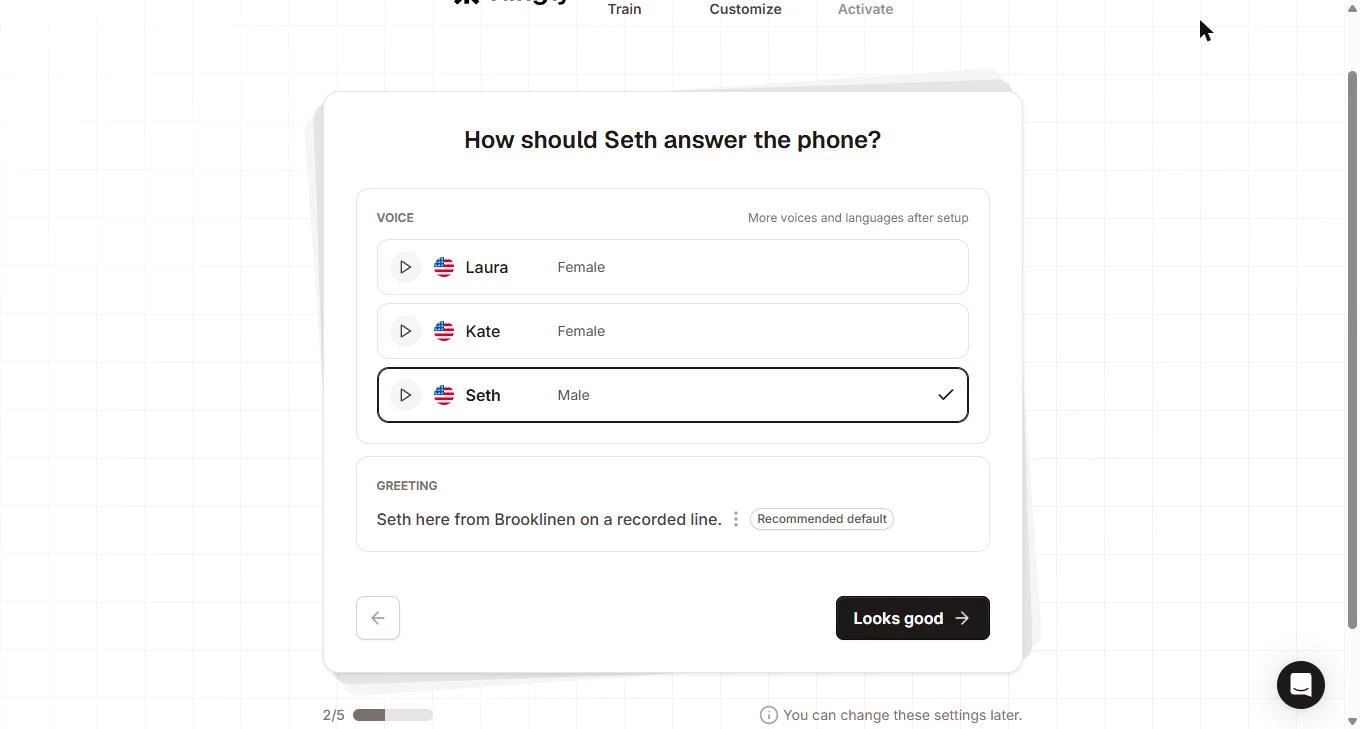
- Pick the voice you heard. While it plays, a Use voice button appears on that row. Click Use voice.
While it plays, click Use voice.
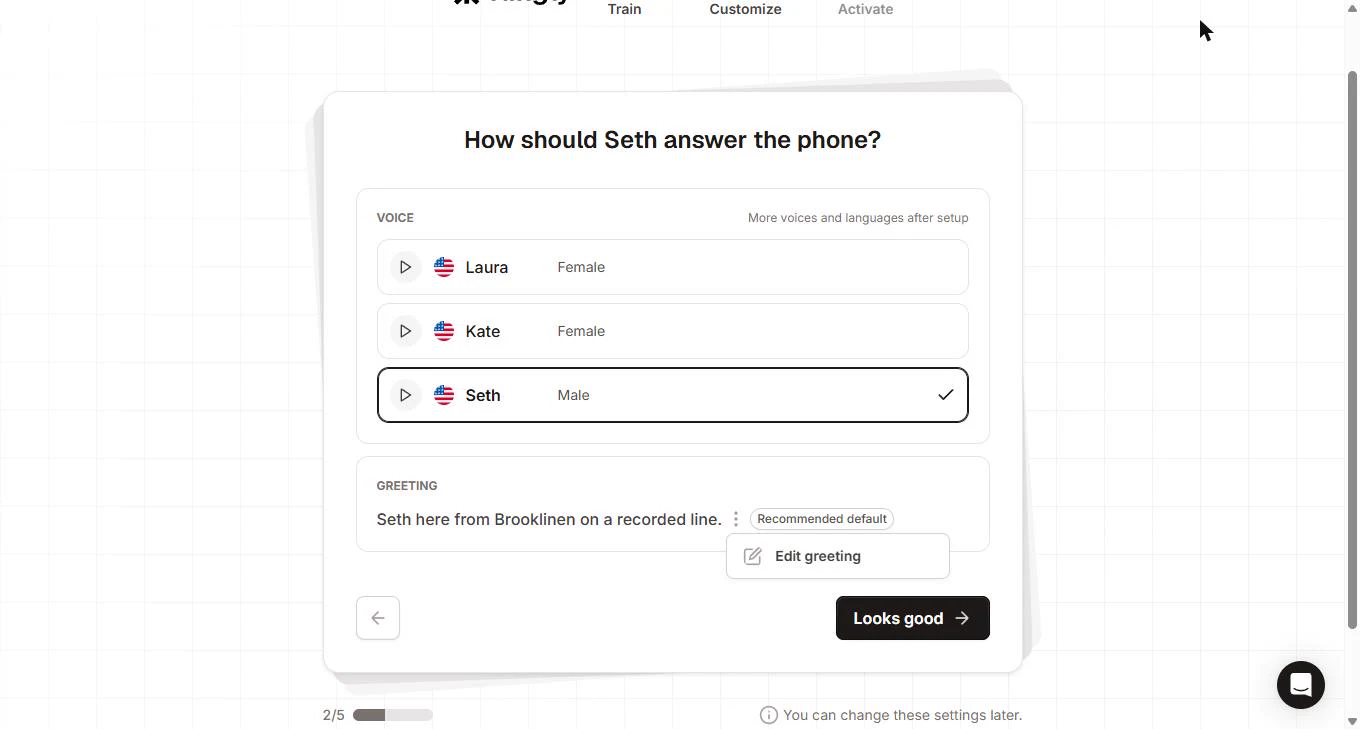
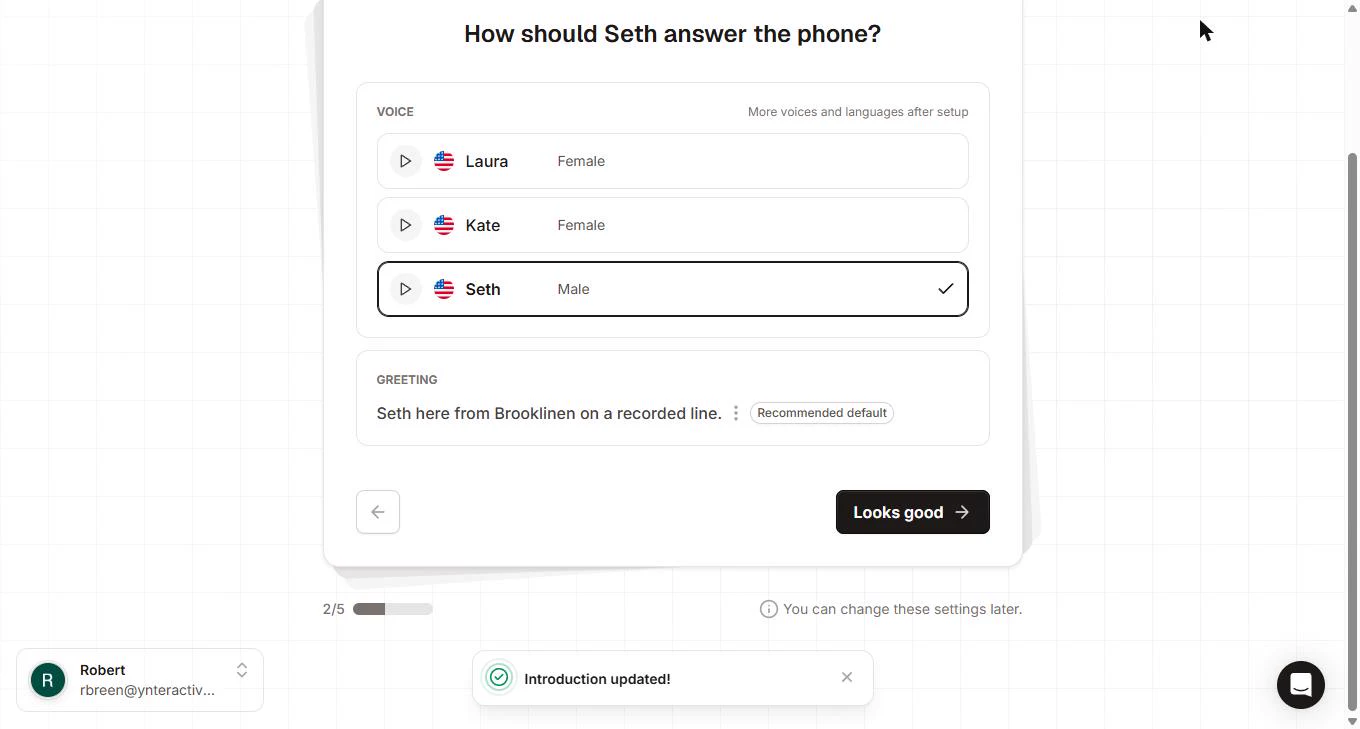
- Watch the greeting change. The greeting follows the voice: "Seth here from Brooklinen on a recorded line." It names the agent and the store and says the call is recorded. Open the three dots next to it.
The greeting follows the voice. It names the agent and the store and says the call is recorded.
- Open Edit greeting. Click Edit greeting.
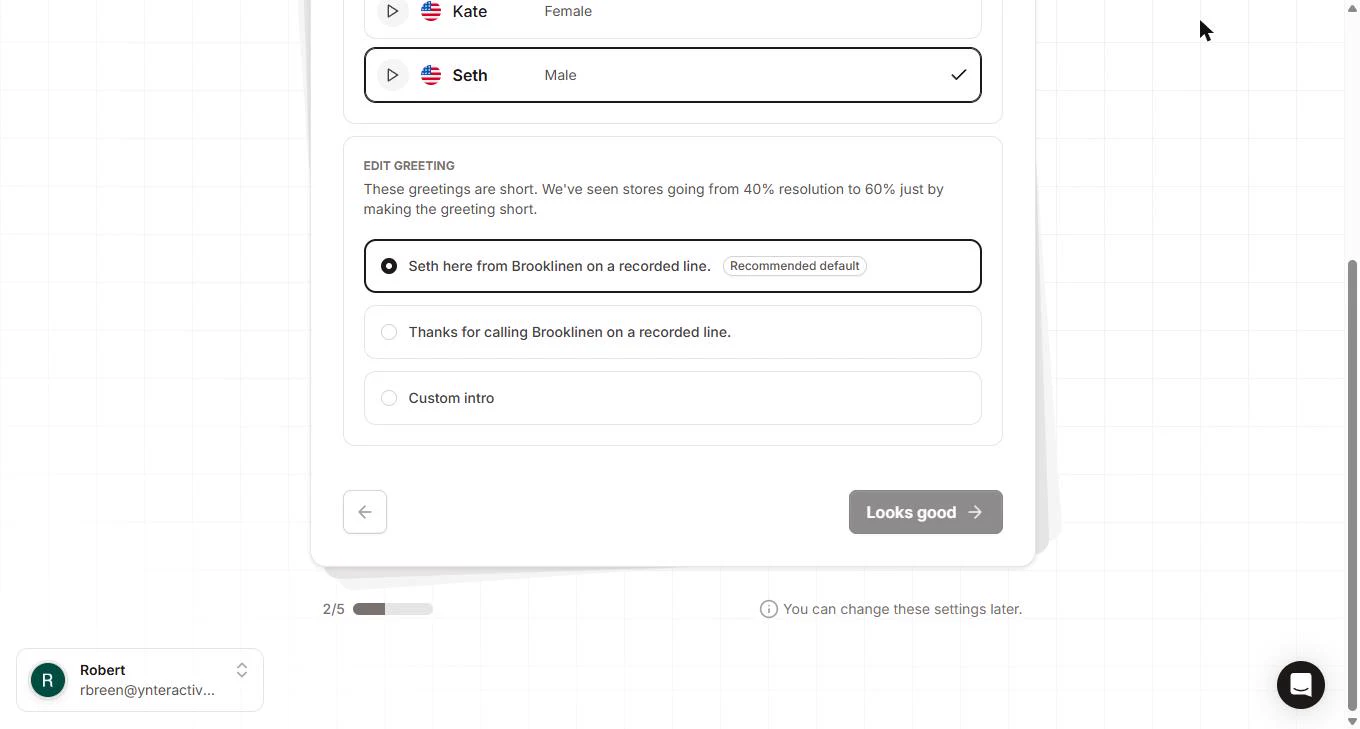
- Keep it short. Ringly says it has seen stores go from 40% resolution to 60% just by making the greeting short. You get two short options and a Custom intro. Keep the Recommended default and click it. Whatever you choose, say the call is recorded where your callers need to hear it.
Ringly has seen stores go from forty to sixty percent resolution just with a short greeting. Keep the recommended default.
3. Choose the hand-off, then stop
- Save the greeting. Introduction updated! Click Looks good.
Introduction updated.
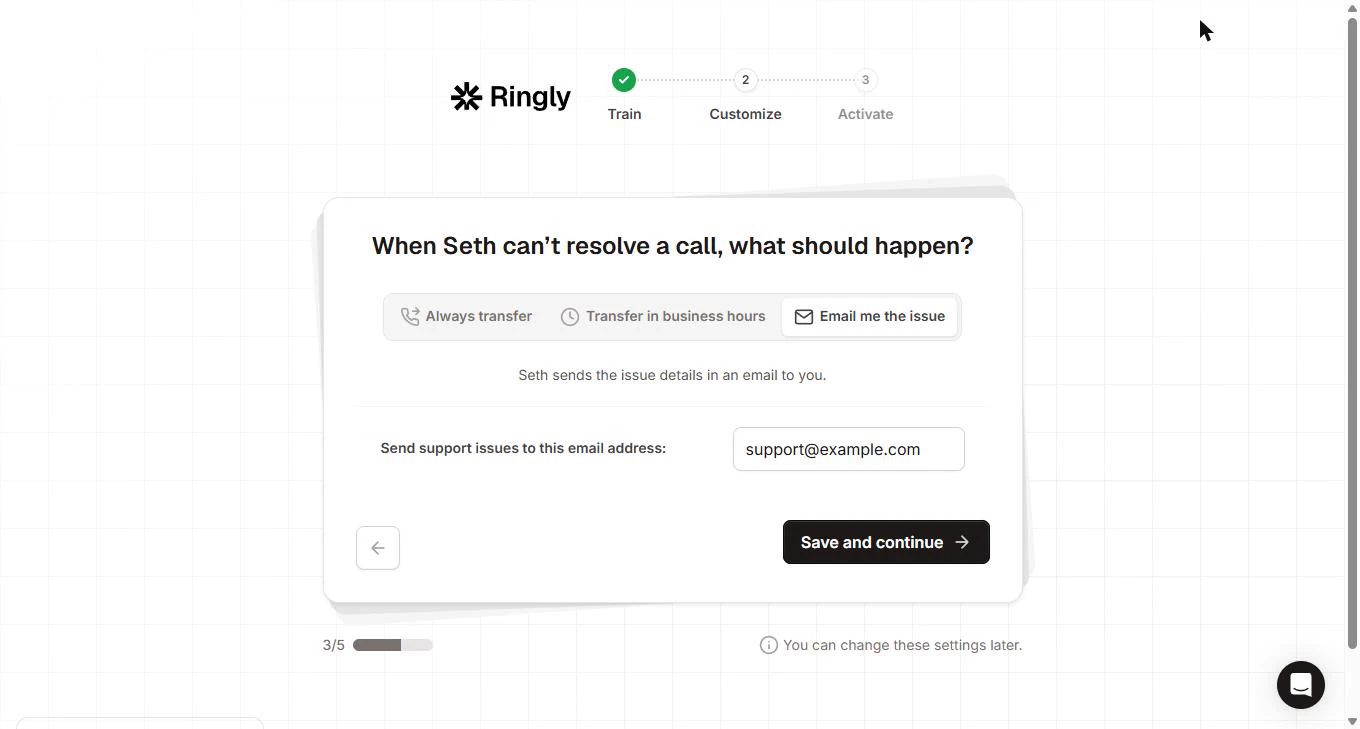
- Decide what happens when Seth is stuck. When Seth can't resolve a call, what should happen? Three choices: Always transfer, Transfer in business hours, or Email me the issue (the email holds the issue details). A small team usually wants a person on the phone while the shop is open. Click Transfer in business hours.
When Seth cannot solve a call: always transfer, transfer in business hours, or email you.
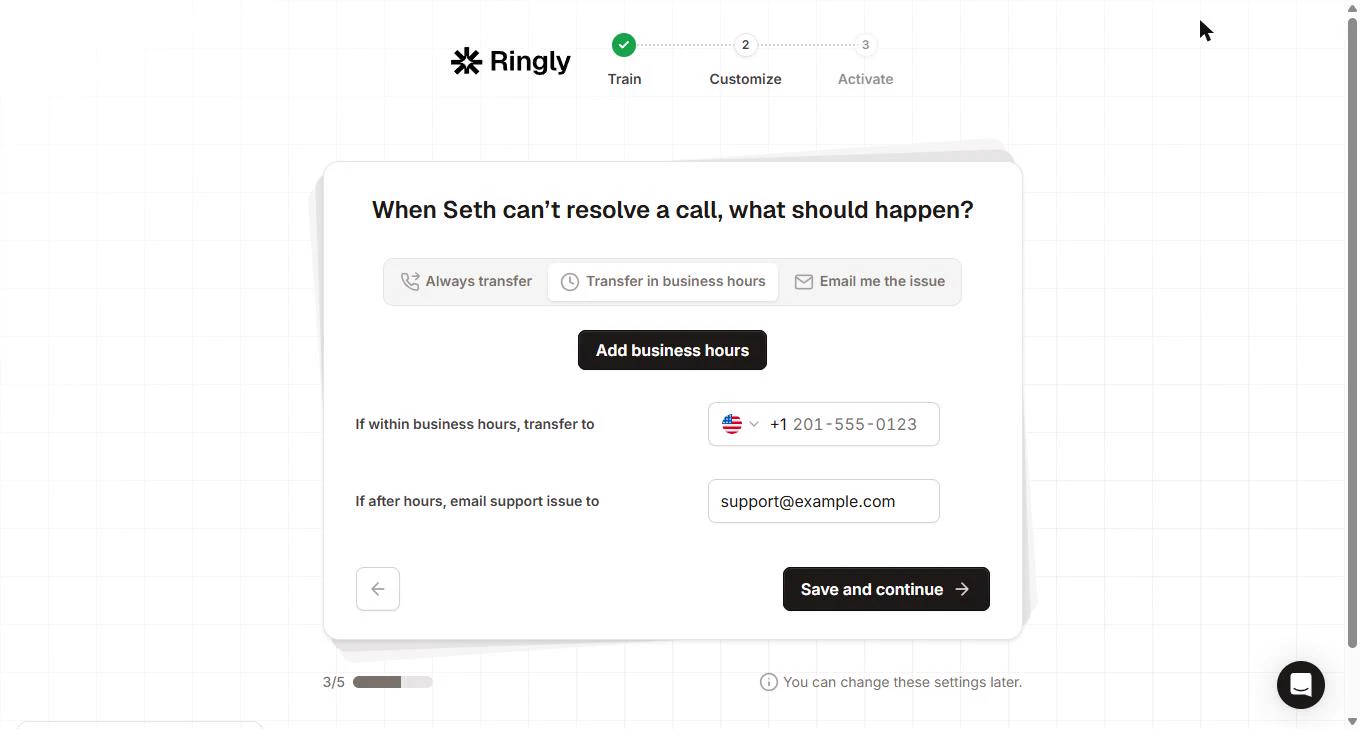
- Add business hours. Now Seth needs your team's number for calls within business hours, and an email for after hours. First click Add business hours.
Seth needs a number for business hours and an email for after hours.
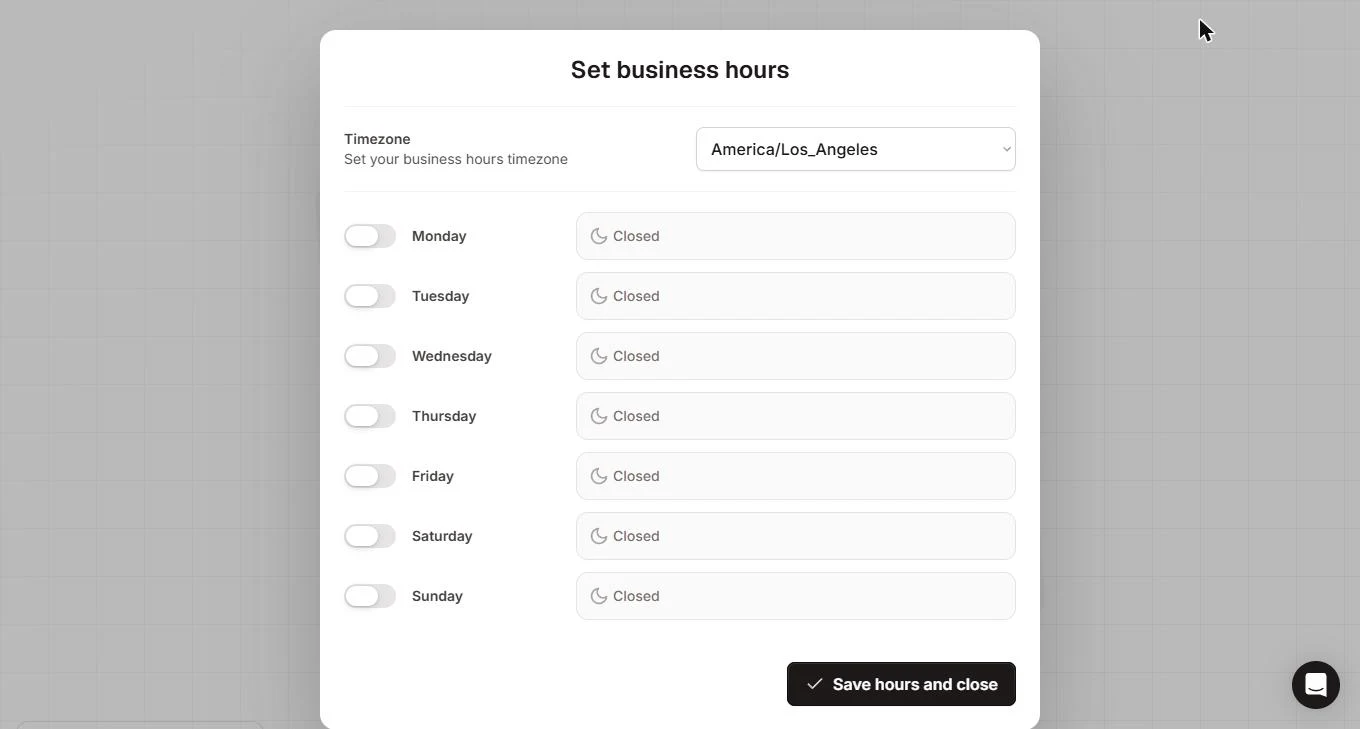
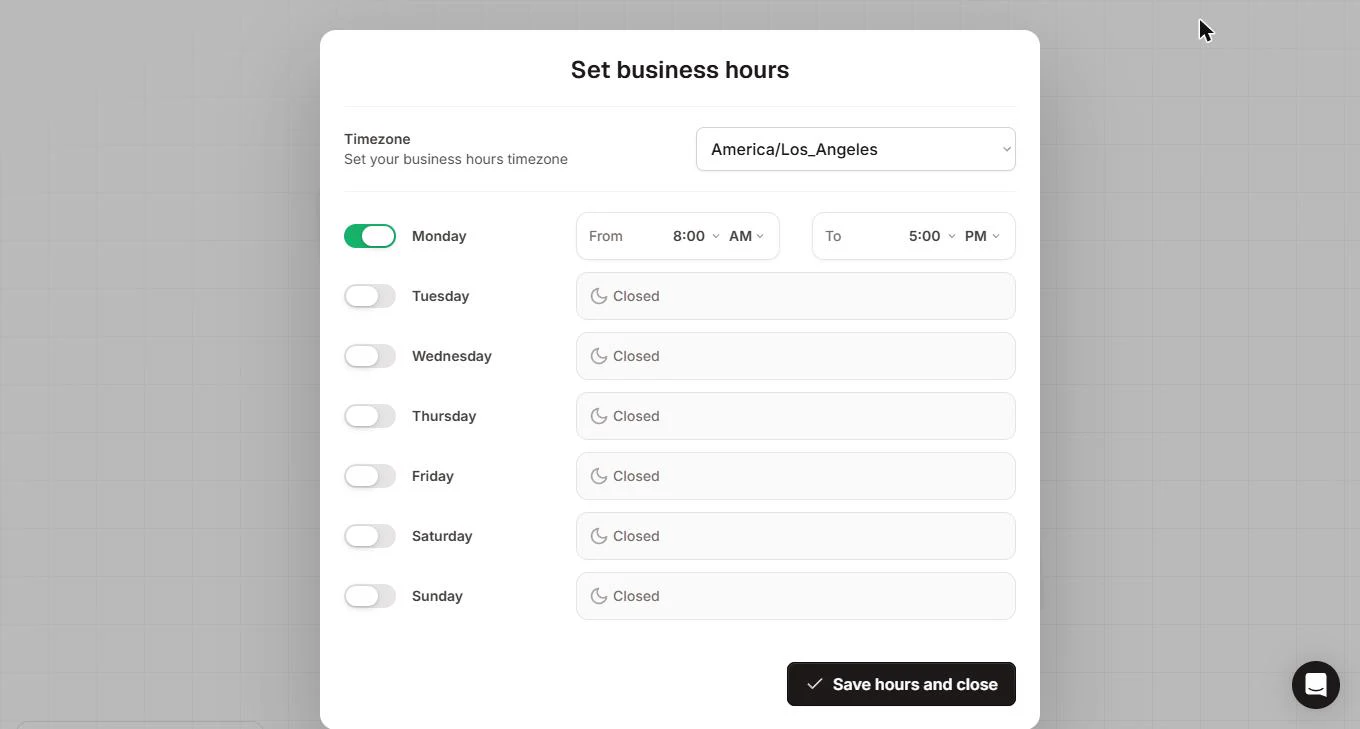
- Open your days. Pick your timezone first; it starts on America/Los_Angeles. Every day starts Closed. Turn on Monday.
Check the timezone. Every day starts closed. Turn on Monday.
- Set the hours and save. Monday opens 8:00 AM to 5:00 PM. In your account, turn on each day you answer the phone and set its hours. Click Save hours and close.
Monday opens eight to five. Turn on each day you answer the phone, then save.
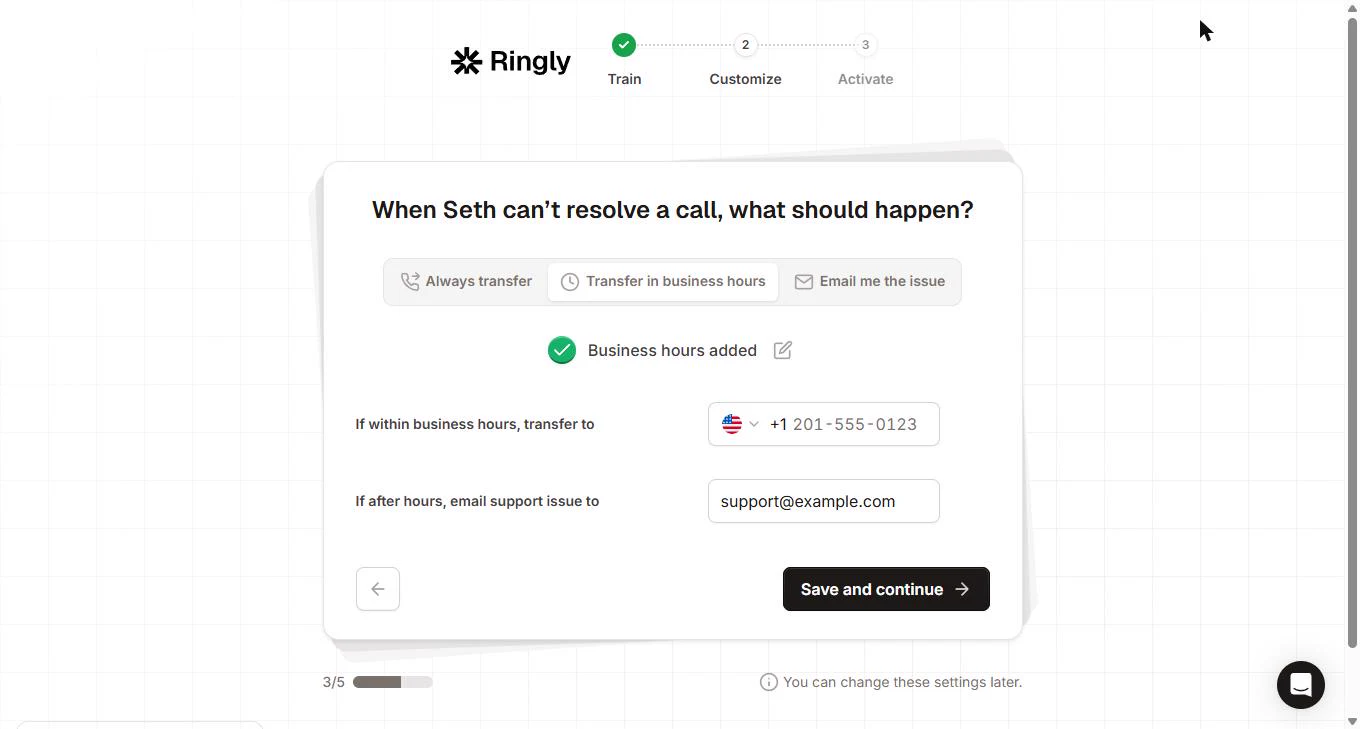
- Add your team's number, then continue. Business hours added. In your own account, type your support desk's number in If within business hours, transfer to (the grey number is only an example) and your support inbox under after hours. Then click Save and continue.
Business hours added.
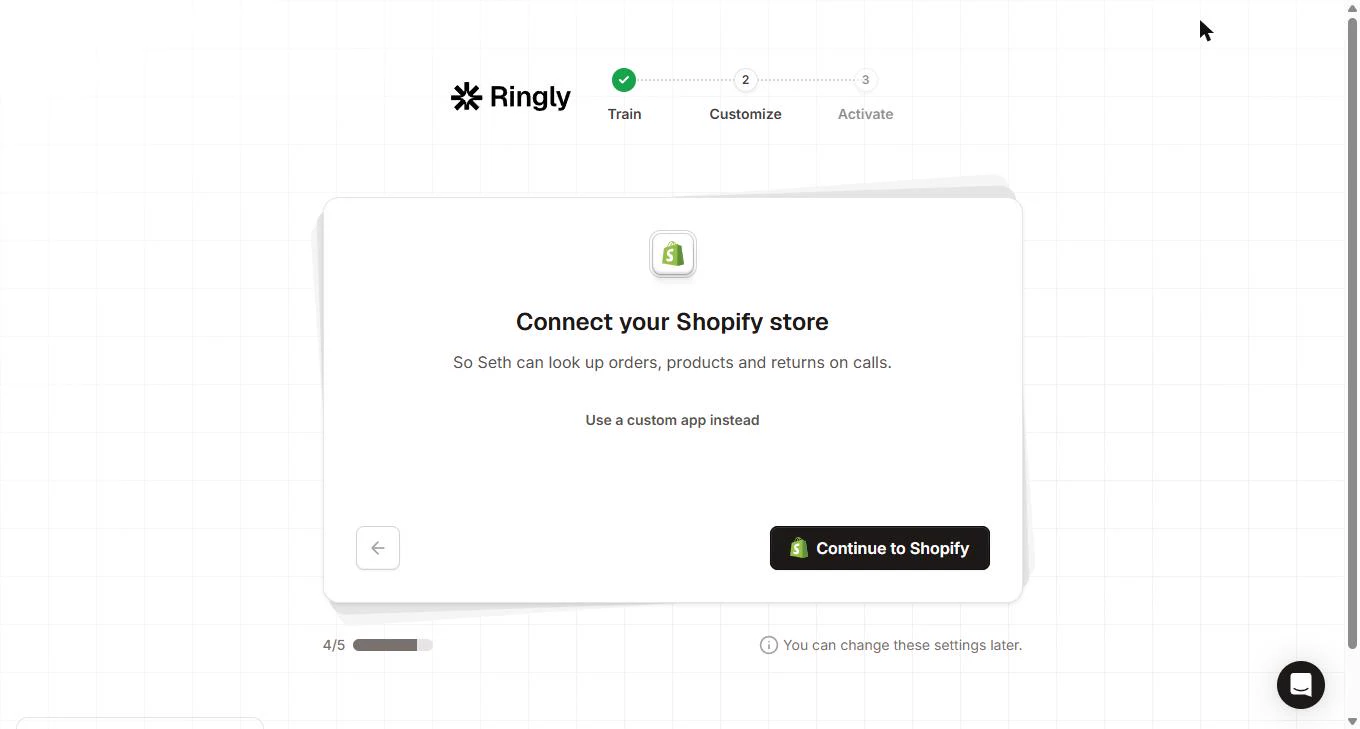
- Stop here until it is your store. Connect your Shopify store, so Seth can look up orders, products and returns on calls. This is where you approve Ringly in your own Shopify admin, and it is the line we do not cross with a store we do not own. On your store, click Continue to Shopify and approve it there. Click it to finish the practice.
Connect your Shopify store comes next. Do it only for your own store.
Screenshots
More in AI Voice Agents
 Your First Voice Agent in ElevenLabs: An After-Hours Receptionist
Build an after-hours phone receptionist for a small plumbing company: system prompt, a greeting that says it is AI, a calm voice and a fast model, then test-call it in…
Free · Live ~9 min Intermediate
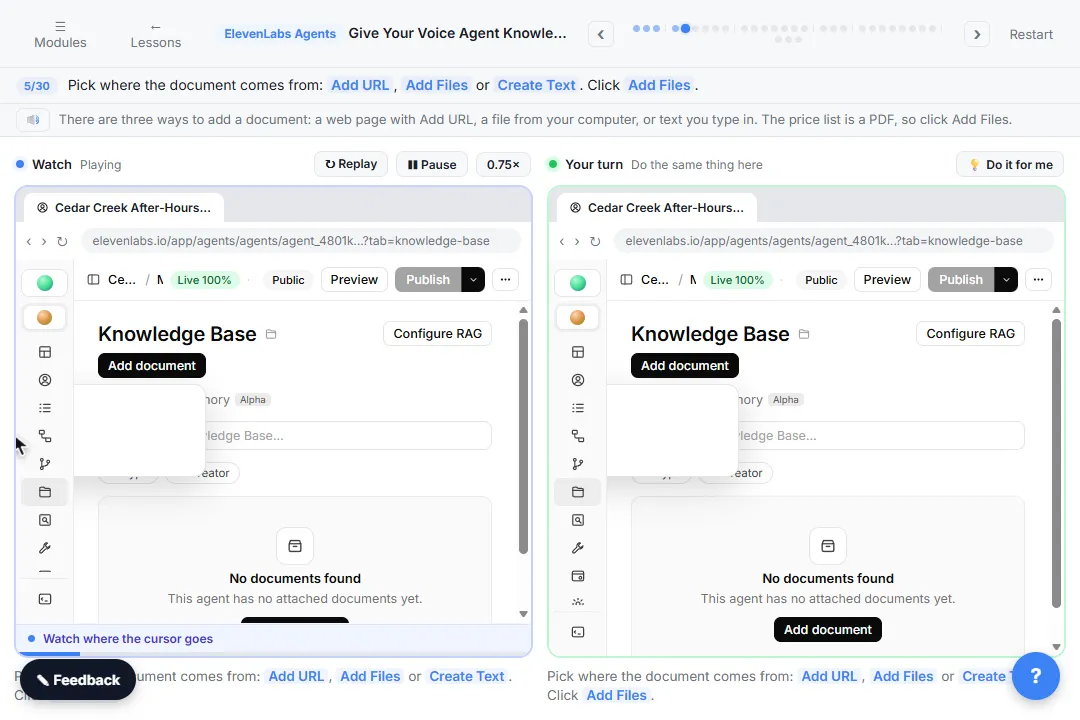 Give Your Voice Agent Knowledge: A Price List and FAQ in ElevenLabs
Upload a plumbing company's price list and FAQ to your ElevenLabs agent's knowledge base, tell it to answer only from them, and test it with three tricky questions…
Free · Live ~9 min Intermediate
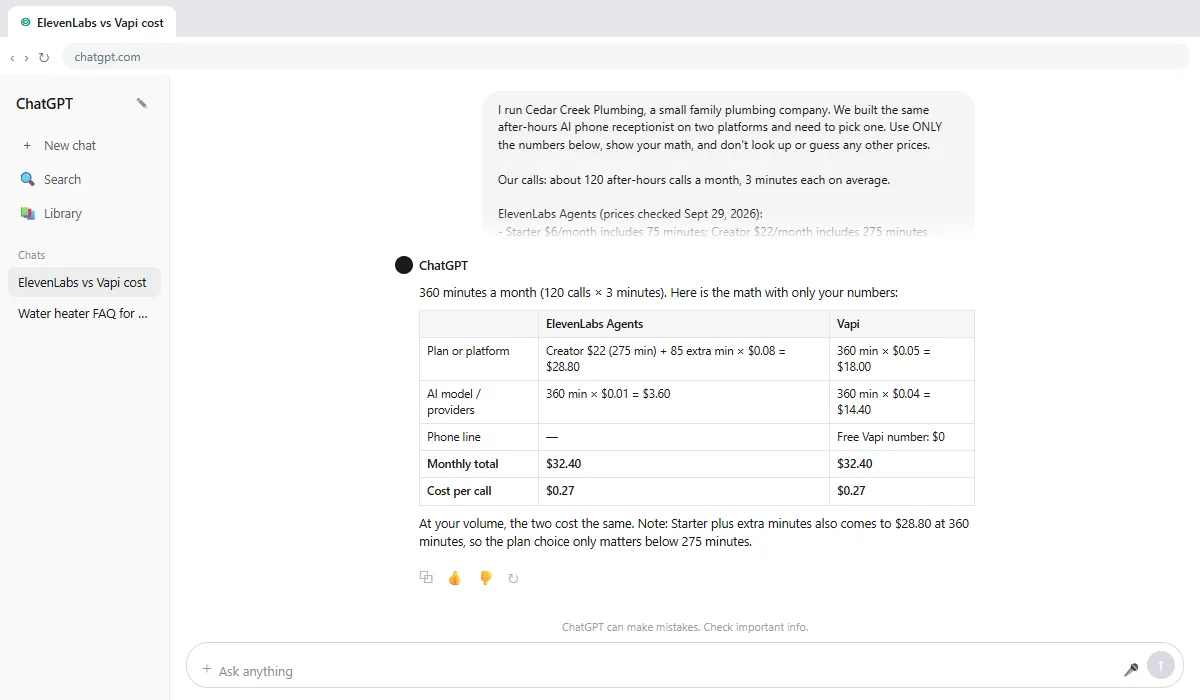 ElevenLabs vs Vapi: Cost per Call and a Launch Checklist
Decide between the ElevenLabs and Vapi versions of Cedar Creek Plumbing's AI receptionist: give ChatGPT the real prices, catch its math slip, compare volumes and setup…
Free · Live ~8 min Beginner
◷Never Miss an After-Hours Client Call: An AI Receptionist for a Small Office (ElevenLabs)A small accounting firm loses new clients to voicemail after 5 PM. Build an AI receptionist in ElevenLabs that answers, knows your hours and services, and takes a clear…
Free · Live ~11 min Intermediate
All 6 modules in AI Voice Agents