Why this matters
Clients still sign on paper and send a phone photo of the signature page. Forwarded with the letter and the scope as three loose files, the packet is 3 MB or more, gets filed in pieces by the client's accountant, or bounces off a mail server, and the kickoff invoice waits.
Three free browser tools turn it into one small PDF in reading order in about four minutes. In our test the packet was four pages and 412 KB, with the signature still sharp.
Practice
Do every step yourself in a practice copy of the real tool. It checks your work, and “Do it for me” finishes any step you get stuck on.
What you’ll build
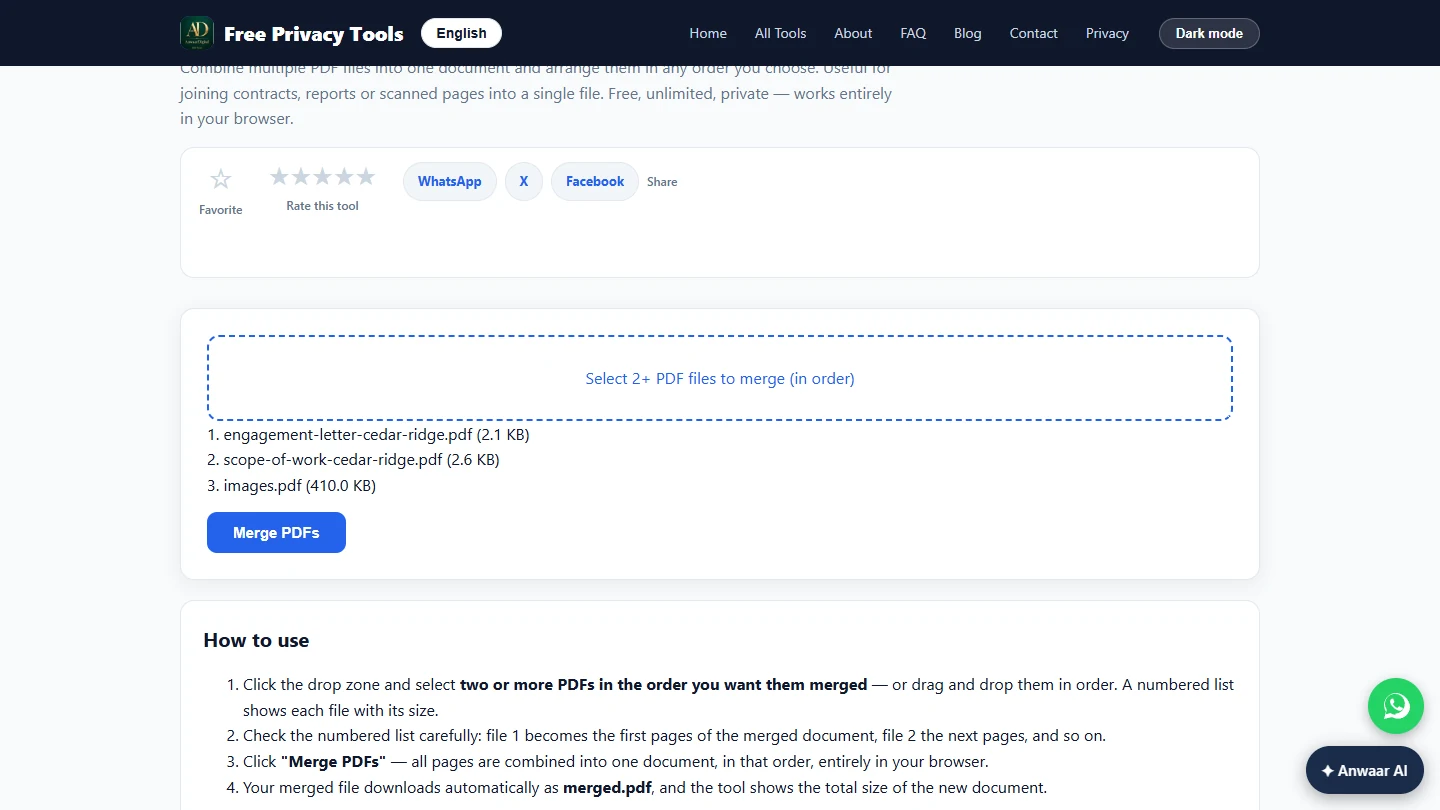
You run a made-up HR consultancy. You shrink a 3.3 MB phone photo of the signed page to 419 KB with Image Compressor, make it a PDF page with Images to PDF, and merge the engagement letter, the scope of work and the signed page in order with PDF Merger.
The screens are real screenshots of Free Privacy Tools by Anwaar Digital, captured November 2026 while doing the task with made-up files.
What you need
- Nothing to start the practiceThe lesson is a practice copy of real screens. The consultancy, the client and the files are made up.
- The real tools, freeImage Compressor, Images to PDF and PDF Merger on Free Privacy Tools by Anwaar Digital. No account; the pages say files stay in your browser.
- The letter and scope as PDFsSave them as PDF from Word or Google Docs (File, Download, PDF) before you start.
Concepts
Shrink photos before they go into a PDF
PDF Compressor rebuilds a PDF's structure but does not recompress the photos inside. In our test a 9.76 MB packet with full-size photos came back the same size, with the note that the file was already optimized.
So compress the photo first: quality 60 kept the signature and text sharp and cut the photo from 3.3 MB to 419 KB.
The order you select is the order you get
PDF Merger has no drag-to-reorder. Select the files in reading order, then check the numbered list before you click Merge PDFs.
Images to PDF works the same way for several photos: select them in page order.
Do it for real
Now repeat it in your own account. Tick each step as you go.
Quick check
3 questions to check you’ve got it.
1. Your merged packet is 9 MB because of a phone photo inside. What fixes it?
- Compress the photo with Image Compressor, then rebuild the packet
- Run PDF Compressor on the packet
- Send the photo separately
Show the answer
Compress the photo with Image Compressor, then rebuild the packet. PDF Compressor does not shrink the photos inside a PDF. Shrink the photo first.
2. How do you get the signed page last in the merged file?
- Select it last when you pick the files
- Drag it to the bottom of the list
- Rename it to start with Z
Show the answer
Select it last when you pick the files. PDF Merger keeps the order you select the files in; there is no drag-to-reorder.
3. Why turn the signed-page photo into a PDF before merging?
- PDF Merger only joins PDF files
- Photos cannot be emailed
- It makes the signature legal
Show the answer
PDF Merger only joins PDF files. Images to PDF makes the photo a PDF page, so PDF Merger can put it in the packet.