Why this matters
Small firms onboard new clients from a shared spreadsheet and a few inboxes. Each client owes an engagement letter, last year’s return and bank statements, and nobody can see at a glance who is still waiting on what.
GoSwift is a no-code platform for business apps, AI agents and workflows. Its AI builder, Swiftly, turns a plain description into an app plan, shows you every assumption, and builds the app and its data for you to keep editing visually.
Practice
Do every step yourself in a practice copy of the real tool. It checks your work, and “Do it for me” finishes any step you get stuck on.
What you’ll build
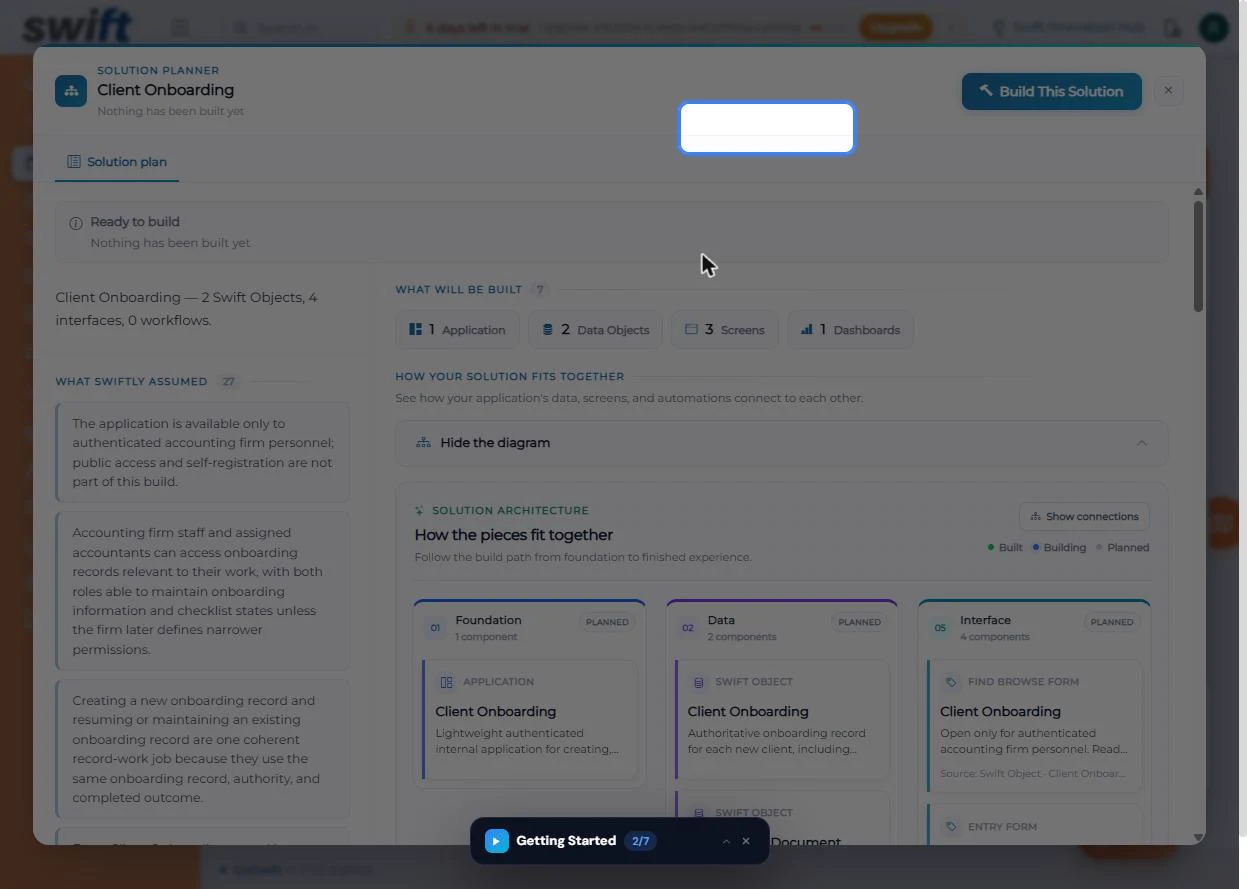
You describe a client onboarding tracker for a made-up 12-person accounting firm, Keystone Ledger Partners: company, contact, assigned accountant, start date, status and a checklist of documents still needed.
Swiftly plans 1 application, 2 data objects, 3 screens and a dashboard, then builds the app and its data. You check the two records it made: Client Onboarding and an Onboarding Document Checklist linked to it. The screens are real screenshots from a GoSwift trial workspace, captured October 2026.
What you need
- Nothing to start the practiceThe lesson is a practice copy. The firm is made up.
- A GoSwift account, to do it for realGoSwift offers a free trial. Plans change; check the site for what yours includes.
- Two sentences about your processWhat you track for each client, and the documents you chase.
Concepts
Describe the job, not the software
Swiftly needs three things: the thing you track (a new client), the facts you need for each one (company, contact, owner, dates, status) and any checklist that hangs off it (the documents).
It says back what it understood before planning, so you can correct it in one sentence.
Read the plan and its assumptions
The Solution Planner lists what it will build and every assumption, such as who can sign in and who can edit. Change any you disagree with before you click Build This Solution.
The build runs in order: the application, then the data objects, then the screens. You can close the planner while it works.
Do it for real
Now repeat it in your own account. Tick each step as you go.
Quick check
3 questions to check you’ve got it.
1. What should your description to Swiftly include?
- What you track, the facts for each one, and the checklist you chase
- The database design
- Your brand colours
Show the answer
What you track, the facts for each one, and the checklist you chase. Swiftly designs the data and screens from the business description.
2. When is the best time to change one of Swiftly’s assumptions?
- Before you click Build This Solution
- After launch
- Never
Show the answer
Before you click Build This Solution. The plan lists every assumption so you can correct it before anything is built.
3. Where do you check the fields GoSwift created?
- Swift Objects
- Channels
- System logs
Show the answer
Swift Objects. Swift Objects holds the data the app stores, field by field.