Jotform AI Intake Form: 5 Steps to Build and Share One
A visual guide to building a client intake form with Jotform AI: describe it, read the fields, fix it with Form Copilot, add a rule and share the link.
Slide 1 of 7 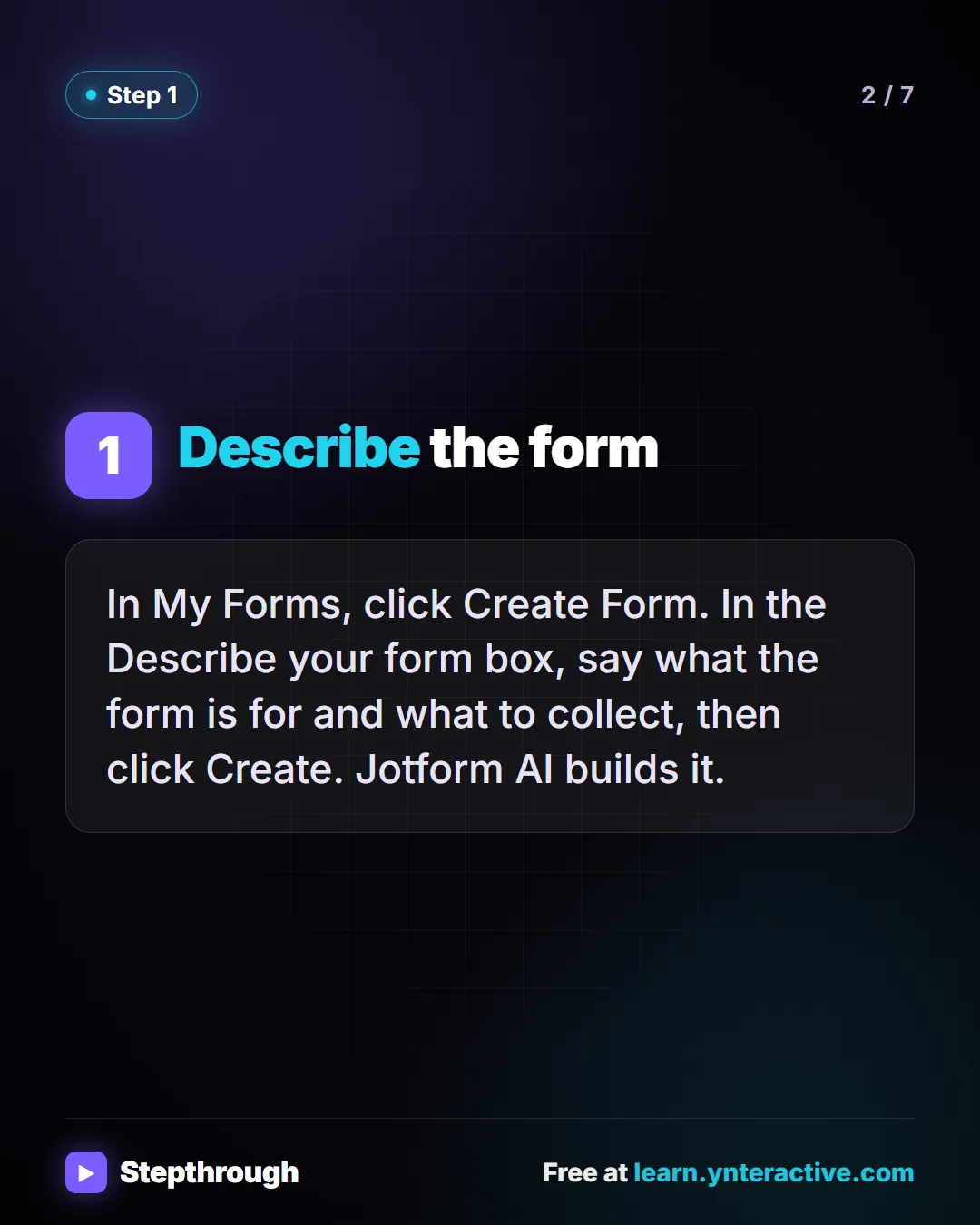
Slide 2 of 7 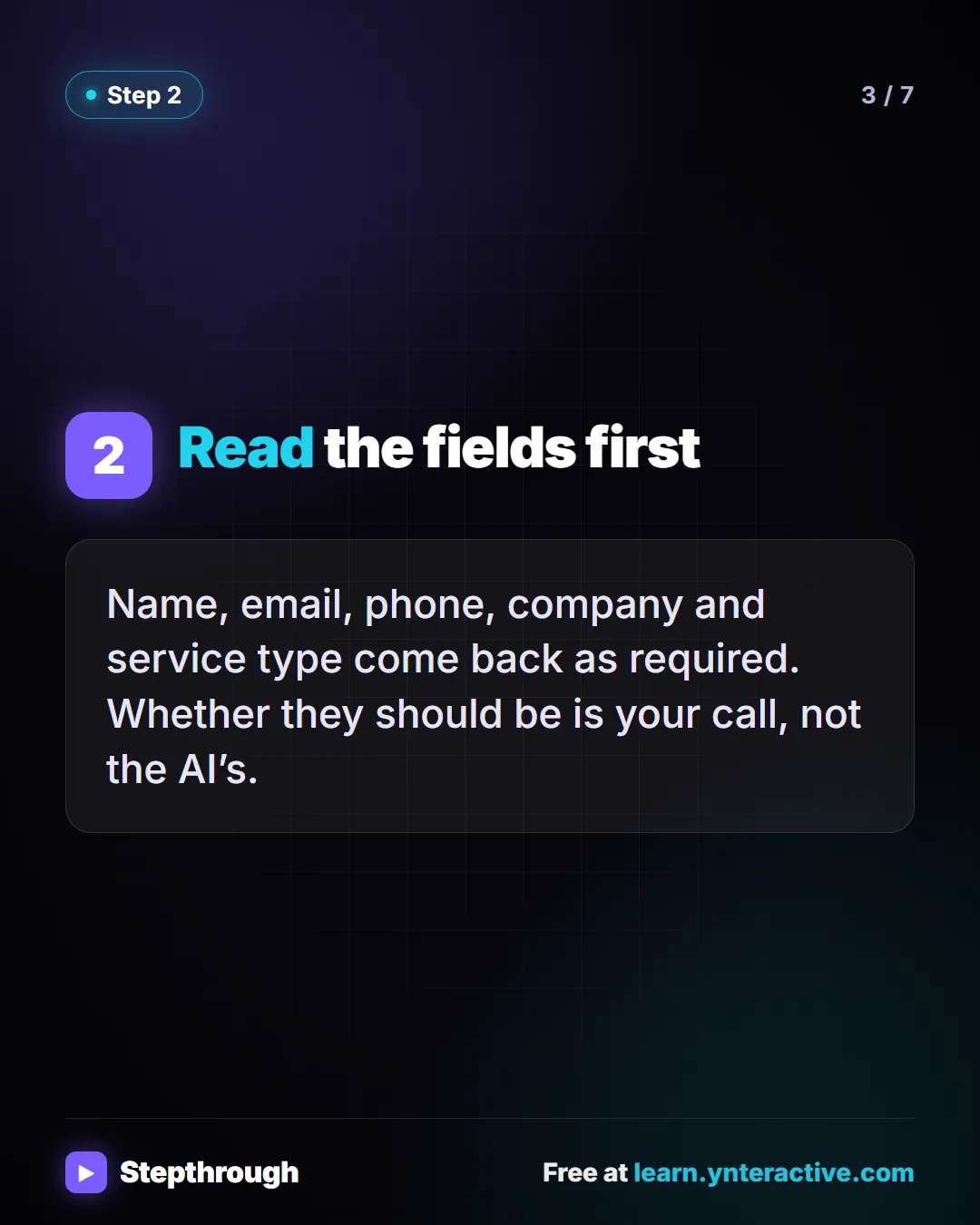
Slide 3 of 7 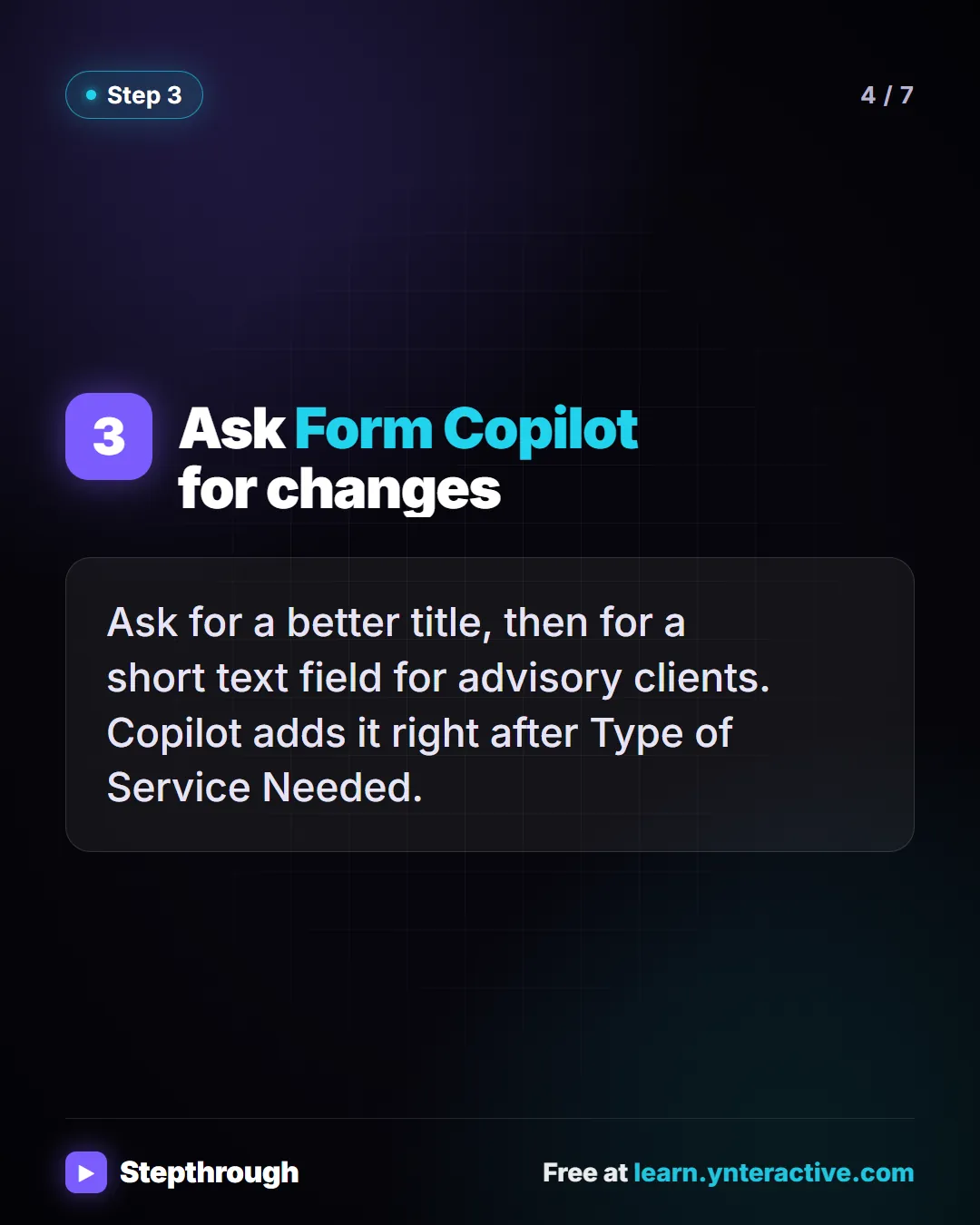
Slide 4 of 7 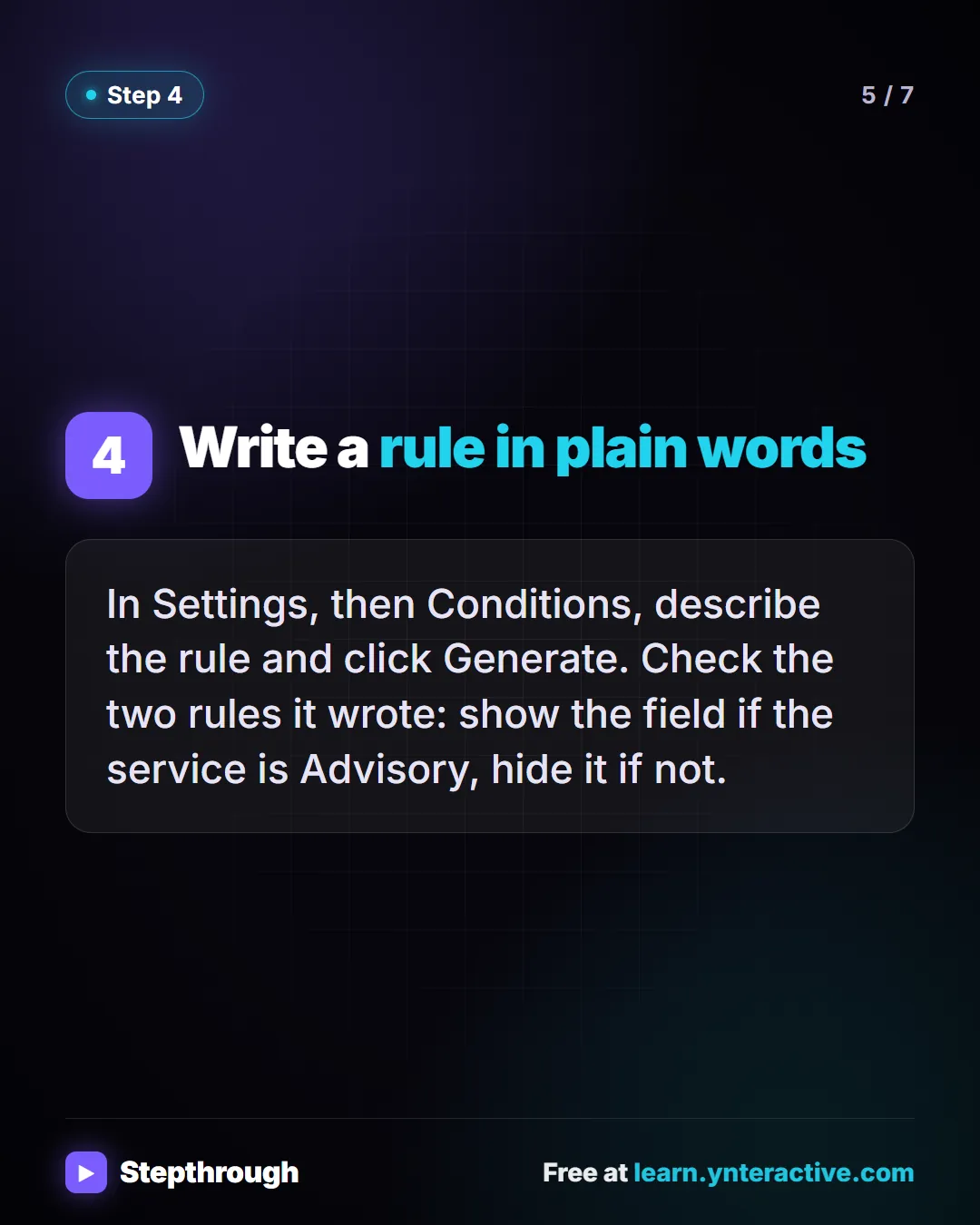
Slide 5 of 7 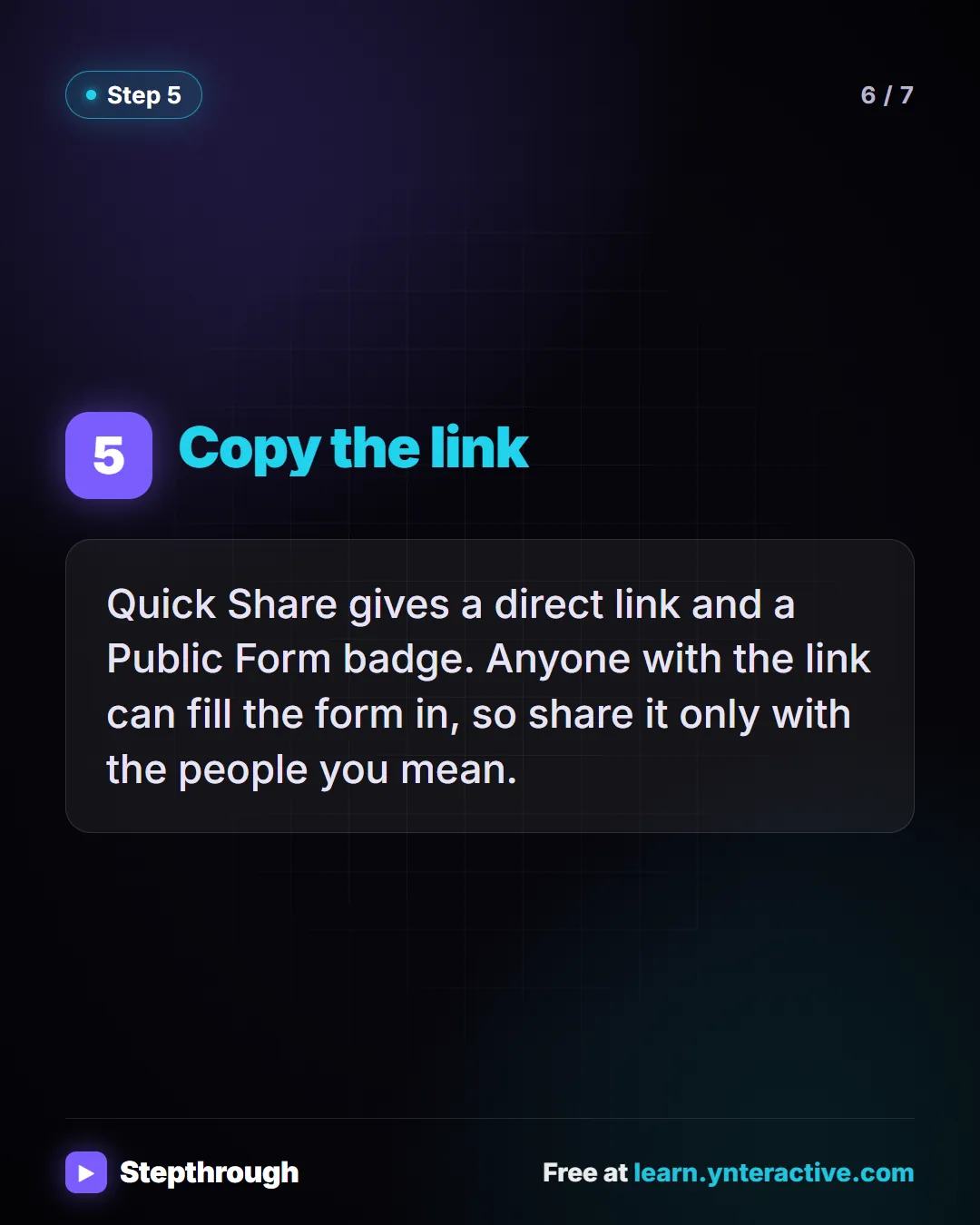
Slide 6 of 7 
Slide 7 of 7
The guide in text
Describe it, fix it with Form Copilot, add a rule in plain words. A made-up accounting firm, Brightline. 5 steps.
Step by step
Describe the form
In My Forms, click Create Form. In the Describe your form box, say what the form is for and what to collect, then click Create. Jotform AI builds it.
Read the fields first
Name, email, phone, company and service type come back as required. Whether they should be is your call, not the AI’s.
Ask Form Copilot for changes
Ask for a better title, then for a short text field for advisory clients. Copilot adds it right after Type of Service Needed.
Write a rule in plain words
In Settings, then Conditions, describe the rule and click Generate. Check the two rules it wrote: show the field if the service is Advisory, hide it if not.
Copy the link
Quick Share gives a direct link and a Public Form badge. Anyone with the link can fill the form in, so share it only with the people you mean.
Businesses and people in the examples are made up (Brightline Accounting is a made-up business). The steps, screens and wording come from the free lesson and the Stepthrough glossary and prompt library.
Do it yourself, free
Jotform AI: Build a Client Intake Form from One Prompt. Describe a client intake form to Jotform AI, fix it with Form Copilot, add a show/hide rule in plain words, and copy the link to send to new clients. You do every step yourself in a practice copy of Jotform, it checks your work as you go, and “Do it for me” finishes any step you get stuck on. Free, and nothing touches your real accounts.
Start the free lessonRelated terms
Plain-English definitions, each with an example from a free lesson.
Related prompts
- Form show/hide rule prompt: Turn a form rule into one plain sentence an AI form builder can read: which field should appear, for which answer, and hidden…
- Intake form description prompt: Describe a new-client intake form so an AI form builder gets it right first time: who fills it in, what to collect, what is…
From the blog
More visual guides
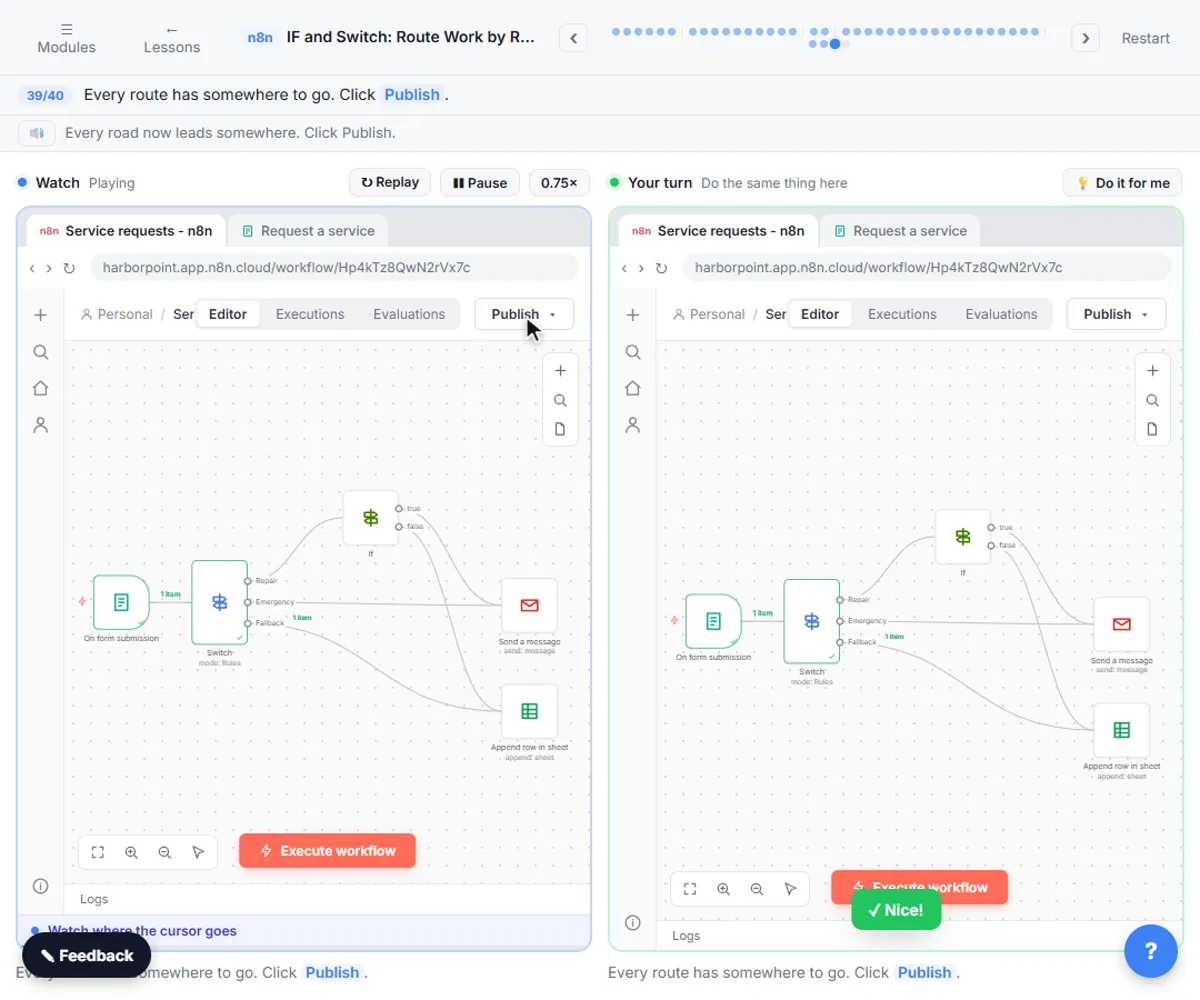
 n8n Execute Step vs Execute Workflow vs Publish
A visual guide to the three n8n buttons: run one node with Execute step, pin test data, run everything with Execute workflow, then Publish for real.
Step-by-step guide 7 slides
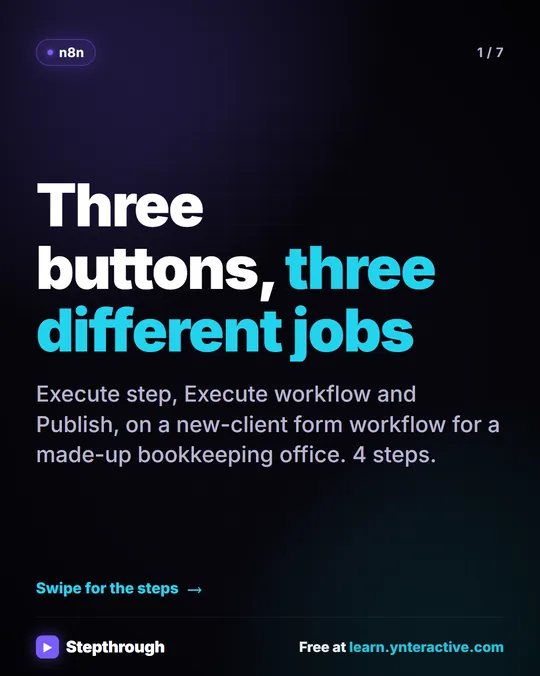
 n8n If and Switch Nodes: Route Requests by Rules
A visual guide to n8n If and Switch nodes: split big jobs from small ones with one condition, then route by service with named outputs and a fallback.
Step-by-step guide 7 slides
 n8n Talk to Your Google Sheet: 4 Steps and One Check
A visual guide to n8n’s chat-with-your-sheet template: add your OpenAI credential, point it at your sheet, ask questions and check every total by hand.
Step-by-step guide 7 slides