Signatoro tested the scenario end to end and shared it; thanks to Katya Rozenoer, Signatoro's founder and CEO. The file is named "AI email reply with the sender's Signatoro signature" and uses Brookside Dental, a made-up family dental practice.
What is inside the blueprint?
| # | Module | What it does |
|---|---|---|
| 1 | Google Forms, Watch Responses | Starts the scenario on each new form response |
| 3 | OpenAI, Simple text prompt | Writes the reply from the patient's name and reason for visit |
| 4 | HTTP, Make a request | GET https://signatoro.com/api/v1/signature, with Parse response on |
| 5 | Gmail, Send an email | Sends to the patient's email, subject "Your visit request at Brookside Dental" |
The Gmail body is set to Raw HTML with the AI's result, a <br> line break, then the html field from the HTTP module's data. That join is the whole design: the model writes the message, Signatoro signs it.
What does the prompt in the file say?
The OpenAI step carries the same rules as the lesson. It writes as the front desk of a friendly family practice, to a new patient asking for a first visit: greet them by first name and thank them, respond to their reason for visit in one or two warm sentences, say the office will call within one business day, and give no medical advice, no prices and no promises about treatment. It ends with a short closing line such as "Kind regards," and no name or signature, and writes only the email body as simple HTML with each paragraph in <p> tags. The patient's answers are mapped in at the end.
Change the practice description and the rules for your business, and keep the last two instructions: no name, and <p> tags.
How do I import and set it up?
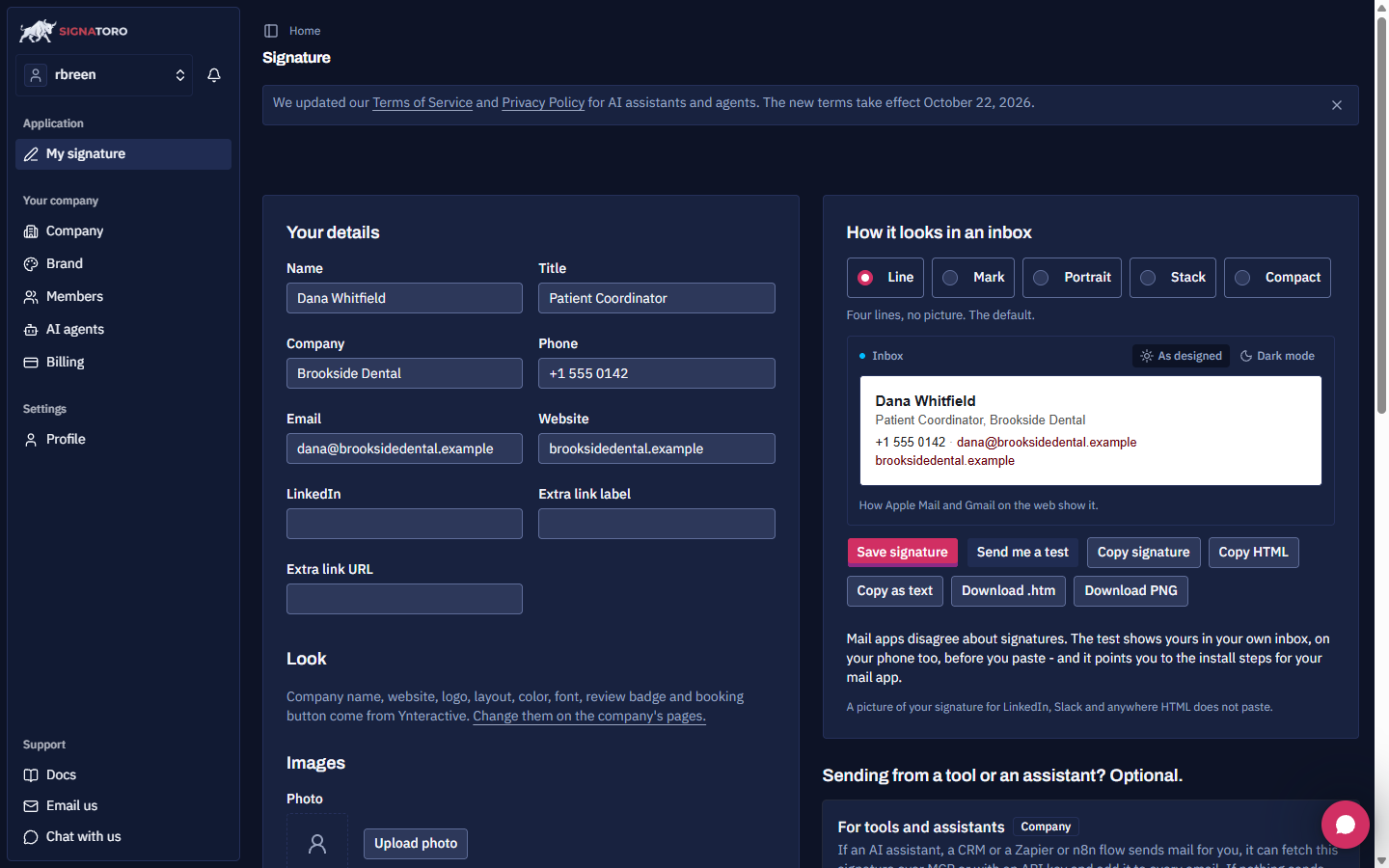
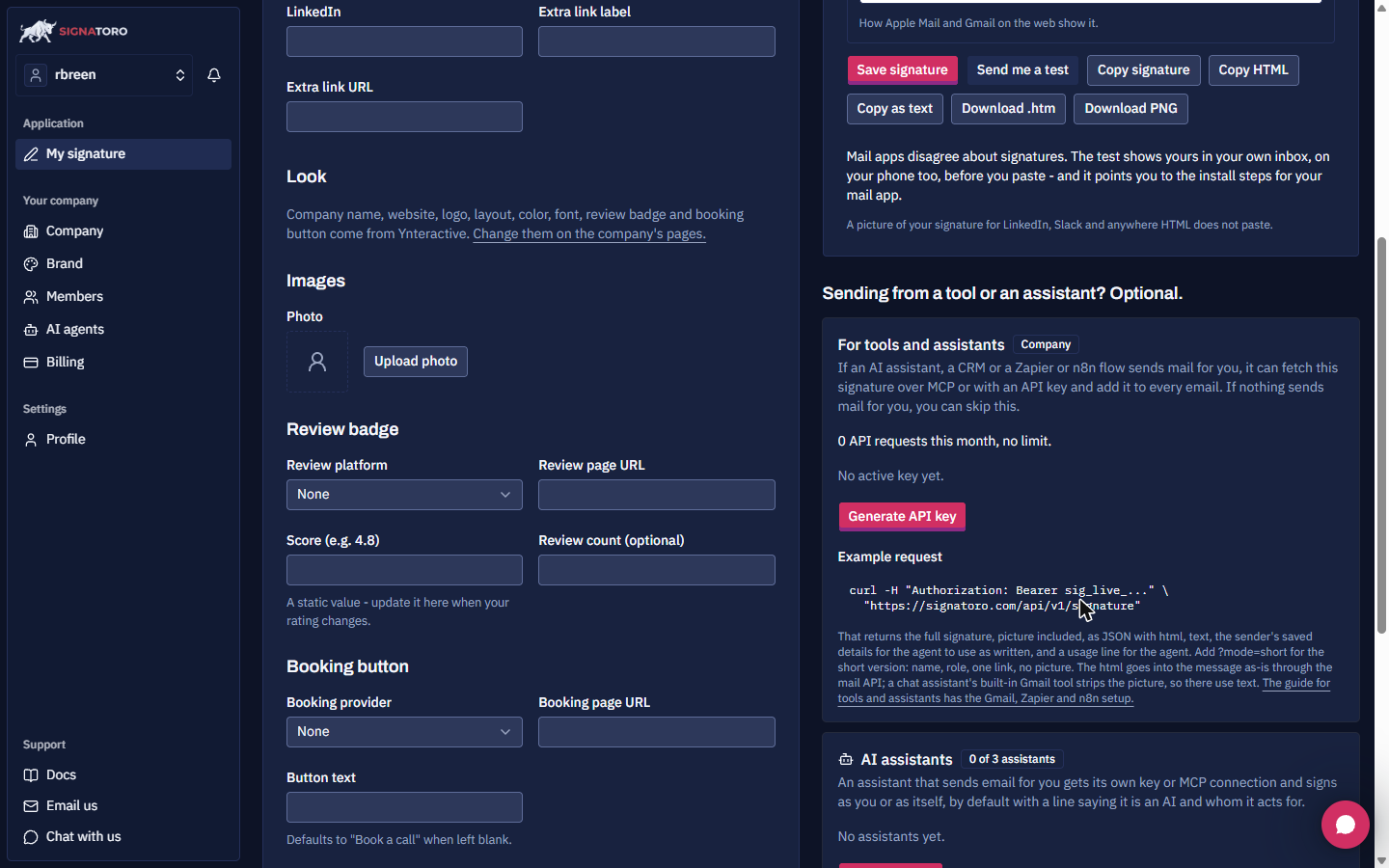
- Save a signature on Signatoro: fill in Your details (Name, Title, Company, Phone, Email, Website) and click Save signature. Under For tools and assistants, click Generate API key and copy it.
- Download the blueprint.
- In Make, open a new scenario, click ... > Import blueprint and pick the file.
- Choose your own Google, OpenAI and Gmail connections and your own form.
- Map the form answers again. They are keyed by question ID, so the blueprint's IDs won't match your form.
- In the HTTP module, create the connection: Authentication type API key, API Key set to
Bearer, one space, then your key, API key placement In the header, parameter nameAuthorization, Allowed service originshttps://signatoro.com. - Save, click Run once with a test response waiting, and check the sent email.
Try it free, step by step
Add AI to Make.com: ChatGPT Writes a Personal Reply, Gmail Sends It. Connect OpenAI to your Make scenario, have ChatGPT write a personal reply from each patient's form answers, add the sender's real Signatoro signature, and send it with Gmail. You do every step yourself in a practice copy of Make, it checks your work as you go, and “Do it for me” finishes any step you get stuck on. Free, and nothing touches your real accounts.
Start the free lessonWhy does the blueprint use Simple text prompt?
So you can test without an OpenAI key: Simple text prompt runs on Make's credits. For your own key, swap in Generate a response (under Responses And Conversations) with the same prompt; its Result maps into the Gmail body the same way. The lesson builds the Generate a response version, with Max Output Tokens at 2000 so hidden reasoning tokens don't cut the reply short.
Is there an API key in the file?
No. The blueprint holds no key. You add yours when you create the HTTP connection, as Bearer YOUR_SIGNATORO_API_KEY. Keep it in the connection, never in the prompt, a note or a copy of the blueprint you share. That is standard practice for any API key.
How can I adapt the blueprint?
- Check before sending: replace Gmail Send an email with Create a draft email, so a person reads each reply first.
- Different business: rewrite the prompt's first line and rules; keep "no name or signature."
- Different trigger: the lesson's own scenario adds a router, sending urgent requests to the front desk and routine ones to a Google Sheet before the AI step. The blueprint is the shorter, AI-only path.
If something fails, the three common errors are 401 missing_api_key (missing Bearer ), 404 no_signature (nothing saved yet) and Gmail 403 (missing send permission). Fixes are in Signatoro in Make.com: fix 401, 404 and missing signatures. Every setting is on the Make cheat sheet, and the scenario's field mapping is shown step by step in the lesson.
Key takeaways
- Four modules: form trigger, AI text, Signatoro HTTP request, Gmail.
- Import with ... > Import blueprint, then re-pick connections and re-map form answers by question ID.
- Add your Signatoro key as
Bearer, one space, the key; the file has none. - Swap in Generate a response for your own OpenAI key, and Create a draft email to review first.
- Signatoro's listing is in the AI tools directory.
Frequently asked questions
- Is the blueprint free?
Yes. Signatoro's free plan includes the API, capped at 50 requests a month on 19 October 2026.
- Why are my form answers empty after import?
The blueprint maps answers by your original form's question IDs. Map Full name, Reason for visit and Email again from your own form.
- Can I use it with Zapier?
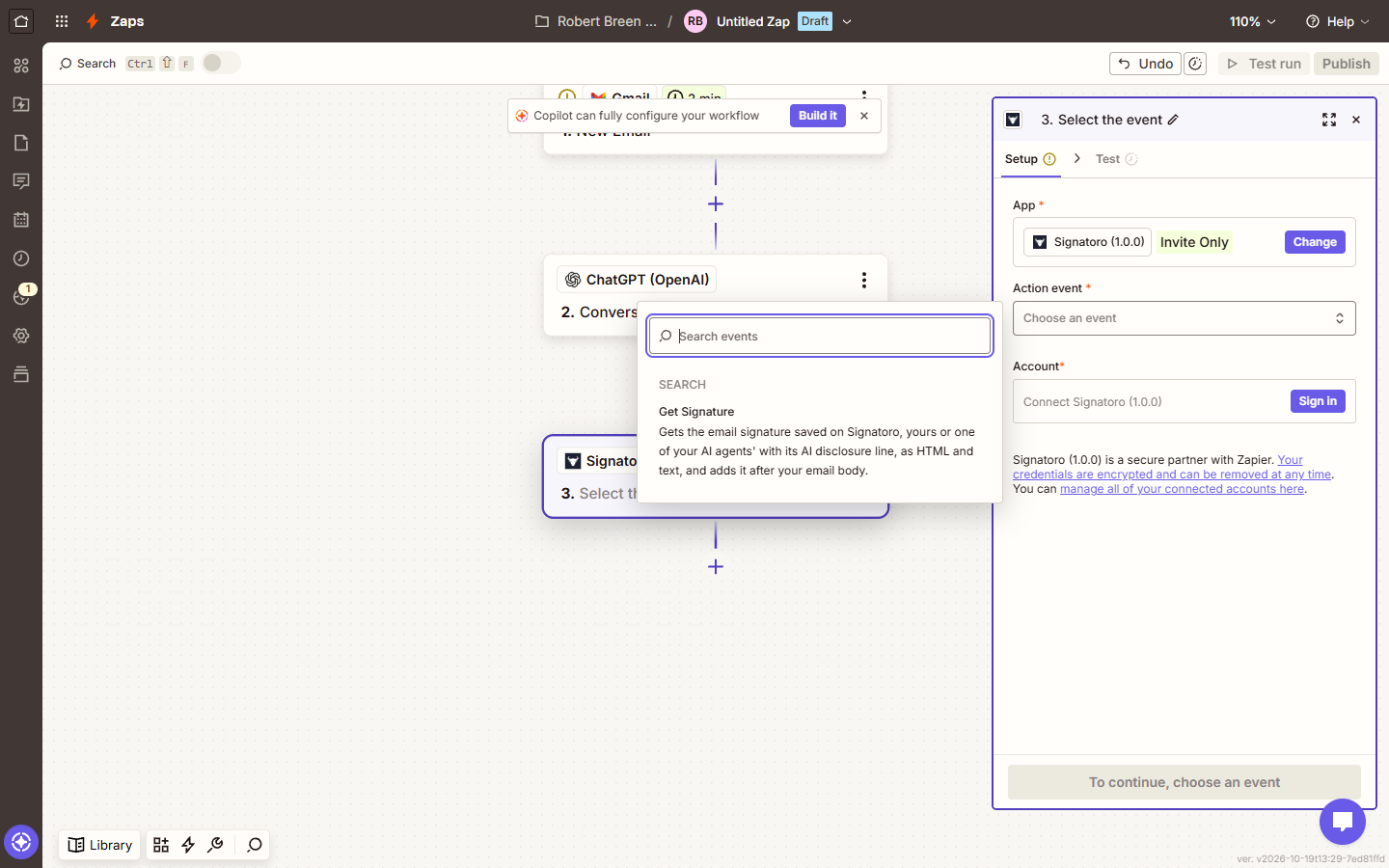
No, blueprints are Make files. The Zapier lesson builds the same reply with Signatoro's Get Signature step.
- Where can I read more about Signatoro?
The Signatoro FAQ covers plans, setup and both tools.