The example is made up. Priya Shah is the office manager at Alder & Finch Bookkeeping, and she chases about 24 overdue invoices by hand every month-end. It eats a whole morning. Screenpipe recorded the last chase, on September 30, with the team's agreement.
A note on the screens: the lesson was built from Screenpipe's docs and the screenshots in its GitHub README, read on 20 October 2026, without installing the app. Where the docs give no exact label, the screen is kept plain, so the real app may look a little different. This is our own lesson, not an official Screenpipe course.
Why map a task before you automate it?
Because most automations break on the parts nobody wrote down. Everyone at Alder & Finch agrees the invoice chase should be automated, but the real steps live in Priya's head, and the exceptions are where a workflow fails: the client she phones instead of emailing, the invoice in dispute. A recording of the actual work shows those steps and exceptions. Writing them down is process mapping, and a checked map can also become the SOP a new hire follows.
How does the lesson work, step by step?
It follows six short parts:
- Set the privacy rules. In Settings, under Recording, add Online Banking to the ignored windows list. Under Privacy, turn on AI PII removal.
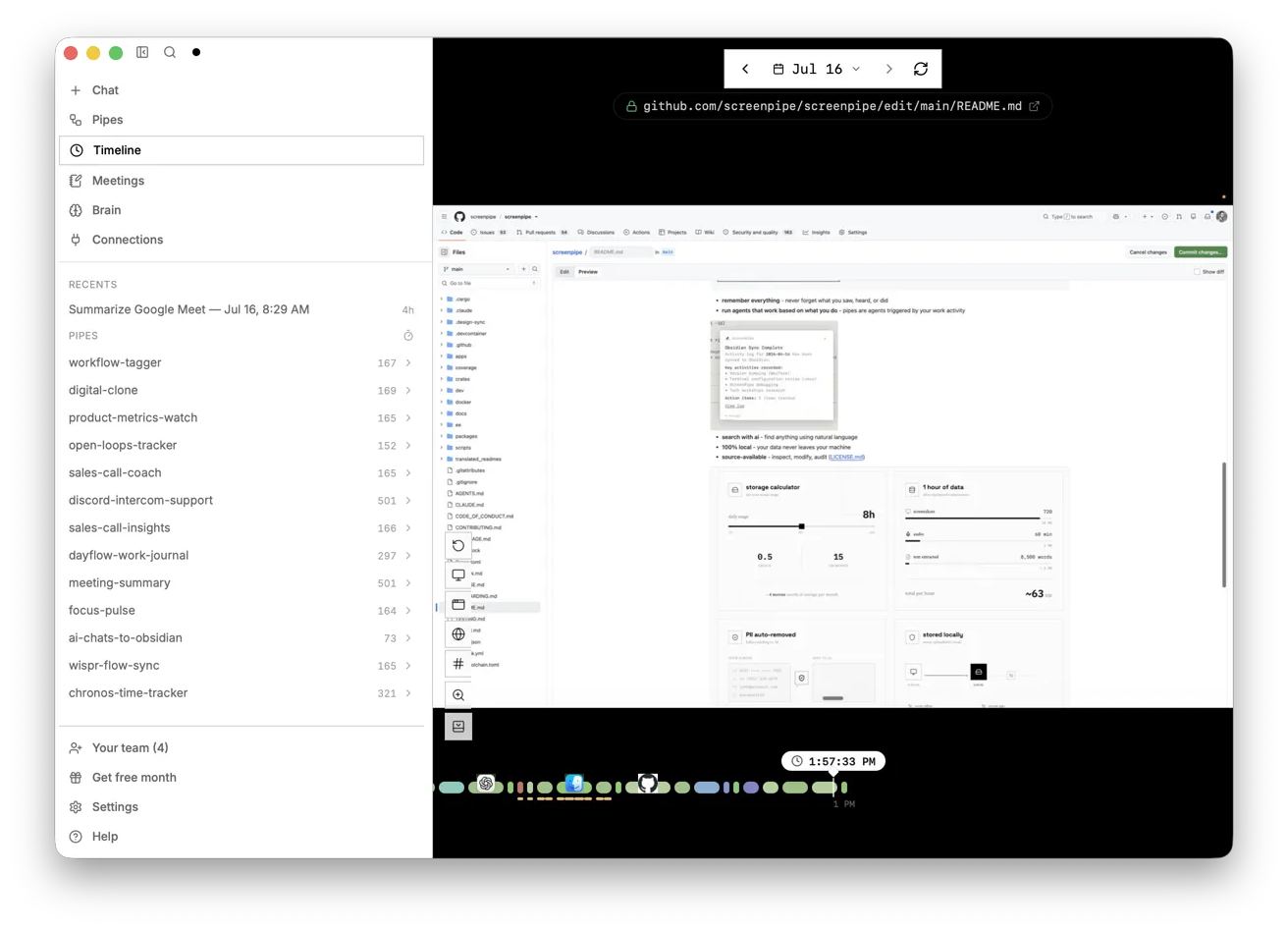
- Check the capture. Open Timeline and click the red Gmail block at 9:14 AM on September 30.
- Search the history. Type past due in the search bar. Three hits come back, each with a time and an app.
- Get the step list. On Home, paste a prompt that starts with @screen and @input, then send it. Check step 5 by opening the Google Sheets block at 9:21 AM.
- Pick what to automate. Paste a second prompt, adapted from Screenpipe's automation-prioritization guide, that ranks each step.
- Make it repeatable. In Scheduled tasks, open My tasks, click NEW and describe a manual discovery task.
What does the AI's step list look like?
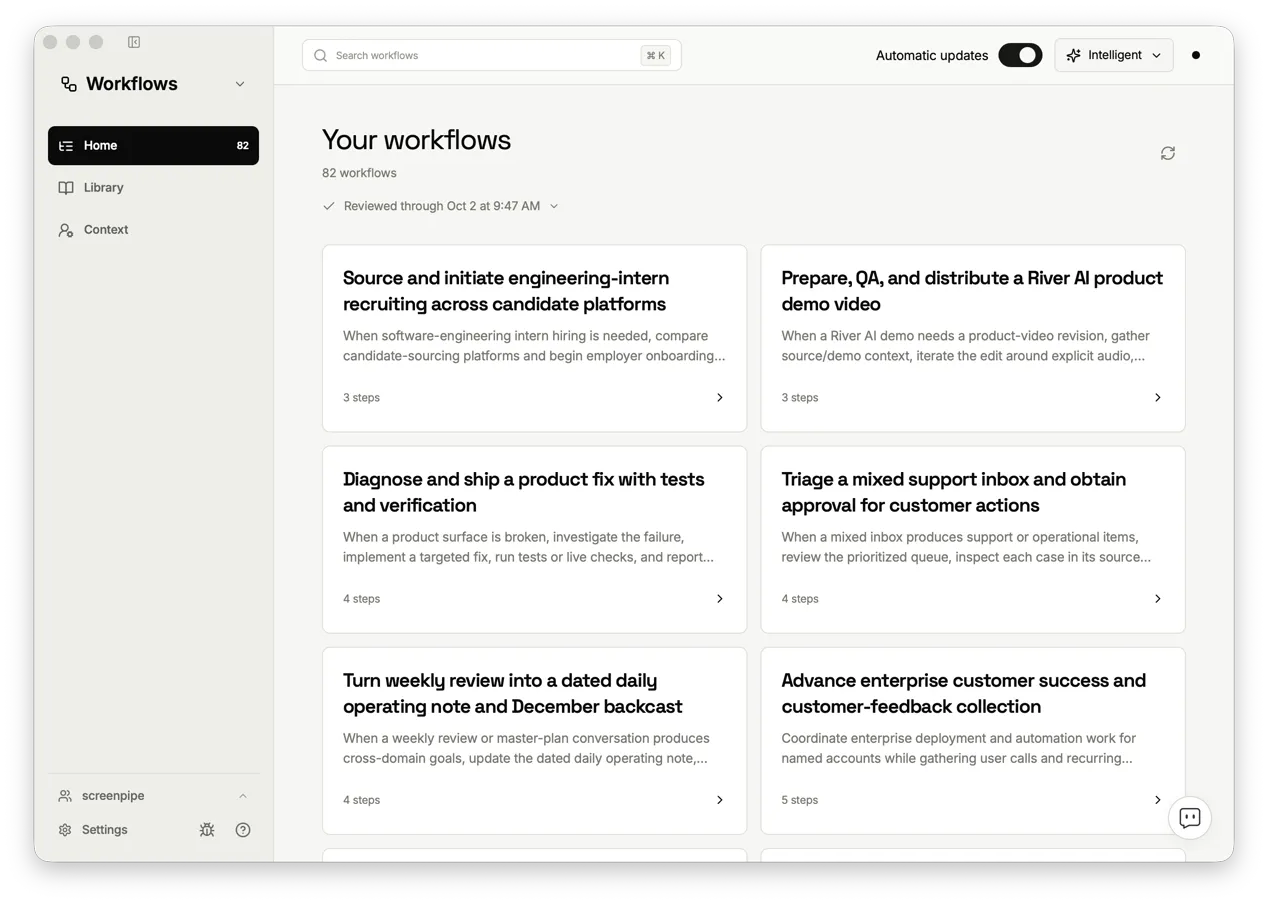
In the lesson, the chat returns five steps for the chase, each with the app and a time: open the AR aging sheet and filter to 30 or more days past due (9:02 AM), search the client in Gmail (9:05 AM), copy the reminder template from Google Docs (9:07 AM), reply in the thread and send (9:14 AM), and type today's date in the Chased on column (9:21 AM). It also lists two exceptions, a phone call for clients 60+ days late and a disputed invoice forwarded to a colleague, plus one gap: how Priya picks which late clients to call first is not visible on screen.
Try it free, step by step
Screenpipe: Map a Recurring Task Before You Automate It. Use Screenpipe's screen history to see how a month-end invoice chase is really done: set privacy rules, search the recording, get a step list with timestamps and pick what to automate in n8n, Make… You do every step yourself in a practice copy of Screenpipe, it checks your work as you go, and “Do it for me” finishes any step you get stuck on. Free, and nothing touches your real accounts.
Start the free lessonKey takeaways
- Agree the recording rules with the people involved before you record anything.
- Keep sensitive windows out with the ignored windows list, and treat AI PII removal as a safety net.
- Check the Timeline before you trust any answer, and search with short words that appear on screen.
- Ask for a timestamp on every step, then open one to check it.
- Automate the stable, reversible steps first. Calls and disputes stay with a person.
Frequently asked questions
- Does Screenpipe send my screen to the cloud?
Captured history stays on your computer by default: screen frames, audio, transcripts and the search index. Cloud AI, cloud transcription, sync and connected apps send context off the device when you turn them on. That is what local-first means in practice. If the data must stay put, choose a local model.
- Can I use a local AI model?
Yes. Screenpipe's chat can use its own cloud, your own API key, or a local model such as Ollama. With a cloud model, the selected context goes to that provider.
- Do I need to tell my team I'm recording?
Yes. Screenpipe's workflow discovery guide says to tell people what is recorded and why, who can review it, how long it is kept and how to pause it. Its docs say not to use it for covert monitoring.
- How do I keep the bank login out of the recording?
Go to Settings, then Recording, and add the app or site to the ignored windows list. The lesson types Online Banking. A new rule only affects new recordings, so set it up before you start.
- What does AI PII removal do?
It is meant to remove personal details before text is sent to an AI model. Redaction can miss things, so still keep sensitive work out of the recording. More on that in the PII entry.
- Why did my search return nothing useful?
Screenpipe search matches words, not meaning. Use short, distinctive words that appeared on screen, such as past due, not a description of the task.
- What are @screen and @input in the prompt?
They limit the chat to on-screen text and clicks. The lesson's prompt also gives an exact time window, asks for the app and a timestamp on each step, keeps client names and amounts out, and says not to send or change anything.
- Which steps should I automate first?
Good first candidates repeat often, have a clear result, are easy to check and can be undone. In the lesson, building the 30+ day list and logging Chased on get Automate, the reminder gets Draft only, and calls and disputes get Keep human.
- Does Screenpipe build the automation?
No. The lesson's suggested experiment is a small workflow in n8n, Make or Zapier that reads the aging sheet, creates Gmail drafts (not sent) and fills in Chased on. The time saving is an estimate until you measure your review time for a month.
- Why is the scheduled task set to manual?
So you run it by hand next month-end, read the report and its logs, and only then give it a schedule. The task writes a local Markdown report and never sends a message or changes another system.
- What do I need to do it for real?
Screenpipe's desktop app for macOS, Windows 10/11 or Linux, screen recording and microphone permissions, and an AI model. Screenpipe is source-available under its own commercial license, and commercial use needs a paid license, so check its plans at screenpipe.com first. The practice itself needs no account.
- What goes wrong most often?
Recording before agreeing the rules, and trusting the step list without checking a timestamp. See Screenpipe task mapping mistakes, then try the practice.