The example in the lesson is made up. Nora Okafor runs Lakeshore Ledger, a small bookkeeping firm, and wants to test a monthly Cash-Flow Check-in: a 13-week cash forecast and a 30-minute call. Building it properly would take about 30 hours of her time, so she tests it first with a goal of 20 early sign-ups in 3 weeks.
A note on the screens: every Mixo screen in the lesson is a screenshot from Mixo's own help center, credited and linked under it. They show Mixo's demo sites, not Lakeshore Ledger, and some come from an older version of the app, so a label or two may read a little differently today. This is our own lesson, not an official Mixo course.
How does the Mixo sign-up test work, step by step?
The lesson follows six parts:
- Describe the idea. Go to app.mixo.io, click Get Started and type your service in one specific sentence. Click Generate Site.
- Pick a look. Read the preview. If you do not like the design, click Regenerate Style. The words stay and the design changes.
- Save it. Click Save and customize, then open Sites and click Edit Site.
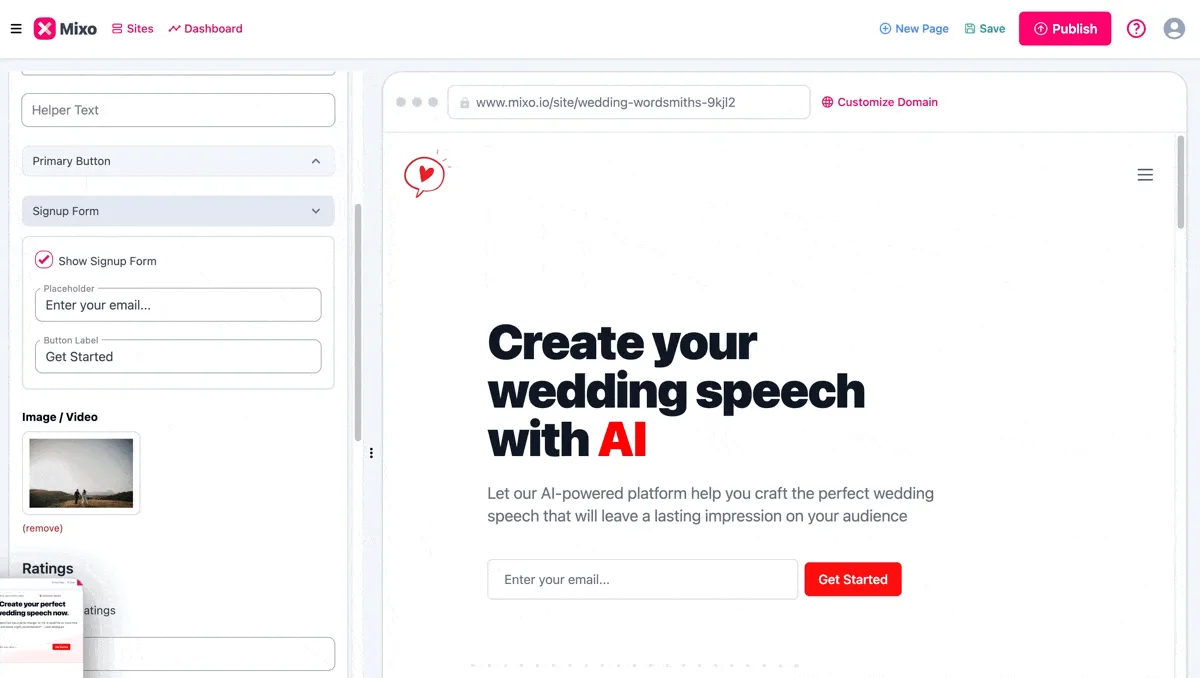
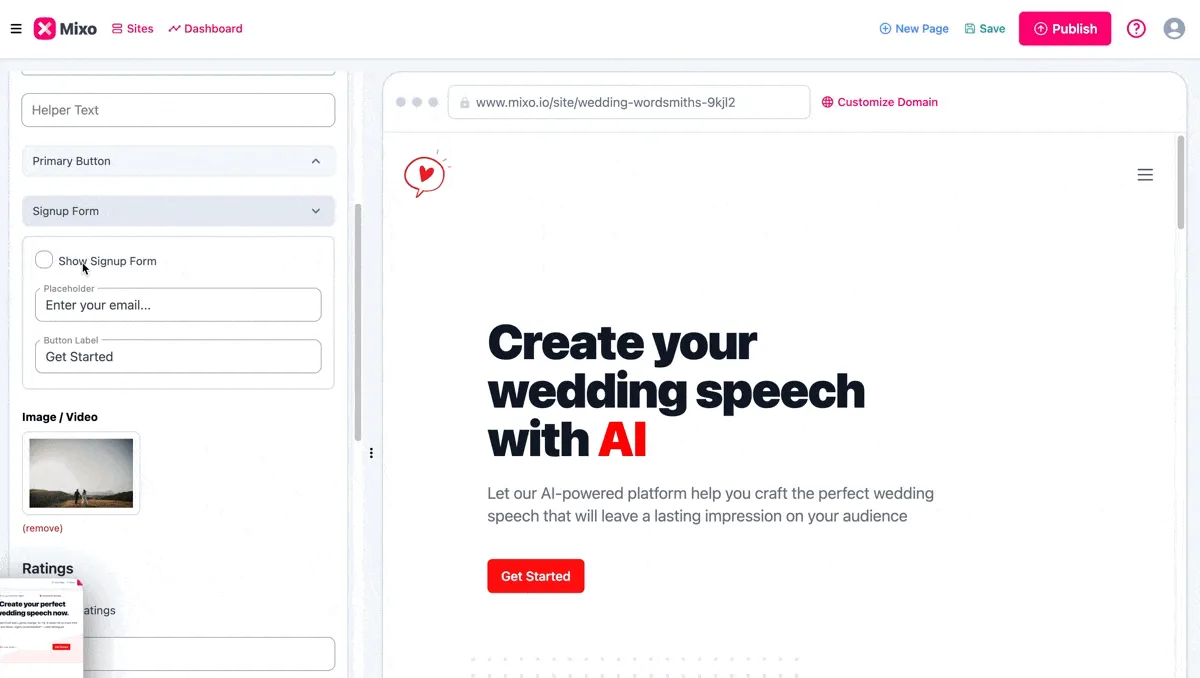
- Make it ask for an email. In Hero, rewrite the Title and Subtitle, tick Show Signup Form and change the Button Label to Join the early list.
- Brand and publish. In Settings, then Site, add your logo and colors. Click Save, then Publish.
- Count the sign-ups. Share the link, check Recent Subscribers on the Dashboard and use Download CSV.
A one-page site built for a single action like this is a landing page, and the sign-up box is its call to action.
Why test with a sign-up box instead of building the service?
Because an email address is better evidence than a friend saying "sounds great". The lesson's business case is simple: about 30 hours of work on templates, a checklist and pricing is a lot to spend before anyone has asked to buy. A page with one clear promise and an email box costs far less of your time, and the count of sign-ups decides for you.
Set the goal and the deadline before you share the link. In three weeks, Nora counts. If she reaches 20 sign-ups, she builds the service and emails the list first. If she gets three, she has saved 30 hours and can test a different offer with a new headline.
Frequently asked questions
- What should I type in Mixo's first box?
One specific sentence about your business idea. Mixo's tutorial says to word it as a business idea, and that the more specific the better: "an online hairdressing service" works better than "haircare". The lesson types: A monthly cash-flow check-in service for small business owners, run by Lakeshore Ledger, a bookkeeping firm, with a 13-week cash forecast and a 30-minute call each month. Name the service, the customer and who runs it.
- How long does Mixo take to build the site?
Mixo's docs say it usually takes around 60 seconds, and you can watch the AI build a preview while it works.
- Can I change the design without losing the words?
Yes. Click Regenerate Style at the top right of the preview and pick a style from the menu. The words stay and the design changes.
- Where do I find the editor after saving?
Click Save and customize (a newer screenshot labels it Save and Continue). You may be asked to sign up or log in. Then open Sites: your site is marked Site not published yet, next to Customize Domain, Site Settings and Edit Site. Click Edit Site. The sections of your page are down the left and a live preview is on the right.
- Why can't I turn on the button and the sign-up form together?
Mixo's docs say only one of Primary Button and Signup Form can be on at a time in the Hero section. For this test you want emails, not a click, so tick Show Signup Form. The button in the preview becomes an email box with a button.
- What should the sign-up button say?
Something that tells people what they are signing up for. The form has a Placeholder (the grey text in the email box) and a Button Label. The lesson changes the label to Join the early list.
- What is the difference between Save and Publish?
Save keeps your changes private in your account, so you can come back later. Publish makes the saved version live. Mixo's docs add that changes made after you publish only go live when you publish again.
- What web address does the site get?
When you publish, the site goes on a Mixo address such as yoursite.mixo.io. You may see a short processing status first, then the dashboard shows sharing tools. Customize Domain sits next to your site in the Sites list.
- Where do sign-ups go?
When someone enters an email and submits, Mixo adds them to your site's dashboard, and its docs say you also get an email notification. Open Dashboard and scroll to Recent Subscribers: the count, the date of the last sign-up, and each email with the date it came in.
- How do I get the list into Excel or Google Sheets?
Once you have at least one subscriber, click Download CSV on the Recent Subscribers card. A CSV file opens in Excel or Google Sheets. Then email each person within a day. Mixo's help center says a quick, personal reply is how you keep sign-ups interested.
- Do I need a Mixo account to try the lesson?
No. The practice uses Mixo's help-center screenshots and needs no account. To do it for real you need a Mixo account. Check mixo.io for what each plan includes, since that can change.
Try it free, step by step
Mixo: Launch a Landing Page and Collect Early Sign-ups. A business case for a firm testing a new service before building it: describe the idea in one sentence, let Mixo build the page, turn on a sign-up form, publish it free and download the list of… You do every step yourself in a practice copy of Mixo, it checks your work as you go, and “Do it for me” finishes any step you get stuck on. Free, and nothing touches your real accounts.
Start the free lesson
Key takeaways
- Type one specific sentence: the service, the customer and who runs it.
- Rewrite the headline so it says what the customer gets.
- Tick Show Signup Form and give the button a clear label.
- Save is private, Publish is public. Publish again after every change.
- Set a goal and a deadline, then count Recent Subscribers and reply within a day.
For the slip-ups to avoid, read Mixo landing page mistakes. The steps are also on one printable page in the cheat sheets library, and the Mixo glossary entry explains the tool in a paragraph. Then try the practice.