Why this matters
OpenAI retires custom GPTs on December 11, 2026, and its FAQ says the change affects all ChatGPT plans. On that date GPTs and their pages stop working, and on our Plus account nobody can create a new GPT any more. If your team relies on one for HR prep, client replies or house-style writing, the work stops with it.
Migrating takes minutes. The real work is the checklist: what does not carry over, so the plugin your team switches to behaves like the GPT they trusted.
Practice
Do every step yourself in a practice copy of the real tool. It checks your work, and “Do it for me” finishes any step you get stuck on.
What you’ll build
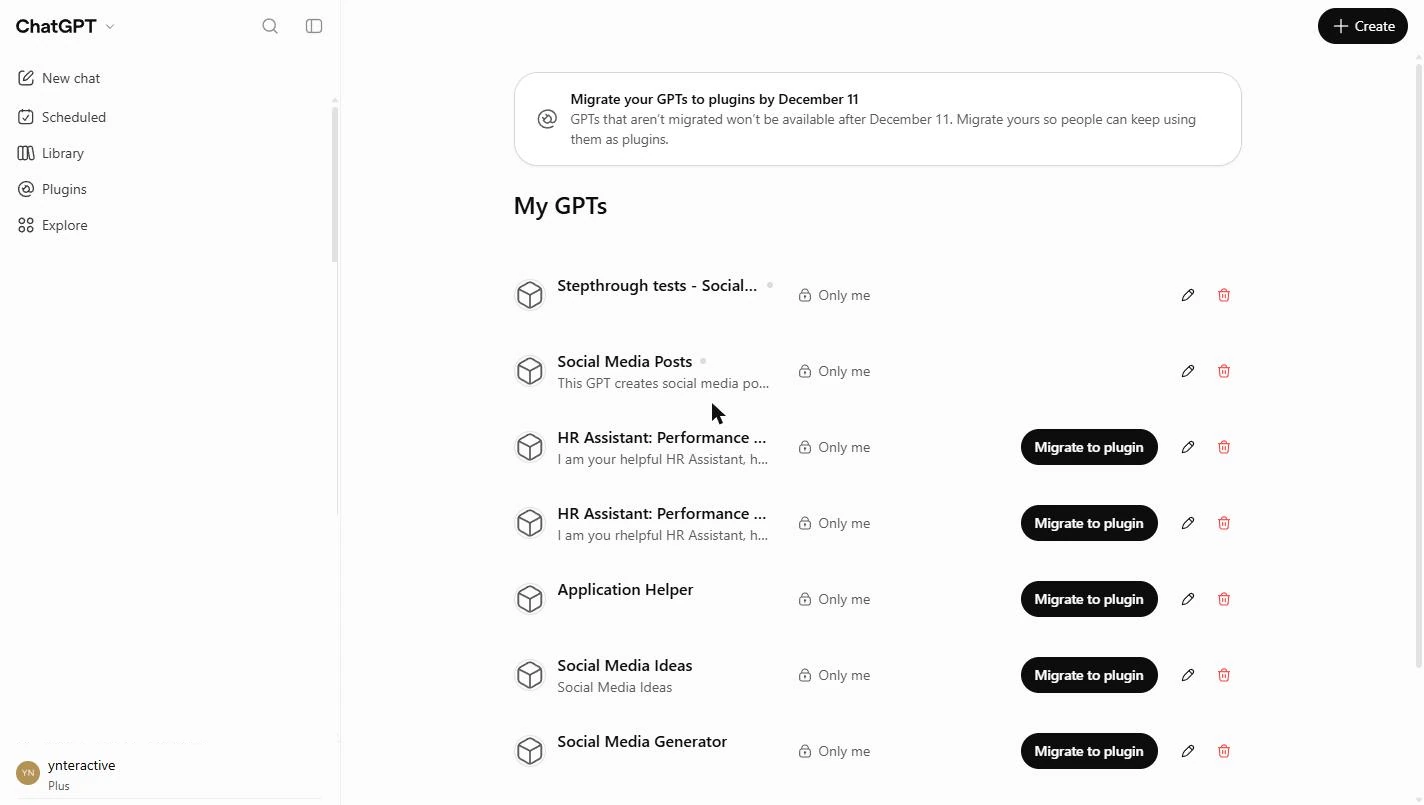
You open My GPTs, read the deadline banner, and see that Create no longer makes GPTs. Then you open an HR performance-coaching GPT and write down what moves (instructions, knowledge files, apps) and what does not (custom actions, the model, sharing, chats).
Then you migrate it: click Migrate to plugin, read ChatGPT’s check (instructions and files, apps and actions, sharing), confirm, and see the plugin it made, with the instructions as one skill and every knowledge file included. Back on My GPTs the original is now view-only. We migrated a duplicate test copy, so the GPT the team uses was not touched.
What you need
- Nothing to start the practiceThe lesson is a practice copy built from real ChatGPT screens.
- A published GPT you created, to do it for realOnly the creator (or an Enterprise admin) can migrate, and only the latest published version moves.
Concepts
What moves to the plugin
Instructions become a skill. Knowledge files are copied into the plugin’s reference files. Connected apps are added as apps.
What you must save or redo
Custom actions do not transfer: rebuild them with an app or a custom MCP server. The selected model does not carry over. Sharing settings do not carry over: the plugin starts private. Conversation starters do not carry over one to one, so copy them. Your chats with the GPT stay in your history, not in the plugin.
After you migrate
The original GPT keeps working until December 11 but becomes read-only, and you cannot delete it. Make every future change in the plugin, test it with familiar prompts and one harder case, then share it.
Do it for real
Now repeat it in your own account. Tick each step as you go.
Downloads
- OpenAI: Custom GPT retirement and migration FAQDates and what transfers, read 19 November 2026.
Quick check
3 questions to check you’ve got it.
1. Which of these does NOT carry over when you migrate a GPT to a plugin?
- Custom actions
- Knowledge files
- The instructions
Show the answer
Custom actions. Custom actions must be rebuilt. Instructions become a skill and knowledge files are copied over.
2. After you migrate, what happens to the original GPT?
- It keeps working until December 11 but is read-only
- It is deleted right away
- It stays editable forever
Show the answer
It keeps working until December 11 but is read-only. OpenAI says the original stays usable until retirement, becomes read-only, and its creator cannot delete it.
3. Who sees the new plugin right after migration?
- Only you, until you share it
- Everyone who used the GPT
- Everyone in the public directory
Show the answer
Only you, until you share it. Migration starts with a private plugin. Existing GPT users do not get access automatically.
ChatGPT Plugins: Build a Sales Follow-Up Writer from Scratch
Next you build a plugin from scratch on real screens, so you know exactly what the migrated one contains.
Start module 3 →