Why this matters
At a firm that sells by quote, somebody spends the first hour of every morning on the shared inbox: sorting quote requests from vendor mail, logging each one in a sheet, and writing a first reply. A request that waits a day cools off, and a rushed reply promises a date or a price the firm can't keep.
Strawberry routines run a companion on a schedule or when something happens in a connected app, and stop at an approval card before anything is sent. The routine does the sorting, logging and drafting before you sit down. You read what it did and approve, fix or decline each reply.
Practice
Do every step yourself in a practice copy of the real tool. It checks your work, and “Do it for me” finishes any step you get stuck on.
What you’ll build
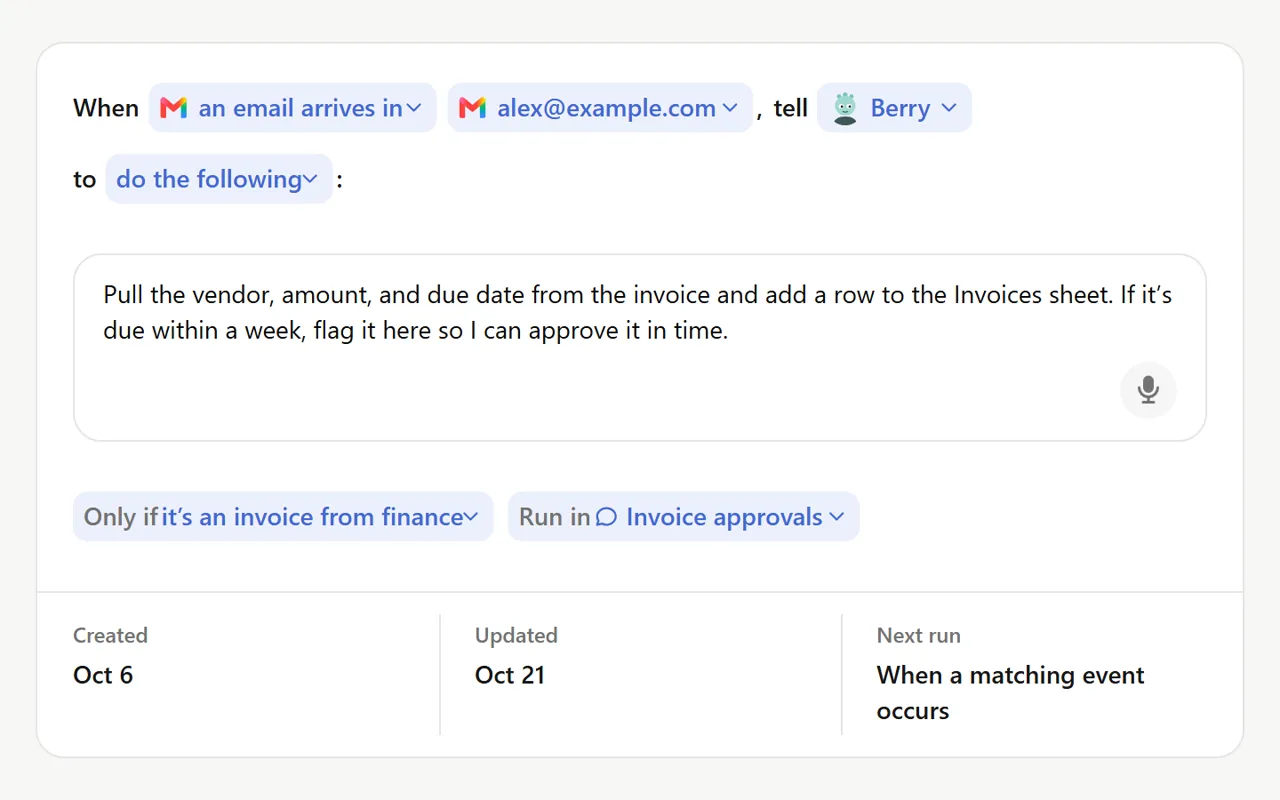
You help Marcus Bell, sales coordinator at Keystone Exhibits, a made-up 22-person firm that builds trade-show booths. Quote requests arrive overnight in a shared inbox.
You build a Daily 8:00 routine with instructions that follow Strawberry's routine guide, run it once, open the work trace, fix a promised design date on the first approval card, decline a draft that quoted a price, and add the missing rule to the routine so tomorrow's run gets it right.
What you need
- Nothing to start the practiceThe lesson is a practice copy built from Strawberry's docs and release notes. Keystone Exhibits, the companies, people and emails are made up, and nothing is read or sent.
- Strawberry, to do it for realA desktop browser for macOS and Windows with built-in AI companions. Its site lists a free plan with monthly AI credits and paid plans; normal browsing uses no credits.
- Gmail and Google Sheets (or your own email and sheet apps)Connected at strawberry://settings/integrations, with Gmail's send action set to Ask every time. Lesson 1 shows that setting.
- A shared inbox with a clear jobWhich emails count as requests, what to log, what counts as urgent, and what the routine must never say (dates, prices, contract answers).
Concepts
A routine is a trigger, instructions and a companion
The create-routine menu offers a daily schedule, a repeating interval, a one-time date and a custom schedule; app triggers such as a new email have their own panel on the Routines page. When the trigger fires, Strawberry opens a real chat and the companion works through the instructions in your connected apps.
Routines run while Strawberry is open. A run that comes due while your computer is off or asleep waits and runs the next time you open Strawberry, so the morning triage is there when you arrive, not lost.
Write the routine like a job description
Strawberry's routine guide says to keep routines narrow and scoped (one inbox, one label), to put related actions in one routine rather than three, and to say when it should notify you and when it should delete the automatic chat.
The approval gate is a sentence, and the docs give it: "Draft the replies and notify me. Do not send until I approve." Add the things it must never say. Every rule you write is a reply you won't have to fix.
The approval card is where you stay in control
When the routine reaches an action set to Ask every time, it stops and shows a request above the chat input. Several can wait at once. Email cards are editable, so you fix a promise or a number on the card before you approve.
Declining is a normal outcome. A declined draft is not sent, the request is still logged, and it tells you which rule the instructions are missing. Edit the routine, and tomorrow's run is better.
Do it for real
Now repeat it in your own account. Tick each step as you go.
Quick check
3 questions to check you’ve got it.
1. You want one tidy summary each morning, not a reply to every email as it arrives. Which trigger fits?
- App trigger on new email
- Daily at a set time
- Interval every 5 minutes
Show the answer
Daily at a set time. Daily runs once at the time you pick and combines the overnight emails into one run. An app trigger would start a run per email.
2. The approval card says "we can have a concept design to you by Friday", but your instructions said never promise a design date. What do you do?
- Approve it, the date is probably fine
- Edit the body on the card, then approve
- Delete the routine
Show the answer
Edit the body on the card, then approve. Email approval cards are editable. Fix the promise before it reaches the customer, and tighten the instructions if it keeps happening.
3. A draft gives a price range even though nobody at the firm quotes before a call. What is the right move?
- Decline the send, then add a rule about prices to the routine
- Approve it so the customer gets a fast answer
- Switch the send action to Always allow so you stop seeing cards
Show the answer
Decline the send, then add a rule about prices to the routine. Declining keeps the email from going out and still leaves the request logged. The missing rule goes into the instructions so the next run does not repeat it.