The example is made up. You are Jordan, a tax manager at Larkspur Tax & Advisory, meeting Elena Vasquez, the owner of Northline Design Studio, a six-person design agency. The screens are the real OLVA desktop app (Windows, Pro plan), captured on October 13, 2026 in our own test call, with that call's text blurred. Anything you type in the lesson is marked Example. Our test did not capture what Follow-up, Create a team handoff or What open questions? return, or any Fact Check card, and the lesson says so where it matters. Stepthrough is not affiliated with OLVA beyond this free lesson.
What problem does OLVA solve in a client meeting?
A year-end planning meeting is where the work for tax season gets decided. If you are typing notes, you only half listen. The follow-up question about the equipment purchase never gets asked, and the list of documents the client promised to send lives in your memory. Two weeks later the preparer is emailing the client for things you already discussed. OLVA keeps the record so you can listen, and it starts the handoff and the client follow-up from what was actually said.
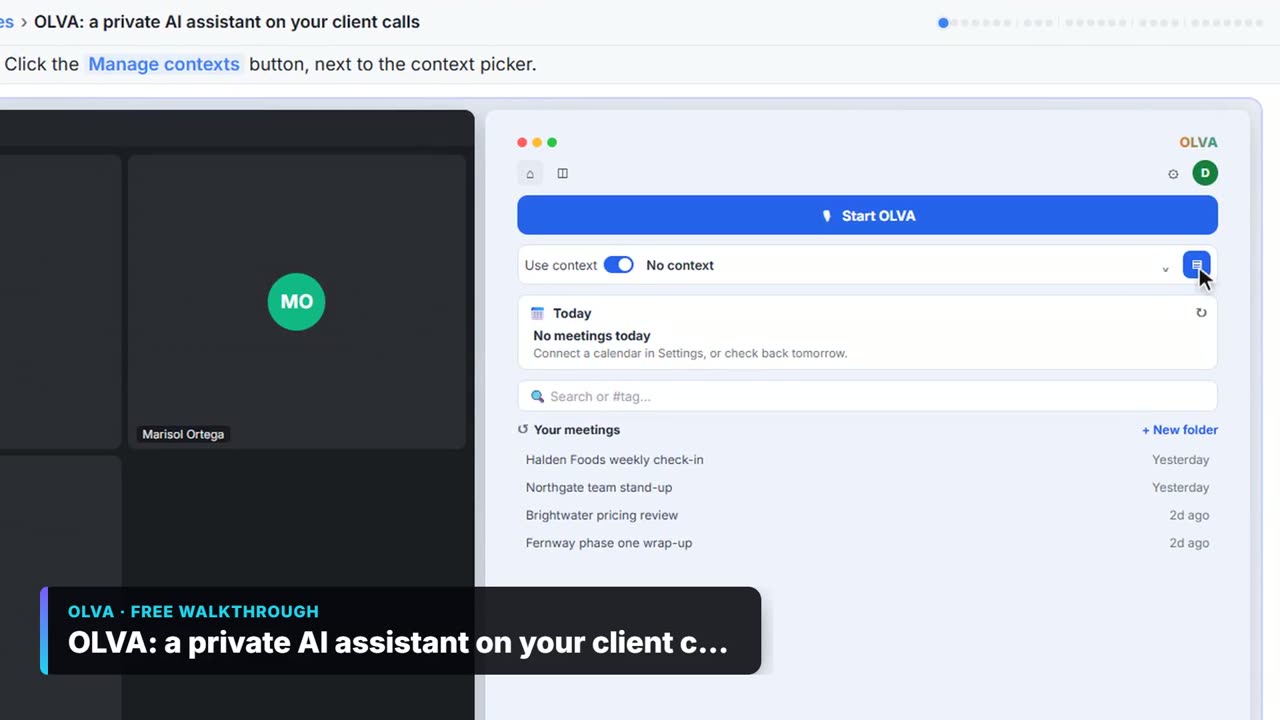
How do I load the client's agenda?
Make one OLVA context per client meeting:
- Click Manage contexts, the blue button next to the context picker.
- Click Add context. A new context starts as Untitled, with the name selected, and saves itself. Name it after the client and the meeting. The lesson uses Northline Design: year-end planning.
- Click Add a note and paste the client, the numbered agenda, last year's open items and your meeting rules. Click Save.
- Click Add document and pick the client's document checklist (PDF, Word, text or Markdown). OLVA converts it and shows it as text, with Make shorter, Save and Cancel. Check it, then click Save.
- Click the back arrow next to Contexts.
The lesson's agenda has five numbered items: profit so far vs last year, equipment she plans to buy, estimated tax payments made, the new contractor, and documents still needed. Its rules say no final tax answers in the meeting, anything that needs research goes on the open list, and never put account numbers or SSNs in notes.
How do I start OLVA in the meeting?
Click the context picker and, under CHOOSE CONTEXT, pick the client's context. Tell the client you are taking AI notes, then click Start OLVA. The first time, OLVA says Language detection is automatic; click Start Olva. The live window opens beside your call. Turn on Live insight at the top right.
Try it free, step by step
OLVA: Run Client Planning Meetings Without Losing a Single Follow-up. Load the client's agenda and open items into OLVA. In the meeting it suggests follow-up questions privately and tells you which agenda items you haven't covered, then helps you write a handoff for… You do every step yourself in a practice copy of OLVA, it checks your work as you go, and “Do it for me” finishes any step you get stuck on. Free, and nothing touches your real accounts.
Start the free lessonHow do the Follow-up and agenda questions work?
When Elena says she is thinking about buying new computers and a large-format printer "sometime soon", click Follow-up under the transcript. Suggestions show in Chat, where only you can see them. Our test did not capture a Follow-up answer, so ask your follow-up in your own words: what she plans to buy, roughly what it costs, and when it will be in use. Don't promise a deduction on the spot; it goes on the open list.
Later, click Ask about this call, type Which agenda items haven't we covered yet? and click the send arrow. The client doesn't see this. OLVA answers in Chat from the transcript and your notes. If the new contractor and the missing documents aren't covered yet, raise them before time runs out.
What happens after the meeting?
Click End, then Stop Meeting. The meeting opens on Summary while OLVA writes it up. Click the Chat tab. Under Try asking OLVA, click Create a team handoff for the preparers, and What open questions? for the documents the client still owes and the items you said you would research. Every answer in Chat ends with a copy button. We didn't capture either answer in our test, so read both against your notes and fix names and numbers before you share them.
Key takeaways
- One context per client meeting: numbered agenda, open items, your rules and a document checklist.
- Tell the client you are taking AI notes before you click Start OLVA.
- Follow-up and Ask about this call answer privately in Chat.
- Don't give final tax answers in the meeting; put them on the open list.
- Read the handoff and open questions against your notes before you share them.
Frequently asked questions
- Does OLVA join the meeting as a bot?
No. OLVA listens through your own computer and opens beside the meeting, so it does not appear as a participant. That is why telling the client is up to you.
- Do I need to tell the client?
Yes. Tell clients you are taking AI notes, or get their consent, as the law where you work requires, and follow your firm's rules on putting client information into outside apps. Read AI note taker consent for more.
- Should I attach the client's tax return?
No. The lesson attaches a document checklist, not the return. OLVA only needs what you plan to discuss.
- What does Live insight show?
With Live insight on, the AI Assist tab collects cards as the meeting goes. In our test a Define card explained a specialist term the moment it was said. OLVA can also add Fact Check cards, but none came up in our test, so don't count on one. If a number the client gives doesn't match your notes, note it yourself to confirm against her records.
- Can I see the transcript and cards together?
Yes. Click the layout button left of the timer, and the transcript sits on the left with the cards on the right.
- What do I need to use OLVA for real?
The OLVA desktop app for Windows or Mac, an OLVA account, and a Zoom, Google Meet or Teams call. OLVA is a separate product with its own plans, so check olva.ai for current plans. The practice lesson needs none of that: nothing listens, records or joins a call.
- Where can I learn more OLVA basics?
Start with the OLVA live meeting assistant lesson, or read OLVA's own how-to guides. For the write-up side, see follow-up email after a client meeting.
For the slip-ups to avoid, read OLVA client meeting mistakes. Then try the practice.