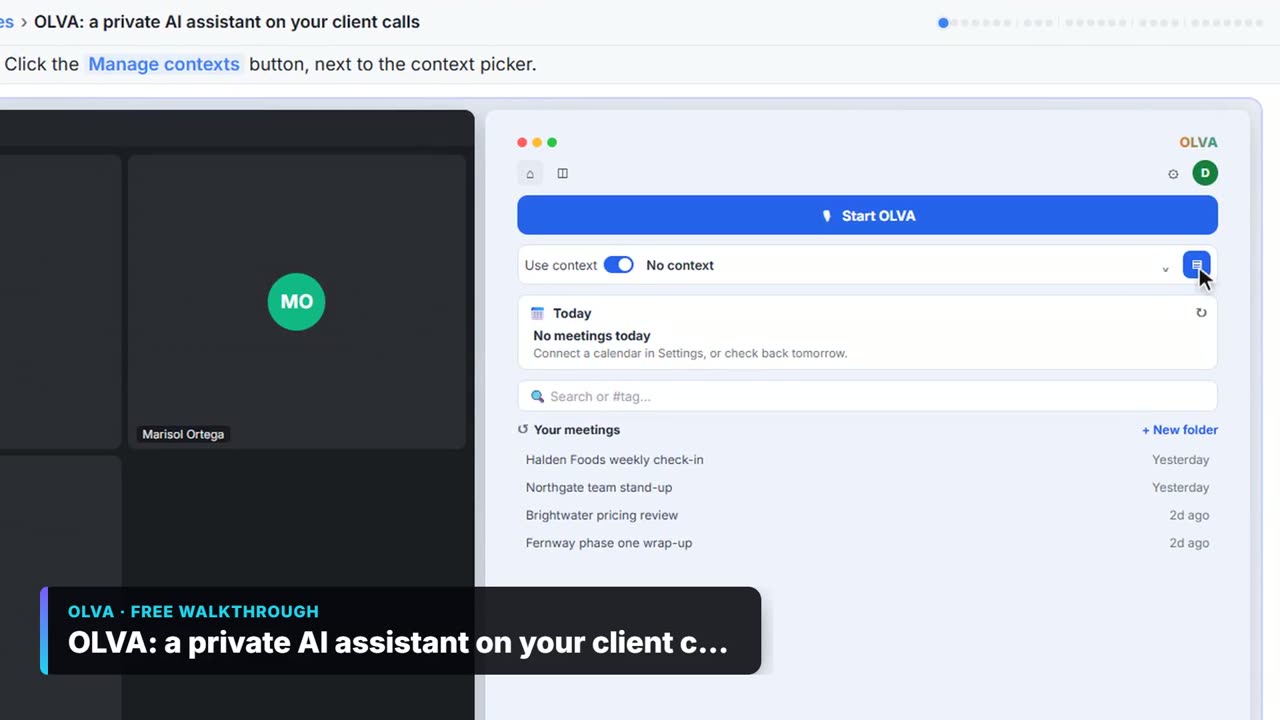
The example is made up. You are Jordan, a tax manager at Larkspur Tax & Advisory, meeting Elena Vasquez of Northline Design Studio. The screens are the real OLVA desktop app (Windows, Pro plan), captured on October 13, 2026 in our own test call, with the call's text blurred. Our test did not capture the answers to Follow-up, Create a team handoff or What open questions?, or any Fact Check card.
What are the most common mistakes?
Seven mistakes cover most of the trouble:
| # | Mistake | Fix |
|---|---|---|
| 1 | Sharing the handoff unread | Check names and numbers against your notes, then copy |
| 2 | No context for the meeting | One context per client meeting, with a numbered agenda |
| 3 | Uploading the whole tax return | Attach a document checklist with Add document |
| 4 | Skipping consent | Tell the client before you click Start OLVA |
| 5 | Giving tax answers on the spot | Put anything that needs research on the open list |
| 6 | Moving on after a vague answer | Click Follow-up, then ask in your own words |
| 7 | Treating Live insight as a fact checker | Note mismatches yourself and confirm against records |
Why does reading the handoff matter most?
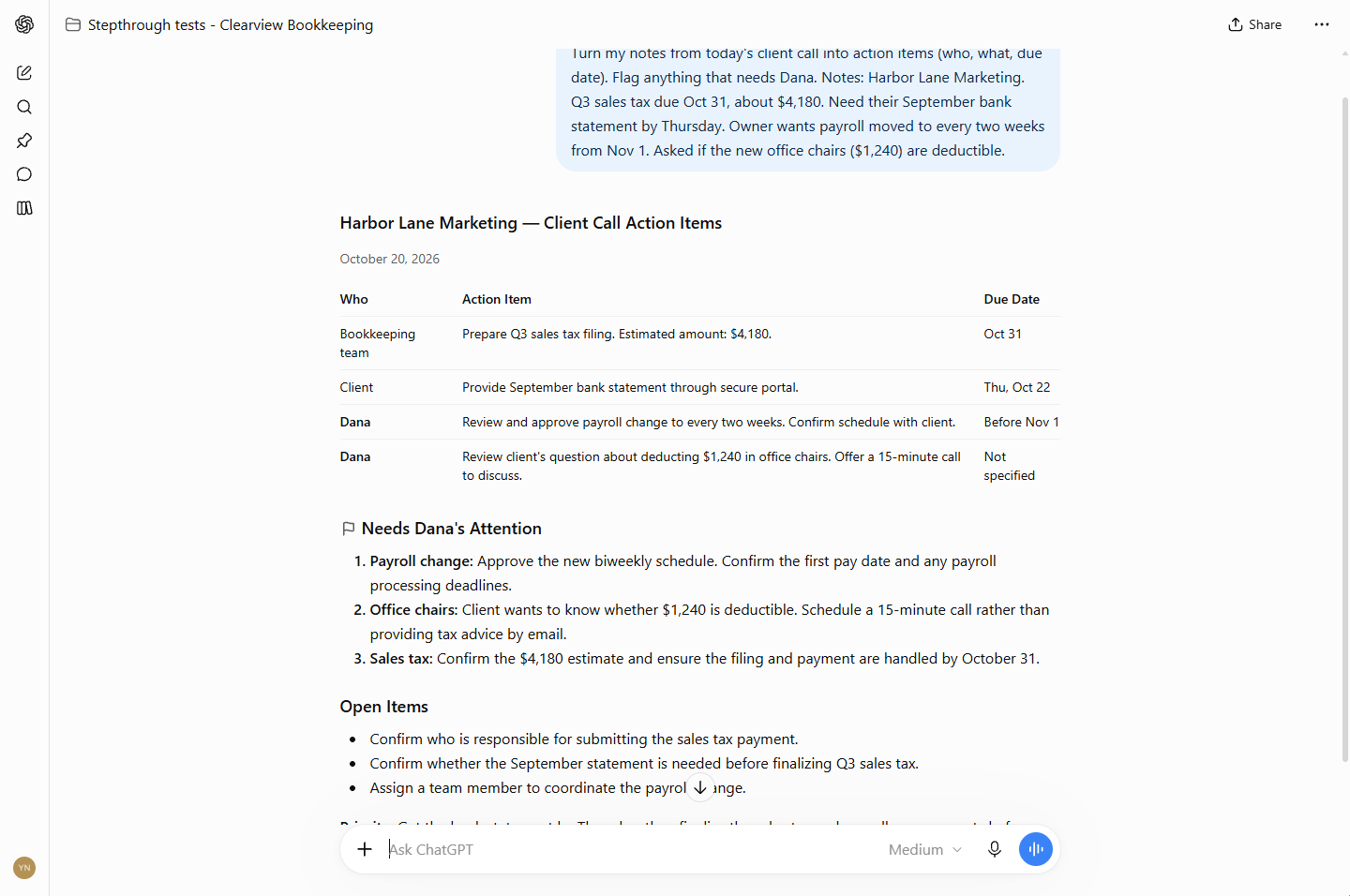
1. Sharing the handoff unread. After you click End and Stop Meeting, open the meeting's Chat tab. Under Try asking OLVA, Create a team handoff writes up the meeting for the preparers, and What open questions? lists the documents the client still owes and the items you said you would research. Every answer ends with a copy button. We didn't run either one in our test, so we can't show what they return. That is one more reason to read them. Fix anything OLVA misheard, especially names and numbers, then add the handoff to the client's file. For the client side, see follow-up email after a client meeting.
Which mistakes happen before the meeting?
2. No context for the meeting. Without a context, OLVA doesn't know your agenda, so it can't tell you what you haven't covered. Click Manage contexts, then Add context, name it after the client and the meeting, and click Add a note. Paste the client, a numbered agenda, last year's open items and your rules, then click Save. Numbering the agenda pays off twice: you can ask which items you haven't covered, and the handoff is quicker to check. Before the call, pick it from the context picker under CHOOSE CONTEXT.
3. Uploading the whole tax return. Click Add document and attach the client's document checklist, not the return. OLVA only needs what you plan to discuss. It converts the file and shows it as text, with Make shorter, Save and Cancel, so check it before you click Save. Follow your firm's rules on putting client information into outside apps, and never put account numbers or SSNs in notes.
Try it free, step by step
OLVA: Run Client Planning Meetings Without Losing a Single Follow-up. Load the client's agenda and open items into OLVA. In the meeting it suggests follow-up questions privately and tells you which agenda items you haven't covered, then helps you write a handoff for… You do every step yourself in a practice copy of OLVA, it checks your work as you go, and “Do it for me” finishes any step you get stuck on. Free, and nothing touches your real accounts.
Start the free lessonWhich mistakes happen during the meeting?
4. Skipping consent. OLVA listens through your own computer and does not join the call as a bot, so the client won't see it as a participant. Telling them is up to you. Tell the client you are taking AI notes, or get their consent, as the law where you work requires, before you click Start OLVA. Read AI note taker consent for more.
5. Giving tax answers on the spot. The lesson's rules say no final tax answers in the meeting, and anything that needs research goes on the open list. When Elena mentions new computers and a large-format printer, don't promise a deduction. Don't treat anything said in the meeting as a final tax answer until you've done the work.
6. Moving on after a vague answer. "Sometime soon" is not something a preparer can work with. Click Follow-up under the transcript. Suggestions show in Chat, where only you can see them. Our test didn't capture a Follow-up answer, so ask in your own words: what she plans to buy, roughly what it costs, and when it will be in use. Later, click Ask about this call, type Which agenda items haven't we covered yet?, send it, and raise anything missing, like the new contractor or the documents, before time runs out.
7. Treating Live insight as a fact checker. With Live insight on, the AI Assist tab can show a Define card that explains a term. In our test it defined a specialist term; in a client meeting it could be a term from the client's own industry. OLVA can also add Fact Check cards, but none came up in our test, so don't count on one. If Elena says she made all four estimated payments and your notes show three, note it yourself as something to confirm against her records. A mismatch is a question, not a verdict.
Key takeaways
- Read the handoff and open questions before you share them.
- Build one context per client meeting, with a numbered agenda.
- Attach a checklist, not the return.
- Tell the client you are taking AI notes.
- No tax answers on the spot; confirm numbers against records yourself.
The OLVA client meetings FAQ answers the how-to questions. For the basics of the app, try the OLVA live meeting assistant lesson, and check olva.ai for current plans.
Frequently asked questions
- Can OLVA write the follow-up to the client for me?
It can start it. What open questions? in the meeting's Chat tab is meant for that. We didn't capture its answer in our test, so read it before you send anything.
- Will the client see OLVA in the call?
No. OLVA runs on your computer and opens beside the meeting. That is why telling the client is up to you.
- What should go in the context note?
The client, a numbered agenda, last year's open items and your meeting rules, such as no final tax answers in the meeting and no account numbers or SSNs in notes.
- Do I need an OLVA account to take the lesson?
No. The practice uses screenshots from our own test call, so nothing listens, records or joins a call. To use OLVA for real you need the desktop app for Windows or Mac and your own account.