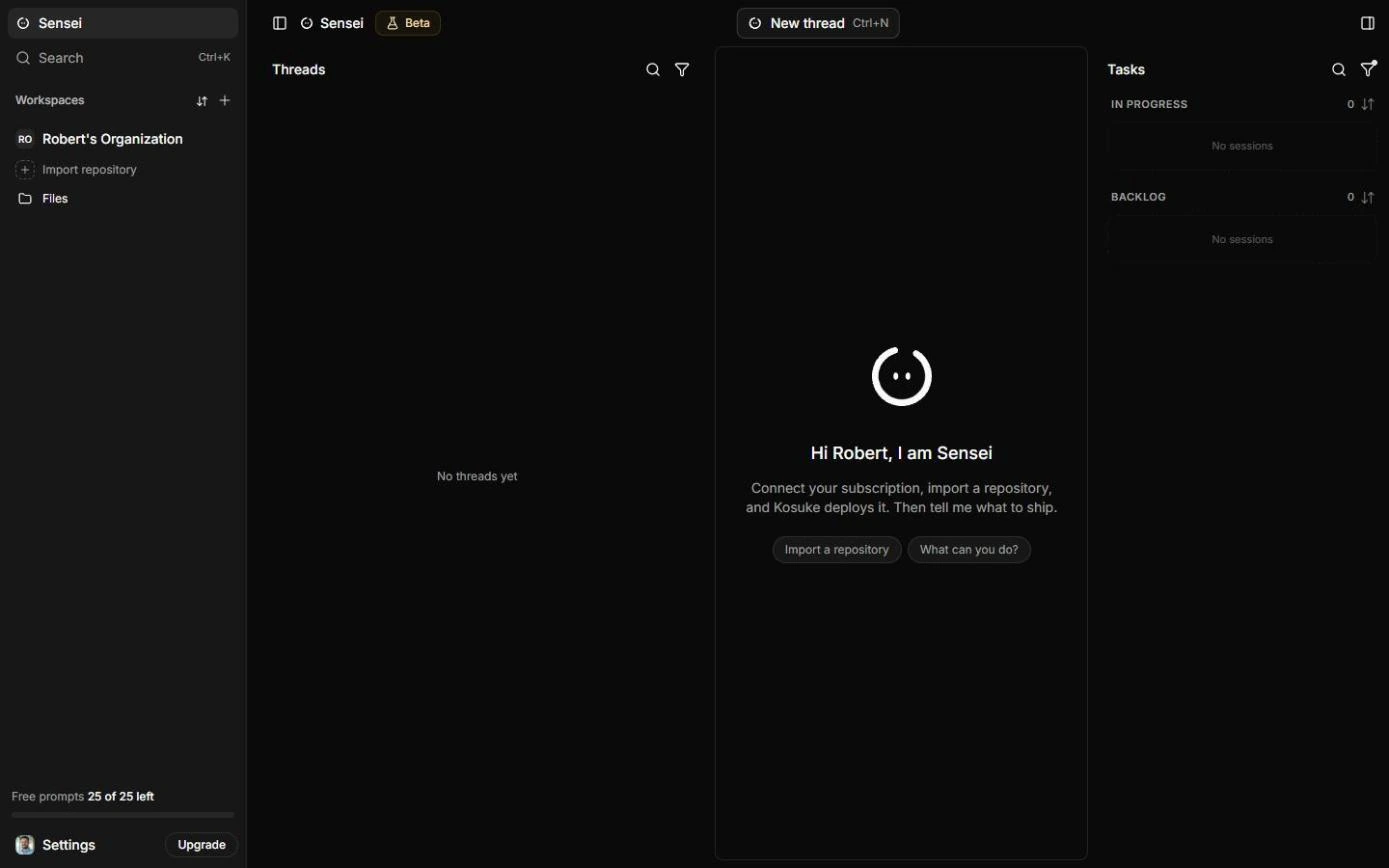
Kosuke (kosuke.ai) runs an AI coding agent, such as Claude Code, on your GitHub repository inside a cloud sandbox. You describe a change in plain words, the agent makes it on its own branch, and you try the result in a live preview of your running app before it ships as a pull request. Kosuke can also test the change for you in a real browser and record what it did. You can try it in the free lesson Preview Every Website Change Before Your Client Sees It using Kosuke, the first module of the free Kosuke Jump Start.
This page is for agency owners, operations people and small-business owners who already use an AI coding agent on a website or an internal tool, or are about to, and need to check what it changed without reading code. It is my own explainer, not an official Kosuke guide. The facts come from kosuke.ai, docs.kosuke.ai and a real Kosuke account, all checked in October 2026.
What problem does Kosuke solve?
AI coding agents make website changes fast. Checking them is still slow. Someone sets up a staging copy, clicks through the change, takes screenshots, emails the client and waits. Nobody checks it on a phone, and nothing records what was tested. Then a change that looked fine on a laptop breaks a booking button on phones, and the client finds it first.
The bottleneck is no longer writing the change. It is trusting it. Kosuke's answer is to give every change its own running copy of the app, a test run you can watch, and a link you can send before anything goes live.
How does Kosuke work?
Six ideas explain what you see in Kosuke.
Projects. A project is a GitHub repository you import into Kosuke. You install Kosuke's GitHub app and choose only the repositories it may see. The first import starts a deploy, in which an agent works out how to run your app in a sandbox. That happens once per project.
AI providers. Kosuke uses your own coding agent. Under Settings > AI Providers you connect one, for example Claude Code with your Claude login. The lessons also cover OpenAI's Codex, through an API key or your own login.
Sessions. Each change is a chat session. You press New Session, describe the change the way you would to a colleague, and start it. Each session gets its own branch and its own sandbox, so your live site is not touched.
Preview. While the agent works, a live Preview of your running app sits beside the chat. You click through the change, switch to phone size with the responsive toggle, and send corrections in plain words. Share preview creates a link a client can open without a Kosuke account. This is a kind of preview deployment.
Automated QA. Typing /kosuke:automated-qa starts a test run. Testers work through a written Testing Checklist in a real browser and publish a QA Report with what they did, what they saw and a video for each section. Each item is marked passed, failed or blocked. The --fix option repairs what failed.
Pull requests. Open PR creates a pull request on GitHub with the QA Report linked and a qa: label such as qa: passed. You or your developer review and merge it as usual. Kosuke's site also describes a dual AI review, with Claude and GPT both reviewing each change.
Who is Kosuke for?
People who are responsible for a website or app but are not developers, and developers who want proof that a change works before they review the code:
- A small agency that looks after many client websites and wants every change previewed, phone-checked and approved by the client before it goes live. This is the free Kosuke preview lesson.
- An operations lead at an online store who needs each change to the orders page tested in every order status, with a record of what was checked. This is the free Kosuke automated QA lesson.
- A founder with one developer who wants changes to arrive as a working preview plus a test video, not a list of code changes.
Kosuke even has an Agent replies preference, Not-tech, that makes the agent explain its work without technical terms.
What do you need to use Kosuke for real?
Three things: a GitHub repository for the site or app (Kosuke imports from GitHub), an AI provider for the agent (for example a Claude Code login or an API key), and a Kosuke workspace. The practice copies in the free lessons need none of them, so you can learn the flow first.
How is Kosuke different from using an AI coding agent on its own?
On its own, an agent such as Claude Code edits code on a developer's computer, and someone still has to run the app, test it and explain the change to the client. Kosuke wraps the same agent in a cloud sandbox, so every change runs somewhere you can click, gets tested in a real browser with a video, and arrives with a share link and a pull request. The agent writes the change; Kosuke handles the "show me it works" part.
It does not replace review. The pull request still goes to a person, and a QA run only checks the items on its checklist.
What should you watch out for?
- Give Kosuke only the repositories it needs. Choose them one by one when you install the GitHub app.
- Write the Testing Checklist in plain, checkable lines. A vague item gets a vague test.
- Read failed and blocked items. Blocked means the tester could not reach the state the item needs, such as a missing test user or test order.
- Check the phone size yourself. The responsive toggle takes a second and catches layout bugs before the client does.
- Keep a person on the merge. A qa: passed label is evidence, not a sign-off.
Is Kosuke free?
A new Kosuke workspace starts on a free Trial. Plan prices, trial credit and sandbox rates are on Kosuke's Plans and billing page, so check it before you plan regular use. This page does not list prices because they change.
How do you start learning Kosuke?
Start with the free Kosuke Jump Start:
- Preview Every Website Change Before Your Client Sees It using Kosuke: connect Claude Code, import a client's site, ask for a change in plain words, catch a phone bug in the Preview, run QA, share it and open a pull request.
- Kosuke: Let the AI Test Its Own Changes with Automated QA: run /kosuke:automated-qa, read a failed and a blocked item, repair with --fix and hand off a pull request labelled qa: passed.
More Kosuke modules will be added to the Jump Start as they are built and tested in the real app.
Key takeaways
- Kosuke runs your AI coding agent on your GitHub repository in a cloud sandbox, one branch per change.
- Every change gets a live Preview, a phone-size view and a share link for the client.
- /kosuke:automated-qa tests the change from a Testing Checklist and records a video for each section.
- Changes arrive as a pull request with the QA Report and a qa: label, for a person to merge.
- You need a GitHub repository, an AI provider such as Claude Code, and a Kosuke workspace to use it for real.
Frequently asked questions
- Do I need to know how to code to use Kosuke?
No. You describe changes in plain words, check them in the Preview and read the QA Report. A developer, or you, still reviews and merges the pull request.
- Which AI agents does Kosuke work with?
Kosuke's site and docs name Claude Code, and the free lessons also cover OpenAI's Codex as an AI provider. Check Settings > AI Providers in your workspace for the current list.
- Can my client see the change before it goes live?
Yes. Share preview creates a link to the running change that the client can open without a Kosuke account.
- Is this an official Kosuke course?
No. Kosuke is a Stepthrough partner, and this is my own explainer and lessons. Setup screens were checked in a real Kosuke account; some session screens in the lessons are Kosuke's own screenshots from its docs, credited where they appear.
Sources
- Kosuke home page (read October 20, 2026)
- Kosuke docs: projects, sessions, Preview and skills (read October 20, 2026)
- Kosuke docs: /kosuke:automated-qa
- Kosuke docs: Preview and sandboxes
- Kosuke docs: Plans and billing
- A real Kosuke account, checked on October 13 and October 20, 2026