How to summarize a Meeting Transcript with ChatGPT: step-by-step guide with screenshots
Updated
Paste a long meeting transcript into ChatGPT and get the decisions, an action items table with owners and due dates, and a follow-up email ready to send.
About the screenshots. They come from Stepthrough’s simulated practice environment (a practice copy of ChatGPT), not the live tool, so no real account appears. The buttons and labels match the real screens the lesson was built against. Practice it yourself free at learn.ynteractive.com.
- Tools: ChatGPT
- Time: about 9 minutes, 24 steps in 5 parts
- Level: beginner, no coding needed
Part 1: Copy the transcript
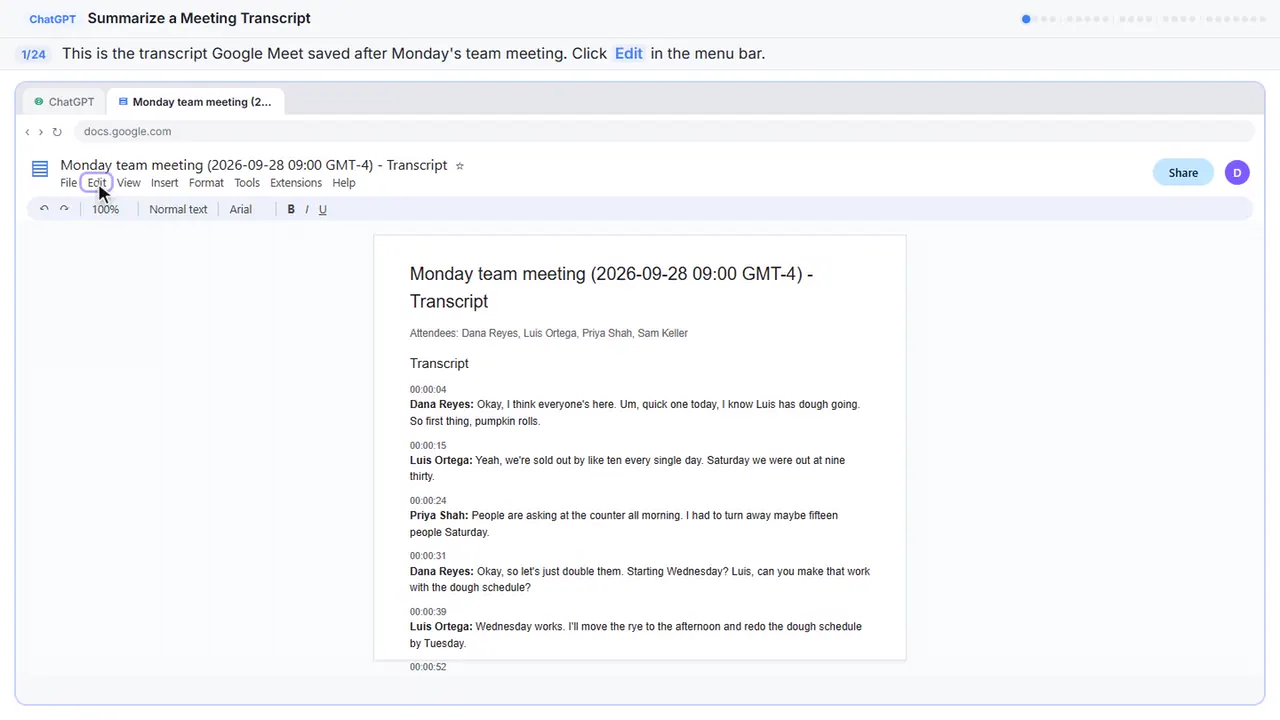
Step 1: Open the Edit menu
Here's the transcript from Monday's team meeting at Harbor Street Bakery. Google Meet saved it as a Google Doc: four people, lots of back and forth, and a few ums. Let's copy the whole thing.
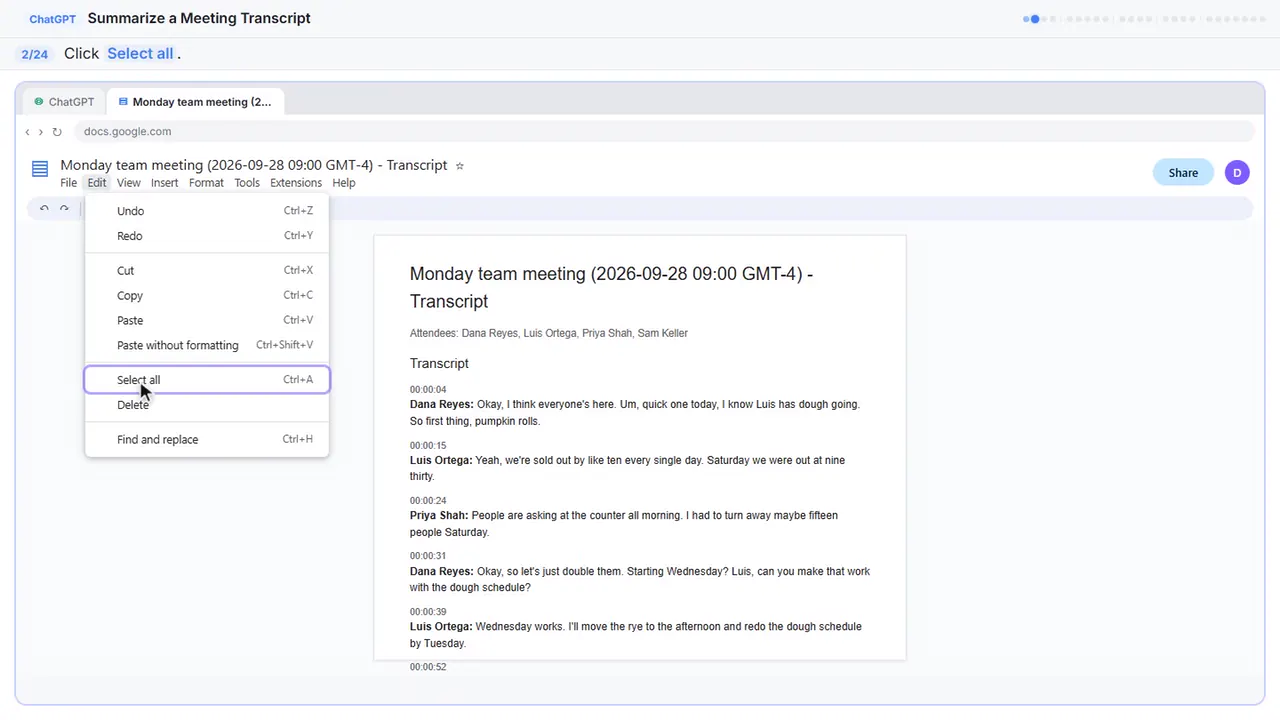
Step 2: Select all
On a keyboard, that's Control A.
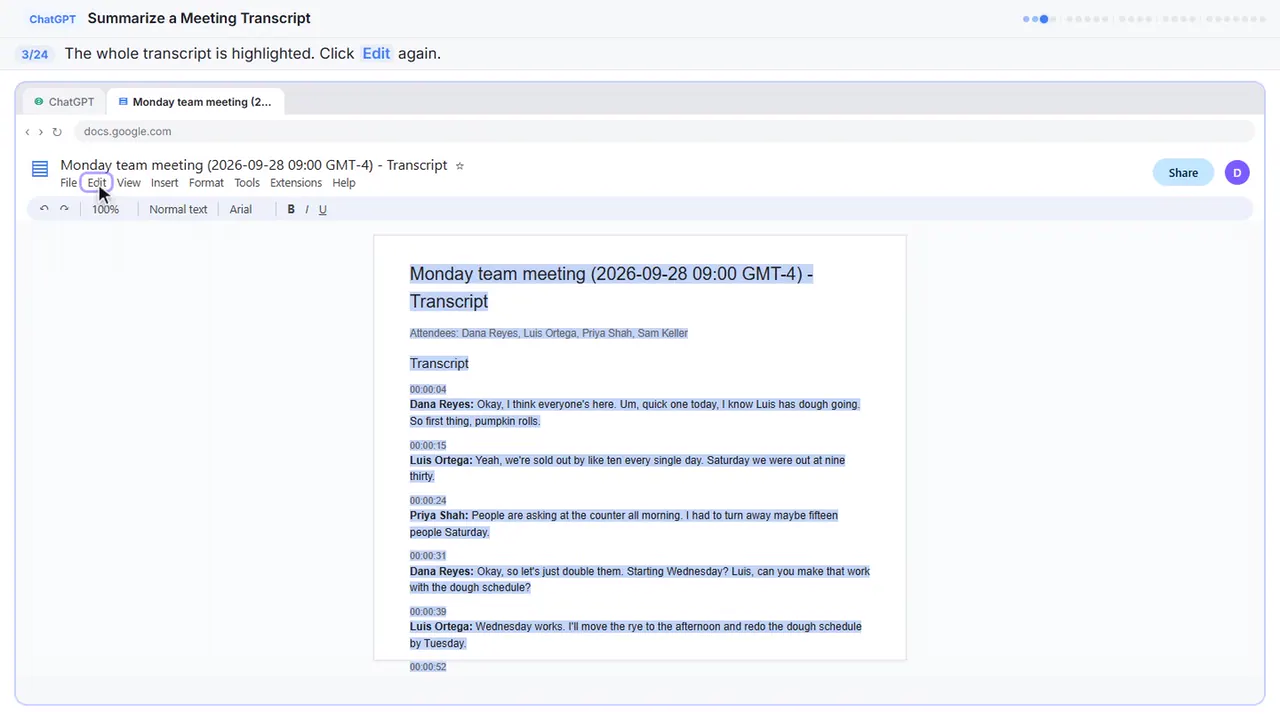
Step 3: Open the Edit menu again
The whole transcript is highlighted.
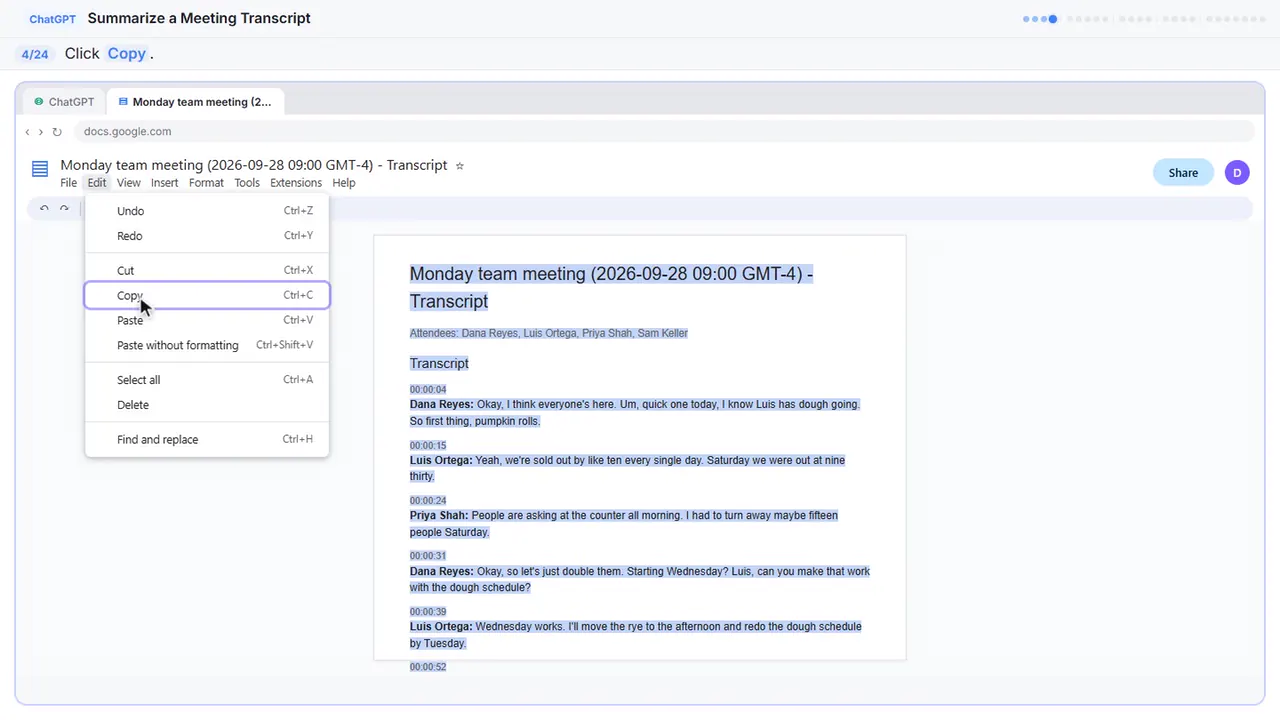
Step 4: Copy it
That's Control C. The transcript is now on your clipboard.
Part 2: Ask for a summary
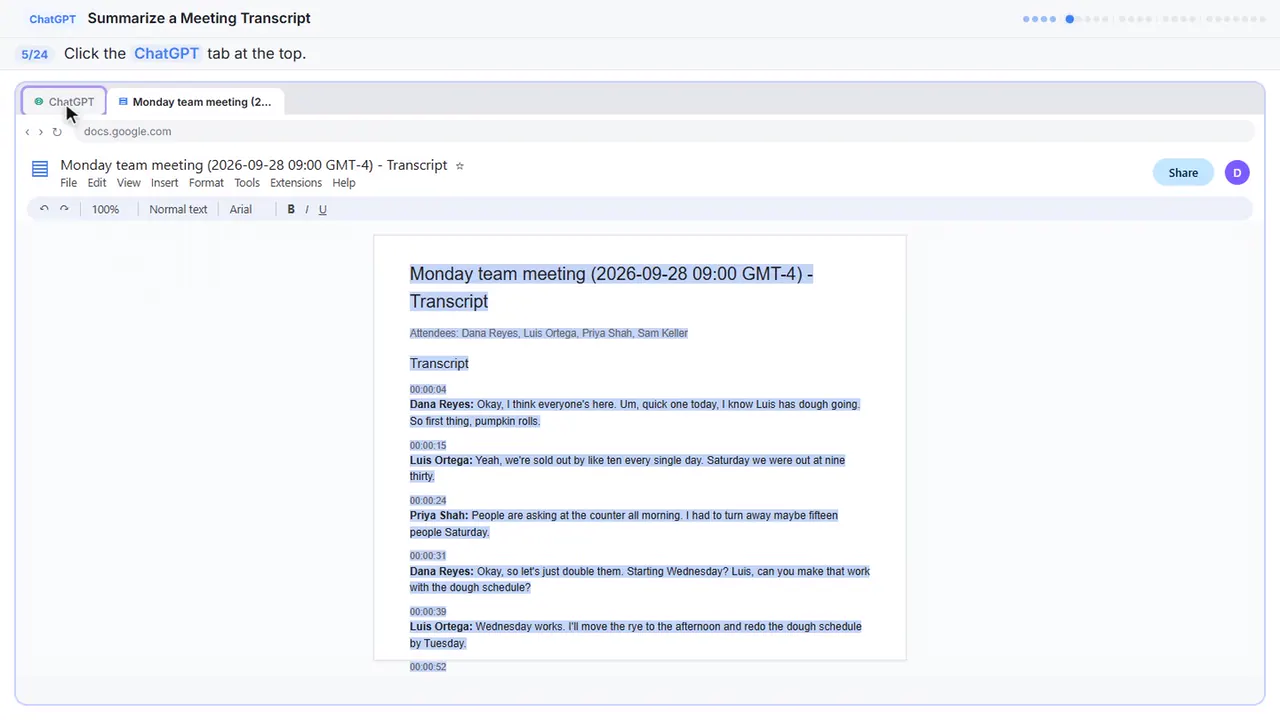
Step 5: Switch to ChatGPT
Now switch over to ChatGPT.
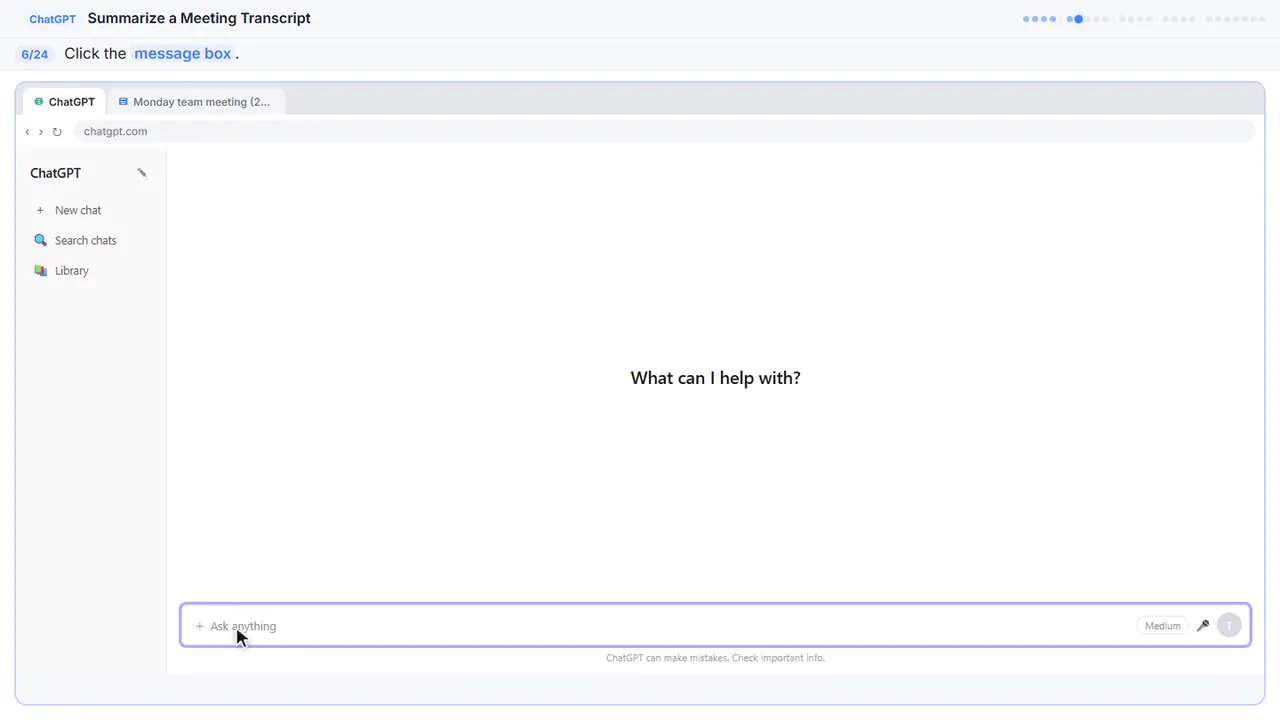
Step 6: Click the message box
Before you paste the transcript, tell ChatGPT what you want out of it. Otherwise you'll just get a vague recap.
Step 7: Paste your request
Here's the request. It asks for four things: a three sentence summary, the decisions, a table of action items with an owner and a due date, and any open questions. The last line matters most: only use what's in the transcript, and write not stated when something is missing. That stops ChatGPT from guessing.
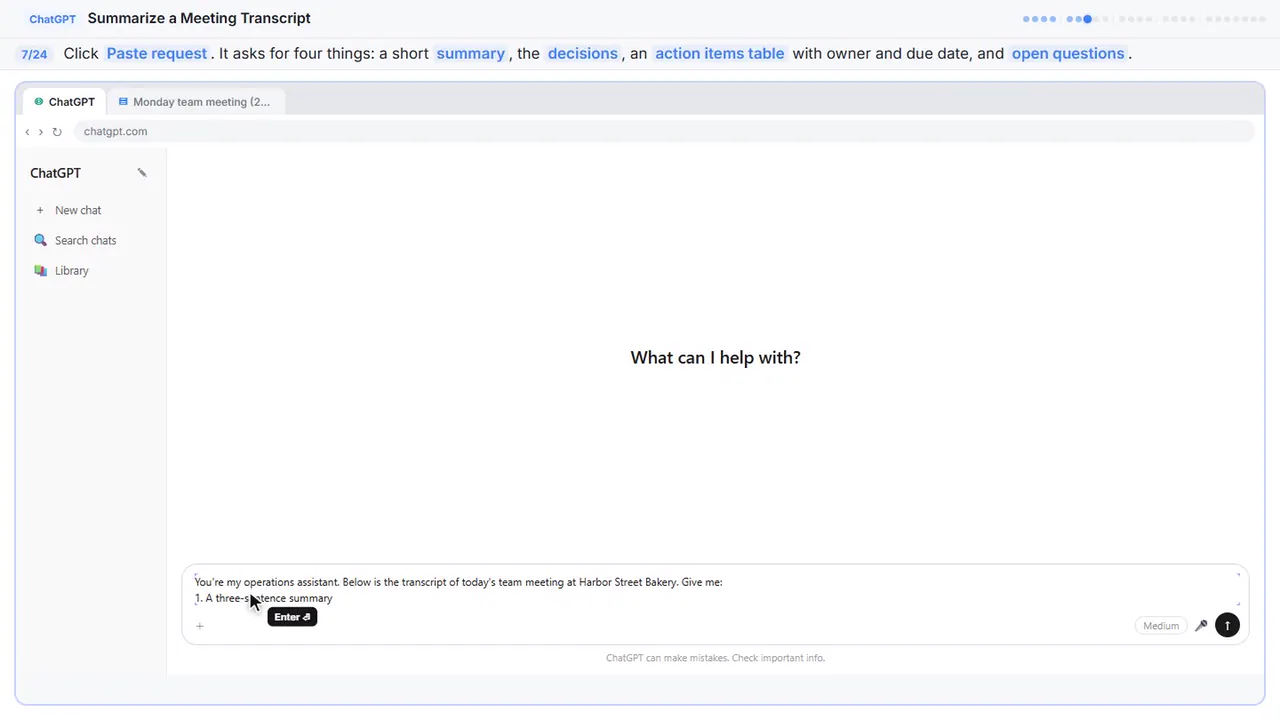
You're my operations assistant. Below is the transcript of today's team meeting at Harbor Street Bakery. Give me:
1. A three-sentence summary
2. The decisions we made
3. The action items as a table: task, owner, due date
4. Open questions
Only use what's in the transcript. If an owner or date isn't said, write "Not stated".
Step 8: Paste the transcript
In real ChatGPT, press Shift and Enter to start a new line first, because Enter on its own sends the message. Then Control V to paste.
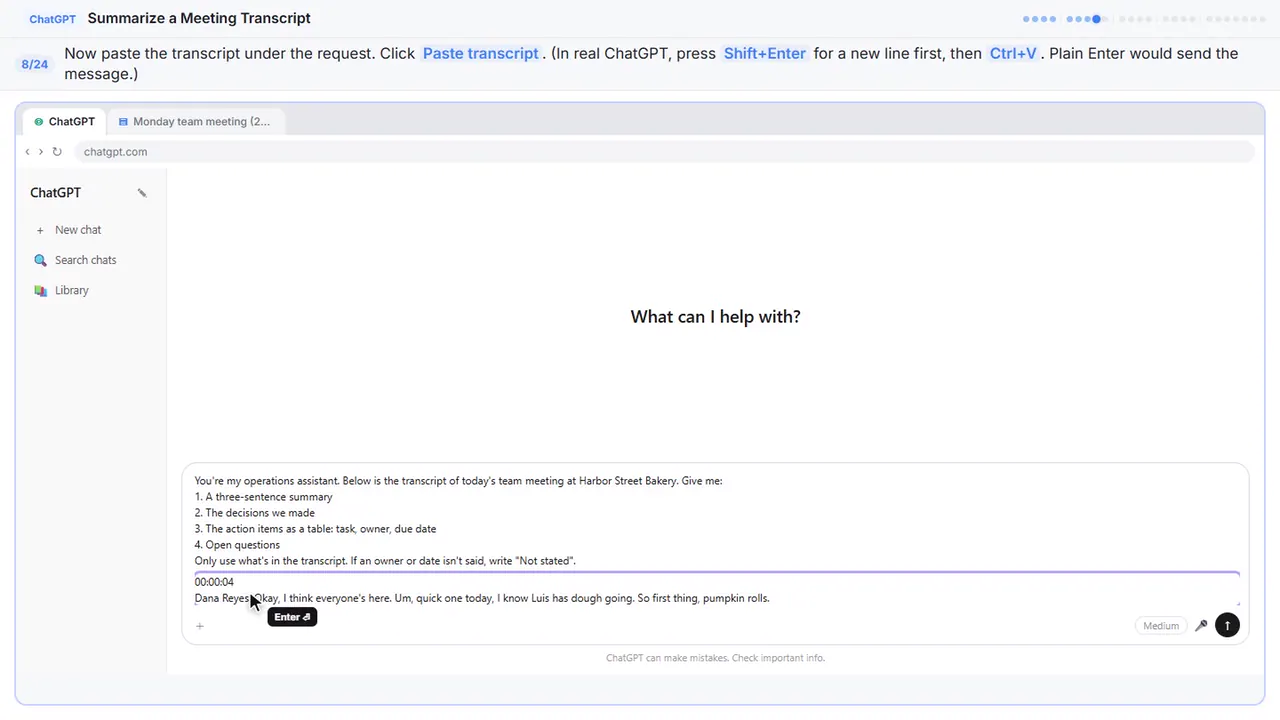
00:00:04
Dana Reyes: Okay, I think everyone's here. Um, quick one today, I know Luis has dough going. So first thing, pumpkin rolls.

00:00:15
Luis Ortega: Yeah, we're sold out by like ten every single day. Saturday we were out at nine thirty.

00:00:24
Priya Shah: People are asking at the counter all morning. I had to turn away maybe fifteen people Saturday.

00:00:31
Dana Reyes: Okay, so let's just double them. Starting Wednesday? Luis, can you make that work with the dough schedule?

00:00:39
Luis Ortega: Wednesday works. I'll move the rye to the afternoon and redo the dough schedule by Tuesday.

00:00:52
Dana Reyes: Great. Next, holiday pies. I want pre-orders open October twelfth this year, not November like last year. That was chaos.

00:01:04
Priya Shah: I can set up the order form on the website. I can have it ready by October ninth so we can test it.

00:01:12
Luis Ortega: Can we cap it though? Last year we did ninety pies on the Wednesday and I didn't go home.

00:01:20
Dana Reyes: Yes. Sixty pies a day, max, for Thanksgiving week. When a day's full, the form closes that day.

00:01:33
Sam Keller: Catering thing. Oakwood Library wants breakfast for eighty people on October twentieth. Pastries, coffee, fruit.

00:01:42
Dana Reyes: Oh nice. Sam, can you put a quote together for them?

00:01:46
Sam Keller: Yep, I'll do the quote.

00:01:51
Luis Ortega: Also oven two is making that clicking noise again. I'll call the repair company.

00:01:58
Dana Reyes: Please do. Um, the van lease is up November first. I don't know yet if we renew or buy something used. Let's think about it.

00:02:10
Priya Shah: Are we hiring someone for the counter for the holidays? Saturdays are really tight.

00:02:16
Dana Reyes: Maybe. I want to look at the numbers first. Okay, that's it, thanks everybody.
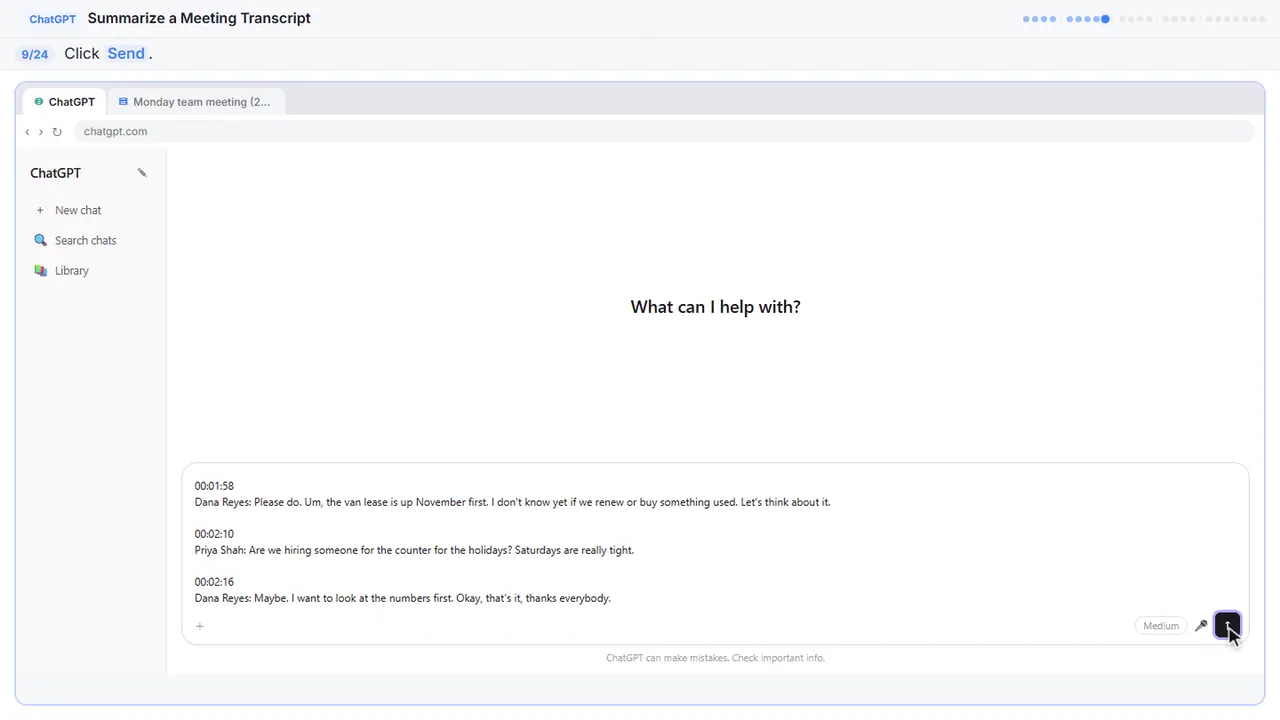
Step 9: Send it
Request on top, transcript below.
Part 3: Check the details
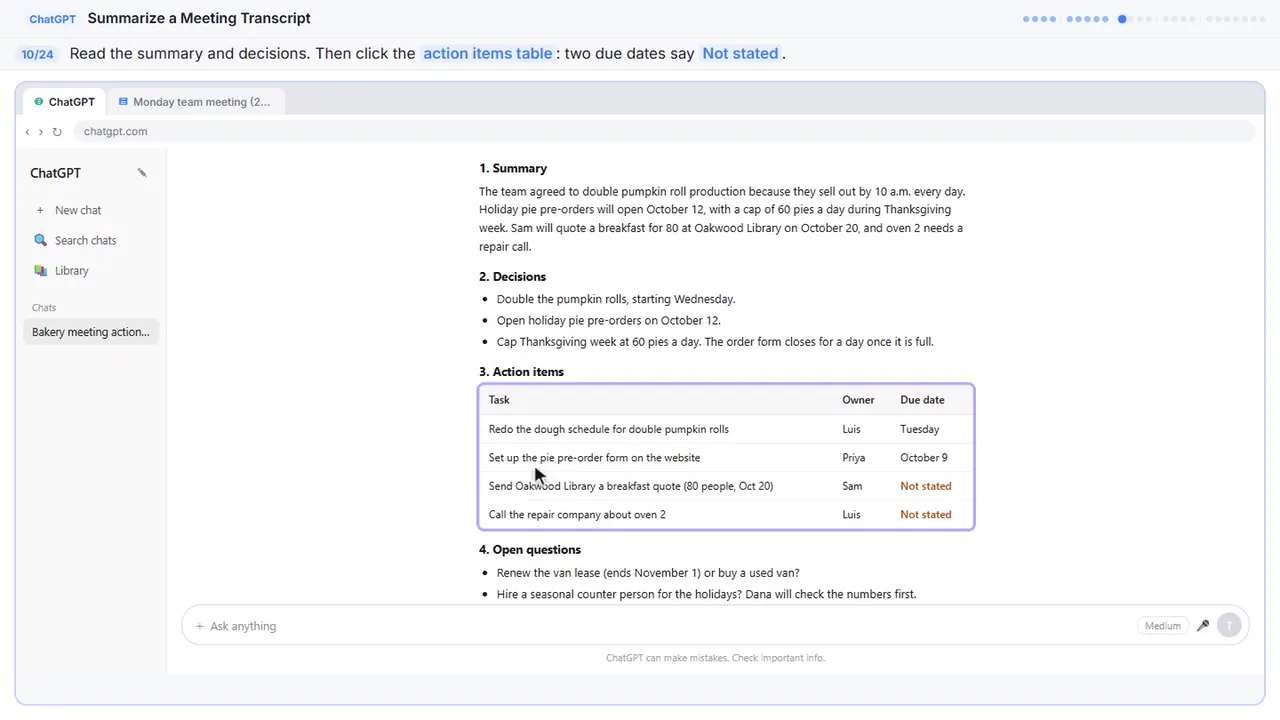
Step 10: Check the action items
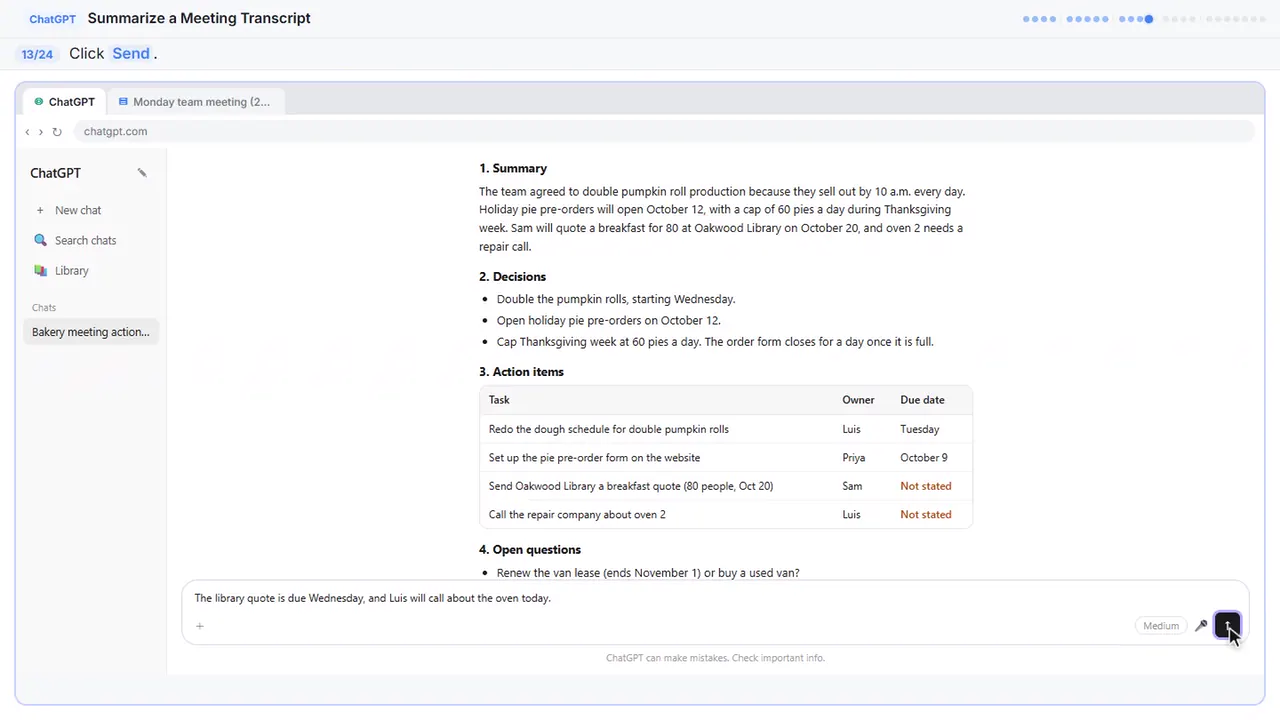
A rambling meeting, boiled down to a summary, three decisions, four action items and two open questions. Now check it before you send it anywhere. Look at the action items table. Two due dates say not stated. That's right: nobody said when the library quote or the oven call would happen.
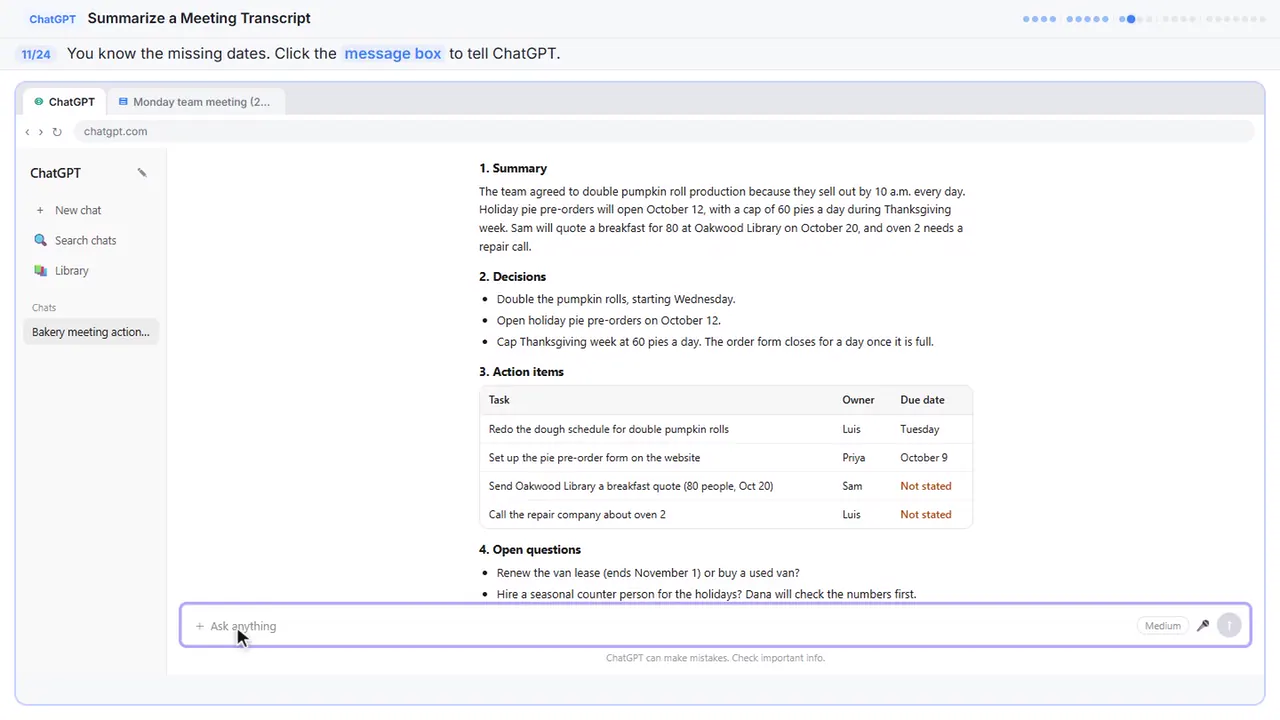
Step 11: Click the message box
You were in the meeting, so you can fill in the gaps.
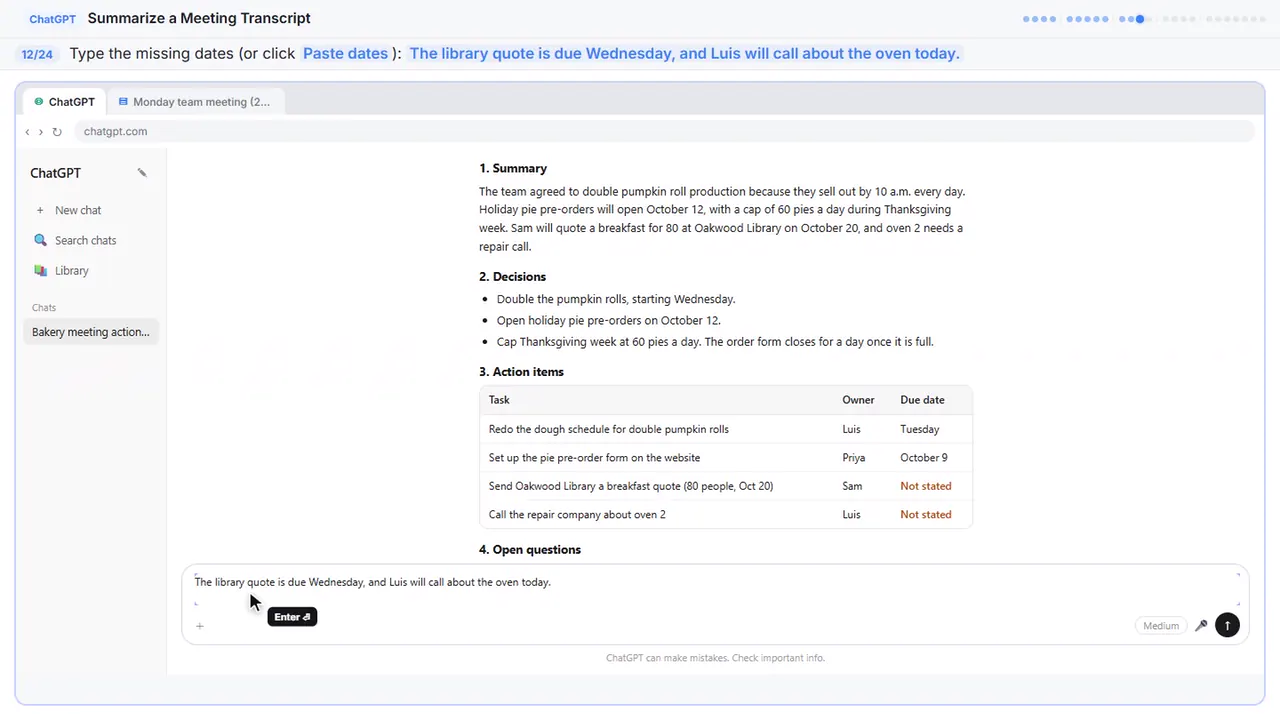
Step 12: Fill in the gaps
Tell it the missing dates: the library quote is due Wednesday, and Luis will call about the oven today.
Step 13: Send it
Part 4: Write the follow-up
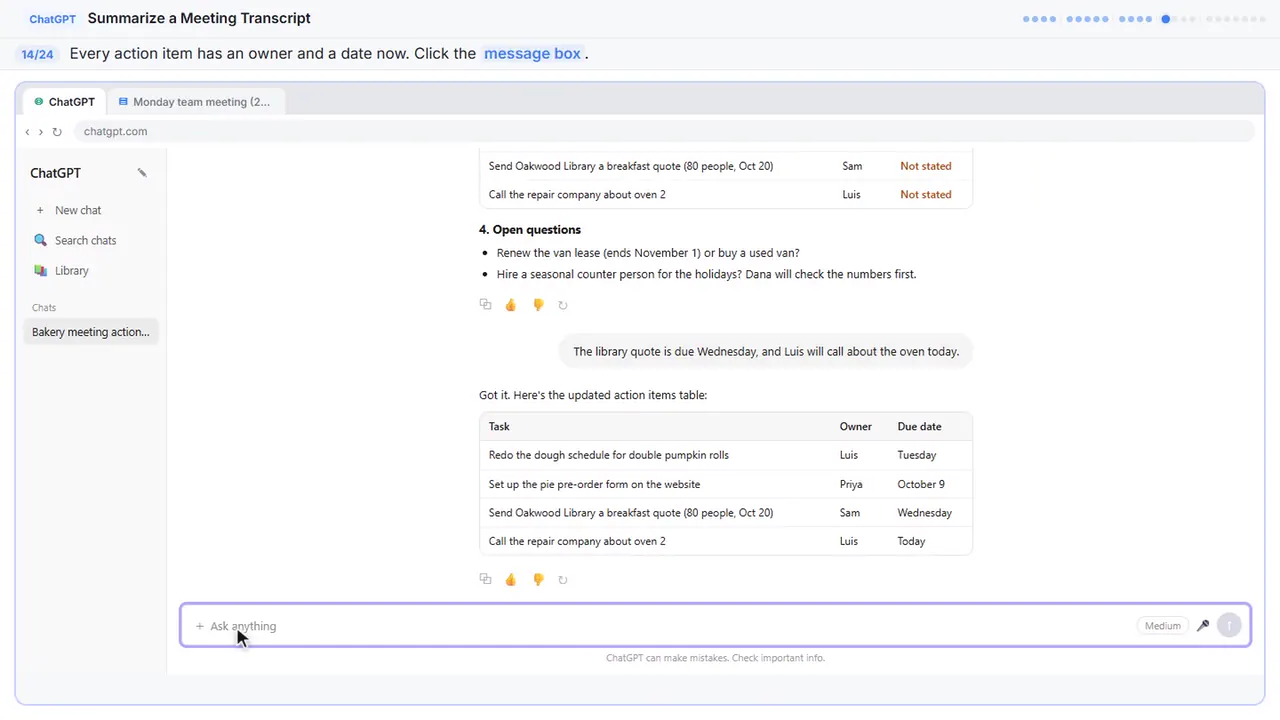
Step 14: Click the message box
Now every task has an owner and a date. Because ChatGPT still has the whole meeting in this chat, you don't need to paste anything again. Just ask for the next thing.
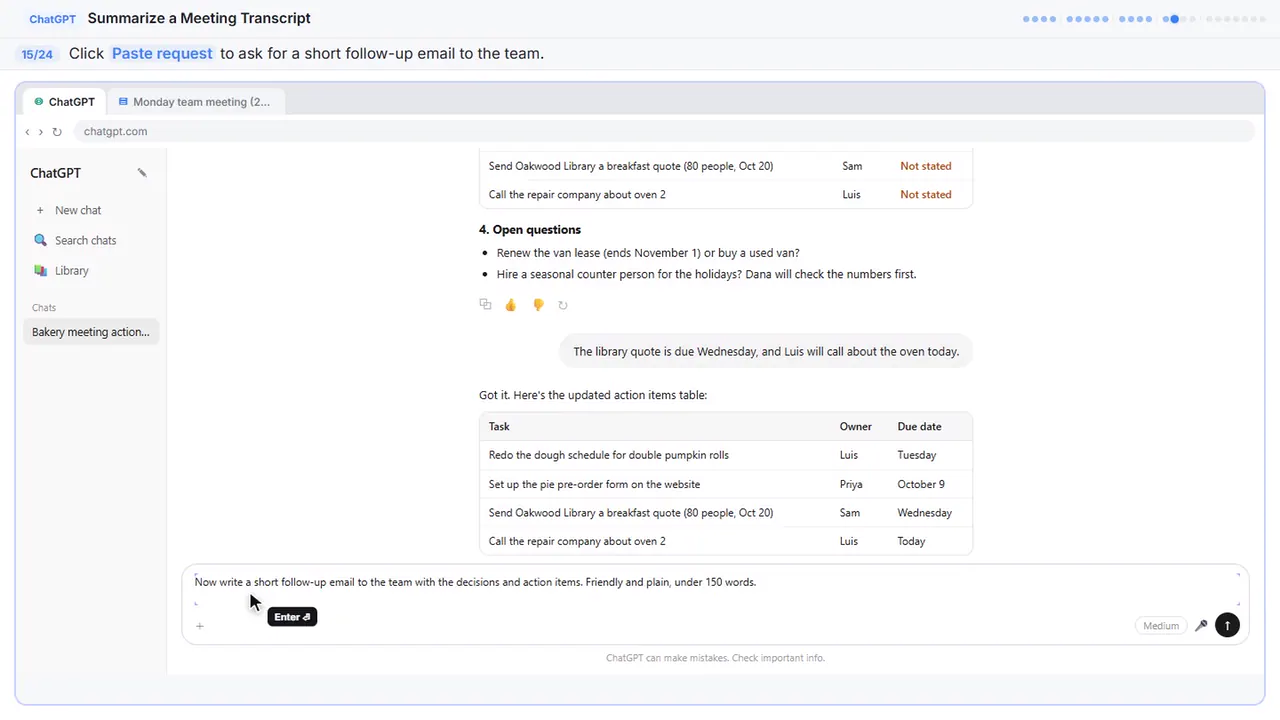
Step 15: Ask for the follow-up email
Ask for a short, friendly follow-up email to the team, with the decisions and the action items.
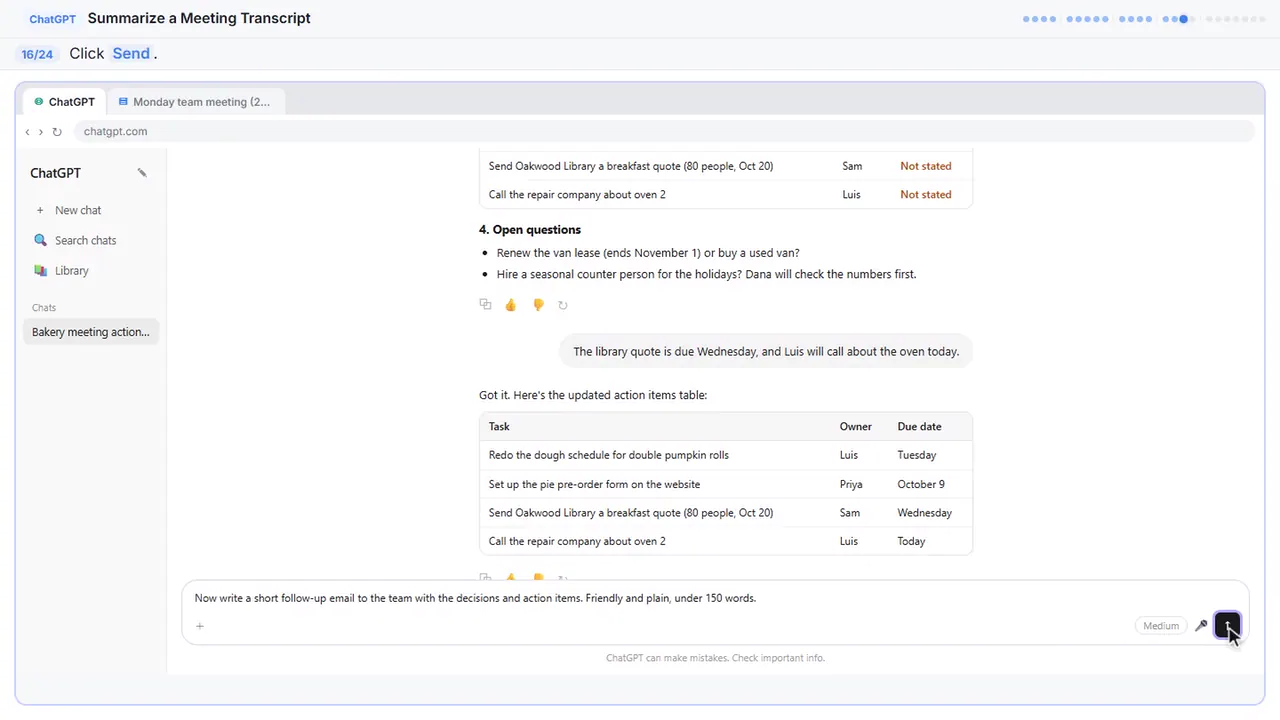
Step 16: Send it
Step 17: Copy the email
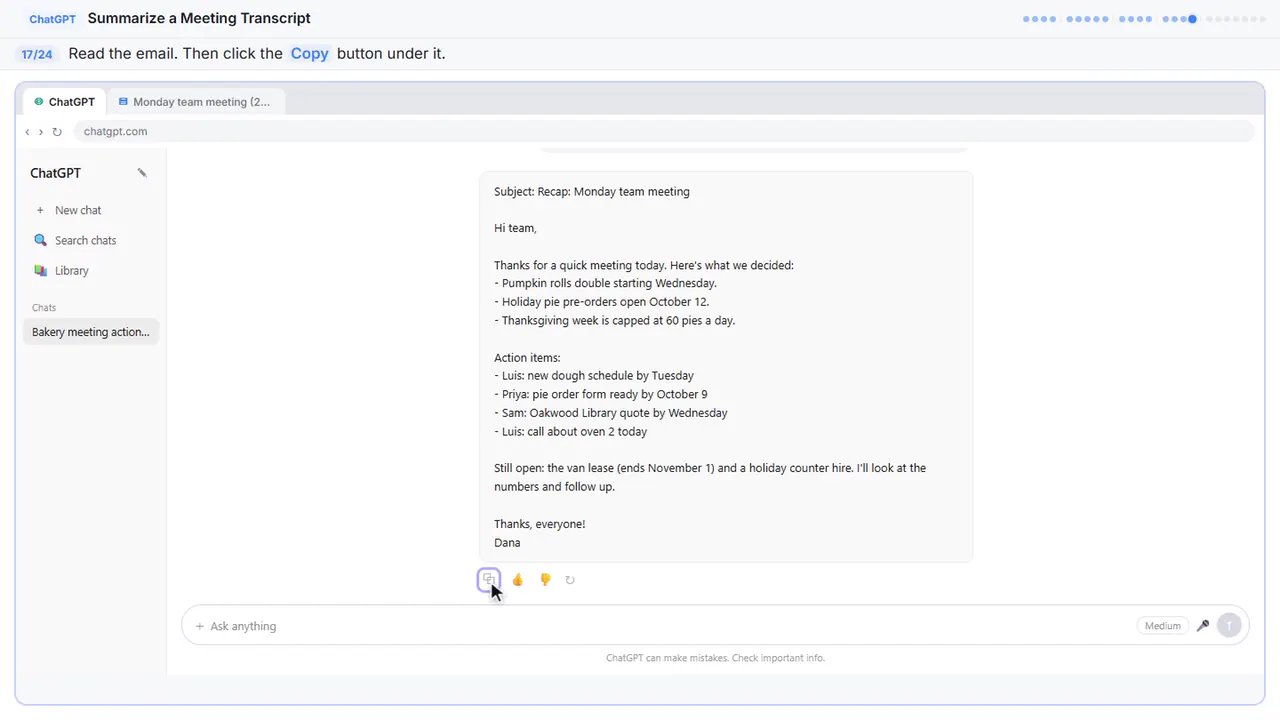
There's your recap email: the decisions, who's doing what and by when, and what's still open. Read it once, change anything that doesn't sound like you, then click the copy button under it and paste it into your email.
Part 5: Or upload the file
Step 18: Start a new chat
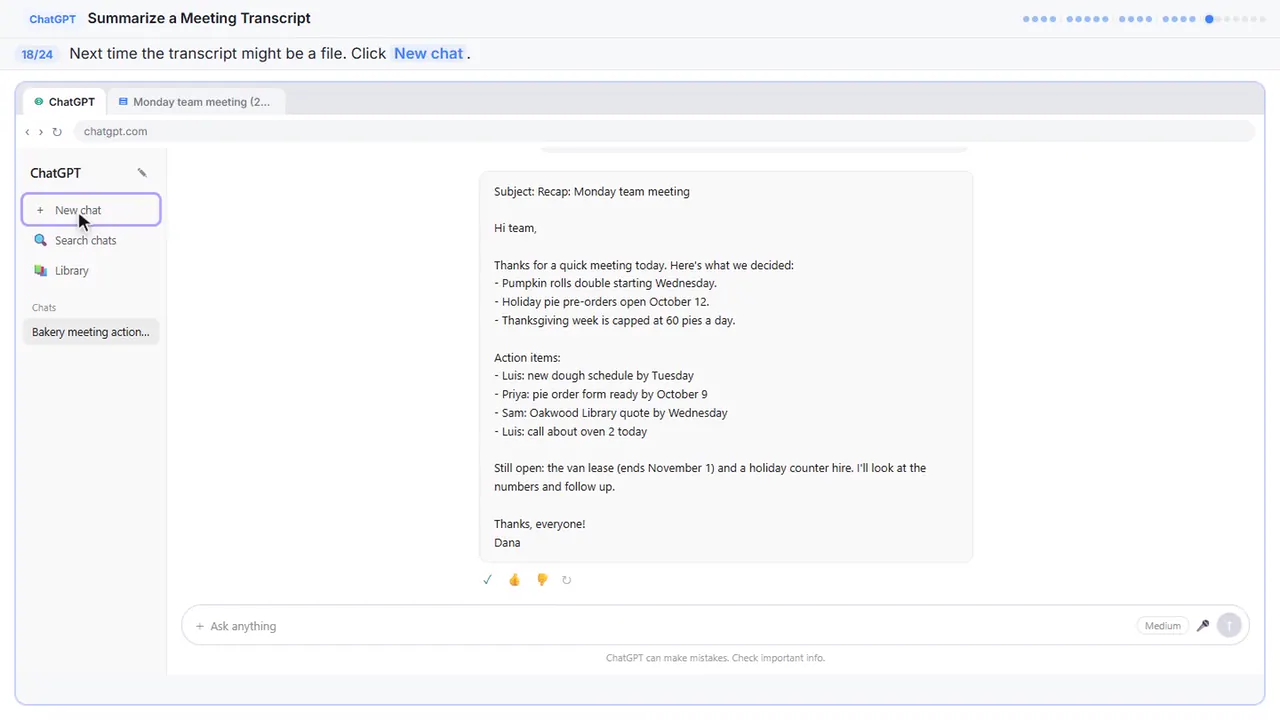
Sometimes the transcript comes as a file instead, like a Word document someone emailed you. You don't have to open it and copy it. Start a new chat.
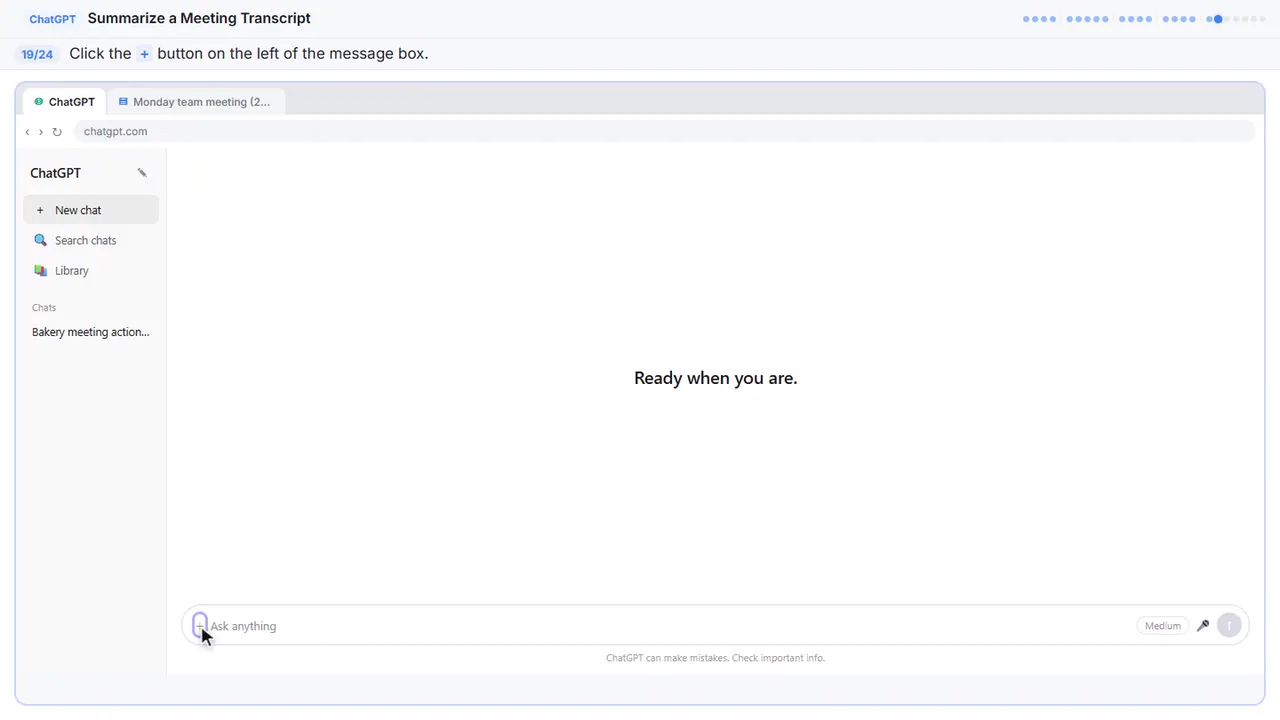
Step 19: Open the plus menu
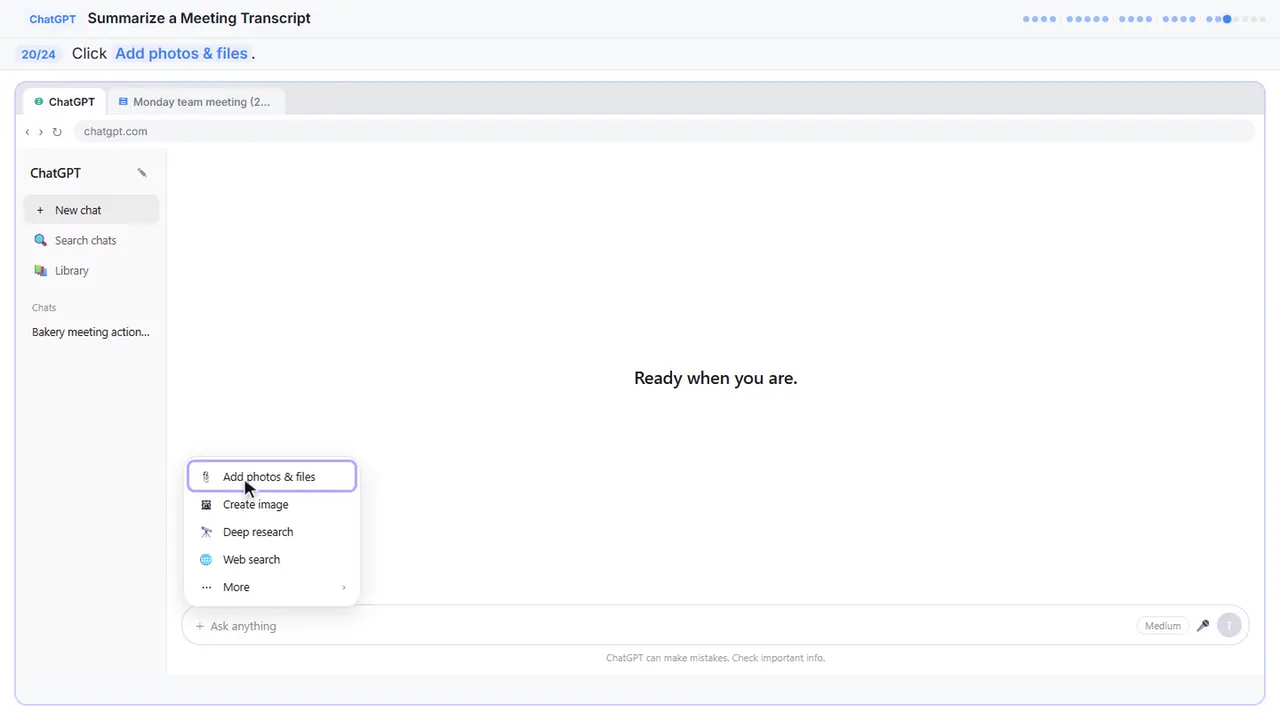
Step 20: Add photos & files
Step 21: Pick the transcript
Your file browser opens.
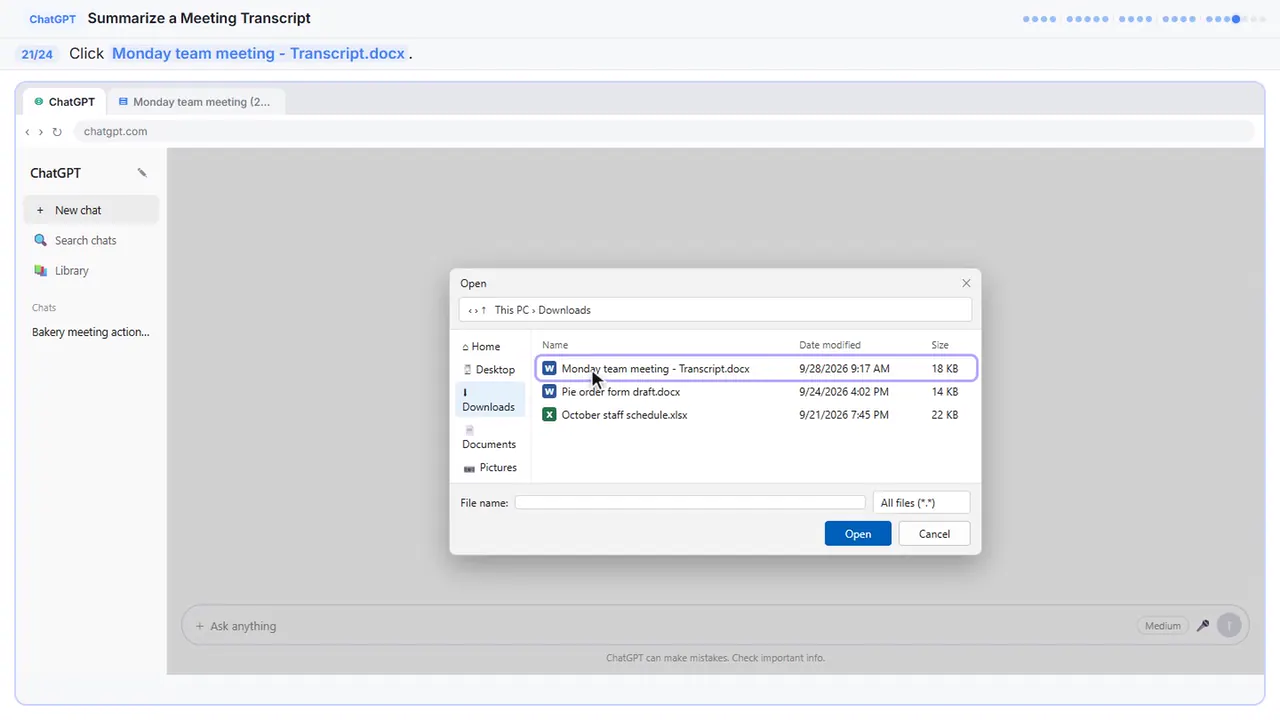
Step 22: Open it
The file attaches to the message box. You can also just drag a file onto the chat.
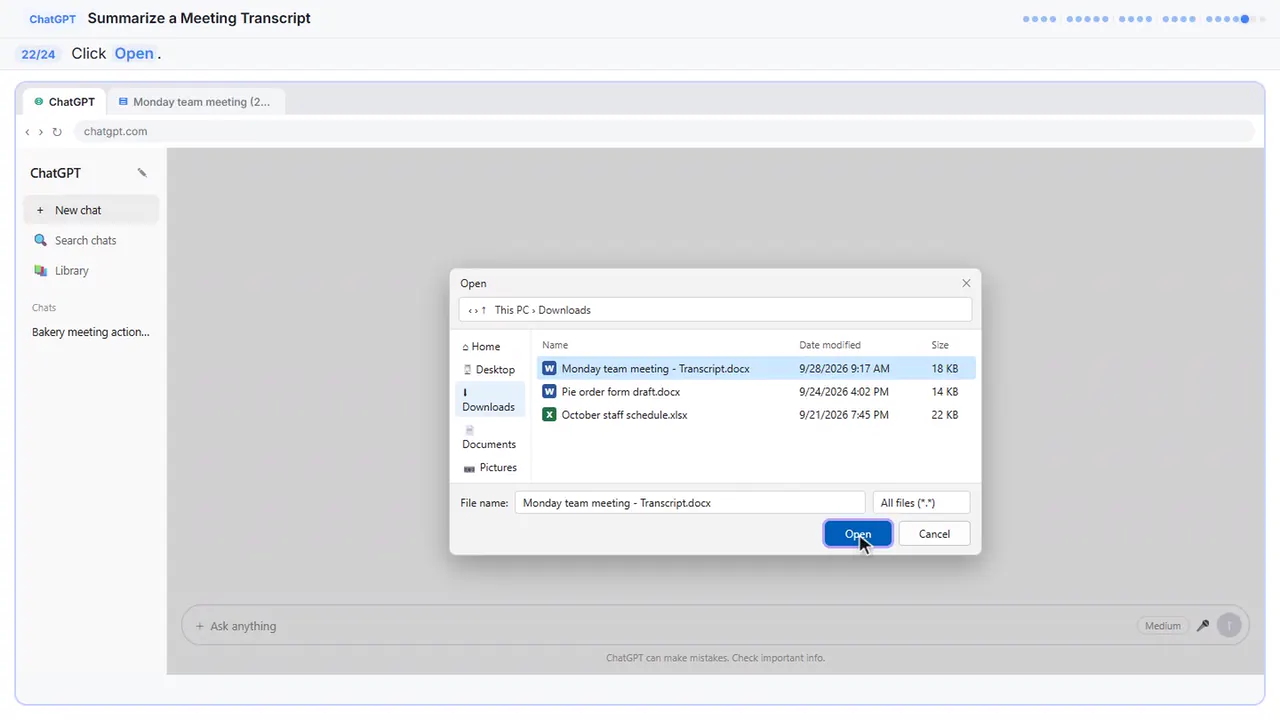
Step 23: Ask for the summary
Now the same request as before, in one line.
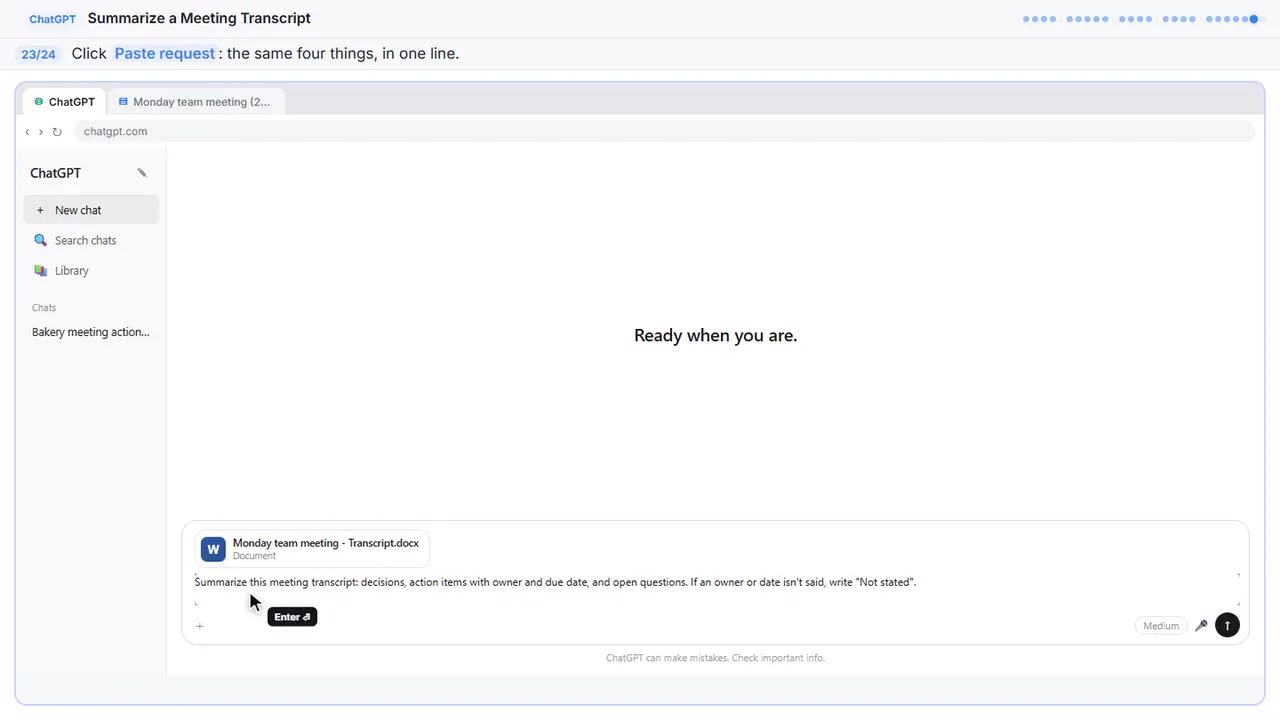
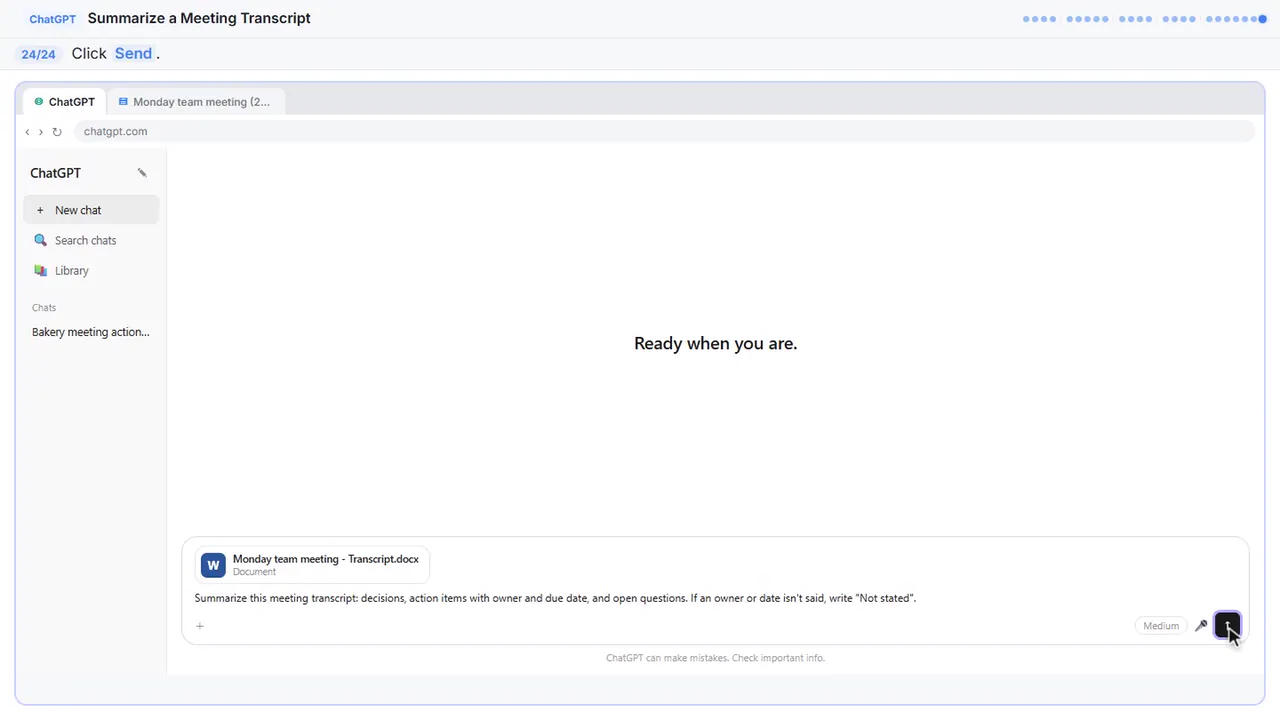
Summarize this meeting transcript: decisions, action items with owner and due date, and open questions. If an owner or date isn't said, write "Not stated".
Step 24: Send it
Either way, always check the owners and dates before you send the recap.
Now do it yourself, free
Reading the steps is a start. Doing them is how it sticks. The interactive lesson puts you in a practice copy of ChatGPT: you do every step yourself, it checks your work, and “Do it for me” finishes any step you get stuck on. Nothing touches your real accounts.
Practice “Summarize a Meeting Transcript with ChatGPT” step by stepWatch the 3:00 video walkthrough · Summarize a Meeting Transcript with ChatGPT: lesson overview · All free tutorials