Prompt Writing 101: Role, Context, Task, Format: step-by-step guide with screenshots
Updated
Ask ChatGPT for the same customer email twice, once vaguely and once with a four-part prompt, and see exactly why structure gets a better answer.
About the screenshots. They come from Stepthrough’s simulated practice environment (a practice copy of ChatGPT), not the live tool, so no real account appears. The buttons and labels match the real screens the lesson was built against. Practice it yourself free at learn.ynteractive.com.
- Tools: ChatGPT
- Time: about 8 minutes, 14 steps in 5 parts
- Level: beginner, no coding needed
Part 1: Ask it vaguely
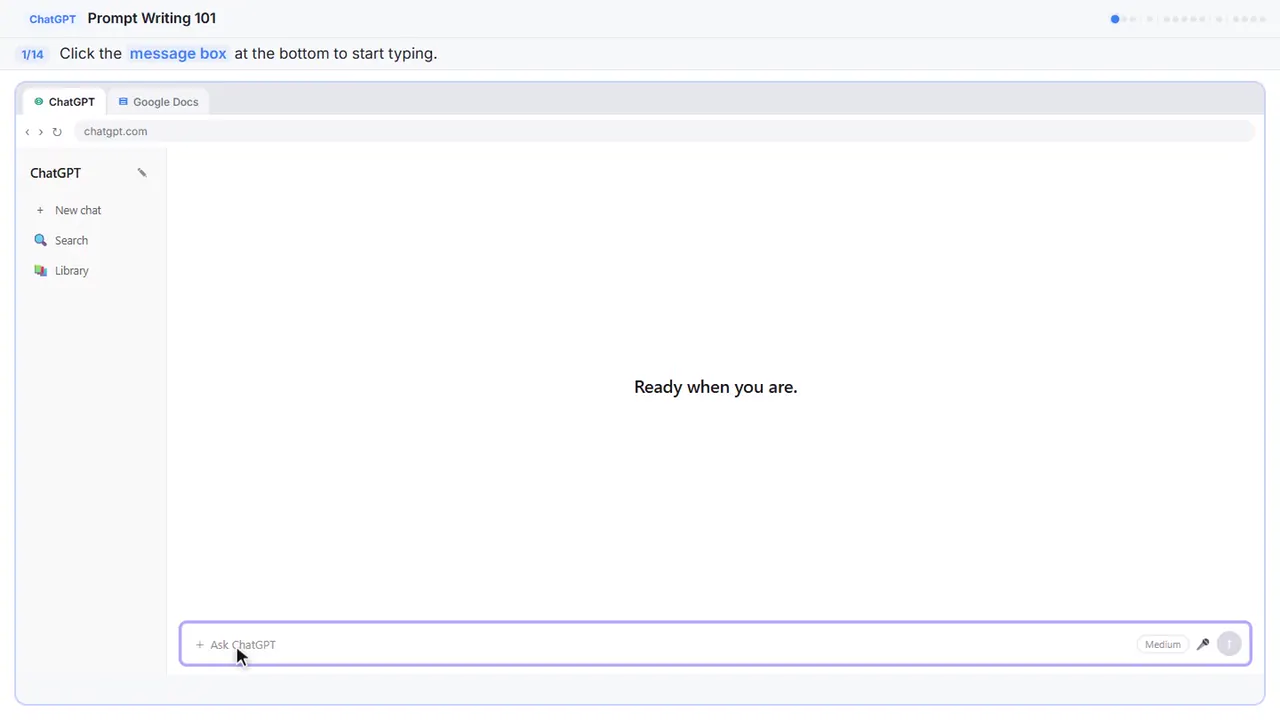
Step 1: Click the message box
Let's start the way most people use ChatGPT: one quick sentence, and hope for the best.
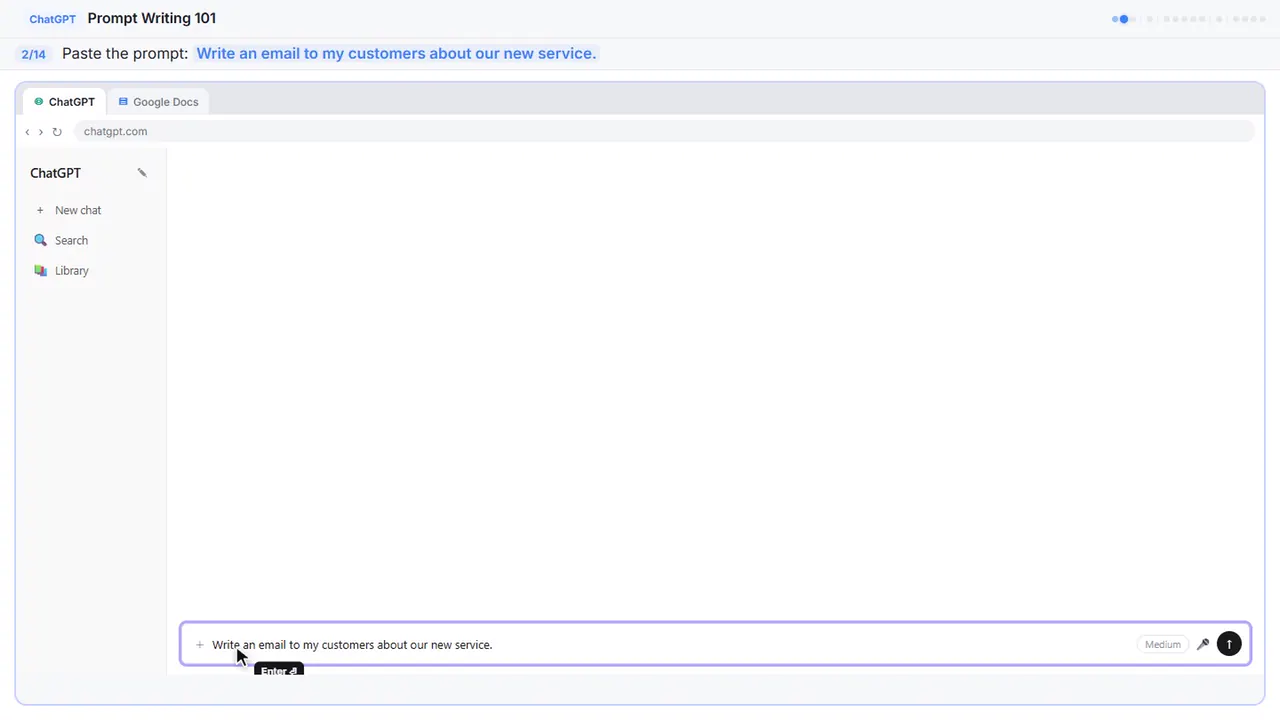
Step 2: Paste a vague prompt
Here's our prompt. It's a real request, but it gives ChatGPT almost nothing to work with.
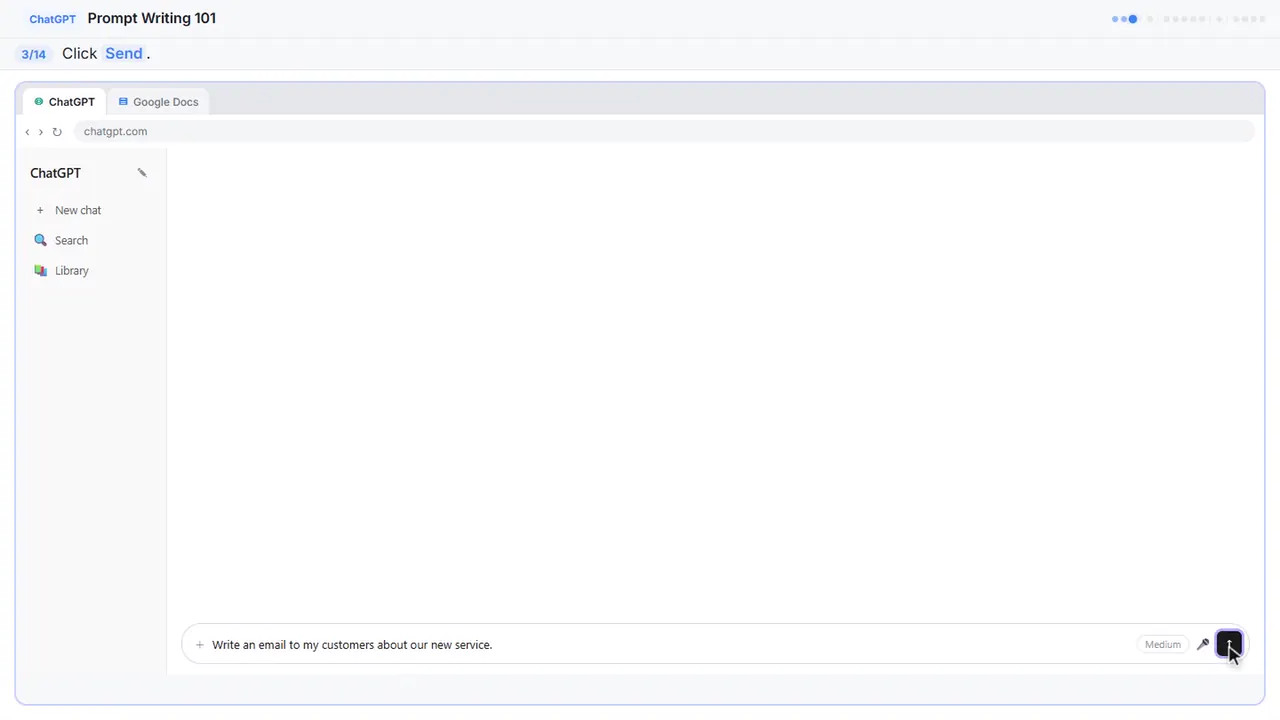
Step 3: Send the message
Send it and let's see what comes back.
Part 2: Start fresh
Step 4: Start a new chat
Look at that. Dear Valued Customer, emoji in the subject line, and blanks everywhere for your company name and your service. ChatGPT had to guess, so it wrote something that fits everybody and nobody. Let's ask again, the right way.
![ChatGPT in Stepthrough’s practice copy, step 4 of 14 (Start a new chat): the cursor is on “[Your Company Name]”, highlighted.](/content/guide/prompt-writing-101/step-04.webp)
Part 3: Build the prompt
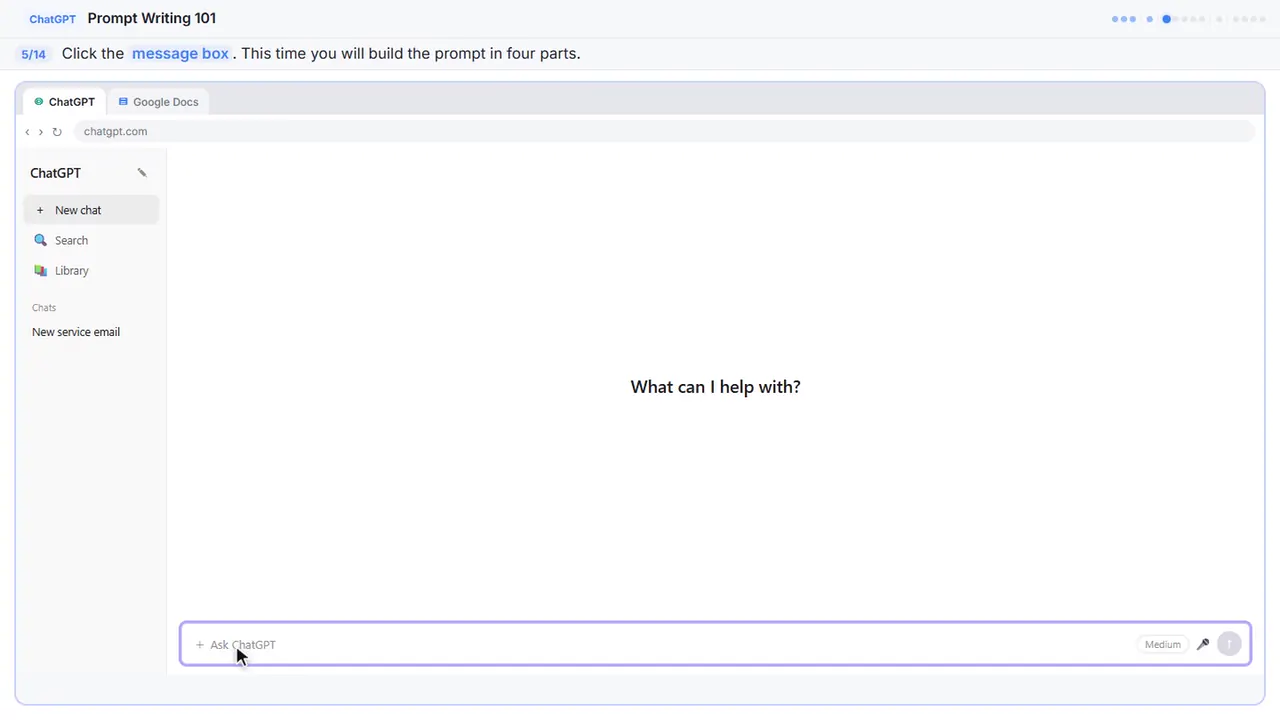
Step 5: Click the message box
This time we'll build the prompt in four parts: role, context, task, and format. Watch each part stack up in the message box.
Step 6: Add the role
First, the role. Tell ChatGPT who it's writing as. That one line sets the voice for everything that follows.
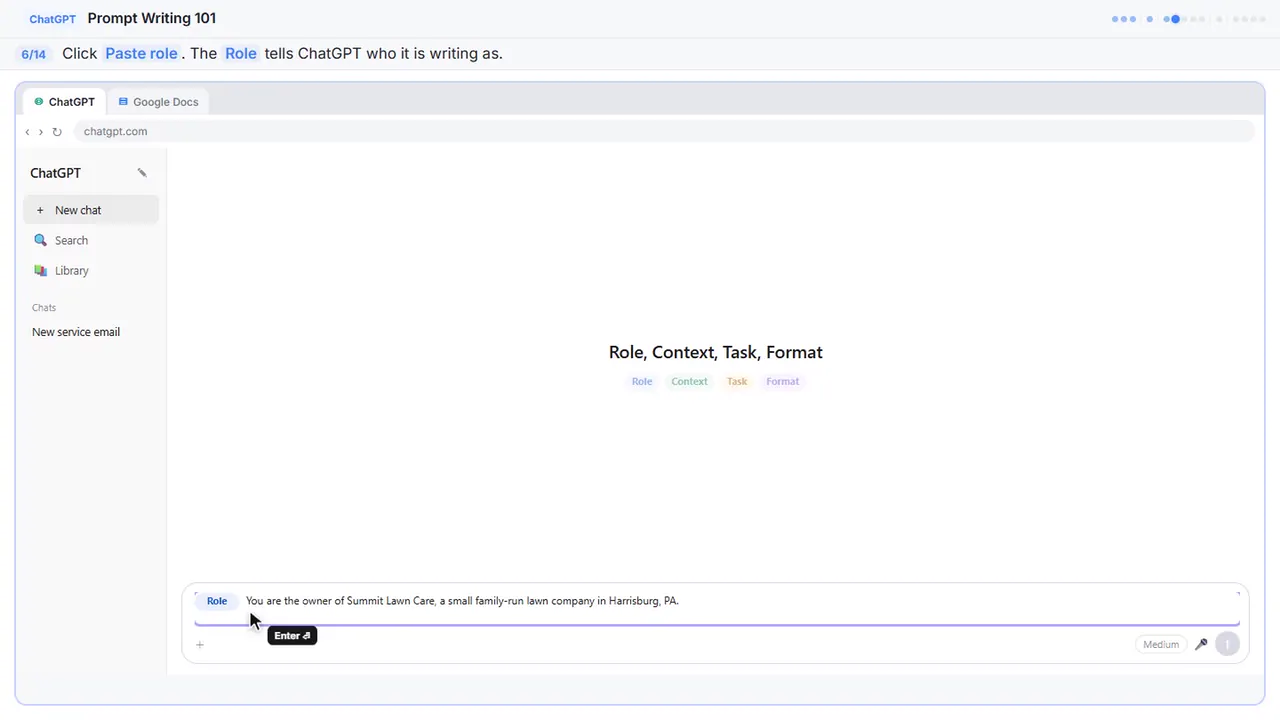
Step 7: Add the context
Next, the context. This is everything ChatGPT can't know on its own: who your customers are, what the new service is, what it costs, and when it happens.
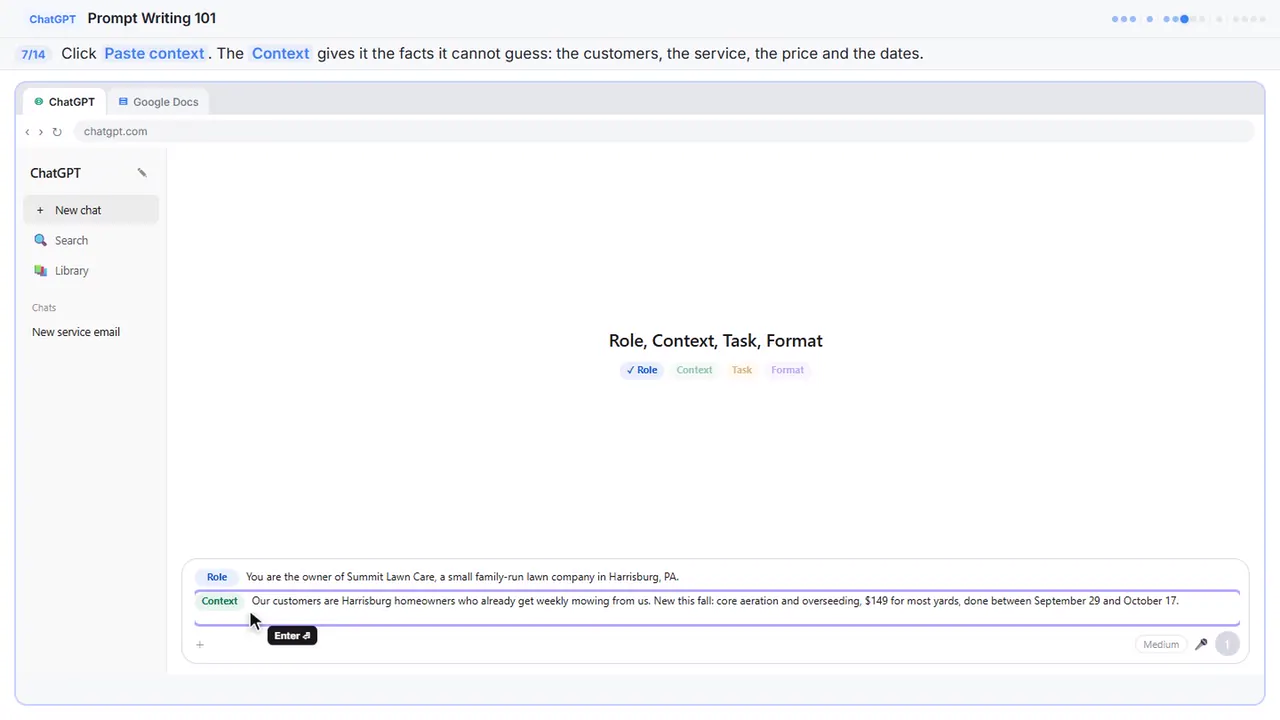
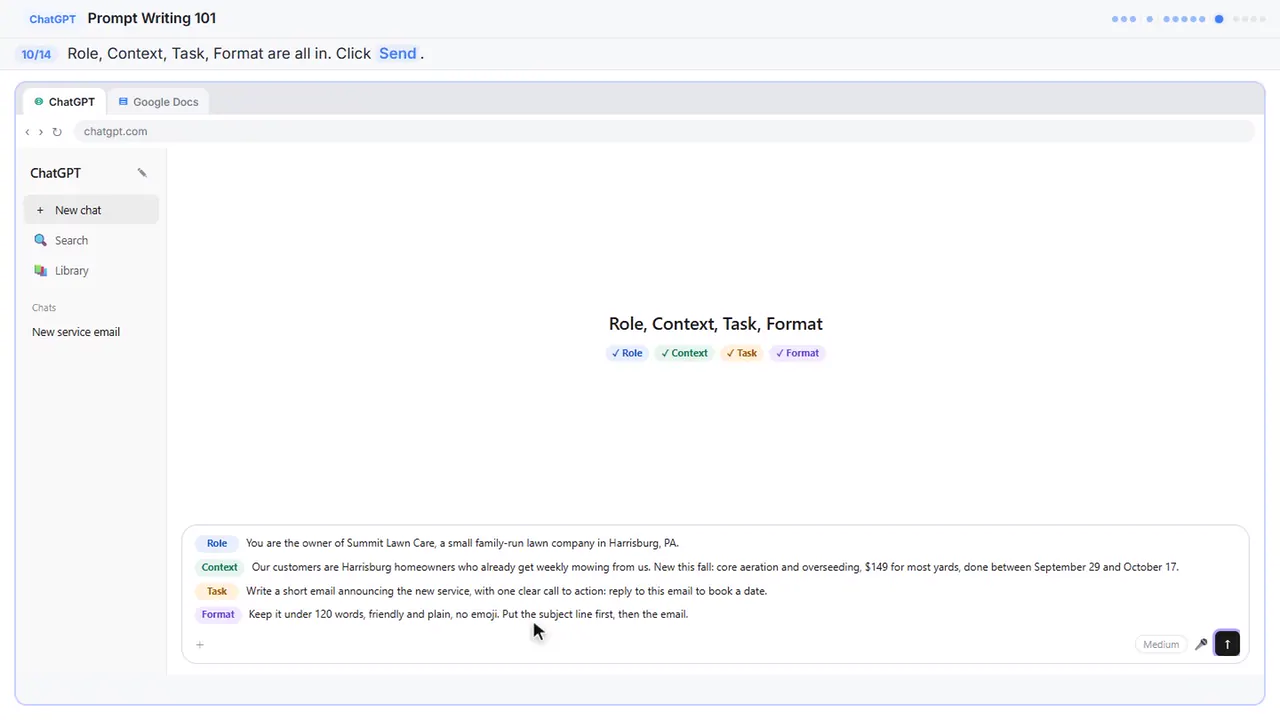
Our customers are Harrisburg homeowners who already get weekly mowing from us. New this fall: core aeration and overseeding, $149 for most yards, done between September 29 and October 17.
Step 8: Add the task
Now the task. Say exactly what you want back, and what the reader should do next. One email, one clear call to action.
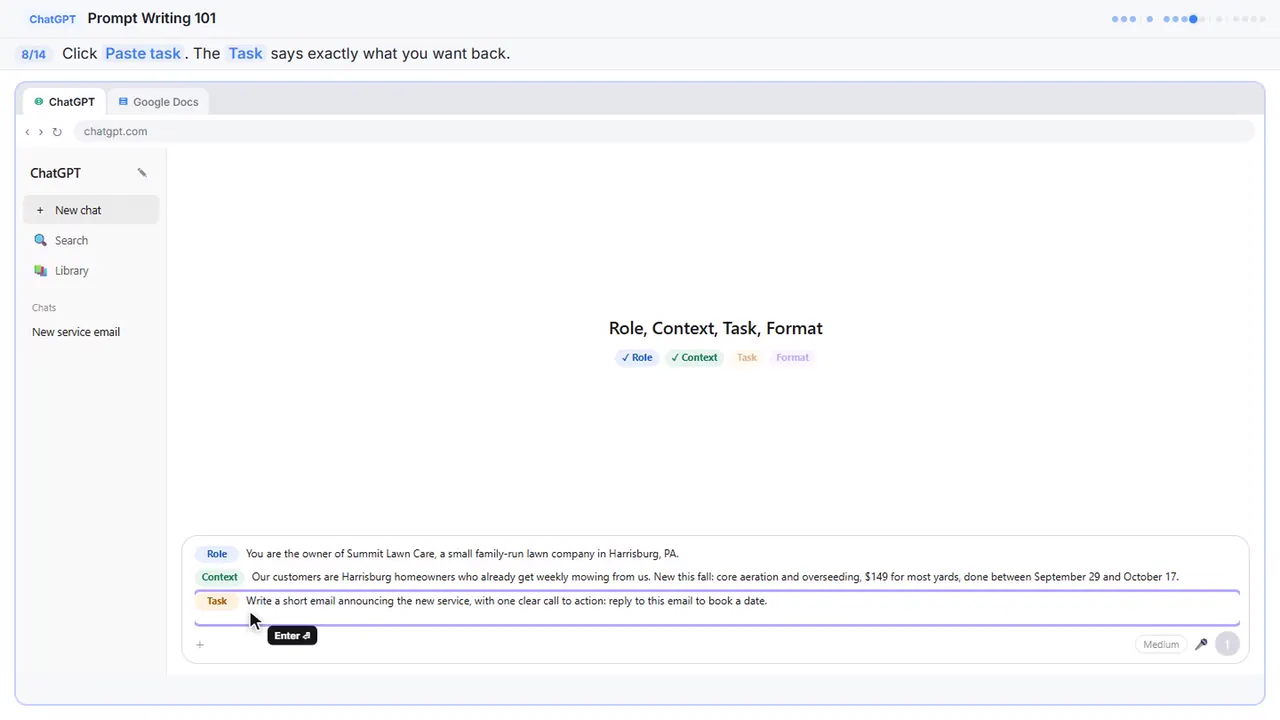
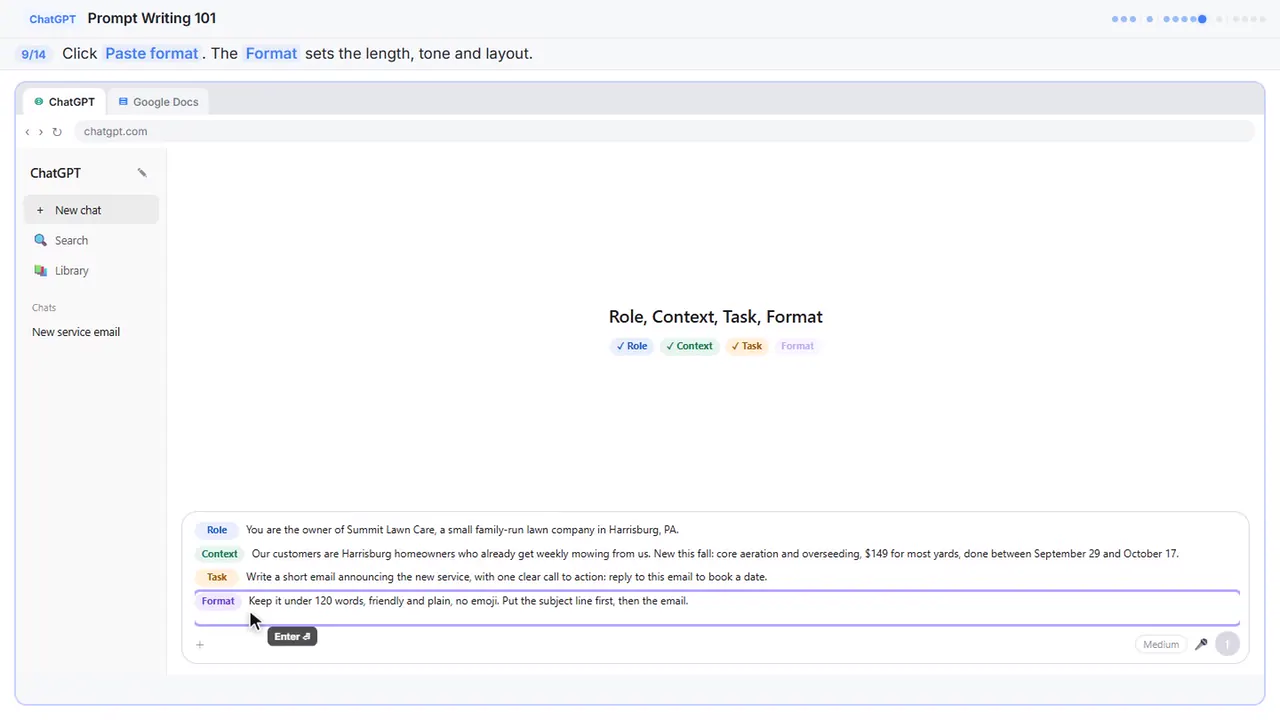
Step 9: Add the format
Last, the format: length, tone, and layout. This is where you rule out the emoji and the fluff before they ever show up.
Part 4: Compare the answer
Step 10: Send the structured prompt
Role, context, task, format. Same request as before, just with the details ChatGPT was missing.
Part 5: Save the template
Step 11: Open the Google Docs tab
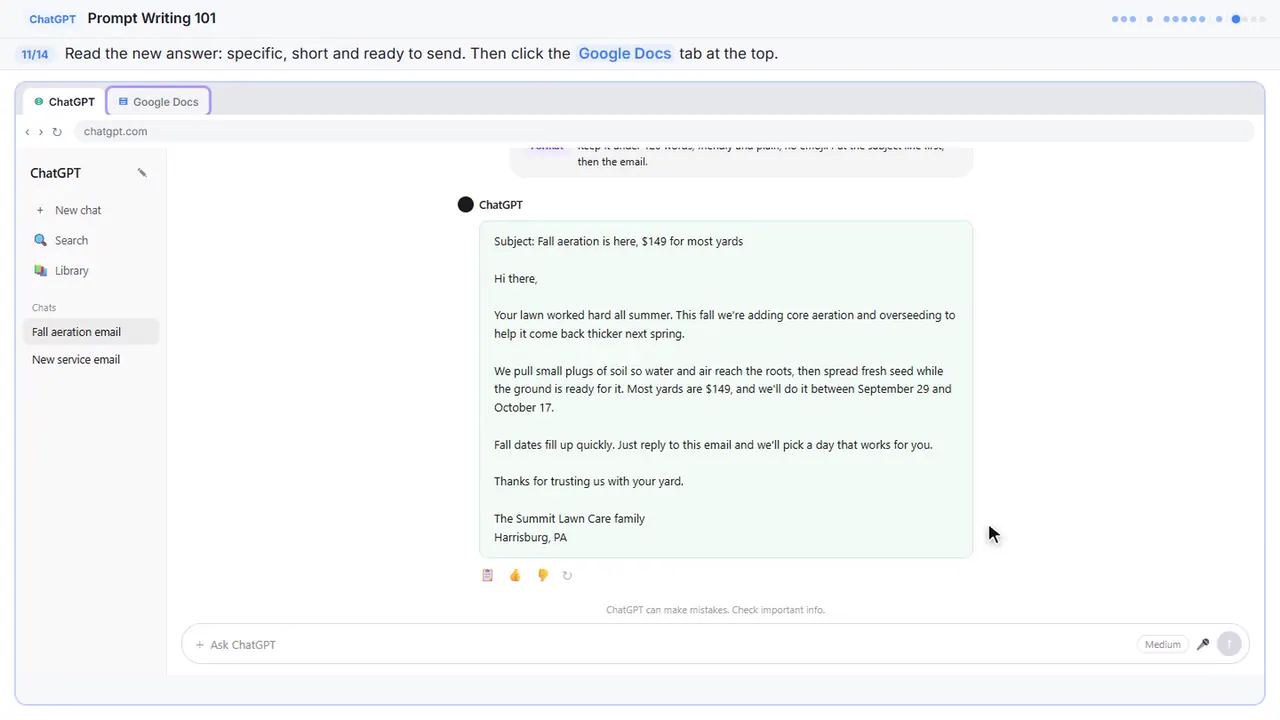
Now that's an email you could actually send. Your company name, the real price, the real dates, and one clear next step, all in under a hundred and twenty words. You'll want this prompt again, so let's save it in a Google Doc.
Step 12: Click into the document
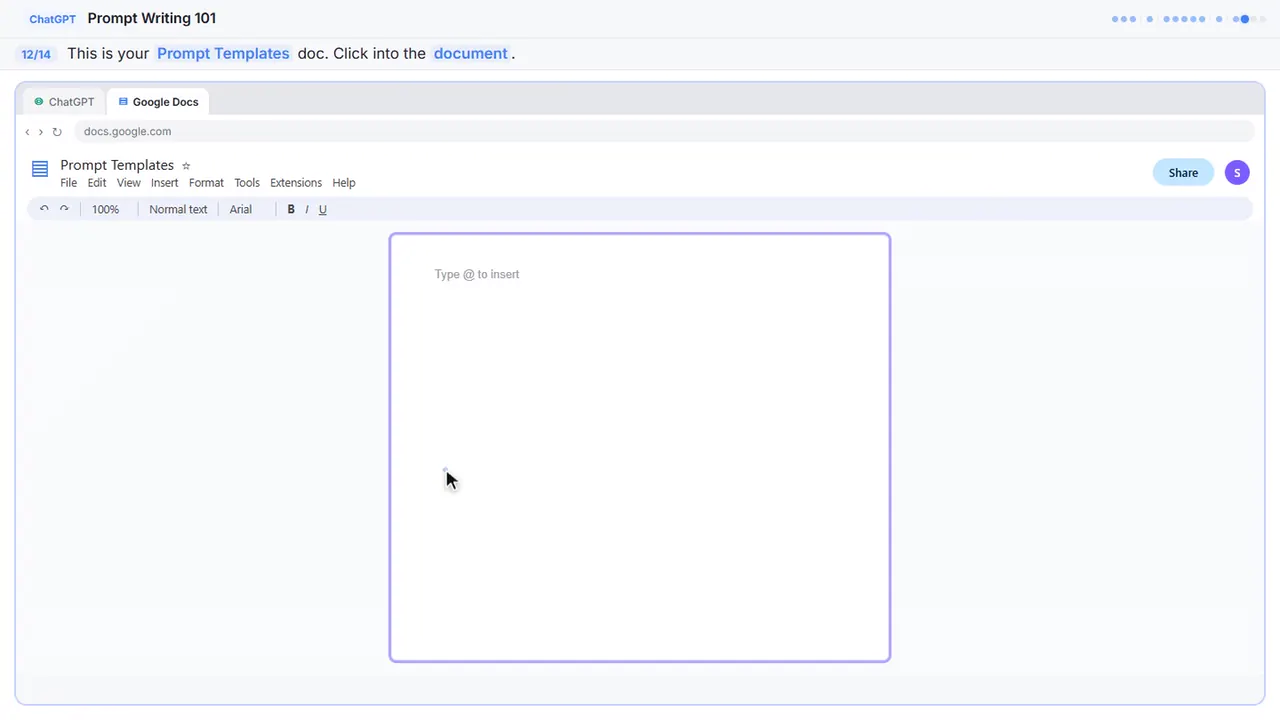
This Google Doc is called Prompt Templates. Keep the prompts that work in here, so you never start from a blank box again.
Step 13: Add a heading
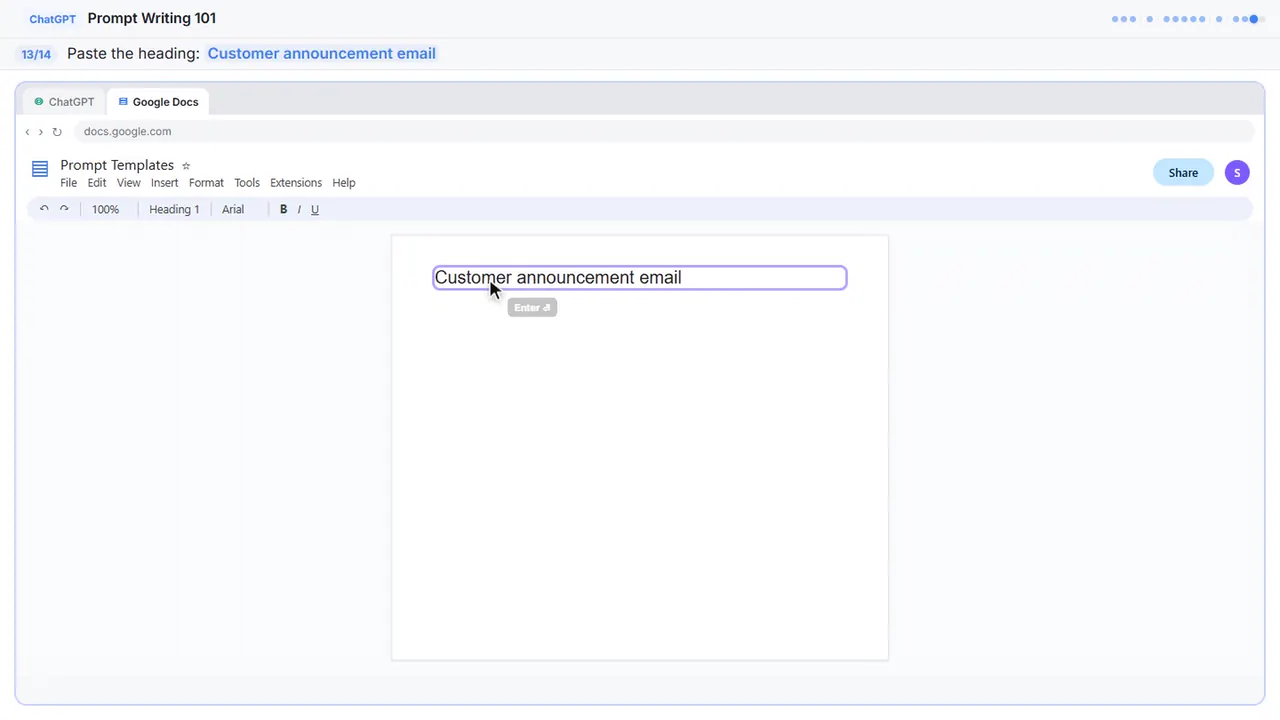
Start with a heading, so you can find this one later.
Step 14: Paste the template
Here's the same prompt, with blanks where the details change: your business, the service, and the details. Next time, copy it into ChatGPT and fill in the brackets. These four parts work for social posts, ads, and replies to customers too.
![Google Docs in Stepthrough’s practice copy, step 14 of 14 (Paste the template): the template is filled in (“Role: You are the owner of [BUSINESS].…”).](/content/guide/prompt-writing-101/step-14.webp)
Role: You are the owner of [BUSINESS].
Context: We're launching [SERVICE] for our existing customers. Details: [DETAILS].
Task: Write a short email announcing it, with one clear call to action.
Format: Under 120 words, friendly and plain, no emoji. Subject line first, then the email.
Now do it yourself, free
Reading the steps is a start. Doing them is how it sticks. The interactive lesson puts you in a practice copy of ChatGPT: you do every step yourself, it checks your work, and “Do it for me” finishes any step you get stuck on. Nothing touches your real accounts.
Practice “Prompt Writing 101: Role, Context, Task, Format” step by stepWatch the 2:20 video walkthrough · Prompt Writing 101: Role, Context, Task, Format: lesson overview · All free tutorials